> ## Documentation Index
> Fetch the complete documentation index at: https://docs.trellistech.com/llms.txt
> Use this file to discover all available pages before exploring further.
# Mobile App
> Follow the mobile workflow for admins and workers: browse tasks, find visits, clock in, follow property instructions, complete task steps, and finish the visit and shift.
[Resources](/resources/index) / Tasks & Workforce · 6:00 · English
## Written guide
Follow the mobile workflow for admins and workers: browse tasks, find visits, clock in, follow property instructions, complete task steps, and finish the visit and shift.
**In this guide**
* [Browse tasks and calendar](#mobile-app-browse-tasks-and-calendar)
* [Find your visits](#mobile-app-find-your-visits)
* [Clock in and manage your shift](#mobile-app-clock-in-and-manage-your-shift)
* [Start a visit and open the manual](#mobile-app-start-a-visit-and-open-the-manual)
* [Complete the task steps](#mobile-app-complete-the-task-steps)
* [Mark the task as completed](#mobile-app-mark-the-task-as-completed)
* [Complete the visit](#mobile-app-complete-the-visit)
* [Review completed work and clock out](#mobile-app-review-completed-work-and-clock-out)
### Browse tasks and calendar
Video · 0:22
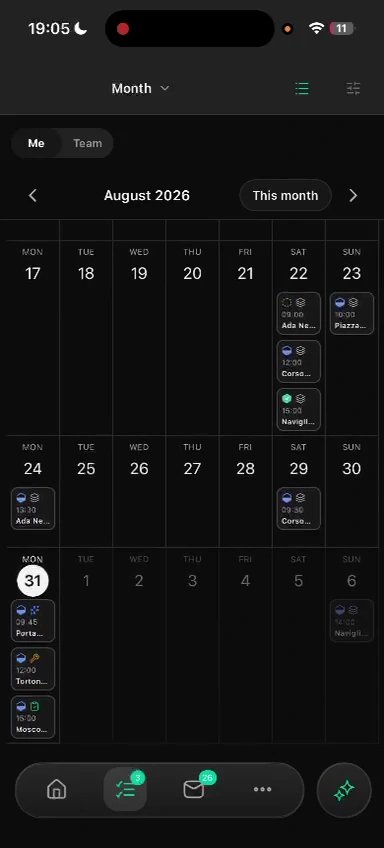
Open Tasks to see work grouped by status, open a task to review its details, or switch to the calendar and month views. The walkthrough uses an admin account; admins can also create tasks and assign workers.
### Find your visits
Video · 0:54
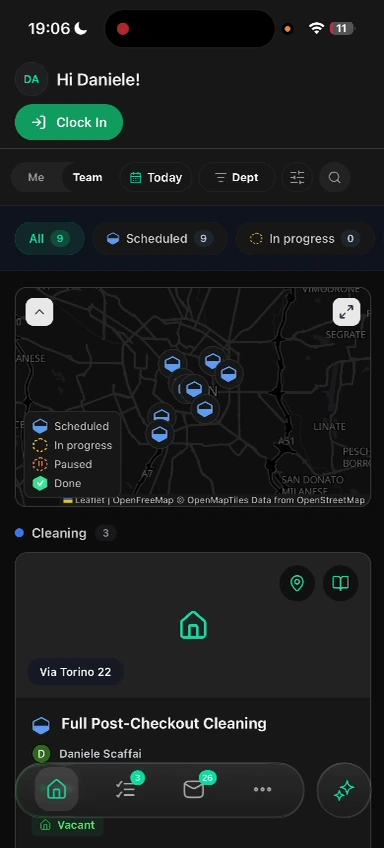
On Home, use Me to see your own visits. Admins can switch to Team to review visits across workers and change the selected date. A visit groups tasks at the same property with the same assignees.
### Clock in and manage your shift
Video · 1:31
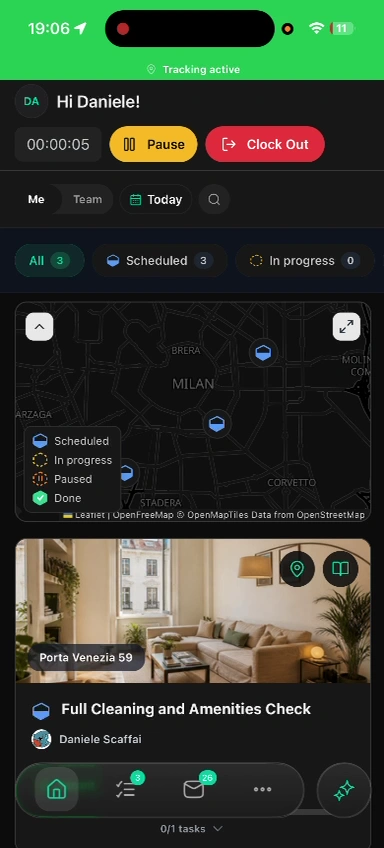
With a shift set up, tap Clock In to start it. Use Pause and Resume during the shift, then Clock Out when you finish.
### Start a visit and open the manual
Video · 1:52
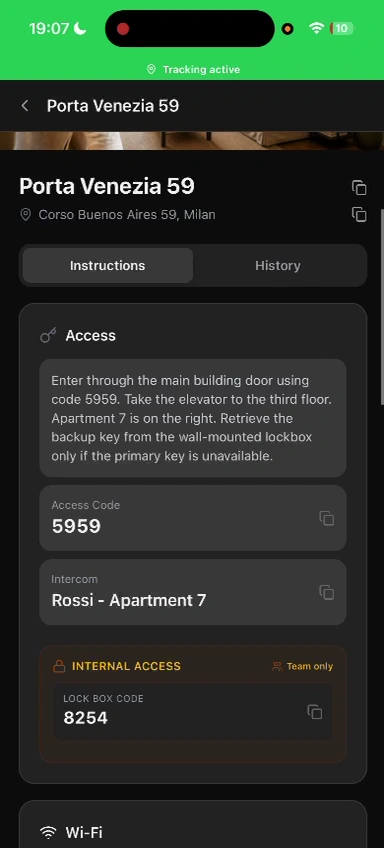
Use the location button for directions, then start the visit when you begin work. Open the property manual for the available access instructions, Wi-Fi details, support contacts, and appliance guidance.
### Complete the task steps
Video · 2:32
Open a task and tap Open Steps. Work through each section, answer the required questions, and add photos or notes where requested. The floating AI button is available if you need help while working.
### Mark the task as completed
Video · 4:04
After completing the required steps, tap Mark as completed and enter a completion summary. Add a photo or video if needed, then confirm. In this walkthrough, completing the task and completing the visit are separate actions.
### Complete the visit
Video · 4:29
Once the visit’s tasks are finished, tap Complete Visit. Enter a visit summary or generate one with AI, review it, and confirm completion. The recording demonstrates manual completion; workspace settings can change this flow.
### Review completed work and clock out
Video · 5:25
Review the completed visit and its summary from Home. When your work is finished, tap Clock Out to end the shift.
This documentation is built and hosted on [Mintlify](https://mintlify.com), a developer documentation platform.
 On Home, use Me to see your own visits. Admins can switch to Team to review visits across workers and change the selected date. A visit groups tasks at the same property with the same assignees.
### Clock in and manage your shift
Video · 1:31
On Home, use Me to see your own visits. Admins can switch to Team to review visits across workers and change the selected date. A visit groups tasks at the same property with the same assignees.
### Clock in and manage your shift
Video · 1:31
 With a shift set up, tap Clock In to start it. Use Pause and Resume during the shift, then Clock Out when you finish.
### Start a visit and open the manual
Video · 1:52
With a shift set up, tap Clock In to start it. Use Pause and Resume during the shift, then Clock Out when you finish.
### Start a visit and open the manual
Video · 1:52
 Use the location button for directions, then start the visit when you begin work. Open the property manual for the available access instructions, Wi-Fi details, support contacts, and appliance guidance.
### Complete the task steps
Video · 2:32
Use the location button for directions, then start the visit when you begin work. Open the property manual for the available access instructions, Wi-Fi details, support contacts, and appliance guidance.
### Complete the task steps
Video · 2:32
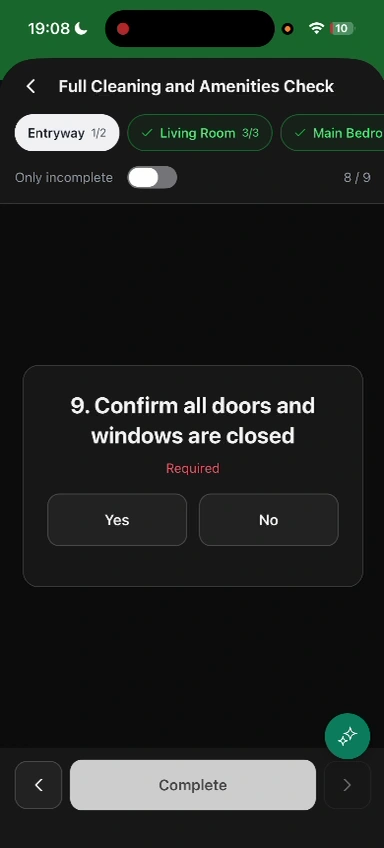 Open a task and tap Open Steps. Work through each section, answer the required questions, and add photos or notes where requested. The floating AI button is available if you need help while working.
### Mark the task as completed
Video · 4:04
Open a task and tap Open Steps. Work through each section, answer the required questions, and add photos or notes where requested. The floating AI button is available if you need help while working.
### Mark the task as completed
Video · 4:04
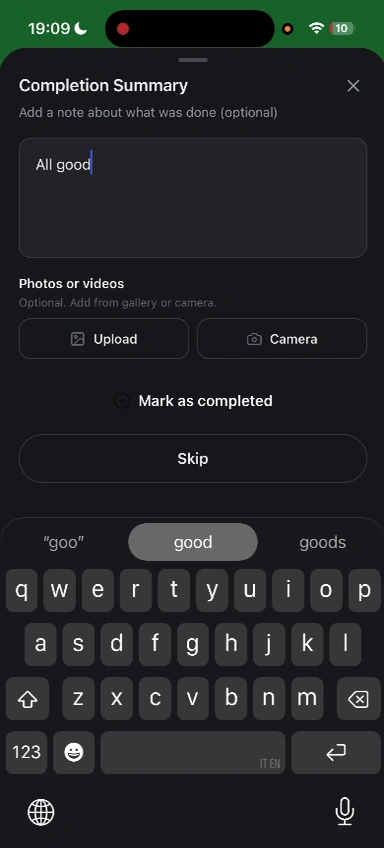 After completing the required steps, tap Mark as completed and enter a completion summary. Add a photo or video if needed, then confirm. In this walkthrough, completing the task and completing the visit are separate actions.
### Complete the visit
Video · 4:29
After completing the required steps, tap Mark as completed and enter a completion summary. Add a photo or video if needed, then confirm. In this walkthrough, completing the task and completing the visit are separate actions.
### Complete the visit
Video · 4:29
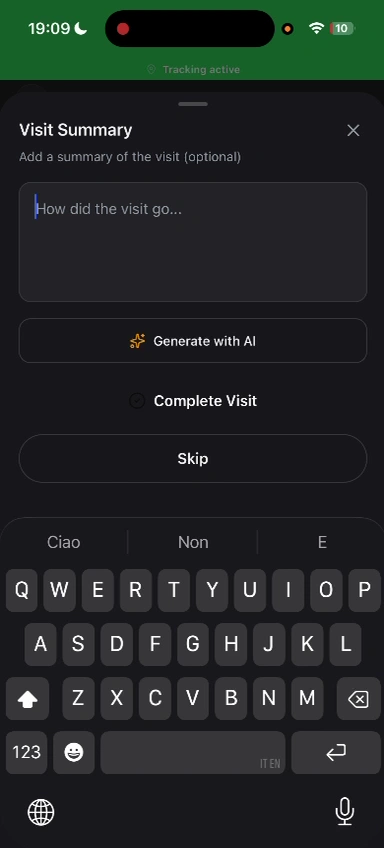 Once the visit’s tasks are finished, tap Complete Visit. Enter a visit summary or generate one with AI, review it, and confirm completion. The recording demonstrates manual completion; workspace settings can change this flow.
### Review completed work and clock out
Video · 5:25
Once the visit’s tasks are finished, tap Complete Visit. Enter a visit summary or generate one with AI, review it, and confirm completion. The recording demonstrates manual completion; workspace settings can change this flow.
### Review completed work and clock out
Video · 5:25
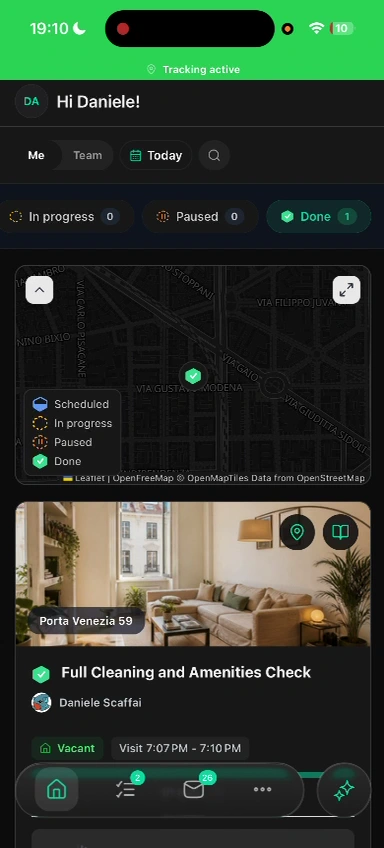 Review the completed visit and its summary from Home. When your work is finished, tap Clock Out to end the shift.
This documentation is built and hosted on [Mintlify](https://mintlify.com), a developer documentation platform.
Review the completed visit and its summary from Home. When your work is finished, tap Clock Out to end the shift.
This documentation is built and hosted on [Mintlify](https://mintlify.com), a developer documentation platform.