> ## Documentation Index
> Fetch the complete documentation index at: https://docs.trellistech.com/llms.txt
> Use this file to discover all available pages before exploring further.
# Task Creation
> Create a task from the task sidebar or ask the agent to create one, then review its details and assignment.
[Resources](/resources/index) / Tasks & Workforce · 5:40 · English
## Written guide
Create a task from the task sidebar or ask the agent to create one, then review its details and assignment.
**In this guide**
* [Define the task](#task-creation-define-the-task)
* [Add the working instructions](#task-creation-add-the-working-instructions)
* [Assign and schedule](#task-creation-assign-and-schedule)
* [Create with the agent](#task-creation-create-with-the-agent)
### Define the task
Video · 0:29
Open Create Task, enter a title and urgency, and distinguish an issue from a planned activity. Select the property, origin, department, required skills and relevant property element.
### Add the working instructions
Video · 1:20
Choose a template for the checklist and add a description. Include approvals or blockers when needed, then link storage, supplies, a reservation and supporting attachments.
### Assign and schedule
Video · 2:20
Choose an assignee, scheduled date, time and estimated duration before creating the task. Open the saved task to review the information.
### Create with the agent
Video · 4:36
Describe the task and provide the property, department, urgency, schedule and intended assignee. Answer any clarification requests, then open the created task to check its property, details and assignment. The recording also demonstrates a request to consider maintenance-team availability.
This documentation is built and hosted on [Mintlify](https://mintlify.com), a developer documentation platform.
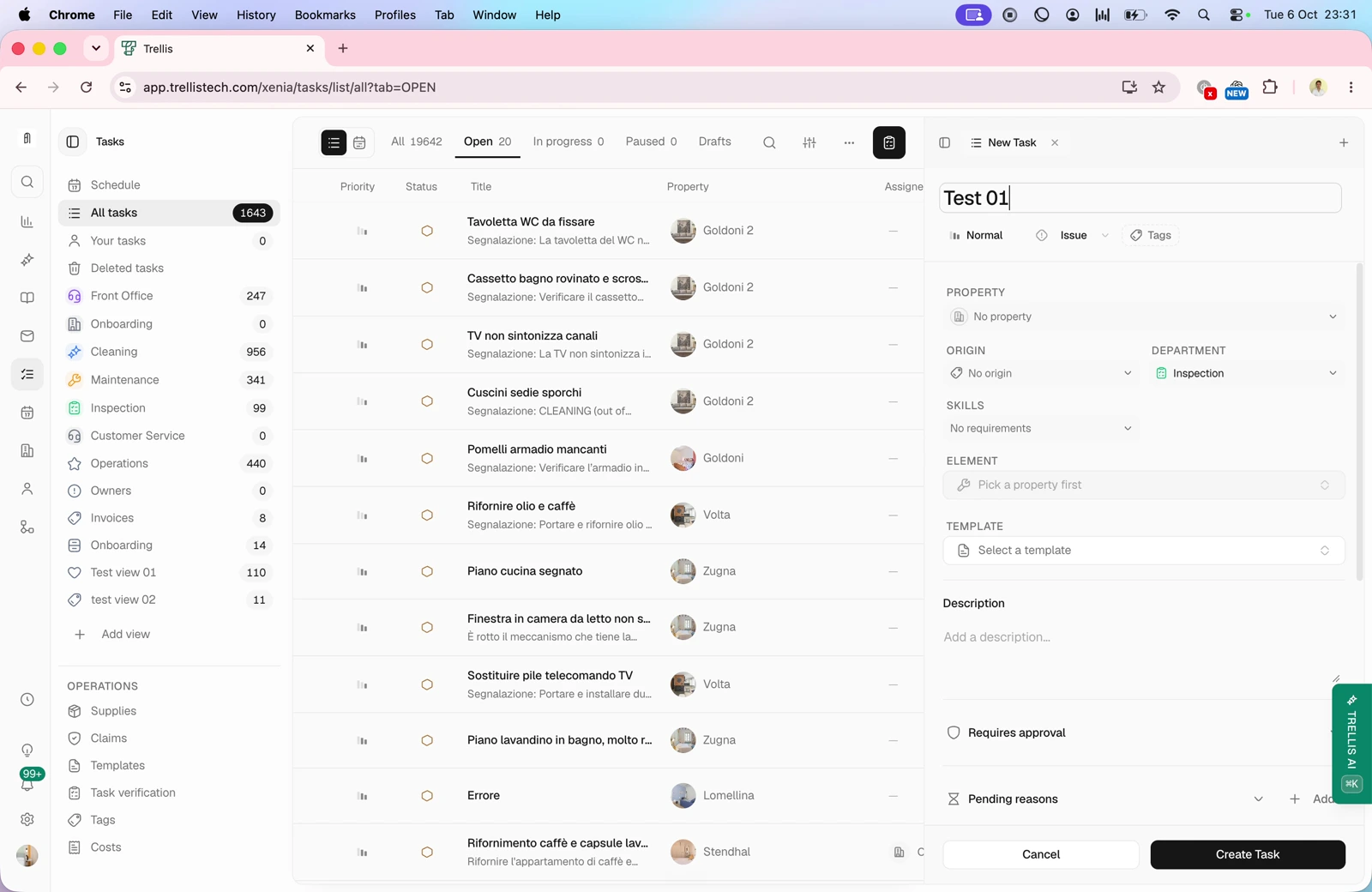
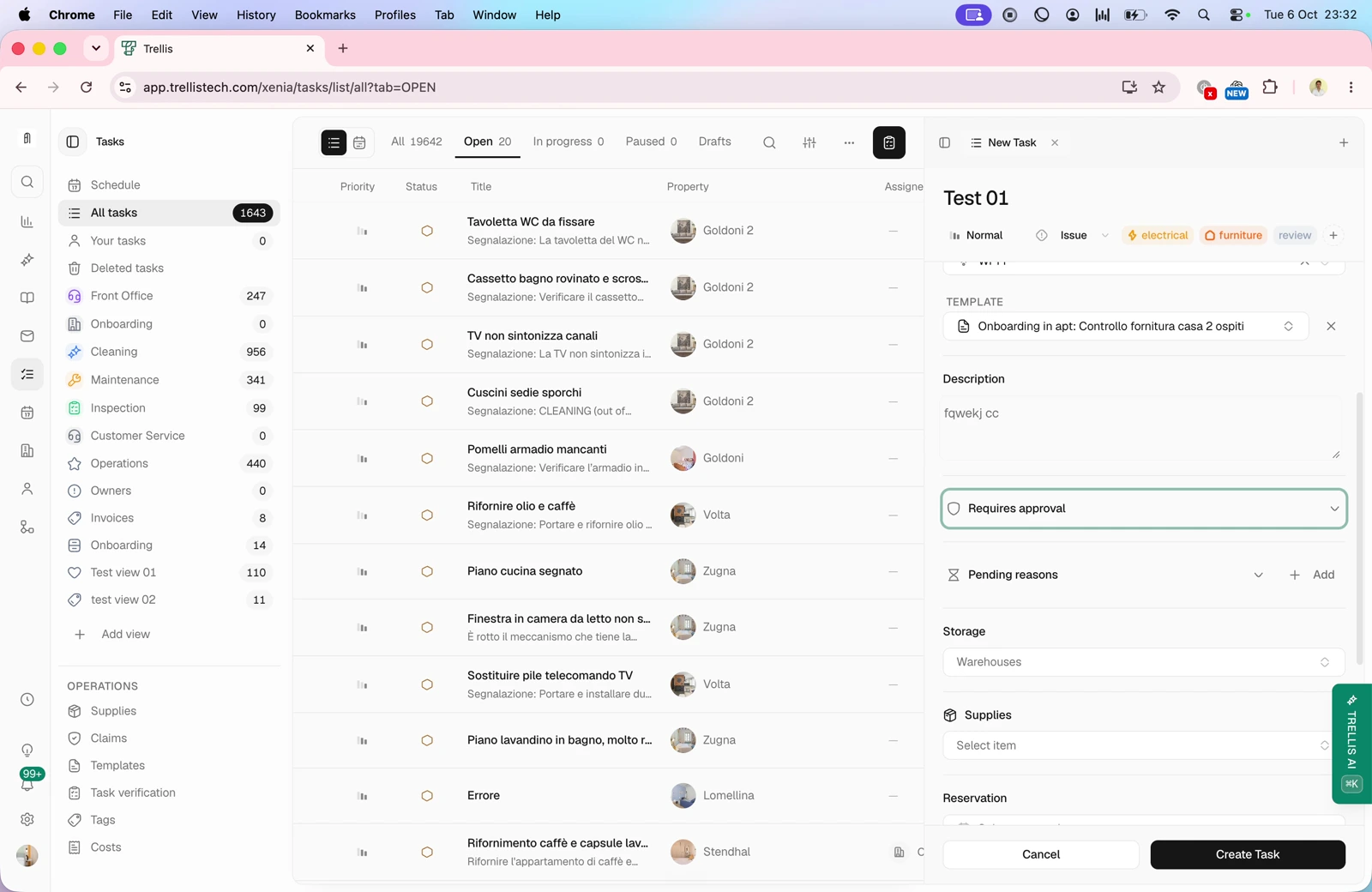 Choose a template for the checklist and add a description. Include approvals or blockers when needed, then link storage, supplies, a reservation and supporting attachments.
### Assign and schedule
Video · 2:20
Choose a template for the checklist and add a description. Include approvals or blockers when needed, then link storage, supplies, a reservation and supporting attachments.
### Assign and schedule
Video · 2:20
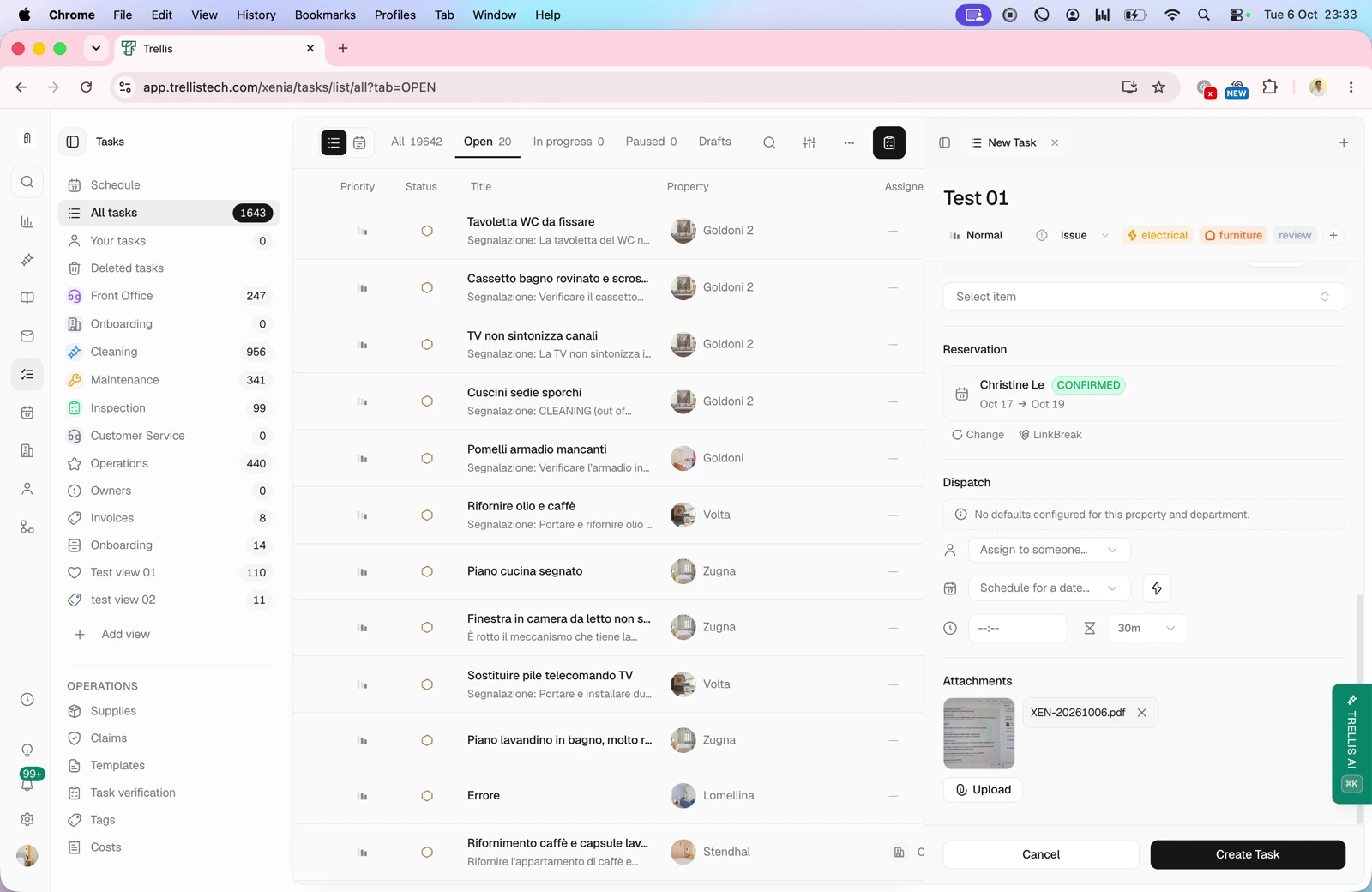 Choose an assignee, scheduled date, time and estimated duration before creating the task. Open the saved task to review the information.
### Create with the agent
Video · 4:36
Choose an assignee, scheduled date, time and estimated duration before creating the task. Open the saved task to review the information.
### Create with the agent
Video · 4:36
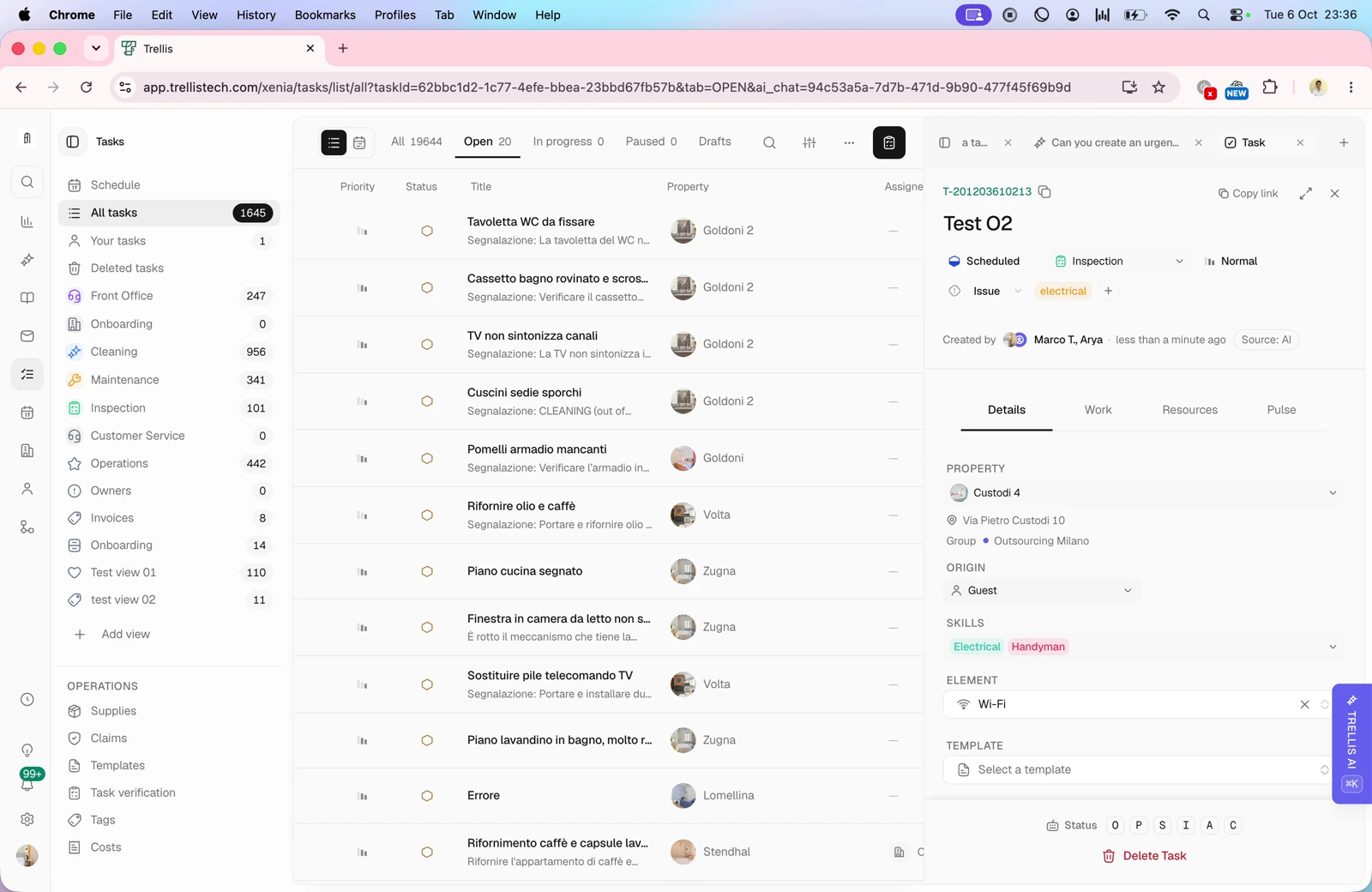 Describe the task and provide the property, department, urgency, schedule and intended assignee. Answer any clarification requests, then open the created task to check its property, details and assignment. The recording also demonstrates a request to consider maintenance-team availability.
This documentation is built and hosted on [Mintlify](https://mintlify.com), a developer documentation platform.
Describe the task and provide the property, department, urgency, schedule and intended assignee. Answer any clarification requests, then open the created task to check its property, details and assignment. The recording also demonstrates a request to consider maintenance-team availability.
This documentation is built and hosted on [Mintlify](https://mintlify.com), a developer documentation platform.