
Use the AI chat sidebar
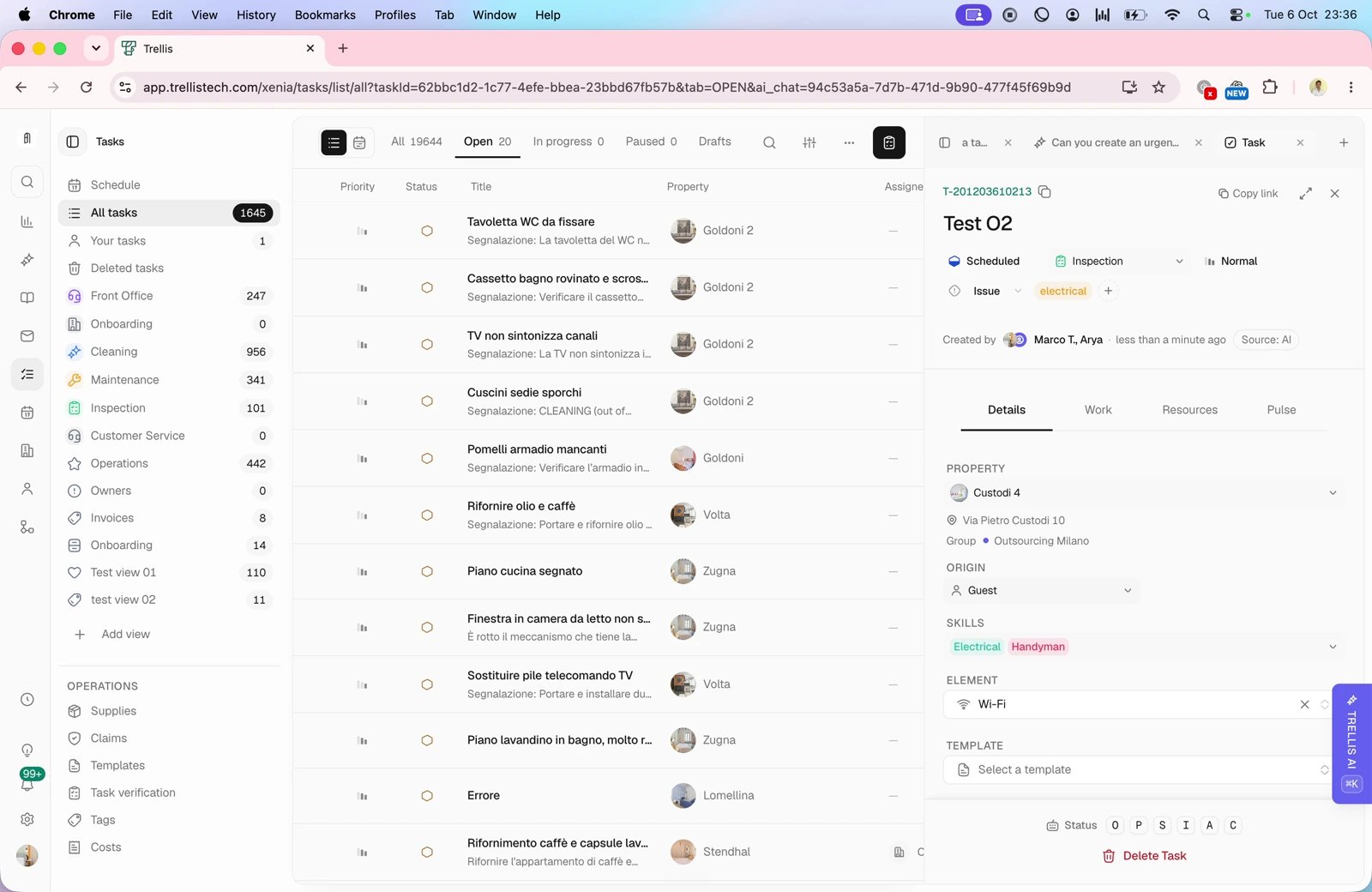
@ to attach the relevant property, person, file, conversation, reservation, task, template, agent, or workflow. Then describe the result you want: “Summarize this guest request and create a maintenance task for tomorrow,” for example.
For a task, include the department, priority, timing, and assignee if known. Answer clarifying questions in the same chat. If an action requires approval, review the exact target and proposed change before deciding. Open the resulting task to confirm it was created with the requested details.
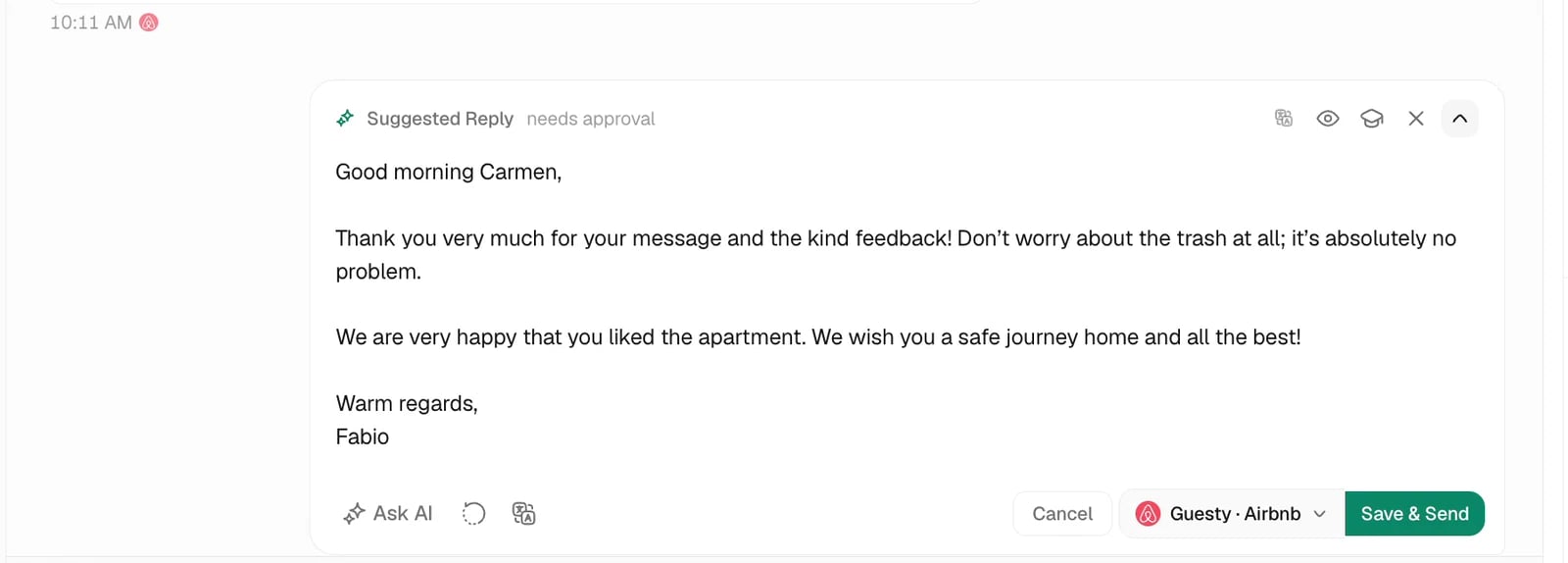
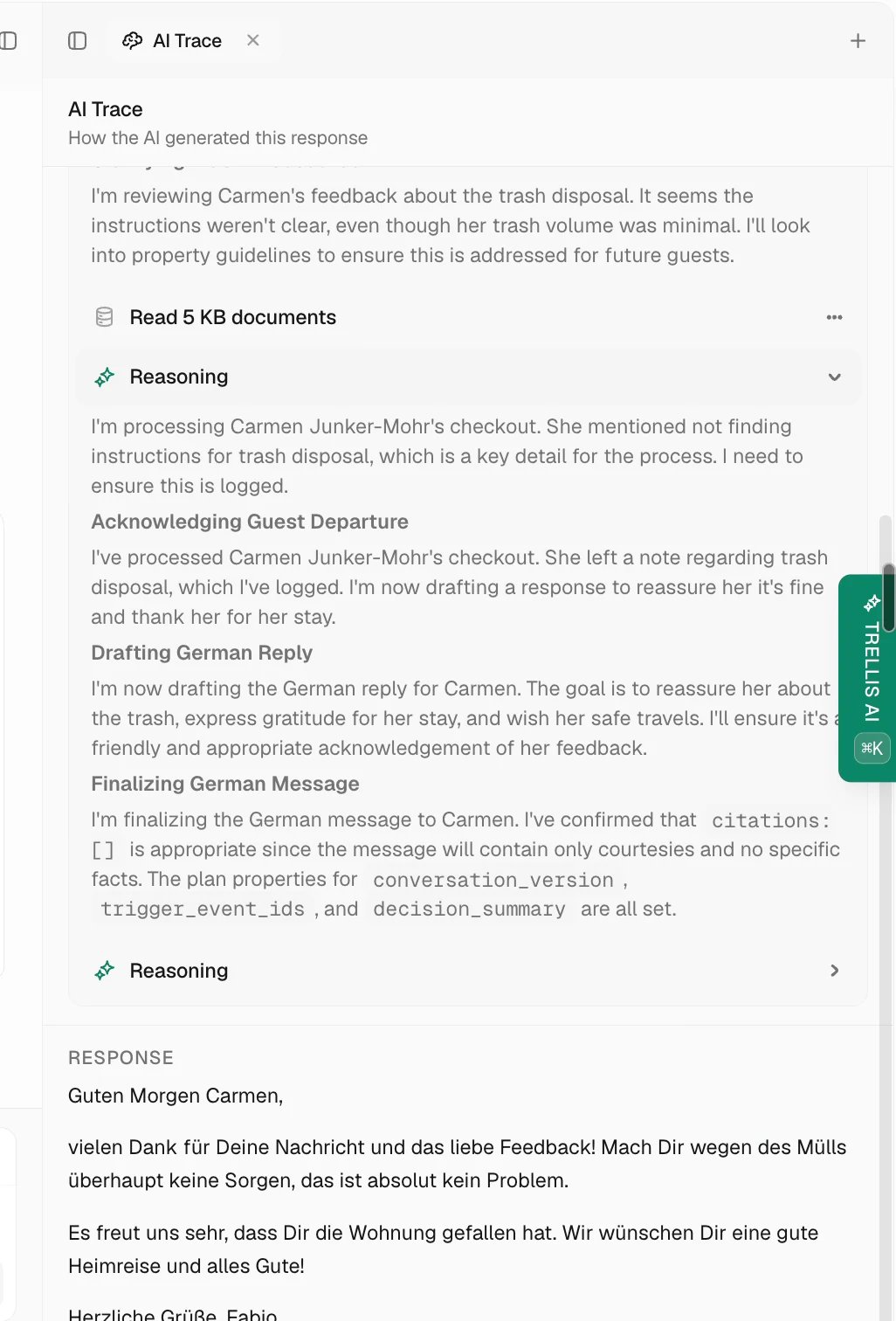
Review suggested replies in Inbox
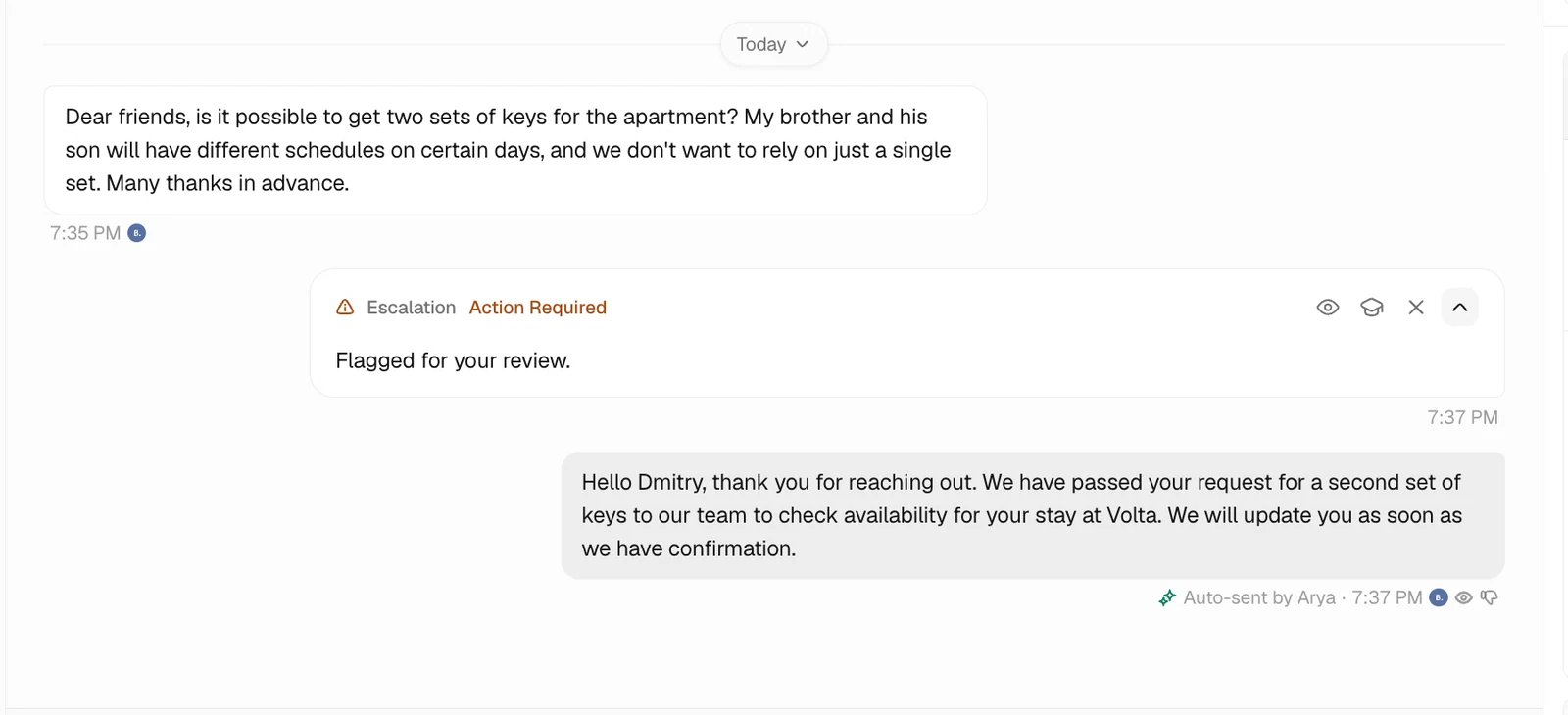
Handle an escalation
Write clear agent instructions
Set the agent’s role and tone in AI Hub. Put scenario-specific handling in Policies and property facts on the property.Control permissions
In Access & Safety, set each tool to Allowed, Ask first, or Off. Ask first requires review even when the autonomy mode otherwise allows actions within limits. See Agent permissions and approvals.Look up operating details
Ask about the record and time period you need. For example, “Show open maintenance tasks for Apartment 4 tomorrow” is easier to verify than “What needs doing?” The agent can look up permitted reservations, properties, tasks, reviews, contacts, and available connected calendar information. If several records match, resolve the ambiguity before a change. Check the property, guest, and dates in any linked result.Use documents, skills, and memory
AI Hub controls the agent’s approved knowledge.- Documents contain reference material. Use Policies for scoped handling rules and property records for facts that vary by home.
- Skills are step-by-step instructions the agent can follow.
- Memory helps the agent remember approved preferences and repeat procedures.
- Permissions decide which agents can use which documents and skills.
Read Slack files and shared context
When Slack is connected and permitted, the agent can use supported channel messages and files. It can summarize shared text files, describe supported images, and use that context while answering team questions. The agent needs a connected Slack account with access to the channel and files.Review linked records in chat
When the agent references a record, Trellis can show record pills, inline lists, and detail panels. Use these to check the source before you act. You may see:- A reservation, property, task, contact, review, or workflow link.
- An inline list, such as several matching tasks or reservations.
- A detail panel with the related record and a breadcrumb trail when you click deeper.
Review agent activity
Use Insights > Pulse to review recent AI activity. Pulse helps managers see what the agent did, where it happened, and whether anything needs attention. Activity details can show:- The conversation, task, property, or reservation involved.
- The action the agent took.
- The result or error.
- Any approval that is still waiting for review.
Meetings
Open the agent’s Meetings area to join calls and review recordings, transcripts, and notes. Follow Meetings to configure attendance and recap delivery.Set up each channel
Connect the accounts the agent needs, then set its read and send permissions.- Email: connect the mailbox.
- Slack: connect the workspace and choose notification channels.
- WhatsApp and Phone and SMS: connect the sending account or number.
- Telegram: configure the agent’s connected Telegram account and message permissions.
- Meetings: connect the calendar and choose joining rules.
Use workflows and scheduled work
Use a workflow when the same event or schedule should start a defined process. An AI step can interpret a request or prepare a draft; the following steps determine whether it creates a task, asks for approval, or sends a message. Review those steps and their failure or timeout paths before enabling the workflow. For a message that must wait for a person, follow Approve a sensitive message. Dedicated automatic actions have their own behavior, so do not assume every workflow send asks again at runtime.Common problems
The agent gave a weak answer
The agent gave a weak answer
Check the record, source information, and the agent’s access. Correct the underlying fact or handling rule, then repeat the question.
The agent cannot send a message
The agent cannot send a message
Check the connected channel, recipient details, and tool permissions. A draft or pending approval still needs its next step before sending.
The agent asked for clarification
The agent asked for clarification
Answer in the same chat with the missing property, person, date, or decision. Check the resolved record before approving a change.
A meeting was not joined
A meeting was not joined
Review the connected account, meeting link, join rules, and the agent’s access to that meeting type.
Related articles
- AI Hub — configure behavior and knowledge.
- Fix wrong AI information.
- Workflows — recurring processes and run history.
- Artifacts — find files and reports created by the agent.