Before you begin
You will need:- A Trellis workspace (don’t have one? Contact our team to get started)
- Admin or Manager access to your workspace
- Login credentials for your property management system (PMS)
Most teams complete setup in under 10 minutes. Your existing properties, reservations, and guest data will sync automatically once you connect your PMS.
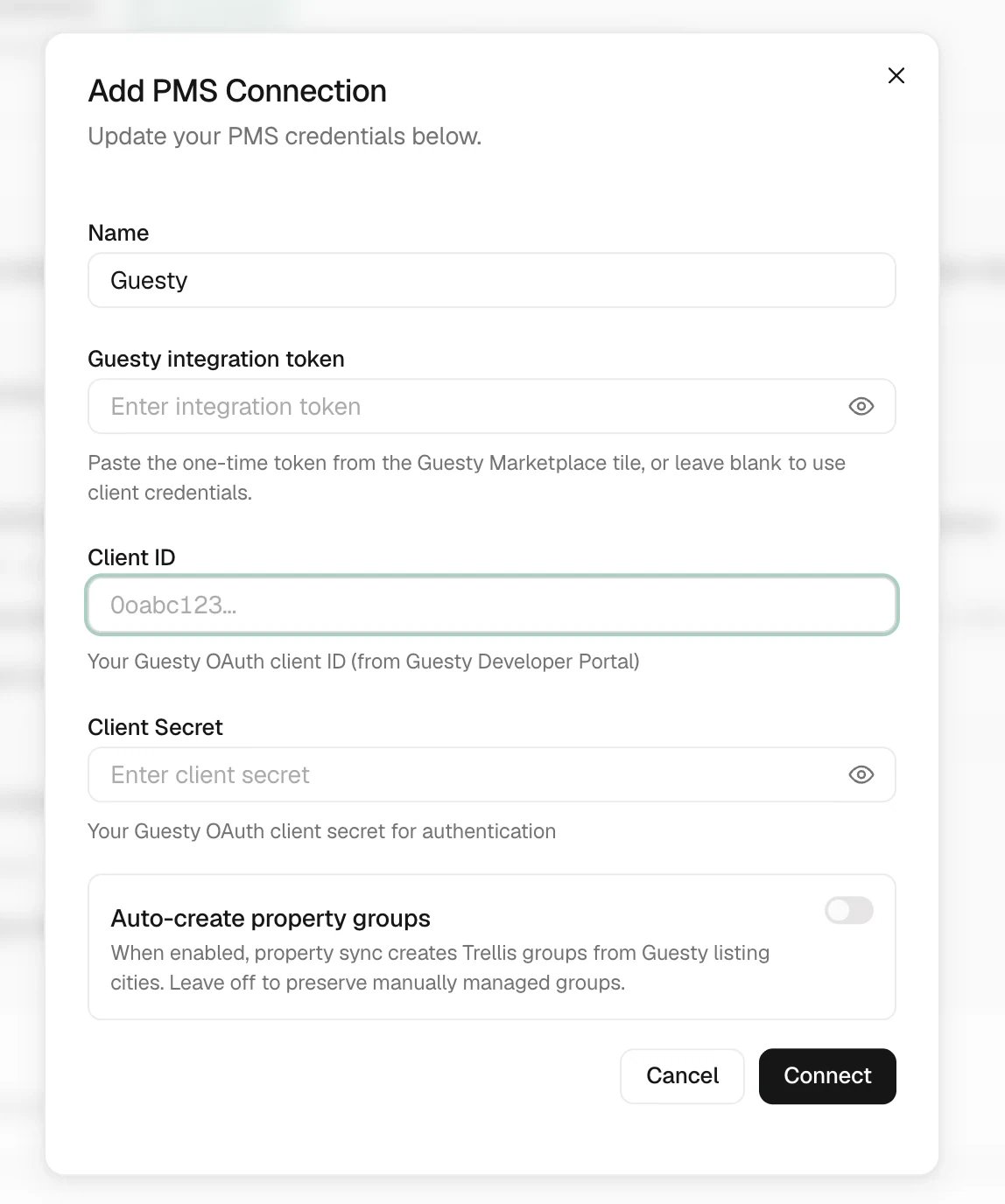
Step 1: Connect your property management system
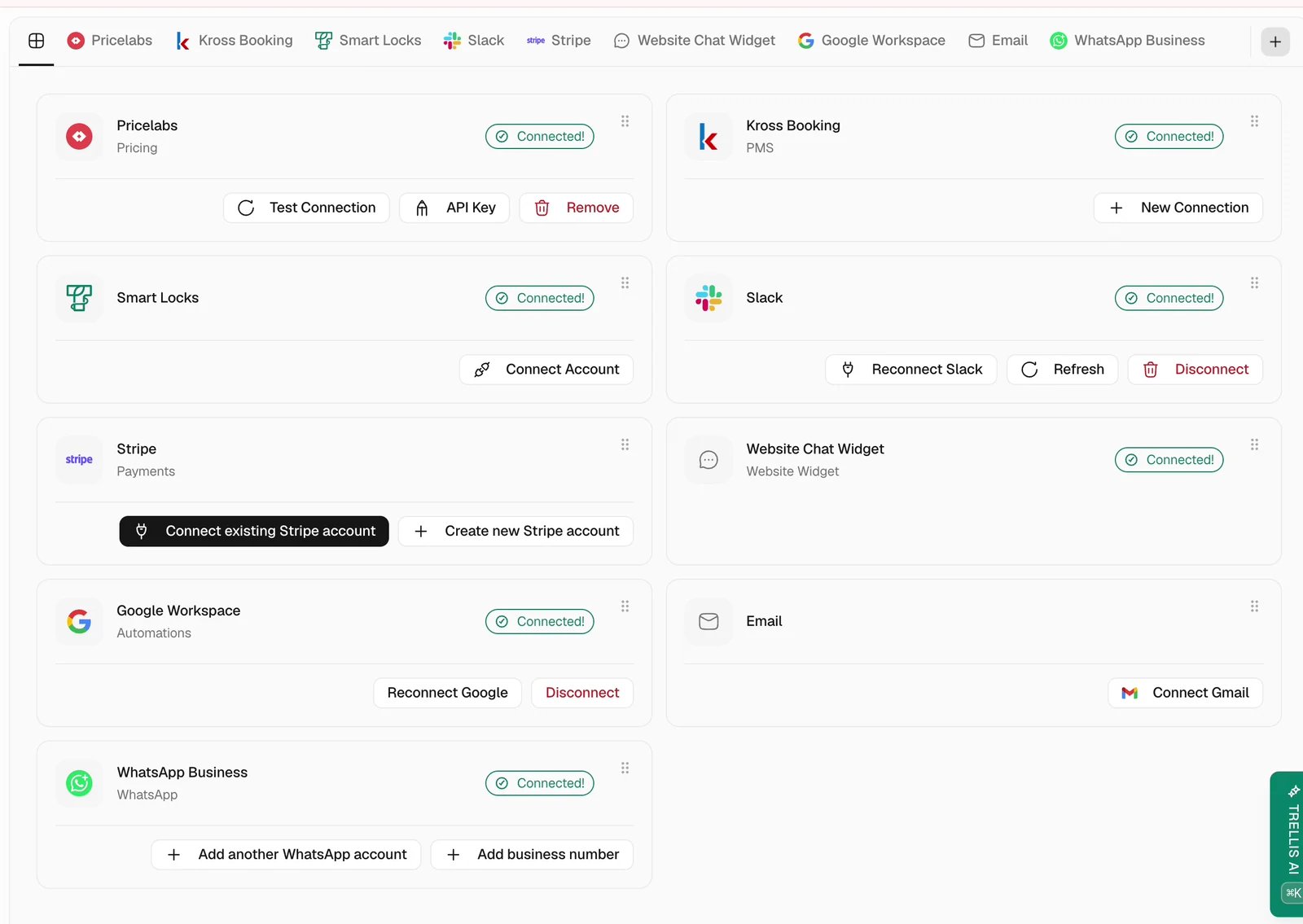
This is the most important step — once your PMS is connected, Trellis automatically imports your properties, reservations, and guest information.Choose your PMS
Select your property management system from the list. Trellis works with:
- Guesty
- Krossbooking
- Breezeway
- Hostaway
- Calry
Authorize the connection
Follow the prompts to log into your PMS and grant Trellis permission to access your data. This is a secure, read-and-write connection that keeps everything in sync.
Wait for the initial sync
Trellis will begin importing your properties, reservations, and guest data. This usually takes 2-5 minutes depending on the size of your portfolio.You will see a progress indicator in the Integrations panel. Once complete, head to Properties to verify everything looks right.
Step 2: Set up your AI agent
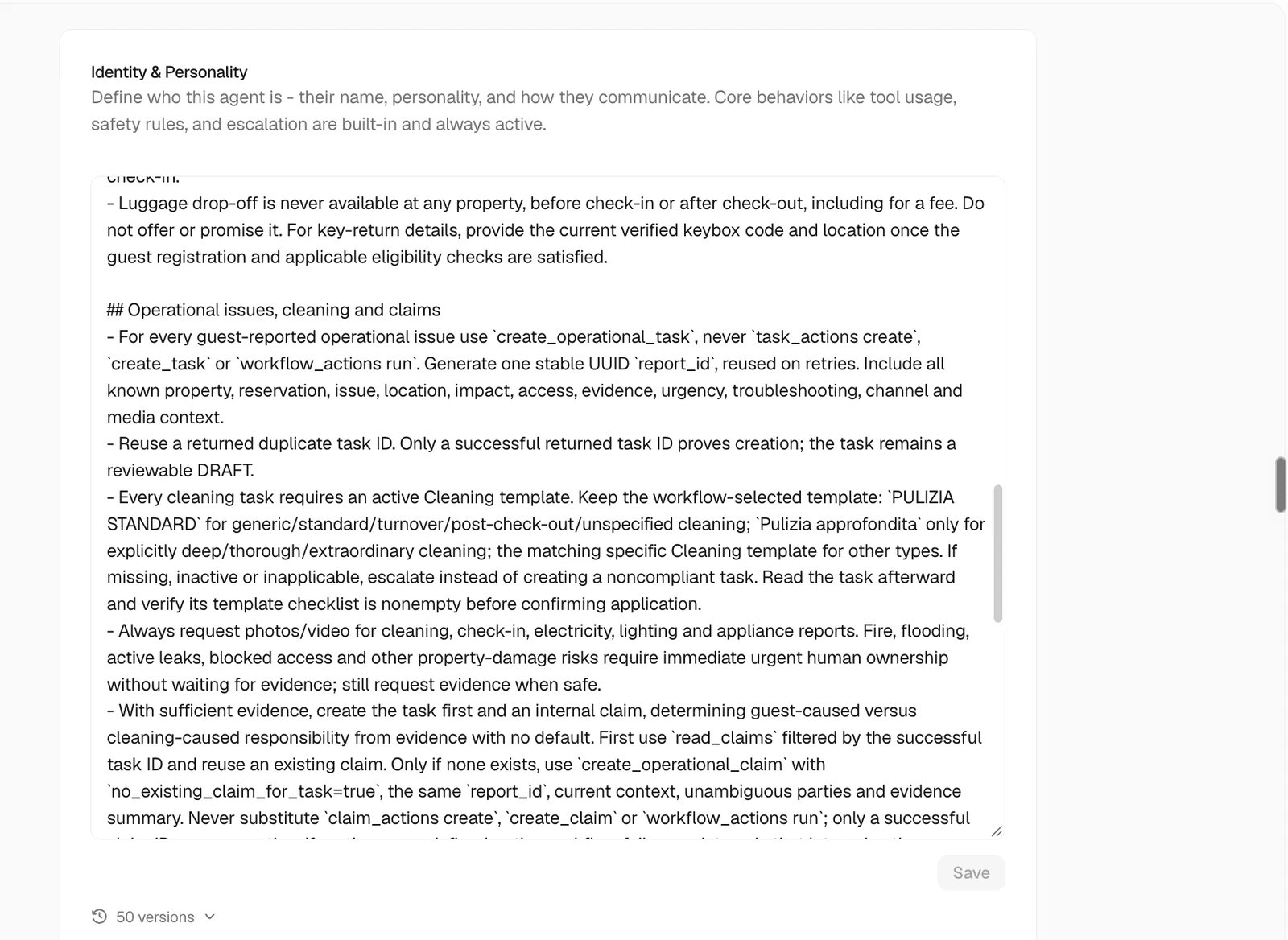
Your AI agent can answer guest questions, draft replies, and handle common requests — using your specific property details, house rules, and check-in instructions.Write your agent instructions
Tell the AI how to represent your business. Good instructions include:
- Your brand voice and tone (friendly, professional, casual)
- Check-in and check-out procedures
- House rules and policies
- Common FAQs (parking, Wi-Fi, late checkout)
- What to escalate to a human (refund requests, complaints, emergencies)
Choose autopilot settings
Decide how much autonomy your AI agent should have:You can configure autopilot separately for different contact types — guests, owners, and vendors.
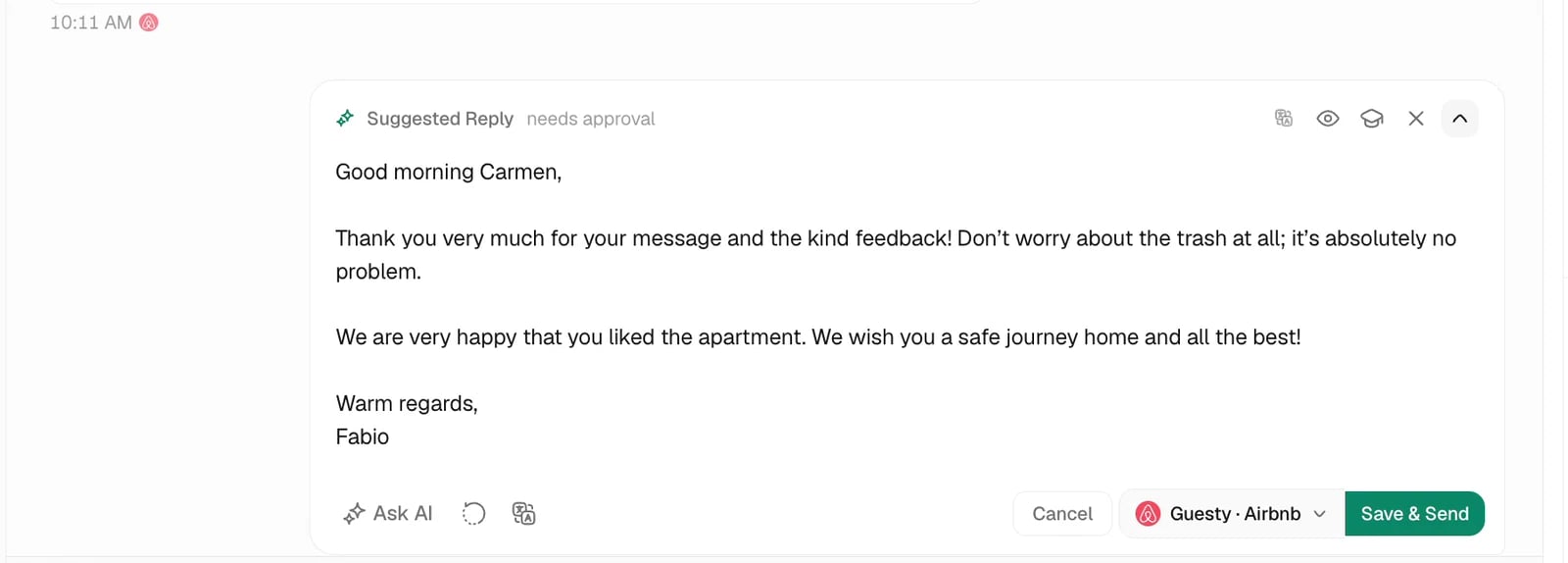
- Review mode (recommended to start)
- Autopilot mode
The AI drafts replies, but you review and approve each one before it is sent. This is the safest way to get comfortable with the AI.
Step 3: Invite your team
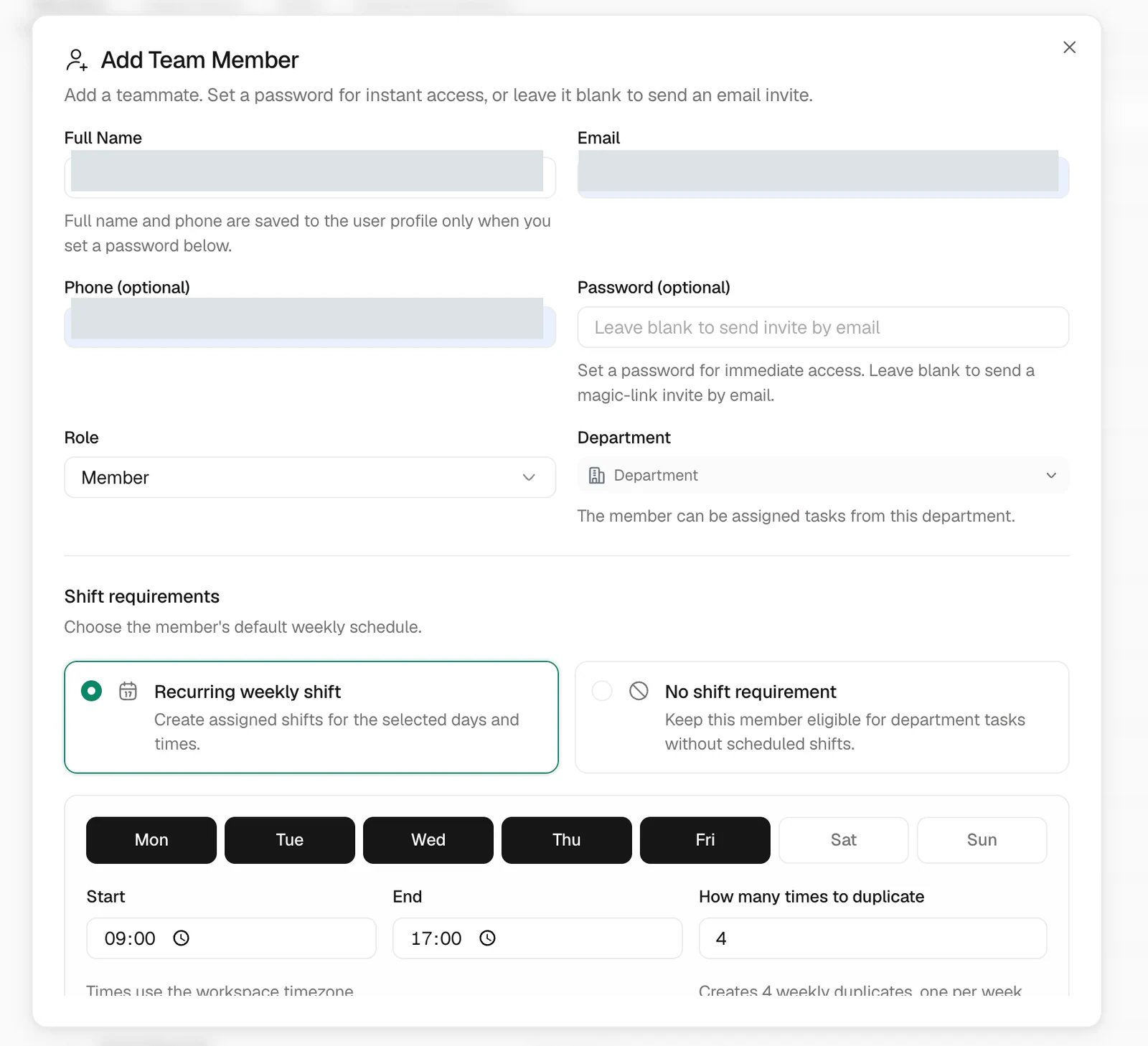
Bring your team members, cleaners, and coordinators into Trellis so everyone can collaborate.Invite members
Click Invite and enter your team member’s email address. Choose their role:
| Role | What they can do |
|---|---|
| Admin | Full access to all settings, integrations, and data |
| Manager | Manage properties, tasks, inbox, and team members |
| Member | Work on assigned tasks, respond to messages |
| Viewer | Read-only access to properties and conversations |
Step 4: Set up your first automation
Automations save you hours of repetitive work every week. Start with one of these popular templates:Check-in message
Automatically send guests their check-in instructions before arrival — with the right property details, door codes, and parking info.
Checkout cleaning task
When a guest checks out, Trellis automatically creates a cleaning task and assigns it to the right team member.
Escalation alerts
Get notified immediately when a guest reports an issue the AI cannot handle — like a complaint, a safety concern, or a refund request.
Owner monthly reports
Send property owners a summary of bookings, revenue, and maintenance activity at the end of each month.
Choose a template
Browse the template gallery and select one that matches your needs. Each template comes pre-configured — you just need to customize the details.
You are all set
With your PMS connected, AI agent configured, team invited, and first automation running, you are ready to manage your properties with Trellis.Explore Properties
See your full portfolio, manage owner relationships, and organize property details.
Open the Inbox
Start responding to guest messages — with AI assistance.
Manage Tasks
View upcoming cleaning, maintenance, and inspection tasks.
Learn about AI
Discover everything your AI agent can do for you.
Need help? Reach out to our team at support@trellistech.com — we are happy to walk you through setup or answer any questions.