Documentation Index
Fetch the complete documentation index at: https://docs.trellistech.com/llms.txt
Use this file to discover all available pages before exploring further.
One inbox for all your conversations
Stop switching between supported PMS threads, WhatsApp, SMS, and email to keep up with messages. Trellis brings supported channels into a single, organized inbox so your team can work from one timeline.How the inbox is organized
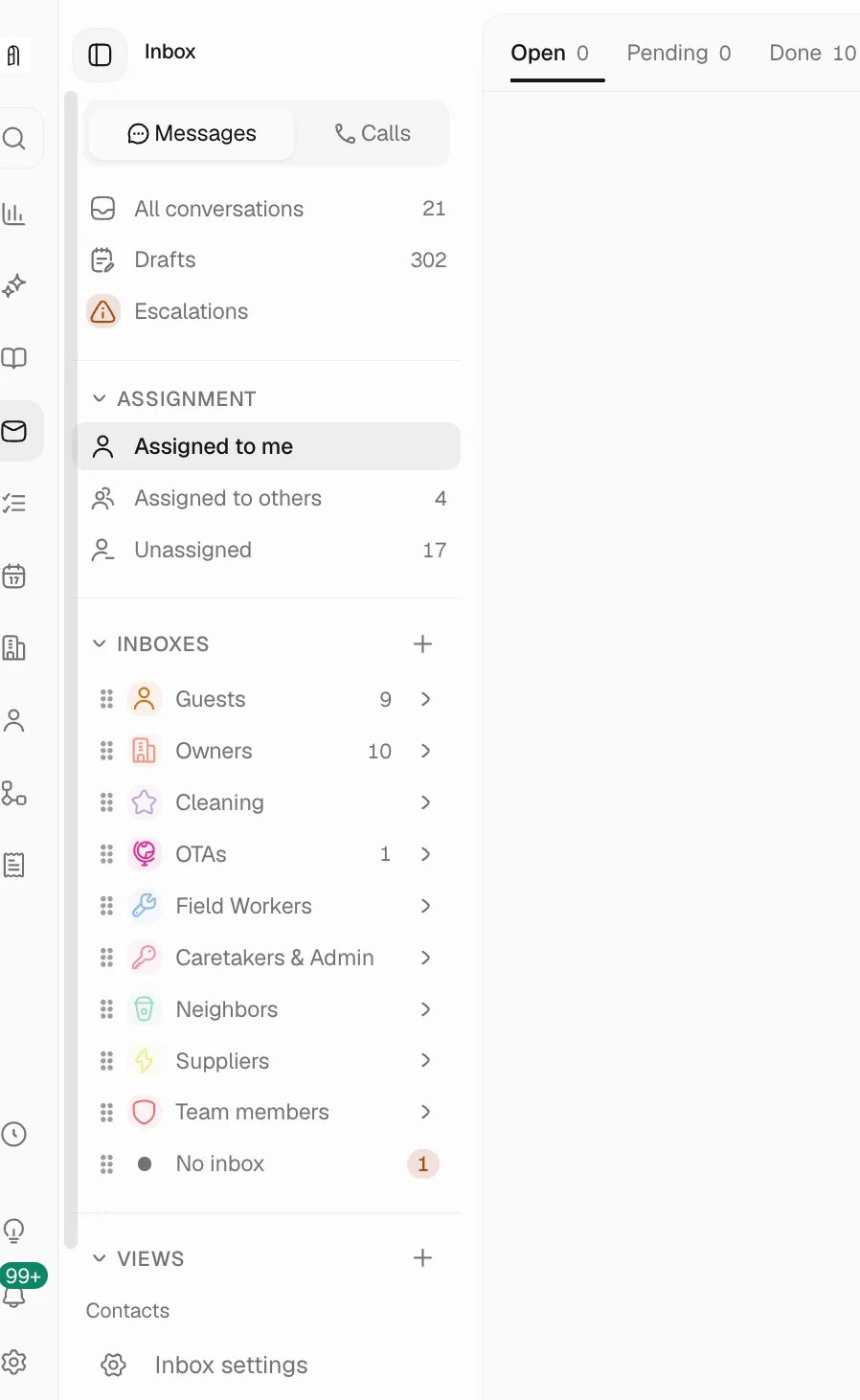
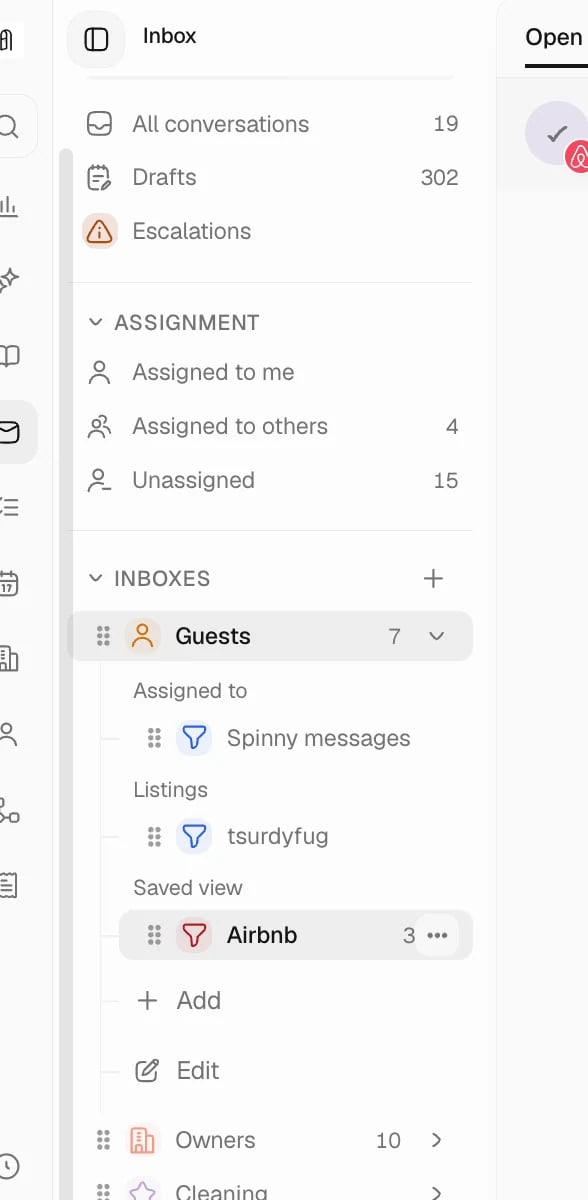
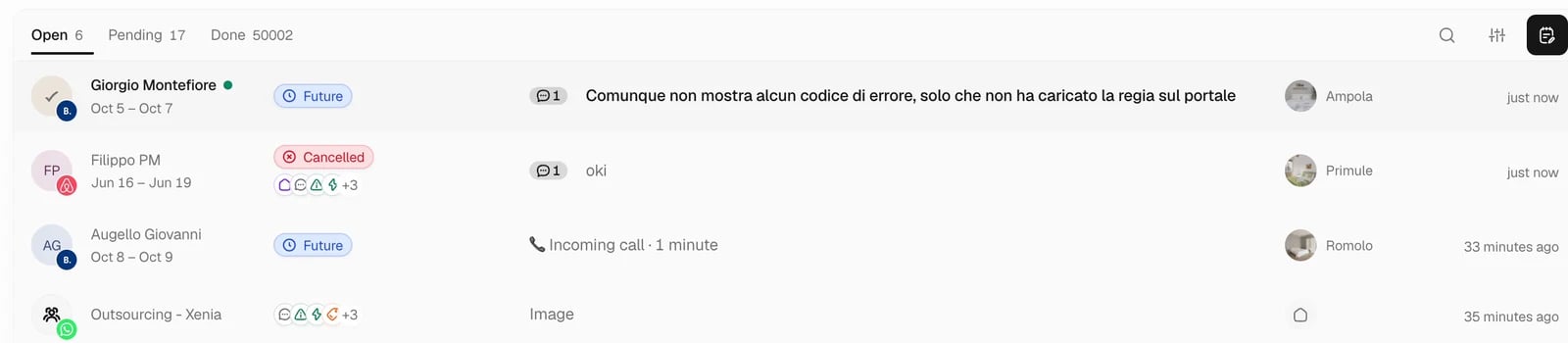
The inbox automatically sorts your conversations so you can focus on what needs attention right now.- Todo
- Follow Up
- All
- Escalations
Conversations that need your attention - unread messages, items assigned to you, and anything flagged as urgent. Start here every day.
Supported channels
Trellis brings together messages from all the places your guests, owners, and vendors reach you:Airbnb
Guest messages from Airbnb, synced through your PMS.
Booking.com
Booking.com guest messages, automatically imported.
VRBO / Expedia
Conversations from VRBO and Expedia guests.
Direct WhatsApp conversations with guests, owners, and vendors.
Email threads organized alongside your other conversations.
SMS
Text message conversations with guests and team members.
Voice calls
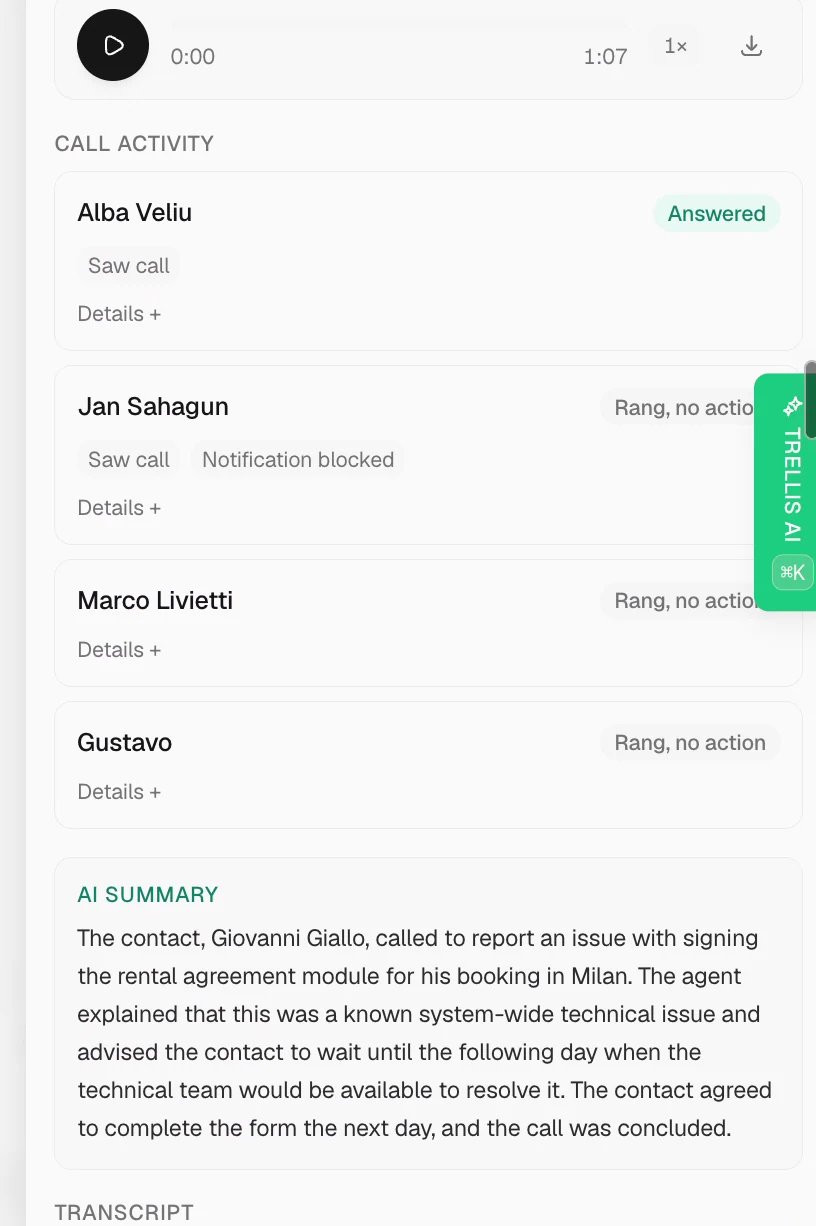
Make and receive phone calls directly from the Trellis mobile app. Call history and details appear alongside your other conversations.
Every message shows which channel it came from, so you always know how a guest reached out. Replies are sent back through the same channel automatically.
Voice calls
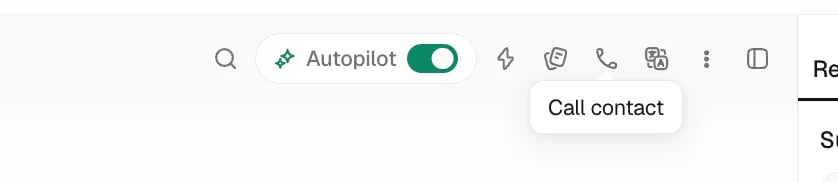
Call guests, owners, and vendors directly from the Trellis mobile app - no need to switch to your phone’s dialer or look up contact numbers.Making a call
Receiving calls
When someone calls your Trellis number, an incoming call screen appears on your mobile device. You can accept or decline the call directly from the notification.Connecting email accounts
Gmail
Connect your Gmail accounts so email conversations appear in the inbox alongside messages from other channels. Trellis supports multiple Gmail accounts per workspace - useful when different team members or departments use separate email addresses.Connect an account
Click Connect Gmail and sign in with the Google account you want to use. Trellis requests permission to read and send emails on your behalf.
Each Gmail account is listed separately so you can see at a glance which addresses are active. Disconnecting one account does not affect the others.
Setting a default inbox per email address
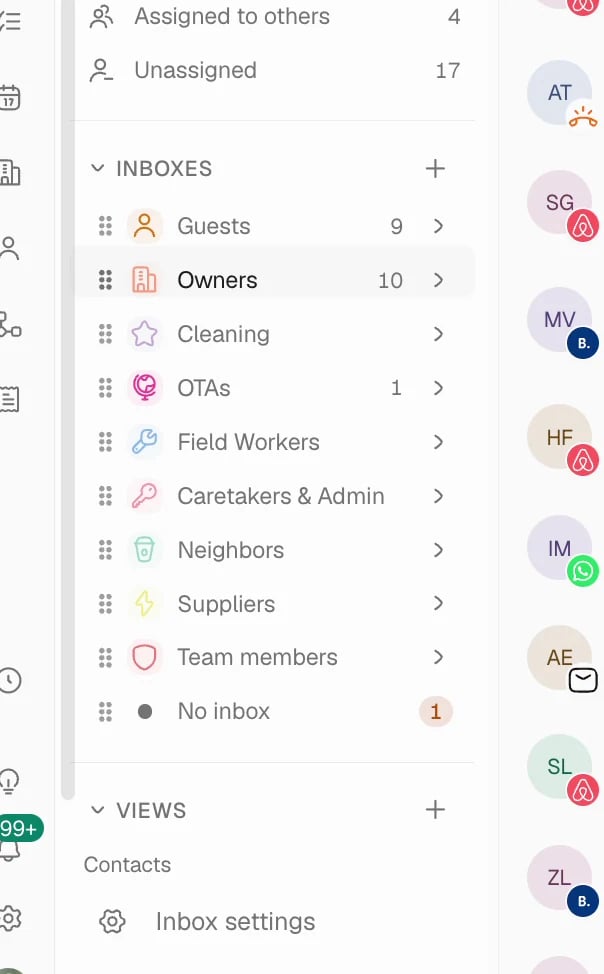
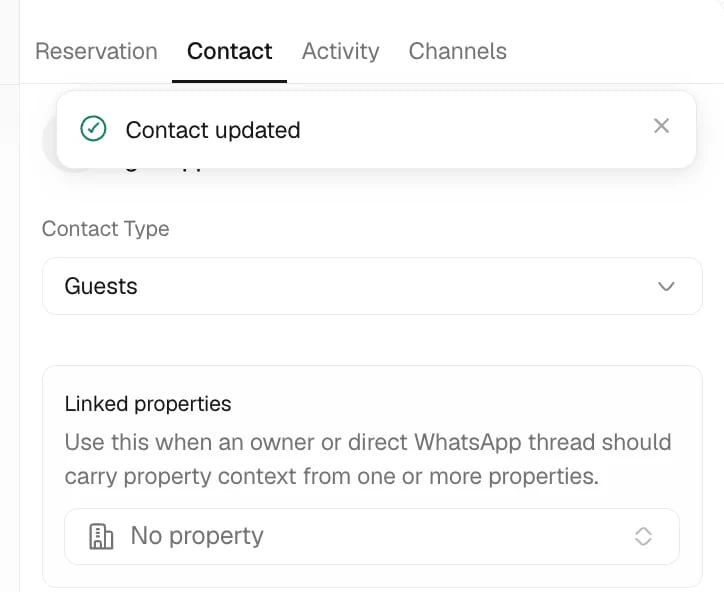
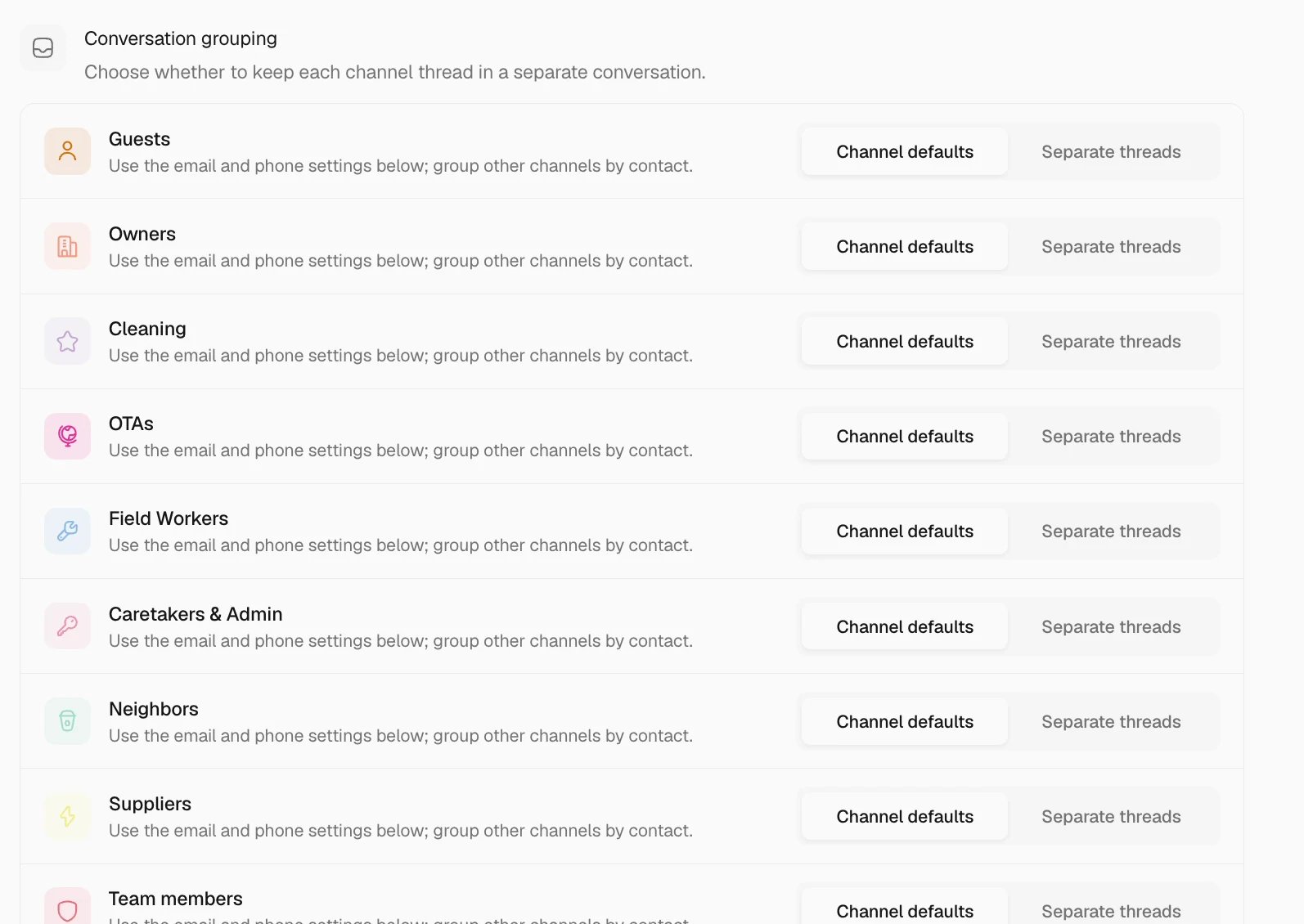
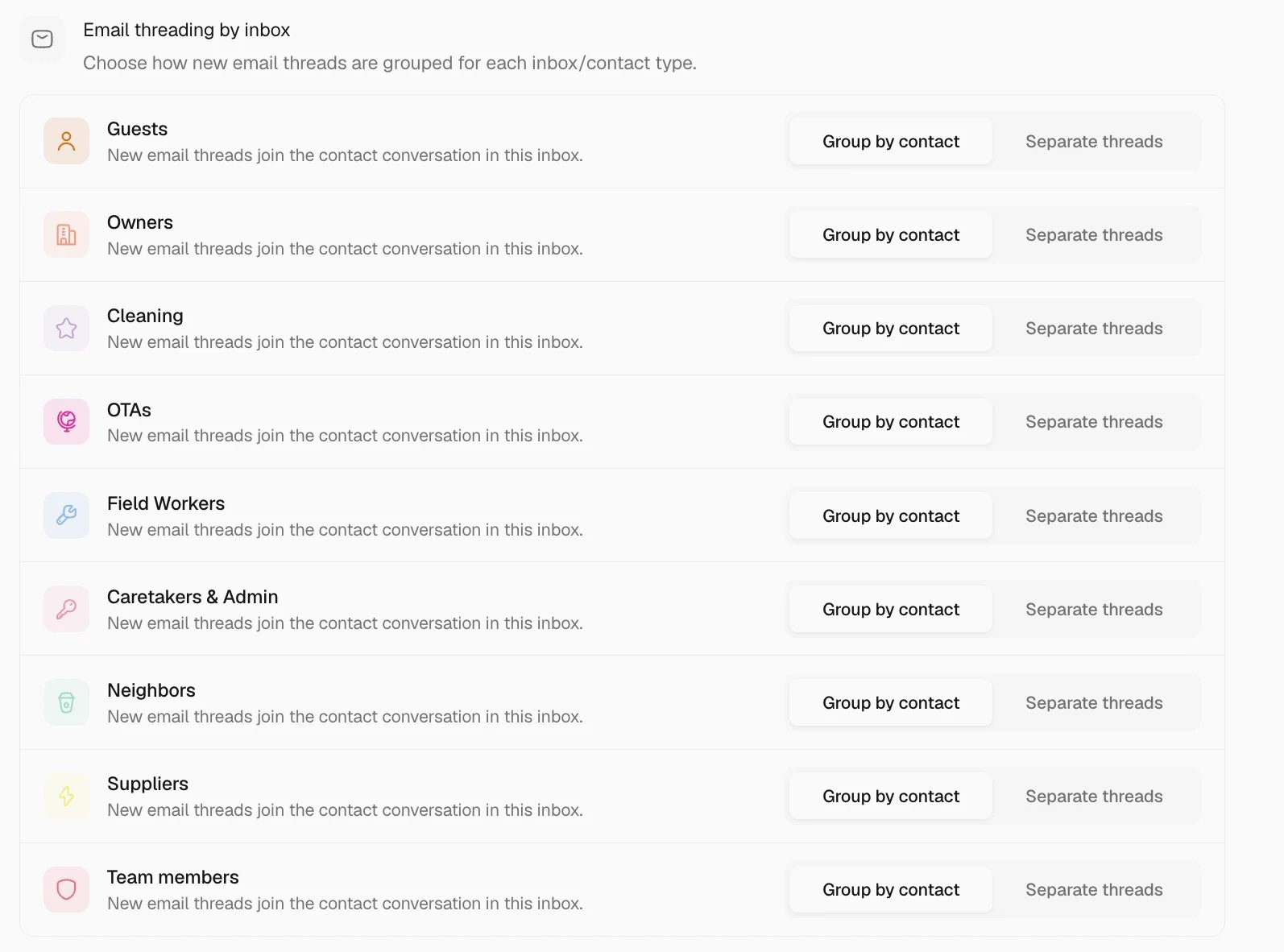
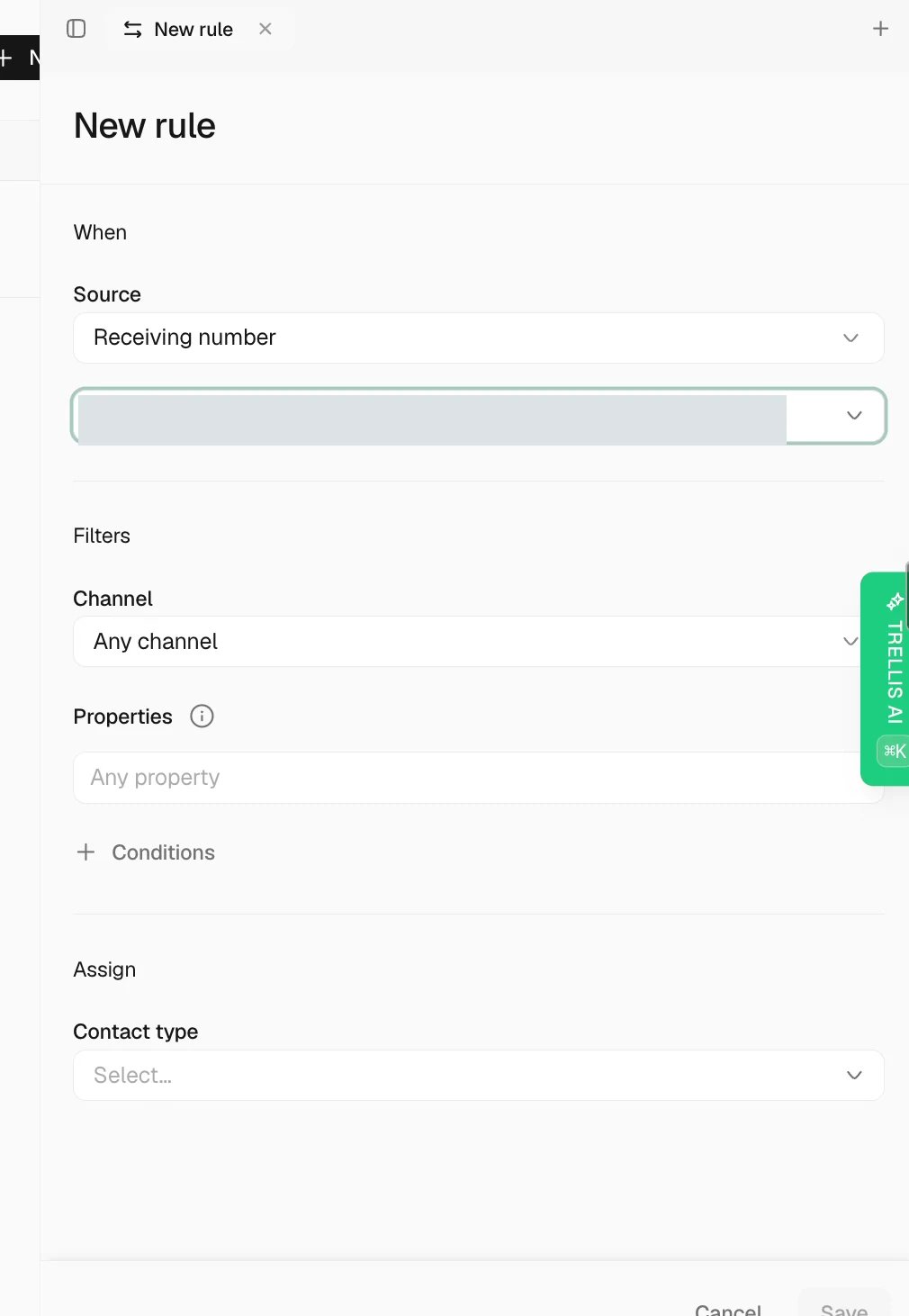
If you use different email addresses for different purposes - for example, one for guest inquiries and another for owner communications - you can assign a default contact type to each address. When an inbound email arrives, Trellis automatically tags the sender with the contact type you chose, so the conversation appears in the correct inbox filter.Choose a default contact type
Select a contact type from the dropdown - Guest, Owner, Vendor, or Prospect. This tells Trellis how to categorize new contacts who email this address.
The default contact type only applies to new contacts. If the sender already exists in your contact list, their existing contact type is preserved.
AI-powered replies
This is where Trellis really shines. When a guest sends a message, your AI agent can draft a reply in seconds - using your property details, house rules, check-in instructions, and past conversation context.How it works
Guest sends a message
A new message arrives in your inbox from a supported channel - Airbnb, WhatsApp, email, or SMS.
AI analyzes the context
The AI looks at the guest’s reservation, the property they are staying at, your house rules, and the conversation history to understand what they need.
AI drafts a reply
A response is generated using your agent instructions, knowledge base, and property details. The draft appears in the conversation thread.
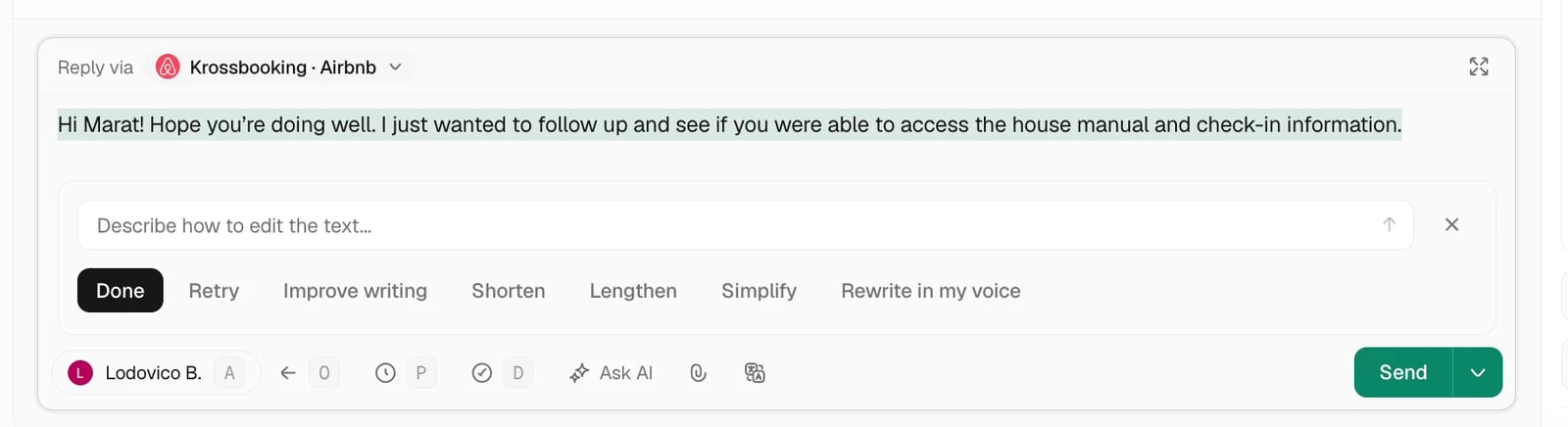
Reviewing AI replies
When the AI drafts a response, you have full control:| Action | What it does |
|---|---|
| Approve | Send the AI’s draft exactly as written |
| Edit | Modify the draft before sending - fix a detail, adjust the tone, add a personal touch |
| Reject | Discard the draft entirely and write your own response |
| Escalate | Flag the conversation for a manager or senior team member to handle |
Escalations
Some conversations need a human touch. Trellis makes sure the right issues get to the right people.What triggers an escalation?
AI detection
AI detection
The AI recognizes situations it should not handle on its own - complaints, refund requests, safety concerns, legal questions, or anything outside its instructions. It automatically flags these for human review.
Manual escalation
Manual escalation
Any team member can escalate a conversation by clicking the Escalate button. This is useful when a conversation takes an unexpected turn.
Automation rules
Automation rules
You can set up automations that escalate conversations based on specific conditions - for example, escalate any message containing the word “refund” or any conversation that has been waiting for more than 2 hours.
What happens when a conversation is escalated?
When a conversation is escalated:- It appears in the Escalations view so managers can find it quickly
- The assigned manager or team member receives a notification
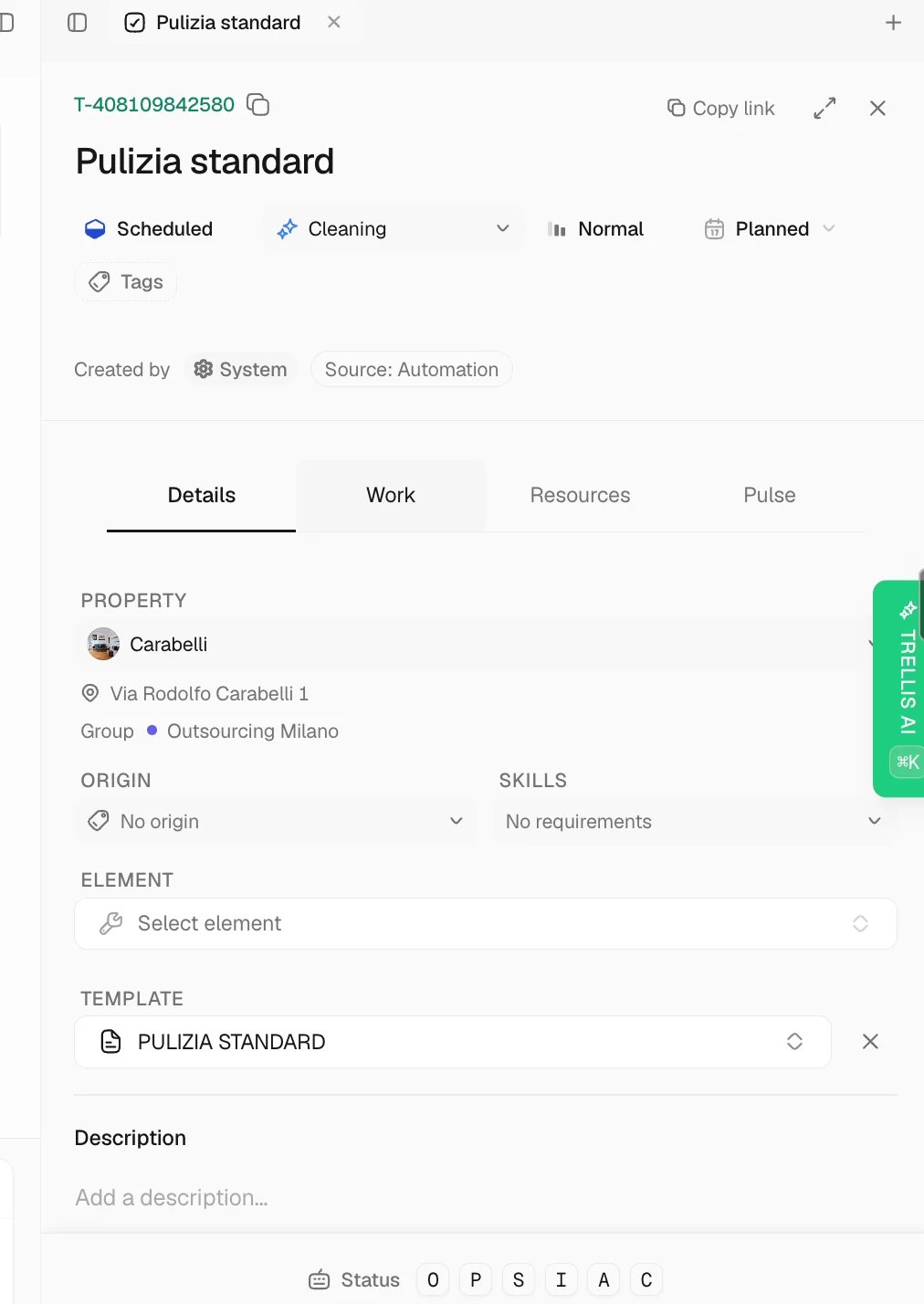
- Optionally, a task can be created to track the resolution
- The escalation is logged so you can review patterns over time
Blocking unwanted senders
Keep your inbox clean by blocking specific email addresses or patterns. Blocked senders are silently filtered - their messages never reach your inbox or trigger AI replies.How to block a sender
Add a blocked pattern
Click Add and enter the email address you want to block - for example,
[email protected].What happens to blocked messages?
Blocked emails are dropped before they enter your inbox. They will not:- Appear in any conversation thread
- Trigger AI replies or automations
- Create notifications for your team
Conversation sidebar
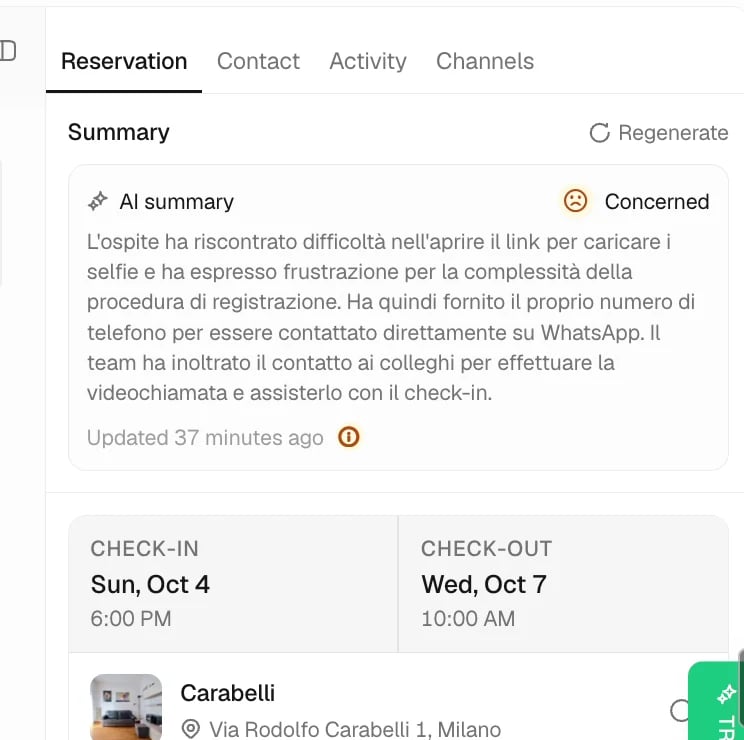
When you open a conversation, the sidebar on the right shows everything you need to know about the guest and their stay - without switching screens.Reservation details
Each reservation card in the sidebar displays the booking dates, property, number of guests, and financial summary. Below that, you will see:- Reservation notes - information collected during booking such as flight details, arrival times, and special requests. If your PMS or check-in tool captures guest data (like Charge Automation), those details appear here automatically.
- Custom fields - any reservation-level custom fields synced from your PMS, such as pet information, pool heating preferences, or vehicle details. Boolean fields display as “Yes” or “No” for easy scanning.
Pulse tab
The Pulse tab on the conversation sidebar shows every action the AI agent took in the context of that conversation - tasks created, messages sent, reservations updated, and more. Click any action to see the activity details, the trigger that started it, and the response it generated. For more details on the Pulse feed, see Pulse - AI activity feed.Quick reply
You can send a message directly from the conversation sidebar without switching back to the main thread. A message input appears at the bottom of the sidebar - type your reply and press Enter to send. Use Shift + Enter to add a new line.Messaging from a reservation
When you open a reservation detail sidebar - from the inbox, a workflow run, or anywhere else a reservation is linked - the Chat tab now shows the full guest conversation inline, along with a reply composer at the bottom. Previously, the Chat tab sent you to a separate tray to continue the thread. Now you can read recent messages and reply in place without leaving the reservation you were reviewing.- Scroll through the thread to see the latest back-and-forth with the guest
- Type a reply and press Enter to send (use Shift + Enter for a new line)
- Replies go out on the same channel the guest used to reach you
Working with conversations
Assigning conversations
Assign conversations to specific team members so everyone knows who is responsible. Click the assignee field in any conversation to assign or reassign it.Auto-assigning new conversations
Trellis can automatically assign new conversations to the right team member as soon as they arrive - so messages never sit in a shared inbox waiting for someone to pick them up. When a new conversation comes in, Trellis looks at the channel, the contact type (guest, owner, vendor), and the property to decide who should own it. The conversation appears in that team member’s Todo view immediately, and the assignee can change at any time from the conversation header.Bulk actions
When you have a backlog of conversations to clear, select multiple at once instead of opening each one individually.Select conversations
Hover over a conversation in the list and click the checkbox that appears, or use the checkbox at the top to select every conversation in the current view.
Choose an action
A toolbar appears showing the actions you can take on the selected conversations - for example, Mark as done moves every selected conversation out of your Todo view in one click.
Sending email attachments
When you start a new email from the inbox, attach files directly from the new-message dialog - useful for sending invoices, signed agreements, photos, or any other document a guest, owner, or vendor needs.Start a new message
Click New message in the inbox and pick Email as the channel. The From picker always appears so you can confirm exactly which address the email is being sent from - handy when your workspace has multiple inboxes, and reassuring even when there’s only one.
Attach your files
Click the attachment button below the message body and pick one or more files. Each attached file appears as a chip you can remove before sending.
Attachments are limited to a combined size of 25 MB per email. If you go over the limit, the dialog flags the issue before you send so you can remove or resize files.
Replying to a specific message
When a guest sends several messages in a row - or you need to clarify which point you’re answering - you can reply directly to a specific message in the thread.Right-click the message
Right-click (or long-press on touch devices) any message in the conversation timeline. A context menu appears.
Choose Reply
Select Reply to message. The composer at the bottom of the thread opens with a quoted preview of the message you picked.
Reading full emails
When viewing an email conversation, hover over any email message and click the expand button to open it in a full-screen view. The expanded view shows the complete email headers - subject, from, to, cc, and date - along with the full message body. You can Reply, Reply All, or Forward directly from the expanded view without going back to the conversation thread.Viewing the full email thread
Some email conversations span dozens of replies between multiple people. To see the entire thread in one place - including every reply, forward, and participant - open the Email thread view from any email message in the conversation. The thread view groups every email in the conversation chronologically, with quoted replies collapsed by default so you can scan the new content quickly. Expand any quoted section to see the full history, or jump to a specific message using the participant list at the top.Resizing the email preview
Email messages in a conversation thread show a preview of the message body. If the default preview height is too short or too tall for your preference, you can resize it:- Hover over the top or bottom edge of any email card - you will see a drag handle appear.
- Click and drag up or down to adjust the preview height.
- Release to set the new height.
Following up later
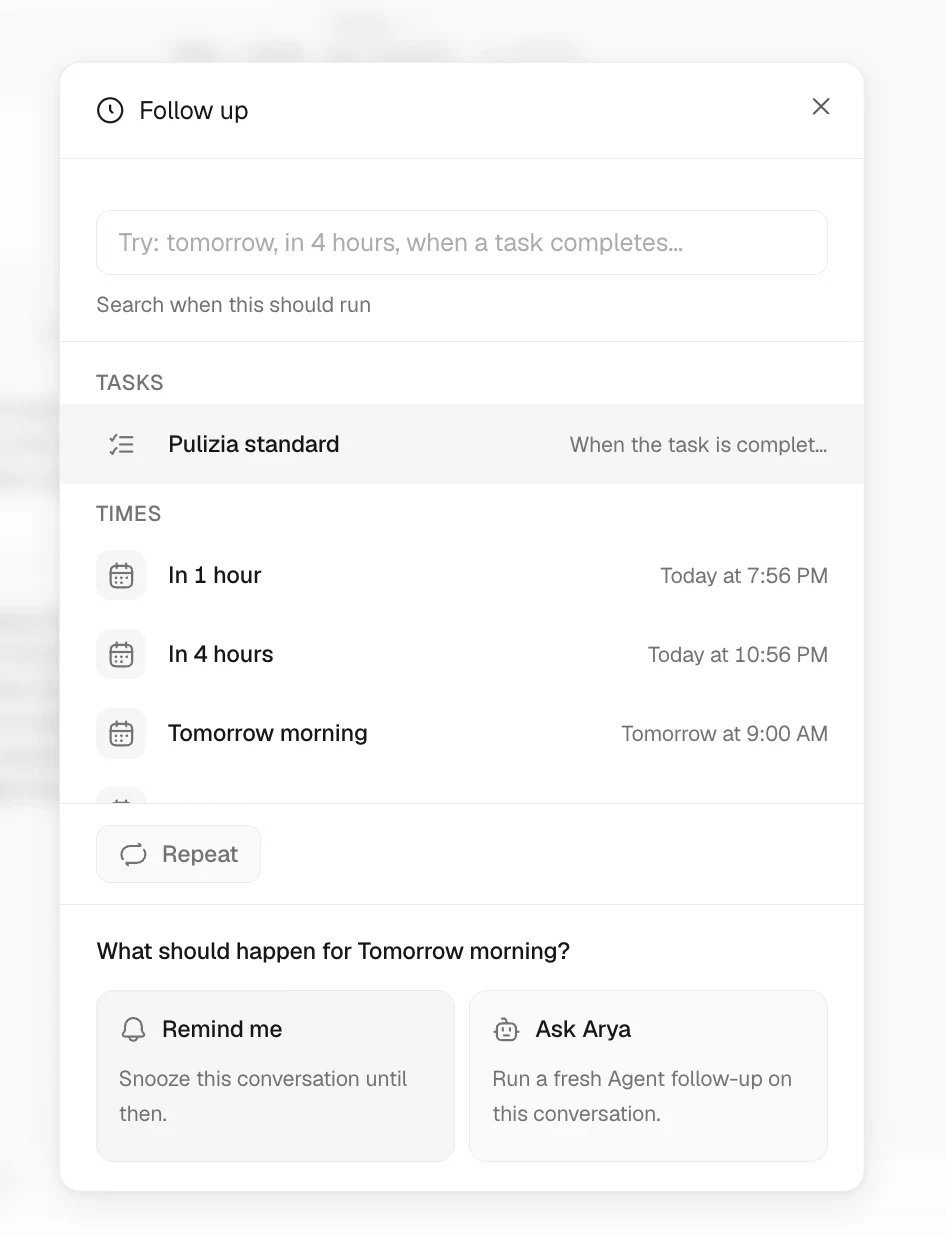
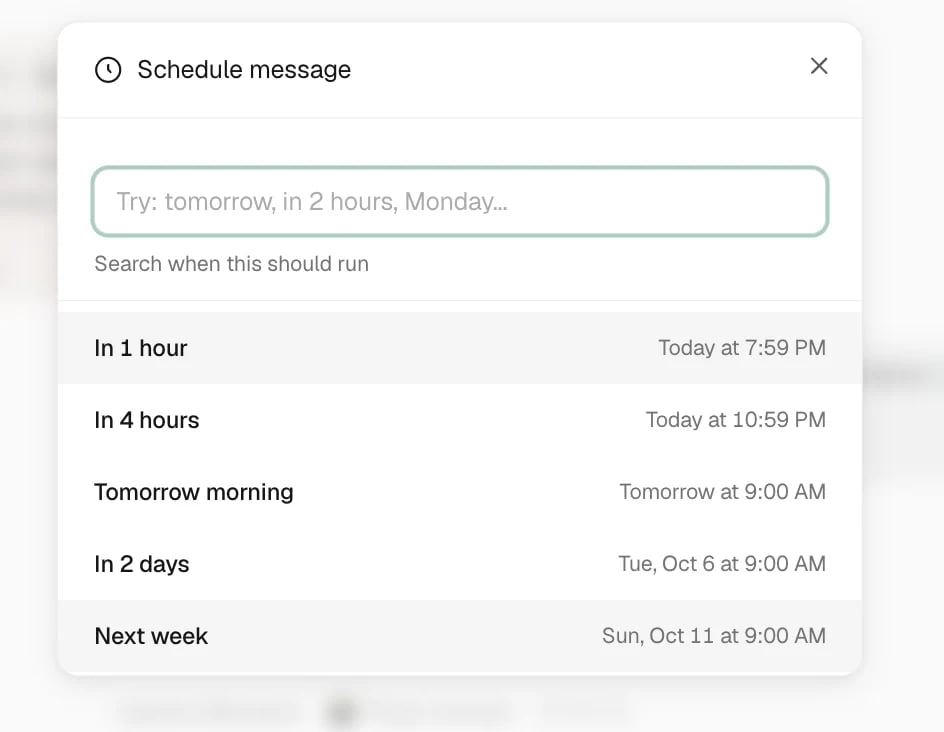
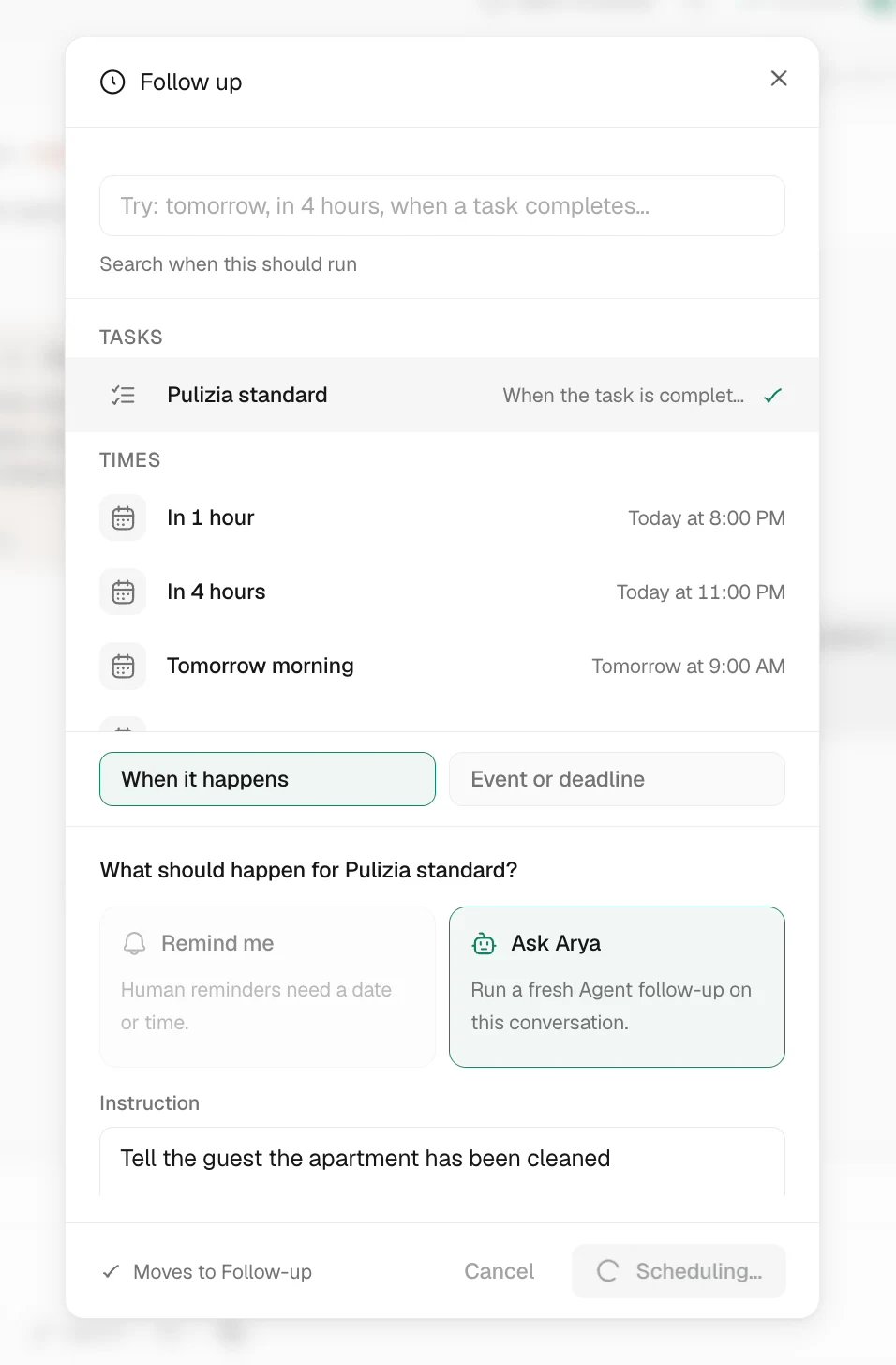
Not ready to respond? Click Follow Up to move the conversation to your Follow Up view. Set a reminder so it pops back into your Todo at the right time.Tagging conversations
Tags are a flexible way to label conversations so your team can find them later, group similar issues, or build views around recurring topics - things like VIP, Refund, Long stay, Maintenance follow-up, or anything else that matters to your operation.Add a tag
In the conversation sidebar, click the tag field and start typing. Pick an existing tag from the list, or type a new name and press Enter to create one on the fly.
Filtering the inbox by tag
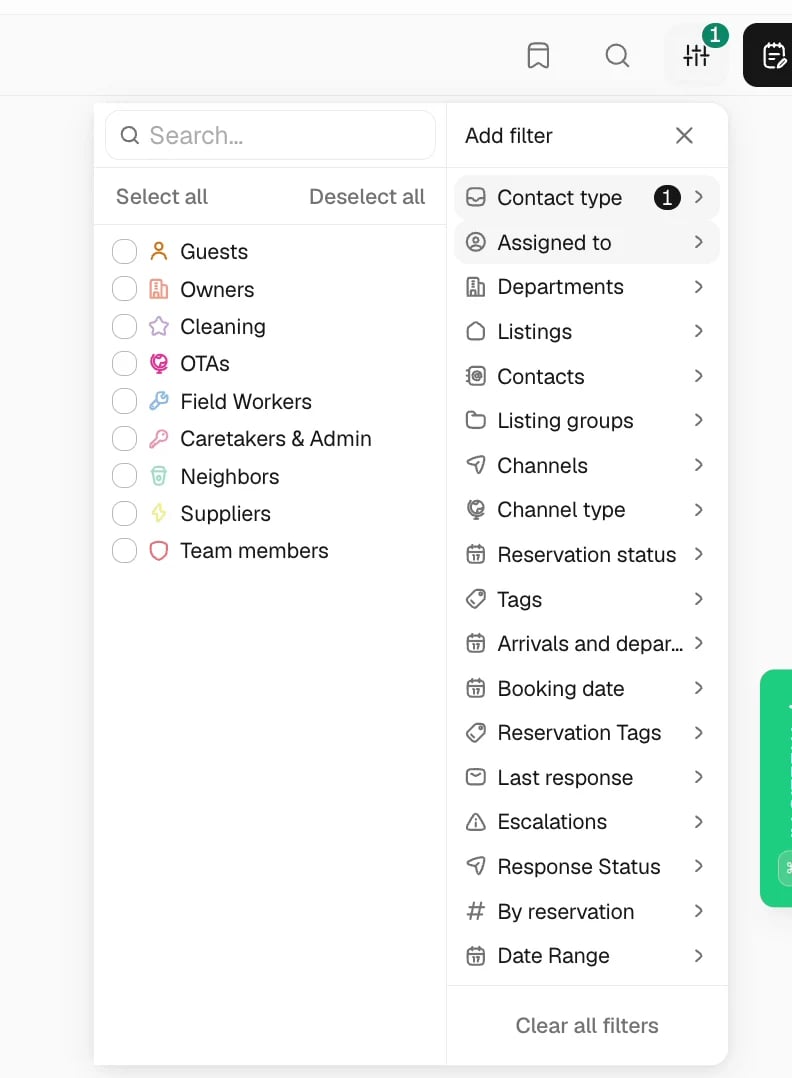
Every conversation tag becomes a filter in the inbox. Open the filter menu at the top of any inbox view (Todo, Follow Up, All, or Escalations) and pick one or more tags to narrow the list to only conversations carrying those labels. This is useful for triaging recurring topics - for example, see every conversation tagged Refund in one click, or pull up all VIP threads before a busy weekend.Managing tags
Manage your full library of conversation tags from Settings → Tags. From there you can:- Rename a tag - the new name updates everywhere it is applied
- Change a tag’s color so it stands out in the conversation list and sidebar
- Delete a tag you no longer need - it is removed from every conversation it was applied to
Conversation tags are separate from contact tags and task tags. Each lives in its own library so labels stay relevant to where they are used.
Searching past conversations
Use the search bar at the top of the inbox to find any conversation by guest name, property, booking reference, or message content. Filters let you narrow results by channel, date range, status, or assignee.Finding a conversation by reservation
When you need to pull up a thread for a specific booking - and you only have the reservation code in hand - use the By reservation filter in the inbox filter panel. It accepts the confirmation or booking reference exactly as it appears in your channel, and matches conversations against that code only - your guest names and message bodies are left out of the match, so the result list stays focused. The filter recognizes reservation codes from supported connected channels, including:- Airbnb booking references (for example,
HMABCD1234) - Booking.com confirmation numbers
- Vrbo / HomeAway confirmation codes and channel reservation IDs
- Krossbooking reservation codes (for example,
9946/2024) - Hostaway and other connected PMS confirmation codes
Translating guest messages
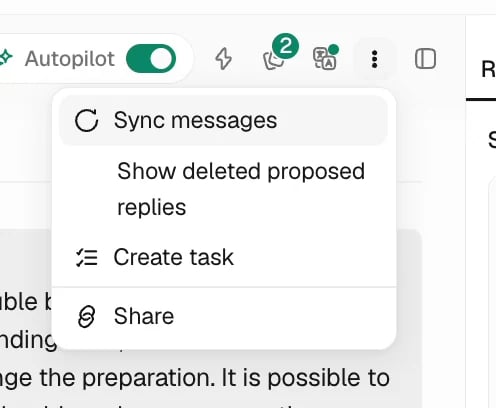
When a guest writes in a language your team doesn’t speak, Trellis can translate the conversation on the fly so you can read and reply with confidence. Translation works across supported channels that land in your inbox - chat from OTAs and SMS, email (both plain text and styled HTML), voice transcriptions, and connected messaging channels.How it works
Auto-translation is off by default. Once you turn it on for your account, Trellis translates every message in a conversation into your interface language as soon as you open it - no extra steps. With it off, you can still translate any conversation on demand using the language selector at the top of the timeline.Open a conversation
Pick any conversation in your inbox. With auto-translate on, any messages in another language are translated into your interface language as soon as the conversation loads.
Switch reading language for a single thread
Use the language selector at the top of the conversation to change languages on the fly. The entire timeline re-translates without losing context.
Turning auto-translate on or off
Each team member controls their own auto-translate preference, so operators who prefer to read messages in their original language can opt out without affecting the rest of the team.Auto-translate is off by default. When it’s off, conversations open in their original language and you can still use the language selector at the top of any conversation for one-off translations. Turn the switch on whenever you want every conversation to translate automatically.
What to expect
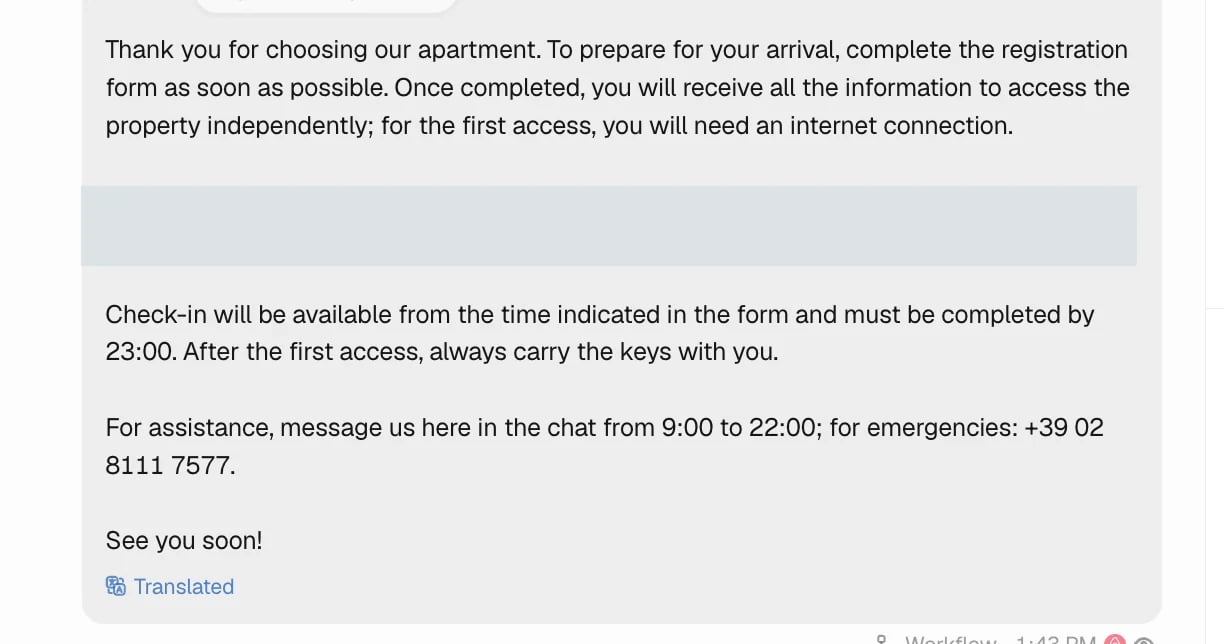
- Original text is always preserved. Translations sit alongside the original message, not in place of it. For HTML emails, Trellis shows a “Translation” panel above the original styled email so you can compare side by side.
- Messages already in your language are left alone. If a guest writes in the same language you’re reading in, Trellis shows the original message as-is - no unnecessary round-trip translation.
- Long messages translate in full. Multi-paragraph guest messages, long emails, and lengthy booking templates are translated end to end from the original message body - no mid-message cut-offs.
- A short “Translating…” hint appears while a message is being translated, so you know when the result is ready.
Auto-translation in the inbox covers guest message content. Internal notes, status chips, and AI activity cards stay in your interface language.
Tips for inbox success
Start with review mode
Let the AI draft replies, but approve them yourself for the first week or two. This helps you fine-tune your agent instructions and build confidence in the AI.
Use escalation rules
Set up automations to catch high-priority issues early - refund requests, complaints, and safety concerns should never sit unanswered.
Keep your knowledge base updated
The better your agent instructions and property details are, the more accurate the AI’s replies will be. Update check-in procedures and house rules whenever they change.
Check Escalations daily
Make it a habit to review the Escalations view at least once a day. These are the conversations that need your personal attention.