Documentation Index

Fetch the complete documentation index at: https://docs.trellistech.com/llms.txt

Use this file to discover all available pages before exploring further.

Keep your operations running smoothly

Every vacation rental needs cleaning between guests, regular maintenance, and occasional inspections. Trellis helps you schedule all of this, assign work to the right people, and track completion - so nothing gets missed.

Types of tasks

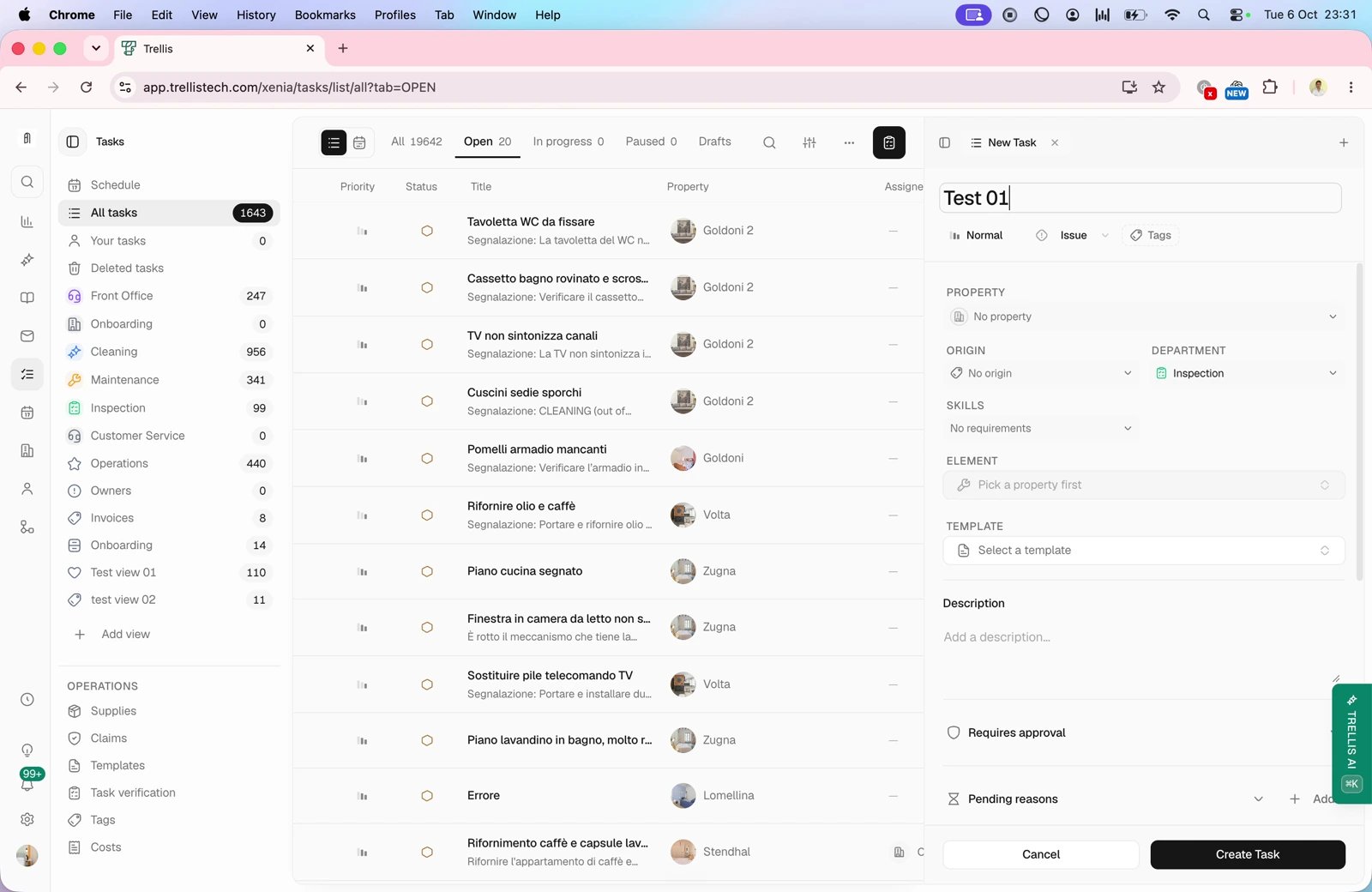
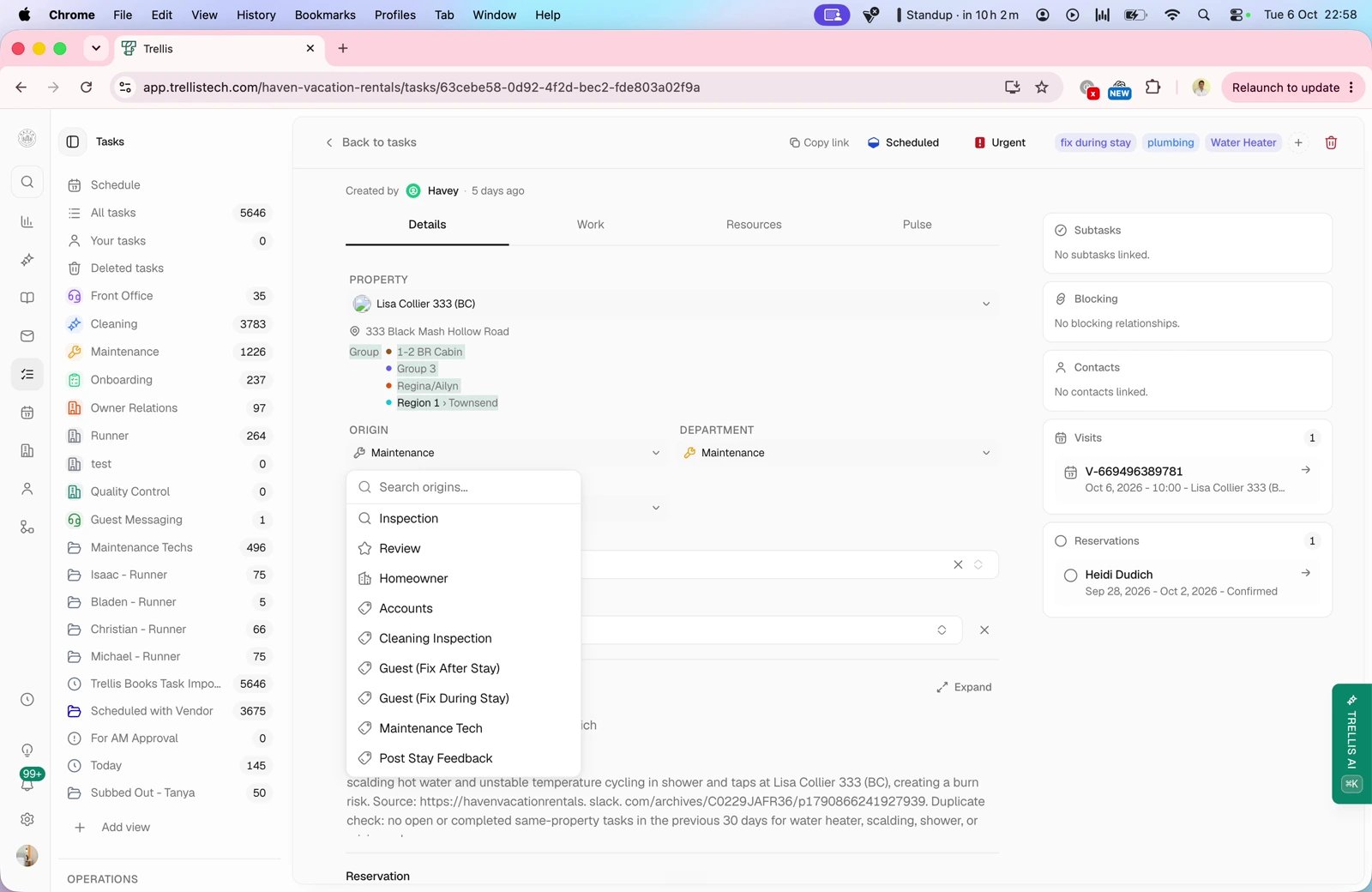
Trellis organizes your work into departments, making it easy to see what needs to happen and who is responsible. Every workspace starts with four default departments:

Cleaning

Turnovers between guests, deep cleans, and routine housekeeping. The most common task type for most property managers.

Maintenance

Repairs, replacements, and fix-it jobs. From a dripping faucet to a broken air conditioner.

Inspection

Quality checks before and after guest stays, periodic property audits, and compliance reviews.

Front Office

Guest-facing follow-up, owner communication, remote coordination, and administrative operational work.
You can create additional departments to match your operations - for example, “Landscaping,” “Guest Services,” or “Pool Care.” Ask the AI agent to create, rename, or remove departments, or manage them from your workspace settings. The AI agent can also reassign tasks from one department to another when the scope of work changes.
Custom departments appear alongside the defaults in filters, templates, and task forms - so your whole team sees the same structure everywhere.
The default department names (Cleaning, Maintenance, Inspection, Front Office) are automatically displayed in your workspace language across web and mobile. As soon as you rename a default department, your custom name is shown everywhere instead.

Help the AI pick the right department

Each department has an optional description field you can edit from team settings. Use it to tell the AI agent when a task belongs in that department - especially for custom departments where the name alone may be ambiguous. For example:
  • Pool Care - “Use for pool cleaning, chemical balancing, and equipment repairs at properties with pools.”
  • Guest Services - “Use for non-urgent guest requests handled remotely, such as restaurant recommendations or check-in instructions.”
  • Owner Relations - “Use for owner-facing communications and reports, not guest-facing work.”
Clear descriptions help the AI agent route incoming requests to the right team automatically - instead of defaulting to a generic department when a custom one would fit better.

Task lifecycle

Every task moves through a clear workflow so you always know where things stand:
1

Open

A new task has been created - either manually, by the AI, or by an automation. It has not been scheduled or assigned yet.
2

Scheduled

The task has a date and an assigned team member or vendor. It is on the calendar and ready to go.
3

In Progress

Your team member has started working on the task. They can update progress, complete checklist items, and upload photos.
4

Completed

The work is done. If approval is required, it moves to a review step before being marked complete.
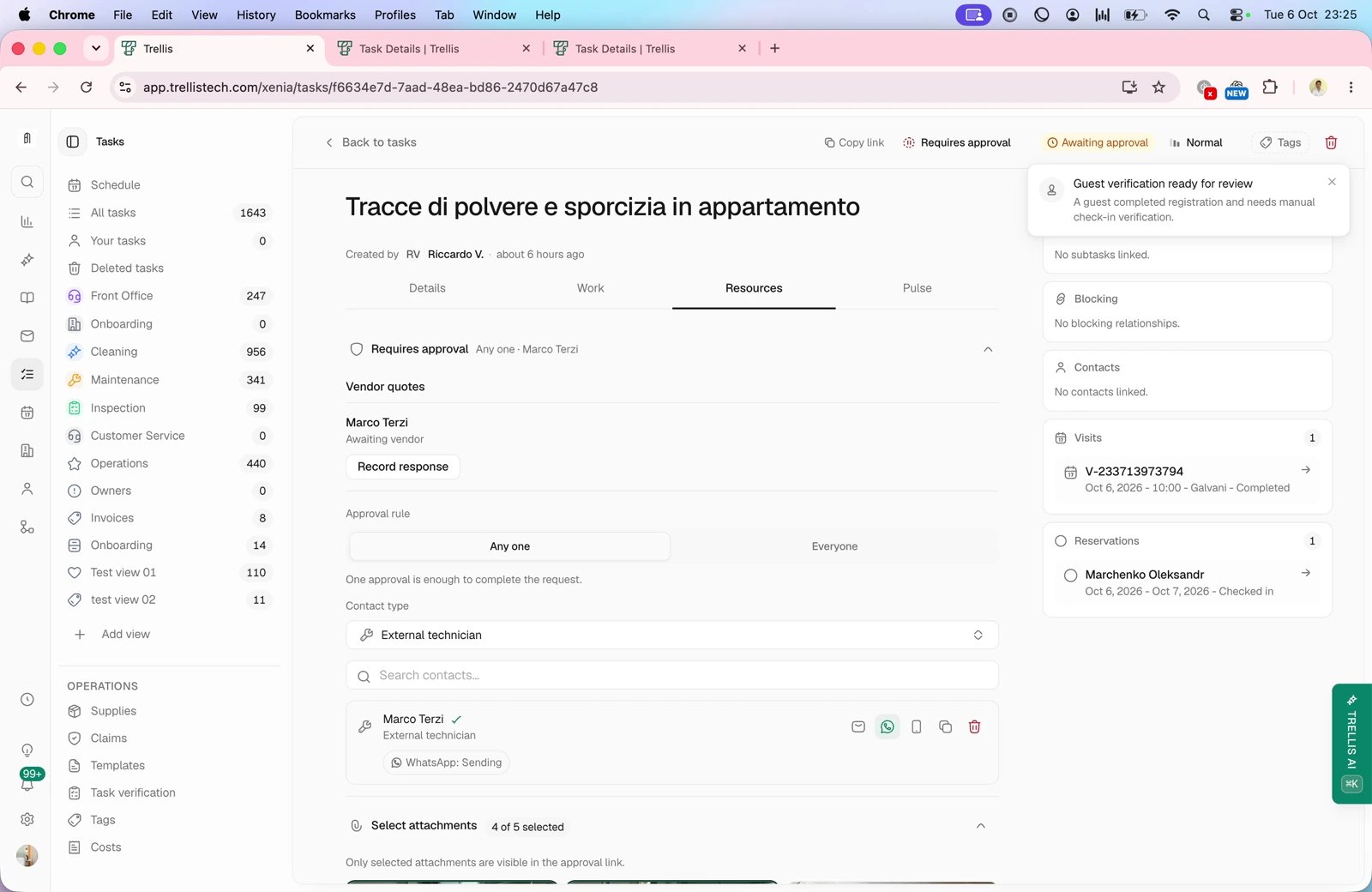
For tasks that require manager approval (like expensive repairs), Trellis adds a review step. The assigned team member submits their work, and a manager approves or requests changes before it is finalized.

Smart visit grouping

When a team member has multiple tasks at the same property on the same day, Trellis automatically groups them into a visit - a single trip to the property. This means:
  • Your cleaner sees “Visit: Oceanview Villa - 3 tasks” instead of three separate entries
  • Travel time and logistics are minimized
  • You get a clear picture of how much work each property requires
Visits are created automatically. When you schedule two tasks at the same property on the same day for the same person, Trellis groups them into a visit for you.

My Visits on mobile

The My Visits page in the mobile app gives field workers a dedicated view of all their visits - past and upcoming - in one place. Access it from the More menu. Visits are organized into two tabs:
  • Upcoming - visits scheduled for today and beyond, grouped by date. Each card shows the property name, address, and task progress (for example, “2 of 4 tasks complete”)
  • Past - previously completed visits, also grouped by date, so you can review your work history
Your upcoming visits also appear on the Schedule screen, directly below your shifts. This means you can see what is coming up without leaving the schedule - no extra taps to check your visit list.
Use the My Visits page to plan your day at a glance. The task progress indicator on each visit card tells you exactly how much work is left at each property.

Rescheduling a visit on mobile

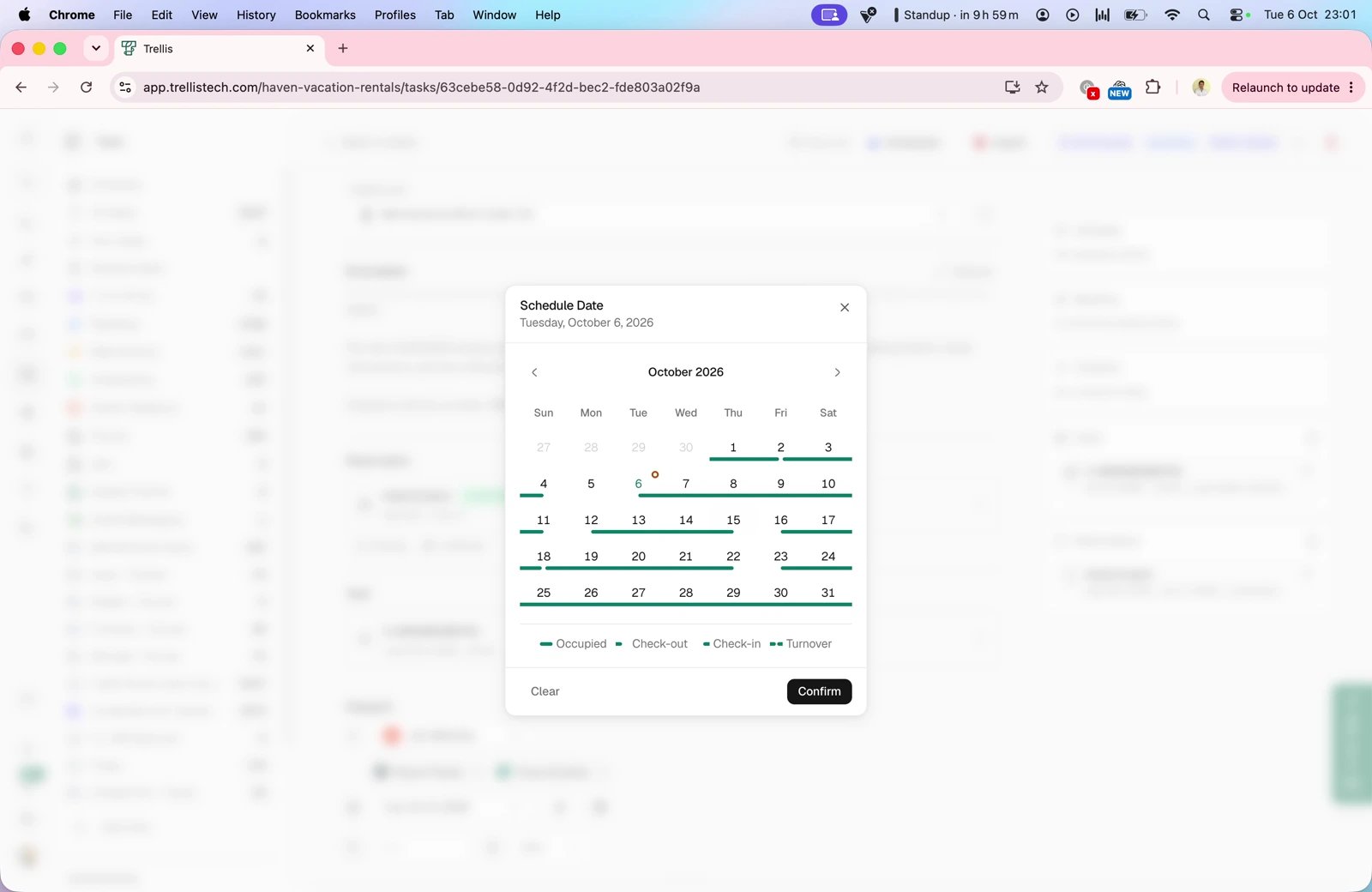
If a visit needs to move to a different day, open the visit detail screen and tap Reschedule. A full-height calendar sheet slides up so you can pick the new date with a single tap. When you confirm the new date, every task grouped into that visit moves with it - so you only change the schedule in one place instead of updating each task individually.
Rescheduling a visit keeps the tasks together on the new day. Assignments, checklists, and supplies are preserved exactly as they were.

Creating a task on mobile

When your field team creates a task from the mobile app, they pick a date on the same calendar used for rescheduling visits - a full month view with each day laid out in a grid. Existing reservations for the selected property appear as booking pills on the calendar, so your team can see at a glance when guests are checked in and avoid scheduling on top of a stay. To keep the new-task form quick and simple on the go, mobile task creation includes a template picker plus the core details your team needs on site: title, description, property, department, date, priority, and assignees. Selecting a template pre-fills the task details, and Trellis saves the template ID so the task can inherit the template checklist, supplies, and field-operations mapping. The mobile form still hides the time picker and advanced fields like contact, parent task, and pending-until; you can fine-tune those details from the full task detail view when needed.
Seeing upcoming bookings while you pick a date makes it easy to slot a cleaning or maintenance task into a checkout gap without double-checking the reservation calendar.

Assigning work

To team members

Assign tasks to anyone in your workspace. Team members see their assigned tasks in their personal task view, making it easy to plan their day.

To vendors and contractors

Working with external cleaning crews or maintenance companies? Add them as vendor organizations in Trellis and assign tasks directly to them. They can update task status and upload completion photos.

Managing assignees on mobile

Admins can manage task assignees directly from the mobile app. Open any task to see its current assignees - each displayed with their avatar and, for vendors, the vendor organization name. From there you can:
  • Add assignees - tap to assign additional team members or vendors to the task
  • Remove assignees - remove someone who is no longer needed on the job
  • Reschedule - change the task date using the built-in date picker without leaving the mobile app

Checklists

Attach checklists to your tasks to make sure nothing gets overlooked. Checklists are especially valuable for cleaning turnovers and inspections.
1

Create a checklist

Add checklist items to any task - or create reusable templates for common task types like “Standard Turnover” or “Deep Clean.”
2

Workers complete items on-site

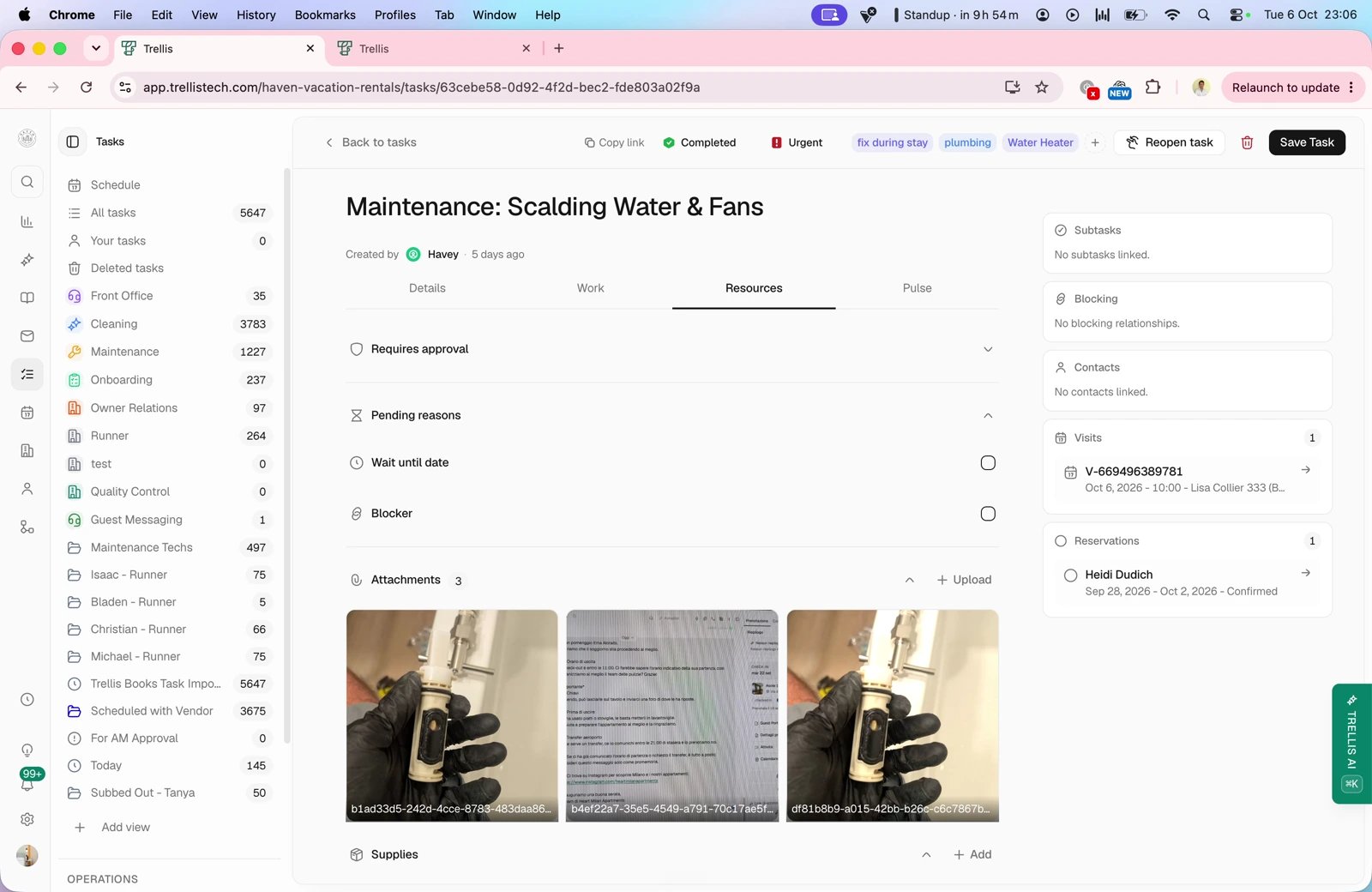
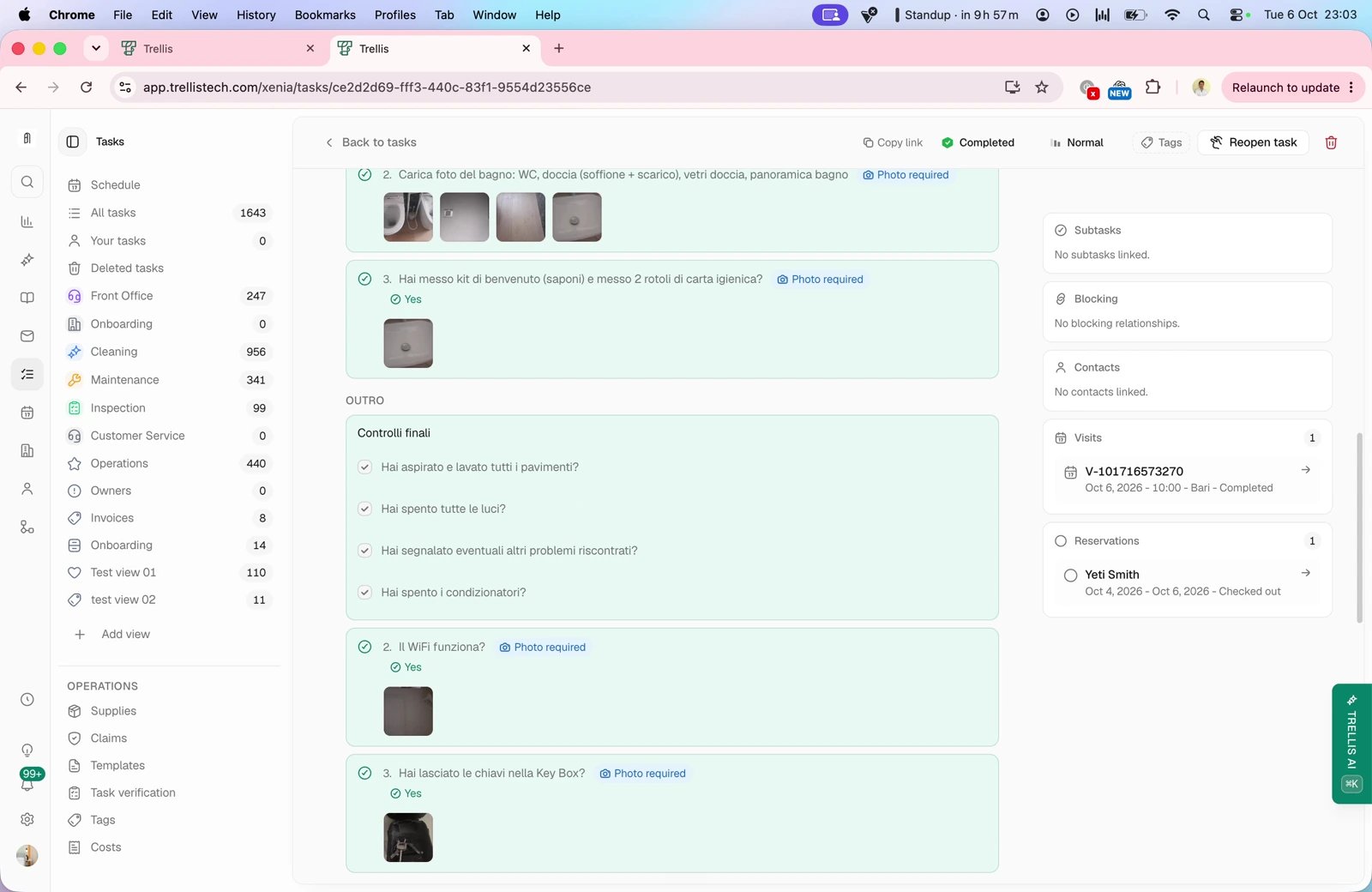
As your team works through the task, they check off each item. They can also upload photos as proof of completion.
3

Review completion

See exactly what was done, when, and by whom. Photos attached to checklist items give you visual confirmation without visiting the property yourself.
Create a checklist template for each task type (turnover clean, deep clean, pre-arrival inspection) and reuse it across all your properties. This ensures consistent quality across your entire portfolio.

AI photo verification

For checklist steps that require photo uploads, you can enable AI photo verification. When enabled, Trellis automatically checks whether the uploaded photo matches what the step requires - so you can catch issues without manually reviewing every image. How it works:
  • When a team member uploads a photo for a checklist step, the AI compares it against the step description and any reference photo you have provided
  • If the photo passes, the item is marked as verified
  • If the photo does not match - wrong room, task not completed, photo too dark - the item is flagged with a reason so your team can retake it
Add a reference photo to each checklist step to give the AI a clear benchmark. For example, attach a photo of a perfectly made bed so the AI can compare the worker’s upload against it.
When any checklist item fails AI photo verification, the task is flagged with a photo issue indicator. This makes it easy to filter and review tasks that need attention before sign-off.

Task activity and comments

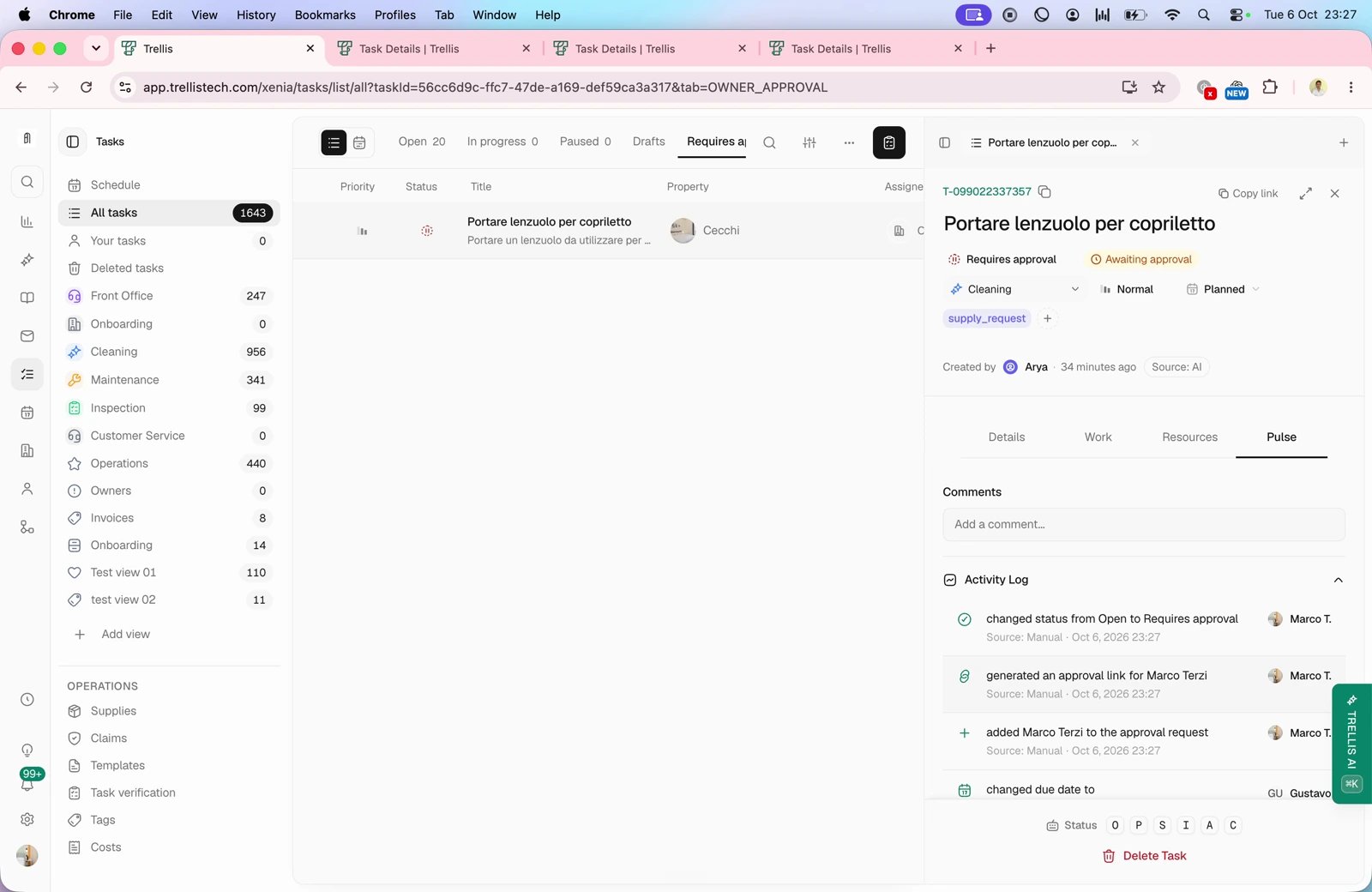
Every task has an activity feed where your team can leave comments, share updates, and track what has happened. Comments keep all communication about a task in one place - no more scattered messages or lost context. Your AI agent can also post comments directly to task activity feeds. For example, if a guest sends a follow-up message about a maintenance issue, the AI can add that context to the relevant task so your team has the latest information without checking the inbox.

Mentioning teammates with @

Type @ in any task comment to pull up a list of teammates. Pick the person you want to loop in, and Trellis pings them directly - even if they’re not the assignee or creator of the task. This is the fastest way to get another set of eyes on a task without reassigning it or starting a new thread. When you mention someone, they get a dedicated comment mention notification - separate from the general activity notifications everyone else on the task receives. The notification includes an excerpt of the comment so they know exactly what they’re being pinged about before opening the task.
If a teammate is both mentioned and assigned to the task (or created it), they only get one notification - the mention notification wins, so the copy is always the most relevant.

Notification preferences

Every workspace member controls how they receive task activity from their own notification settings. Comment mentions and general comment activity are separate preferences, so you can - for example - keep email on for mentions while muting email for every other comment.
NotificationWhat it’s forDefault
Comment mentionYou were @mentioned in a task commentEmail, in-app, and push on
New commentA comment was added to a task you’re assigned to or createdIn-app and push on, email off
If your team gets too much comment noise, encourage people to @mention the specific teammate they need instead of relying on blanket assignee notifications. Mentions deliver a more targeted, actionable ping.

Auto-translation

If your team speaks different languages, Trellis can automatically translate task titles and descriptions so everyone sees tasks in the language they understand. When a task is created or updated, Trellis detects the original language and translates the content for team members who use a different language.

Enabling auto-translation

Auto-translation is a workspace-level setting that you enable from your workspace settings:
1

Go to Settings

Open Settings from the sidebar navigation.
2

Find the Utilities section

Scroll to the Utilities section on the settings page.
3

Turn on auto-translate tasks

Toggle Auto-translate tasks to enable automatic translation for all tasks in your workspace.
Auto-translation is off by default. Once enabled, it applies to all new and updated tasks across your workspace.

How it works

  • When a task is created or its title or description is updated, Trellis automatically translates the content into the languages used by your team
  • Translations appear alongside the original text so nothing is lost
  • The original language is always preserved - translations are added, never replaced
Auto-translation is especially useful for teams with multilingual cleaning crews or vendors in different regions. Your manager can create a task in English, and your local team sees it in their preferred language.

Supply tracking

Track the supplies and materials your team uses for each task. Whether it is cleaning products for a turnover or replacement parts for a maintenance job, you can attach supply items directly to a task and let Trellis handle inventory updates automatically.

Adding supplies to a task

You can add supplies when creating a new task or at any time from the task detail view:
1

Open the supplies section

When creating or editing a task, look for the Supplies section in the task form.
2

Search and select items

Use the searchable supply picker to find items from your inventory. Type to search by name - useful when your supply catalog is large.
3

Set quantities

Specify how many of each item the task requires. This tells your team exactly what to bring and helps Trellis track usage accurately.

Confirming supply usage

When you complete a task that has supplies attached, Trellis shows a Confirm Supply Usage dialog. This lets you record how many of each item your team actually used - which may differ from the originally planned quantities. For each supply item, you will see:
  • Planned - the quantity originally assigned to the task (read-only)
  • Used - the quantity your team actually used (editable)
If the used quantity is less than planned, the difference is automatically returned to inventory. Items where the actual usage differs from the plan are highlighted so you can review them at a glance.
The used quantity defaults to the planned amount. If your team used exactly what was planned, just confirm - no edits needed.

Automatic inventory updates

When a task is marked as Completed and supply usage is confirmed, Trellis deducts the confirmed quantities from your inventory stock. There is nothing extra to do - completing the task and confirming usage triggers the stock update. This means:
  • Your inventory counts stay accurate without manual adjustments
  • Unused supplies are returned to stock automatically
  • You can spot low-stock items before your team runs out
  • Supply usage is tied to specific tasks, giving you a clear audit trail
Only supply items linked to a warehouse are decremented. If you add a supply item as a general reference (without a warehouse), it will not affect stock levels.
Attach commonly used supplies to your task templates so every new task of that type comes pre-loaded with the right items and quantities.

Warehouse transfers

If you store supplies across multiple locations, you can transfer inventory between warehouses without leaving Trellis. This is useful when one warehouse is running low and another has surplus stock.
1

Open the Transfers tab

Navigate to Tasks > Supplies and select the Transfers tab to see all warehouse transfers.
2

Create a new transfer

Click New Transfer. Select the source warehouse (where items are coming from) and the destination warehouse (where items are going).
3

Add items and quantities

Add one or more supply items to the transfer and specify the quantity for each. You can add multiple items to a single transfer.
4

Add notes (optional)

Include any notes about the transfer - for example, the reason for the move or special handling instructions.
5

Submit the transfer

Click Create Transfer to submit. The transfer starts in a Pending status.

Transfer statuses

Every transfer moves through a clear lifecycle:
StatusMeaning
PendingThe transfer has been created but items have not moved yet
In TransitItems are being moved between warehouses
CompletedItems have arrived at the destination warehouse and inventory has been updated
CancelledThe transfer was cancelled before completion
From the transfer detail view, you can complete or cancel a pending transfer. Once a transfer is completed, the inventory counts at both warehouses are updated automatically.
Each transfer is assigned a unique number (for example, WT-001) so you can reference it easily in your records.

Marking work as no-charge

Sometimes work should not be billed - a courtesy turnover, a touch-up after a complaint, or a fix that you’ve decided to absorb. Trellis lets you flag both individual tasks and entire visits as not billable, so the cost stays visible in your records but is excluded from invoicing.

No-charge at the task level

Open any task and look for the Mark as no-charge button in the cost section. Use it when a single task should be excluded from billing - for example, a complimentary deep clean. The button shows when the task has no cost items yet; once a task is marked no-charge, you can undo the flag at any time from the same place.

No-charge at the visit level

Visits - trips that group multiple tasks at the same property on the same day - can also have their own cost items in addition to the per-task costs. Open a visit from the calendar or task list and find the Mark as no-charge button in the visit cost section to flag the whole visit’s Trellis-only costs as not billable. The visit-level toggle is independent from the per-task toggles:
  • Marking a visit as no-charge only affects costs added at the visit level
  • Each task inside the visit keeps its own no-charge setting
  • You can mix and match - for example, mark one task as no-charge while leaving the rest of the visit billable
Use task-level no-charge for one-off favors and visit-level no-charge when an entire trip - including any visit-level supplies or fees - should be comped.

Creating tasks

There are several ways to create tasks in Trellis:
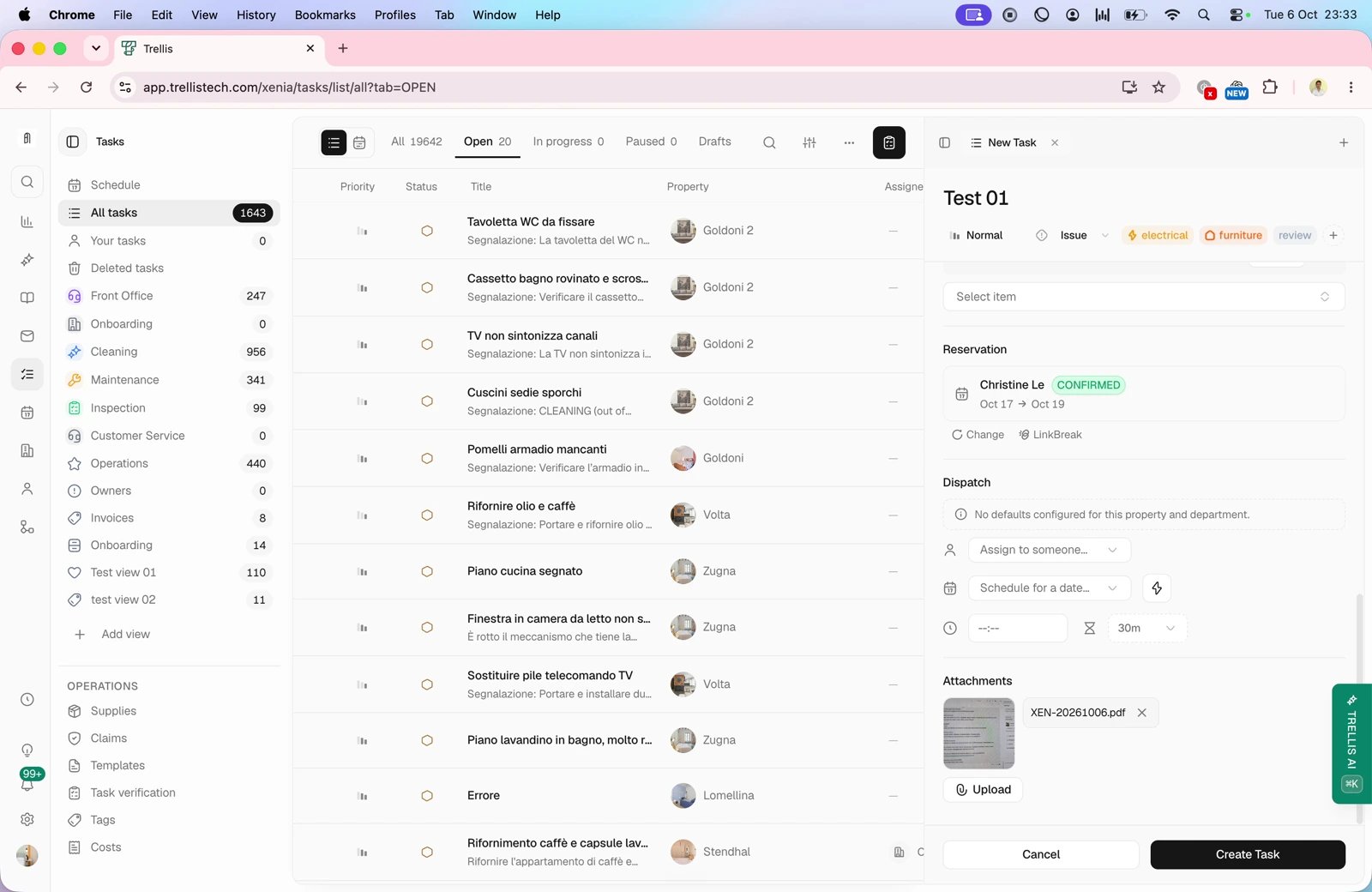
Click New Task from the Tasks page or from any property detail view. Fill in the details, assign it, and set a due date.
Set up automations that create tasks based on events - for example, automatically create a cleaning task when a guest checks out, or a maintenance task when a guest reports an issue.
When a guest reports a problem in a message, the AI agent can create a maintenance task automatically and assign it to the right team member. The AI can also post comments directly to a task’s activity feed - for example, adding context from a guest conversation or noting a status update.
If you use a field operations platform like Breezeway, tasks sync bidirectionally. Create a task in either system and it appears in both.

Task templates

Save time by creating templates for your most common tasks. A template pre-fills the title, description, department, estimated duration, checklist, and default assignee - so creating a new task takes just a few clicks. Popular templates:
TemplateDepartmentTypical use
Standard TurnoverCleaningGuest checkout cleaning with standard checklist
Deep CleanCleaningQuarterly or seasonal deep cleaning
Pre-Arrival CheckInspectionQuick walkthrough before guest arrives
HVAC Filter ChangeMaintenanceScheduled seasonal maintenance
Post-Stay InspectionInspectionDetailed review after guest checkout

Apply or switch a template on an existing task

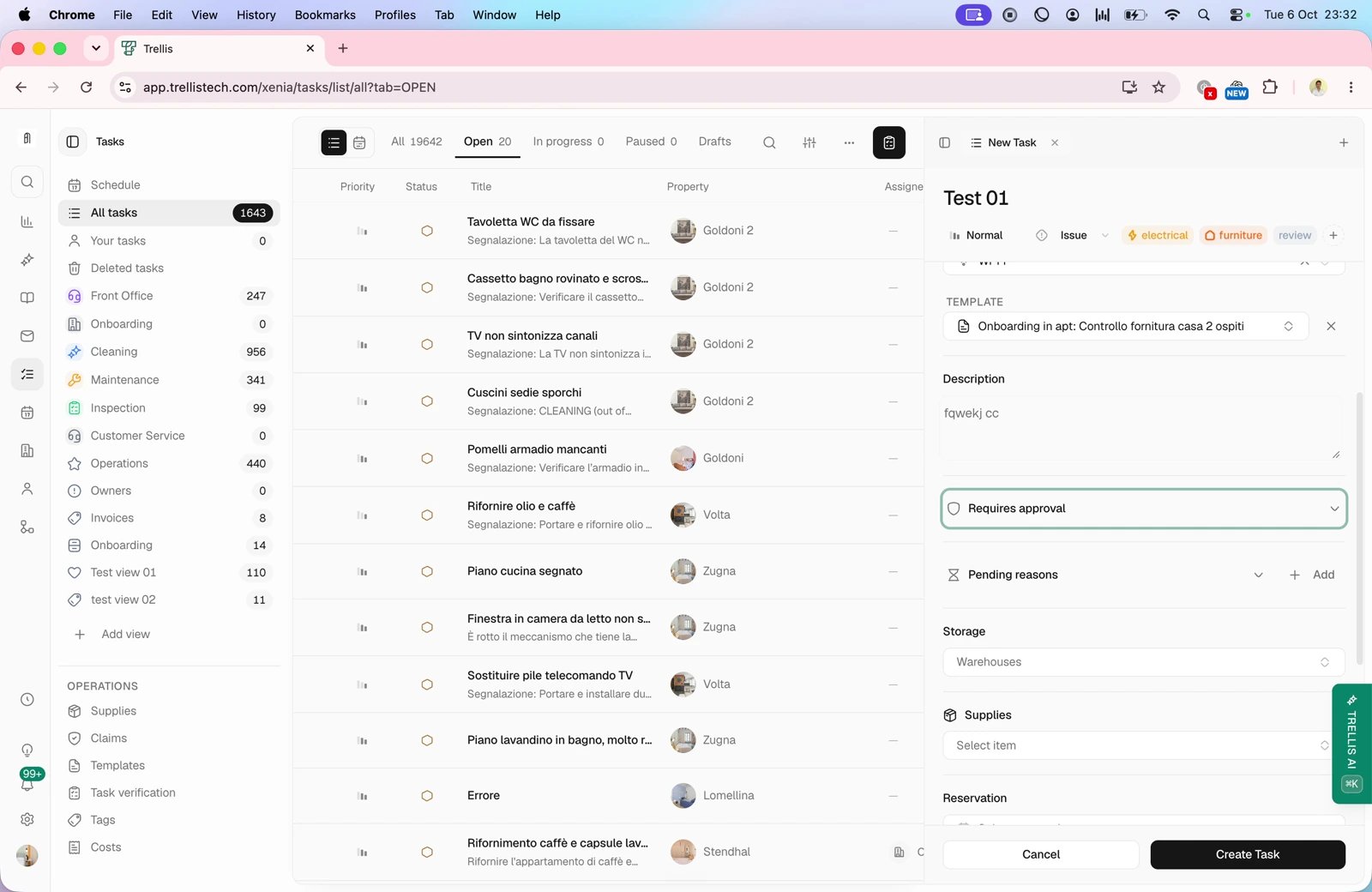
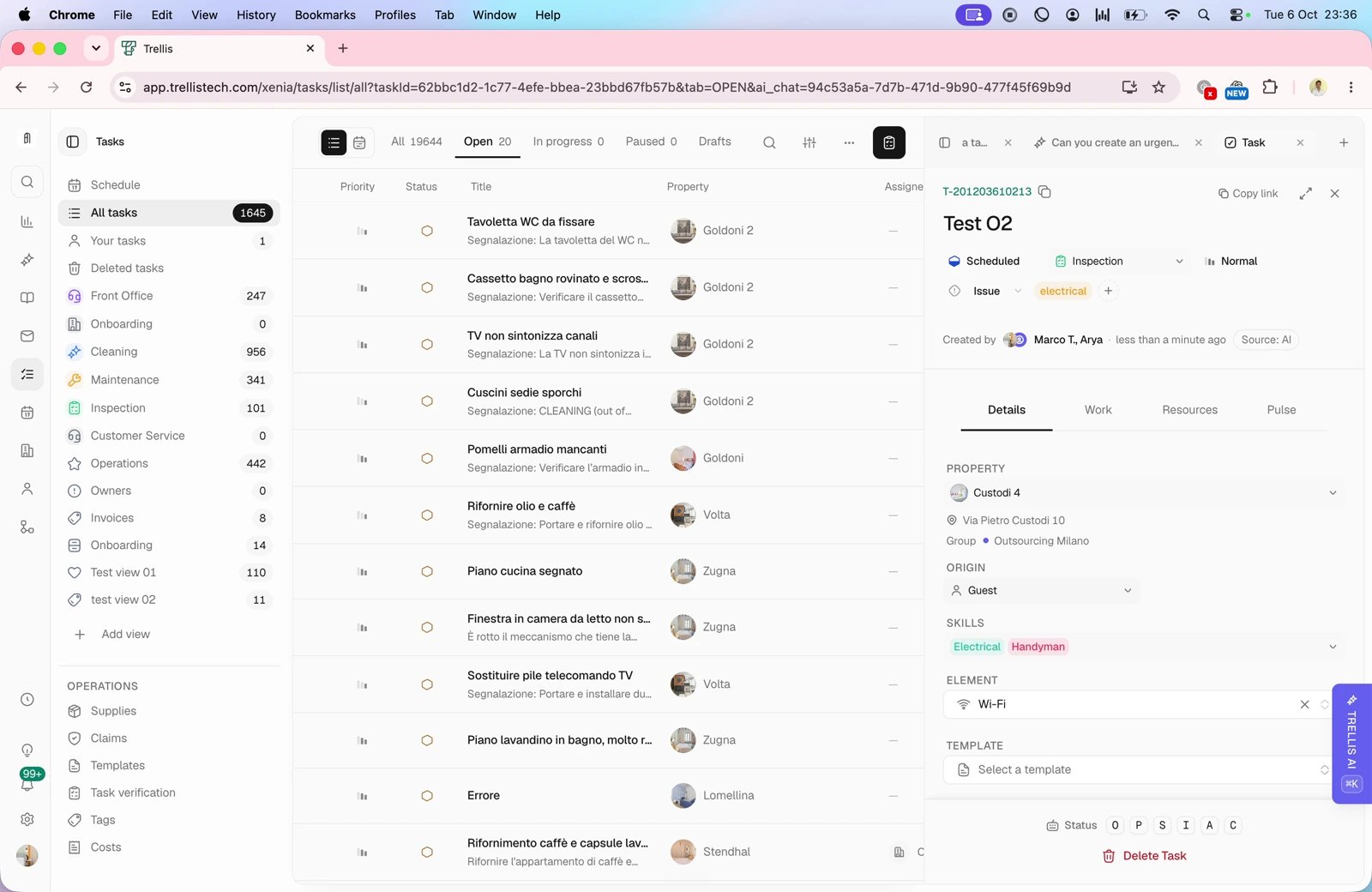
You don’t have to pick the template at the moment a task is created. Open any task and use the Template picker in the Details panel to apply, switch, or clear the template at any time:
  • Apply a template to a task that didn’t have one - Trellis materializes the template’s checklist onto the task.
  • Switch templates if you picked the wrong one or the work has changed - pristine checklist items from the old template are replaced with the new template’s items.
  • Clear the template to detach the task from any template entirely.
Switching or clearing a template never deletes work your team has already done. Checklist items that have been completed, annotated with notes, or had photos uploaded are preserved - only untouched, pristine items from the previous template are replaced.
Other fields you may have already customized on the task - title, description, priority, department, assignee - are left alone when you switch templates, so a template change won’t quietly overwrite edits your team made. You can also ask the AI agent to apply, switch, or clear a task’s template in plain language - for example, “switch the template on this task to Deep Clean” or “clear the template on task #4821.”

Templates from connected integrations

If you have a connected integration like Breezeway, the template selector groups templates by source - for example, “From Breezeway” and “From Trellis.” This helps you quickly identify which templates will carry their checklists and requirements over to the connected system when the task syncs. When you switch a task’s template, the connected system is notified so it can update its own template-specific requirements to match.

Filtering your task list

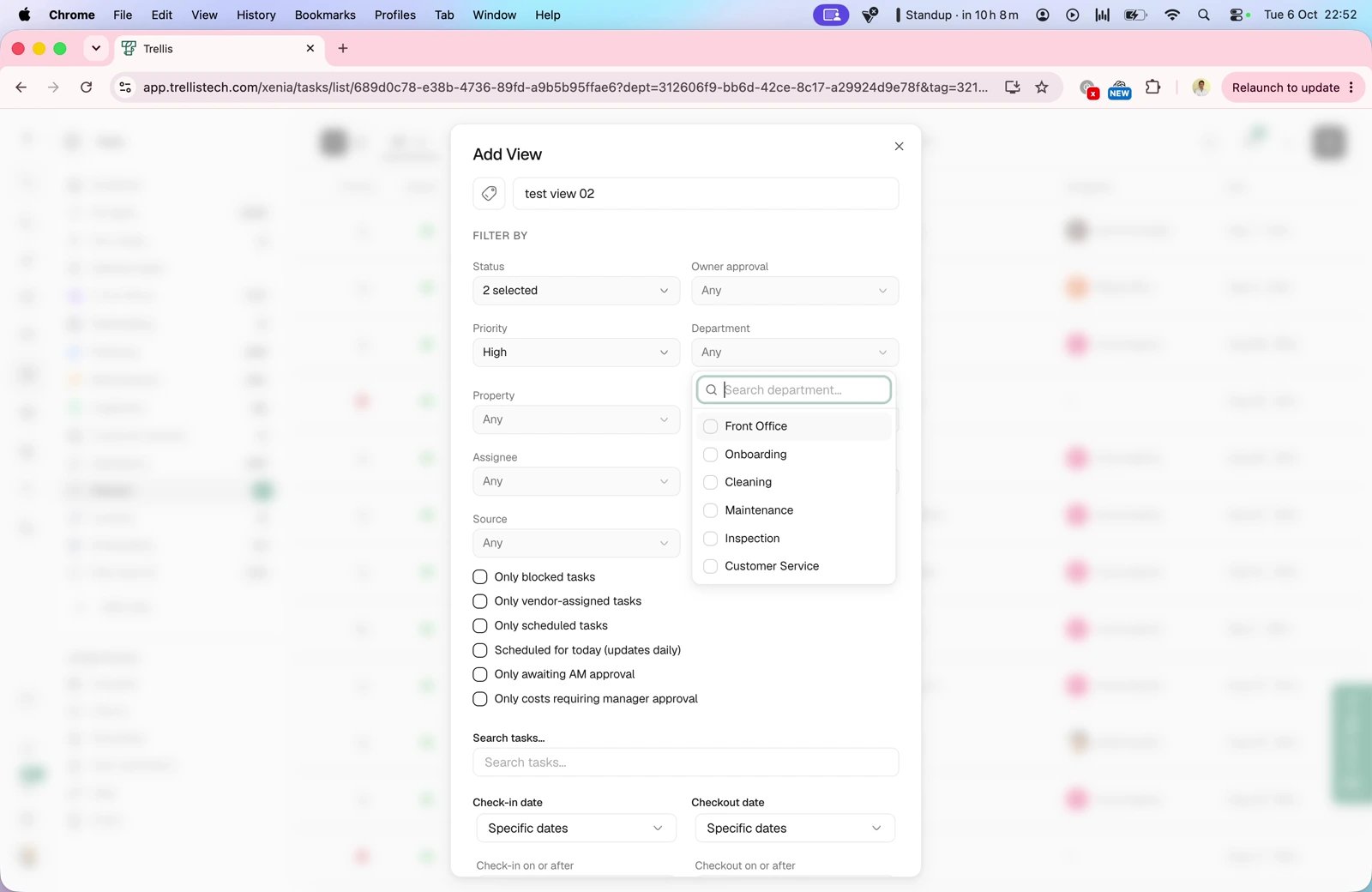
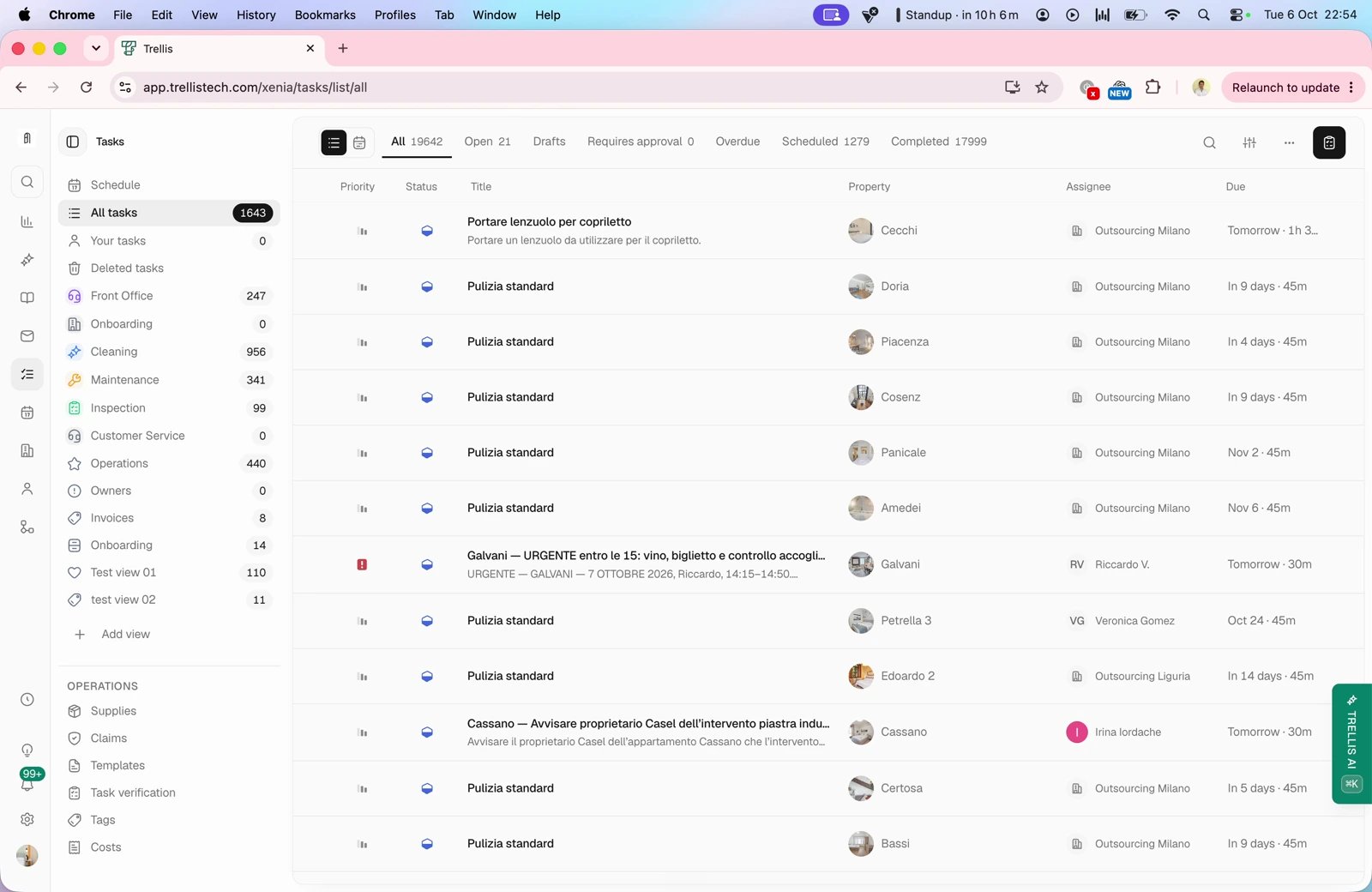
Use the filters at the top of the task list to narrow down what you see. You can filter by property, status, department, date range, and assignee.

Assignee filter

The assignee filter groups people into two sections - Members and Vendors - so you can quickly find who you are looking for:
  • Members - people on your workspace team
  • Vendors - external companies and contractors you work with
This makes it easy to see, for example, all tasks assigned to a specific cleaning vendor or all tasks your internal team is handling this week.
Combine filters to get exactly the view you need. For example, filter by a specific vendor and a department to review all their upcoming turnovers.

Unassigned tab for vendor workspaces

If your workspace belongs to a vendor organization (for example, a cleaning company that receives tasks from property managers), you see an additional Unassigned tab in the task list. This tab shows all tasks pushed to your team that have not yet been assigned to a specific team member. Use the Unassigned tab to:
  • See which incoming tasks still need someone assigned
  • Quickly triage new work and distribute it across your crew
  • Avoid missing tasks that get buried in the Open or Scheduled tabs
Once you assign a team member to a task, it moves out of Unassigned and into the appropriate tab (Open or Scheduled) automatically. There is nothing extra to do - just assign the person and the task relocates itself.
Check the Unassigned tab at the start of each day to make sure every incoming task has someone responsible. This prevents work from slipping through the cracks.

Filtering on mobile

The Trellis mobile app gives your team the same powerful filtering available on desktop:
  • Status tabs - switch between Open, Pending, Scheduled, and Completed tasks with a single tap. Vendor workspaces also see the Unassigned tab
  • Search - find tasks by name from the search bar at the top of the list
  • Date filter chips - narrow results to a specific date or range using quick-select chips, with a native date picker for custom ranges
Task cards on mobile show a compact row layout with the priority indicator, property name, department icon, assignee avatars, date, and status badge - giving your field team all the context they need at a glance.

Exporting tasks to CSV

Need to share task data outside Trellis or pull it into a spreadsheet for reporting? You can export any selection of tasks to CSV directly from the task list.
1

Filter and select tasks

Apply any filters you need (property, status, department, date range, assignee) to narrow the list. Then select the tasks you want to export - use the checkboxes on individual rows or Select all to grab the entire filtered set.
2

Open the export dialog

Click Download CSV from the bulk actions bar. The export dialog opens with a summary of how many tasks will be included.
3

Watch progress in real time

For large exports - think thousands of tasks across a busy workspace - a progress bar shows how many tasks have been processed and the percentage complete. You always know exactly where the export stands.
4

Download the file

When the export finishes, the CSV downloads automatically to your computer.

Cancelling an in-progress export

If you started a large export by mistake - or just changed your mind - you can cancel without waiting for it to finish. Close the dialog or press Esc while the export is running. Trellis asks you to confirm with a Cancel export? prompt so you don’t lose progress accidentally. Confirm to stop the export immediately; the partial results are discarded and no file is downloaded.
Exports run in your browser, so keeping the dialog open while it processes is best. If you cancel, you can simply start a new export with the same filters whenever you’re ready.

Calendar view

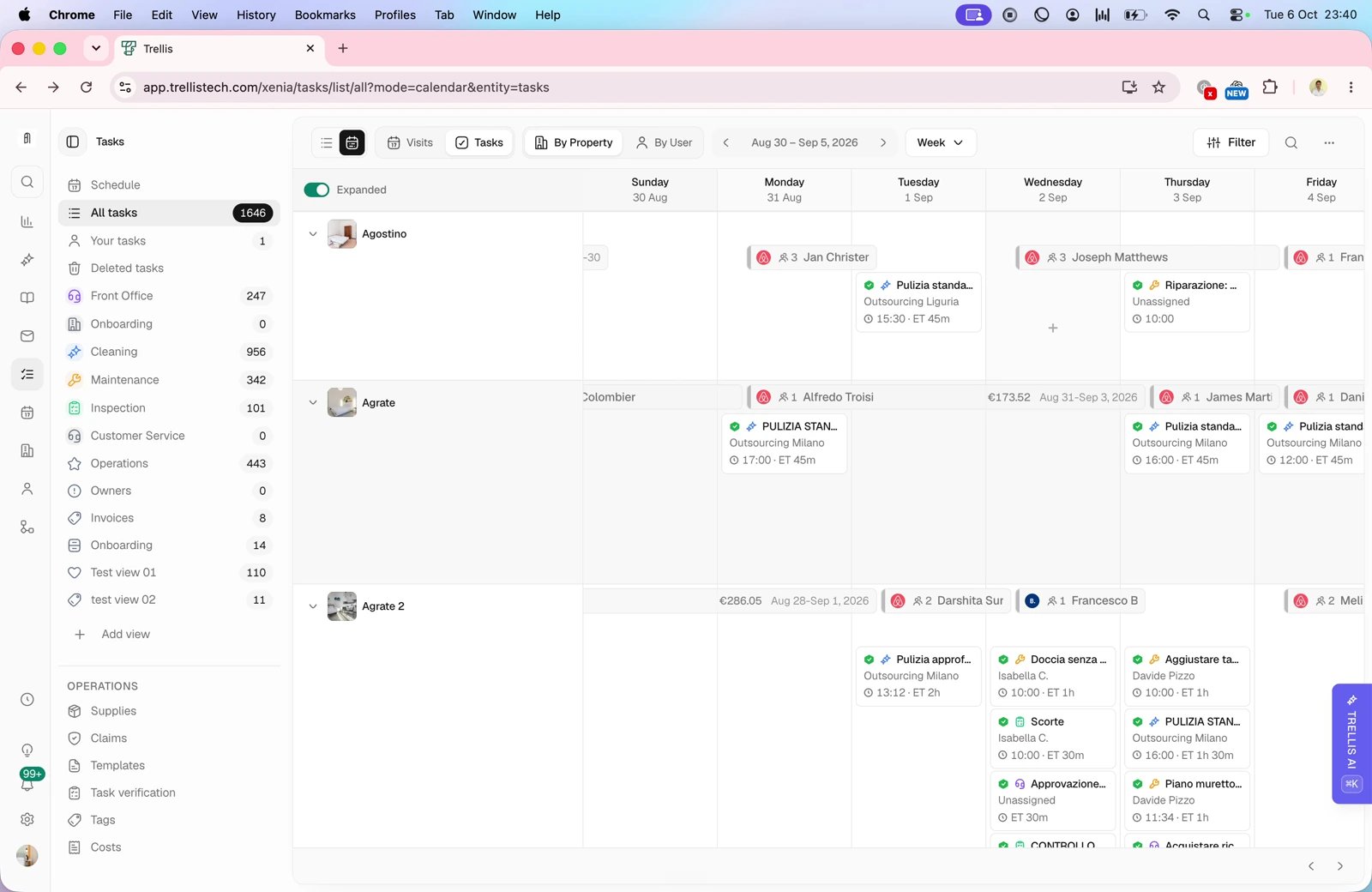
Switch to the calendar view to see your schedule laid out by date. The calendar is available from the task list - click the calendar icon to toggle between list and calendar modes. You can view the calendar in two modes using the Visits / Tasks toggle at the top:

Visits mode

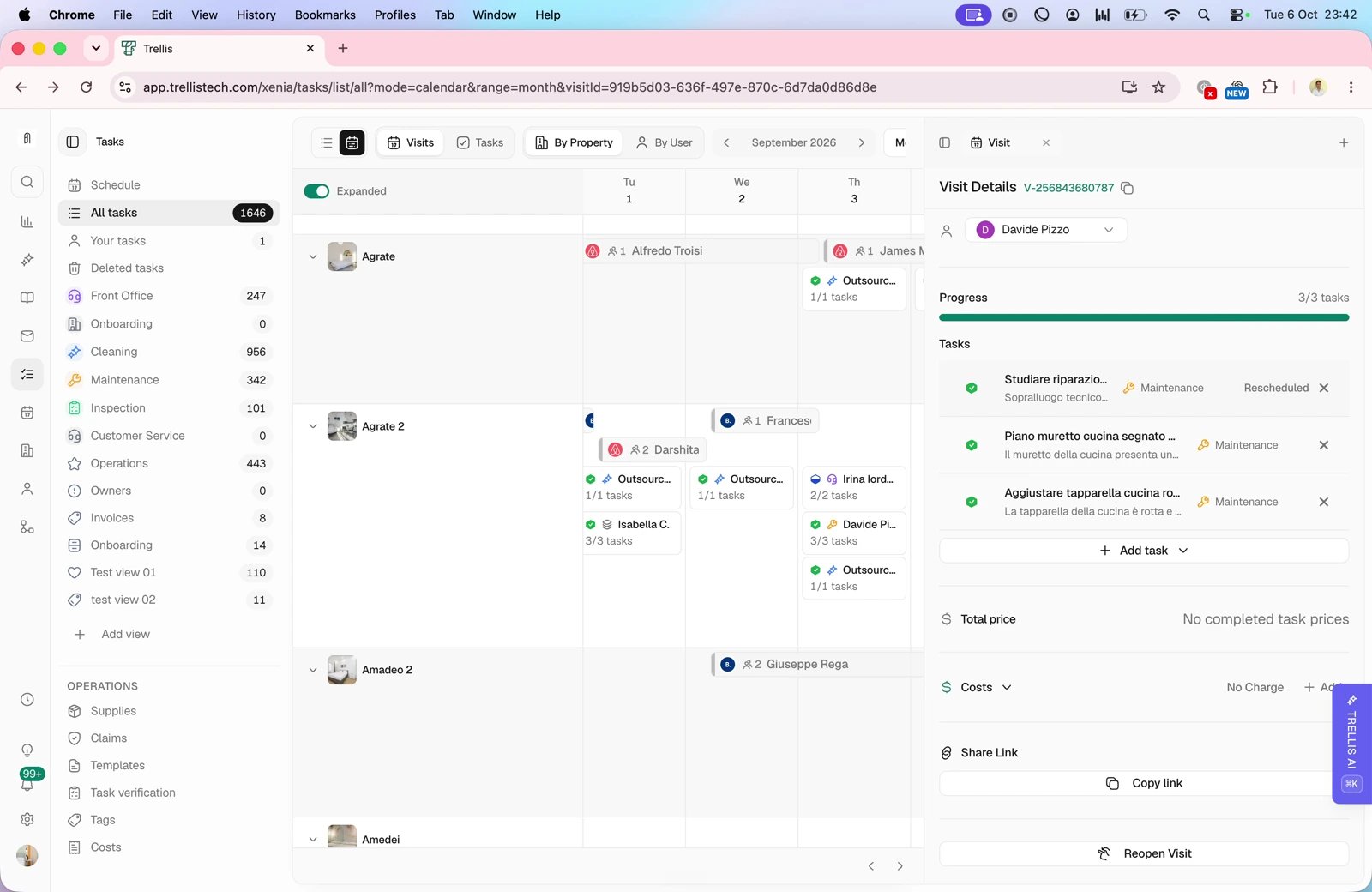
The default view groups tasks into visits - one block per trip to a property. This is the same smart grouping described above, shown on a timeline. Use it for:
  • Planning your team’s week at a glance
  • Spotting scheduling conflicts between properties
  • Making sure every checkout has a cleaning visit assigned
  • Balancing workload across your team

Tasks mode

Switch to Tasks to see individual tasks on the calendar instead of grouped visits. Each task appears as its own card, color-coded by department and showing the task status icon. Task cards display:
  • The task title and assignee (or property name, depending on your calendar layout)
  • A status icon showing whether the task is open, scheduled, in progress, or completed
  • The department color so you can visually distinguish work across your departments
  • The scheduled time, if one is set
Use tasks mode when you want to:
  • See exactly which tasks are scheduled on each day
  • Quickly check task status across your properties or team
  • Filter by status, department, priority, assignee, or property - the same filters available on the task list
Filters carry over between the list and calendar views. Set a filter on the task list, switch to calendar, and the same filter is still applied.

Calendar layouts and ranges

Both visits and tasks modes support two layouts:
  • By property - each row is a property, so you can see what is happening at each location
  • By team member - each row is a person, so you can see everyone’s workload
You can switch between week, 15-day, and month ranges to zoom in or out. In visits mode, a day view is also available for a detailed look at a single day.
Day view is only available in visits mode. If you switch to tasks mode while on the day view, the calendar automatically adjusts to the week view.

Reassigning work from the team-member calendar

In the By team member layout, the Unassigned row is pinned to the top of the calendar so unstaffed work is always the first thing you see. The row stays in place as you scroll through the rest of your team, making it easy to spot tasks and visits that still need an owner. To reassign work, drag any task or visit from one team member’s row to another - including dragging items into or out of the Unassigned row. Drop the item on the day you want it scheduled, and Trellis updates the assignee and the date in one step. While you drag, the calendar automatically scrolls when you hover near the top or bottom edge, so you can reach team members who are off-screen without dropping the item to navigate. Auto-scroll stops the moment you move away from the edge or release the drag.
Use the team-member layout during your morning huddle to balance the day’s workload. Drag overflow off a busy cleaner’s row onto a teammate with capacity, and Trellis handles the reassignment and notification automatically.

Moving work between properties

In the By property layout, you can drag a task or visit from one property’s row onto another to move it to a different property. Drop the item on the day you want it scheduled, and Trellis updates both the property and the date in one step. Visits move with all of their linked tasks, so the schedule stays intact at the new property - there’s no need to recreate cleanings, inspections, or maintenance work after a reassignment. As with the team-member layout, the calendar auto-scrolls when you hover near the top or bottom edge while dragging, so you can reach properties that are off-screen without releasing the item.
This is useful when a turnover gets reassigned to a different unit at the last minute - for example, when a guest is moved between properties or when a maintenance visit needs to shift to a neighboring address. Drag the visit to the new property’s row and the whole schedule follows.

Time tracking

When your team starts working on a task from the mobile app, they can start a tracking session to log how long the job takes. A persistent banner appears at the top of the screen showing elapsed time, and it stays visible as they navigate between screens - so they always know what they are clocked into. Time tracking helps you:
  • Understand how long each task type actually takes
  • Compare estimated versus actual durations
  • Identify tasks or properties that consistently take longer than expected

Live tracking map

The live tracking map gives dispatchers and operations managers a real-time view of where every active worker is - so you can route the closest cleaner to a same-day turnover, see who is on-site, and confirm coverage across your portfolio at a glance.

How worker locations are captured

Trellis pulls a worker’s location from whichever source is available - so the map keeps working whether your team is in the field on a phone or working from a laptop at the office.
SourceWhen it’s usedAccuracy
Mobile GPSThe worker is on shift in the Trellis mobile app and has granted location permissionPrecise - typically within a few meters
Web (browser)The worker is signed in to Trellis on a desktop or laptop and has granted browser location permissionPrecise - uses the browser’s geolocation service
ApproximateNo GPS or browser location is available, so Trellis falls back to the worker’s coarse network locationCity-level - useful for confirming presence in a region, not pinpointing an address
Each pin on the map shows a small badge indicating which source it came from, so you always know how precise a given location is.
Approximate locations are only used as a fallback when no precise location is available. If a worker explicitly denies location permission, Trellis respects that choice and stops tracking them entirely - they will not appear on the live map until they re-enable permission.

Web tracking for office staff

Workers who use Trellis in the browser - for example, dispatchers, area managers, or anyone covering the office - can now share their location from the web app, just like field workers do from mobile. A small indicator in the top bar shows when web tracking is active, so it’s always clear when you’re visible on the live map. Web tracking activates automatically when you’re on shift and your browser has location permission. If you’re away from your desk, your location stops updating once you sign out or your shift ends.
Web tracking is especially useful for hybrid teams. A manager working from the office still shows up on the live map, so the operations team can see who’s available without asking.
The live map is built around explicit consent at every step:
  • Workers must grant location permission in their browser or mobile app before any tracking begins
  • If permission is denied, no location - precise or approximate - is recorded
  • Tracking stops automatically when a worker signs out or ends their shift
  • Approximate (network-based) location is only used as a fallback, never as a primary source when precise data is available

Keeping your PMS in sync

If you use a field operations platform like Breezeway, supported tasks stay coordinated across systems:
  • Tasks created in Trellis appear in your operations platform
  • Tasks updated in your operations platform are reflected in Trellis
  • Status changes, assignments, and completions sync in both directions
You do not need to update tasks in two places. Make changes wherever is most convenient - Trellis keeps everything in sync.

Tips for effective task management

Automate turnover tasks

Set up an automation to create a cleaning task every time a guest checks out. Never miss a turnover again.

Use checklist templates

Consistent checklists mean consistent quality. Create templates for each task type and apply them everywhere.

Review the calendar weekly

Spend a few minutes each week looking at the calendar view. Catch scheduling gaps, overloaded days, and unassigned tasks before they become problems.

Enable photo uploads

Require your team to upload photos for key checklist items. Visual proof saves time on quality checks and resolves disputes faster.

Track supply usage

Attach supply items to your tasks so inventory levels update automatically when work is completed. No more manual stock counts or surprise shortages.