
Before you start
Contacts can arrive through connected messaging and property systems. If someone is missing, check your access before creating a duplicate.Find a contact
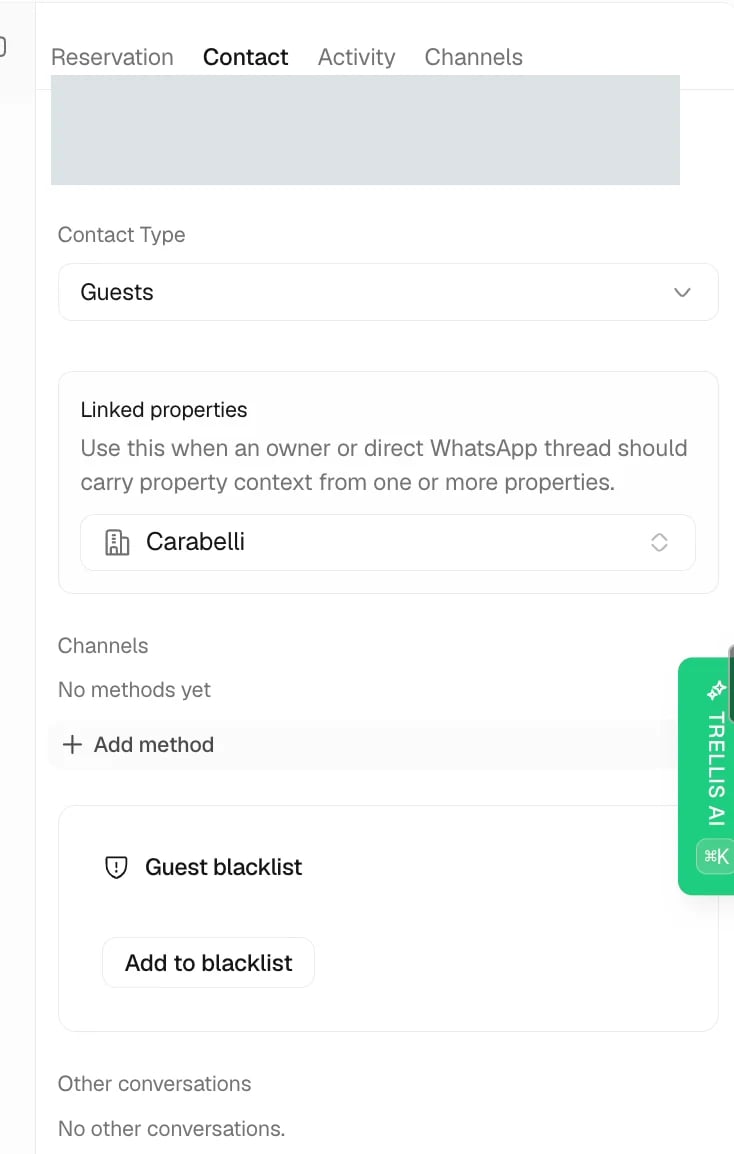
Contact types
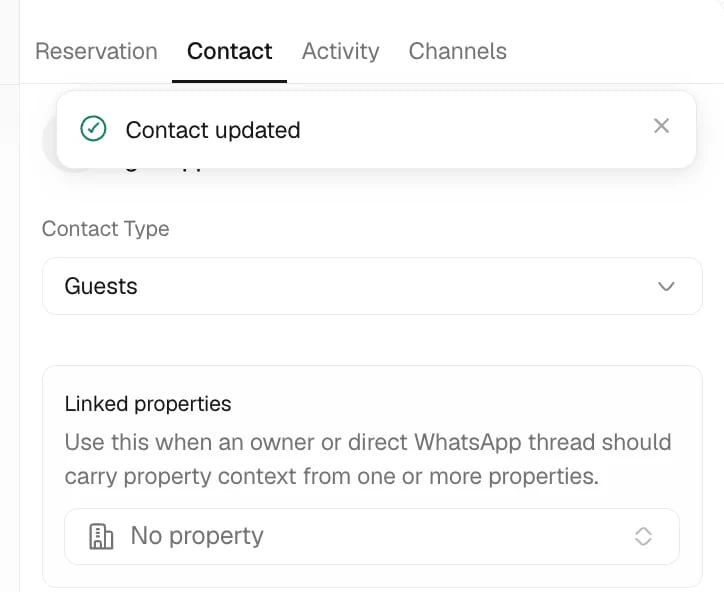
Keep profiles clean
Add or correct contact details
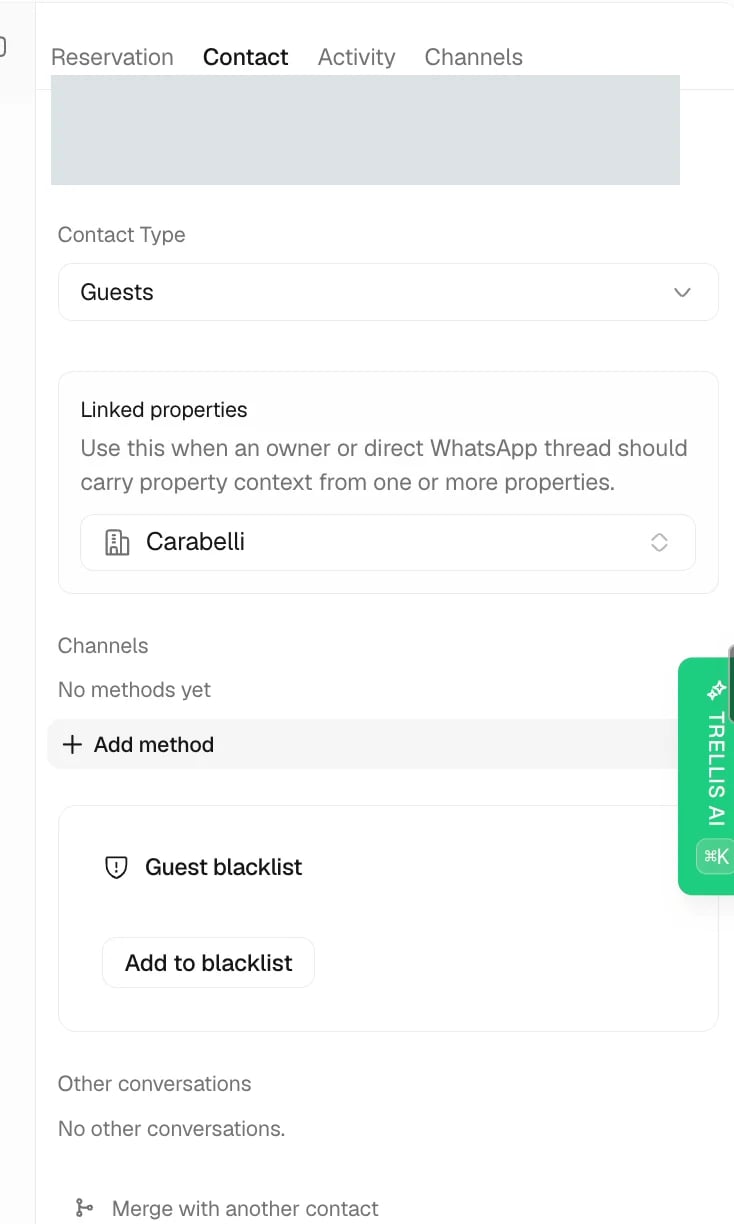
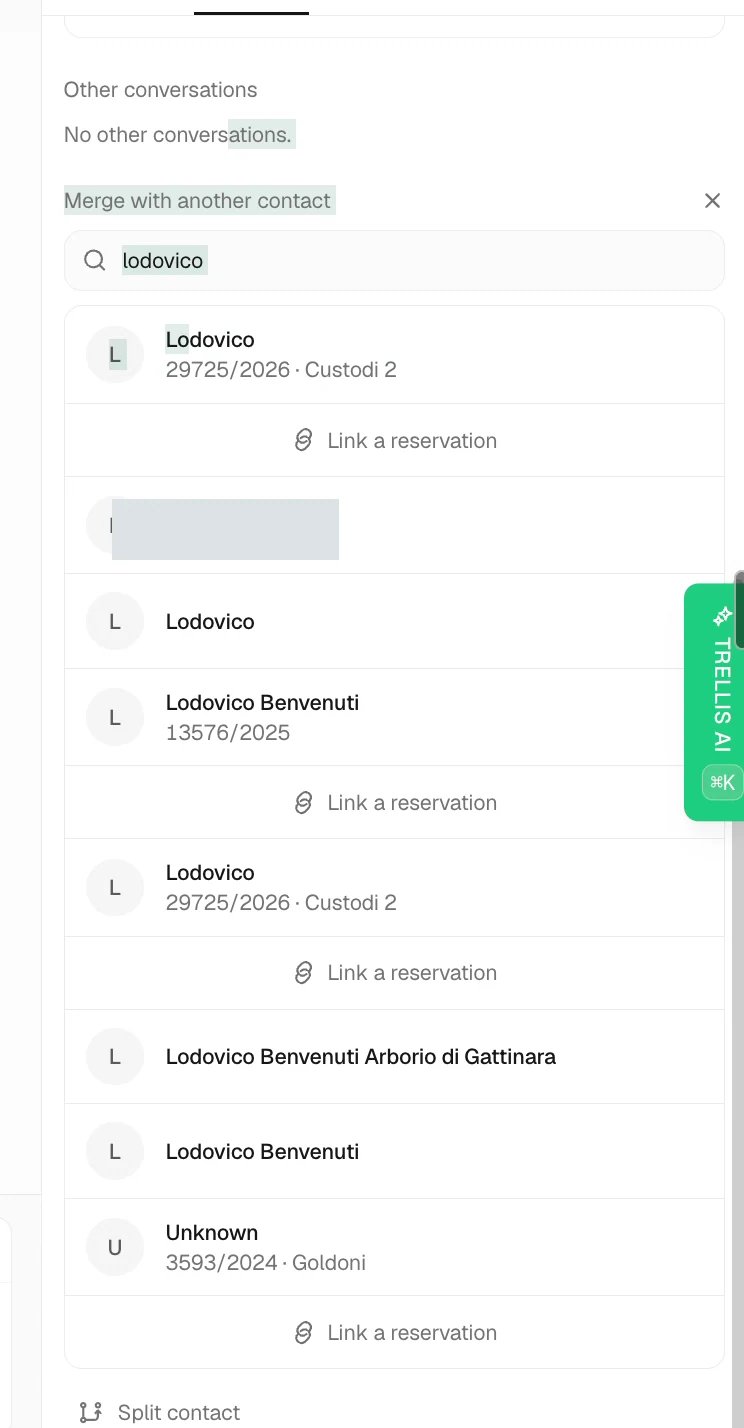
Merge duplicates or separate different people
Require a review for a guest
Workspace administrators can add a contact to the Guest blacklist from the contact profile, sidebar, or the Contact tab in an inbox conversation. Select Add to blacklist, enter the reason, and save. The reason is visible to your team, and the entry remains on that contact until an administrator removes it. Existing and future reservations linked to that contact receive the Blacklisted guest tag. Active workspace administrators receive an in-app notification for current and upcoming reservations that need review. Trellis also sends an alert to the workspace Slack escalation channel, with a link to review the reservation. Connect Slack and choose the AI agent escalations notification channel in workspace notification settings; otherwise the workspace default channel is used. Temporary delivery failures are retried automatically. Check that the reservation is linked to the correct contact; a separate contact with a similar name is not automatically included. Open each reservation to approve or deny access in Blacklisted guest — reservation review. Approval applies only to that reservation. Future bookings need a new decision, and removing then re-adding a contact does not restore earlier approvals. Removing the contact from the blacklist removes this review requirement and its automatic tags; the portal’s other access requirements still apply. See Guest portal for what the guest sees while a review is pending.Common problems
A contact is listed as unknown
A contact is listed as unknown
Open the profile and add the details you can verify. Do not guess a guest’s identity from a similar name; compare the phone number, email, and reservation.
There are duplicate contacts
There are duplicate contacts
Compare contact methods and linked records. Merge only after confirming they belong to the same person.
A conversation is linked to the wrong person
A conversation is linked to the wrong person
Check the contact method and whether several people were merged. Correct the association or ask an administrator to split the records before replying.
Related articles
- Inbox — use the contact profile while replying.
- Read a reservation — identify the stay behind a request.
- Guest portal — review access for a blacklisted guest.