
Plan the guest journey
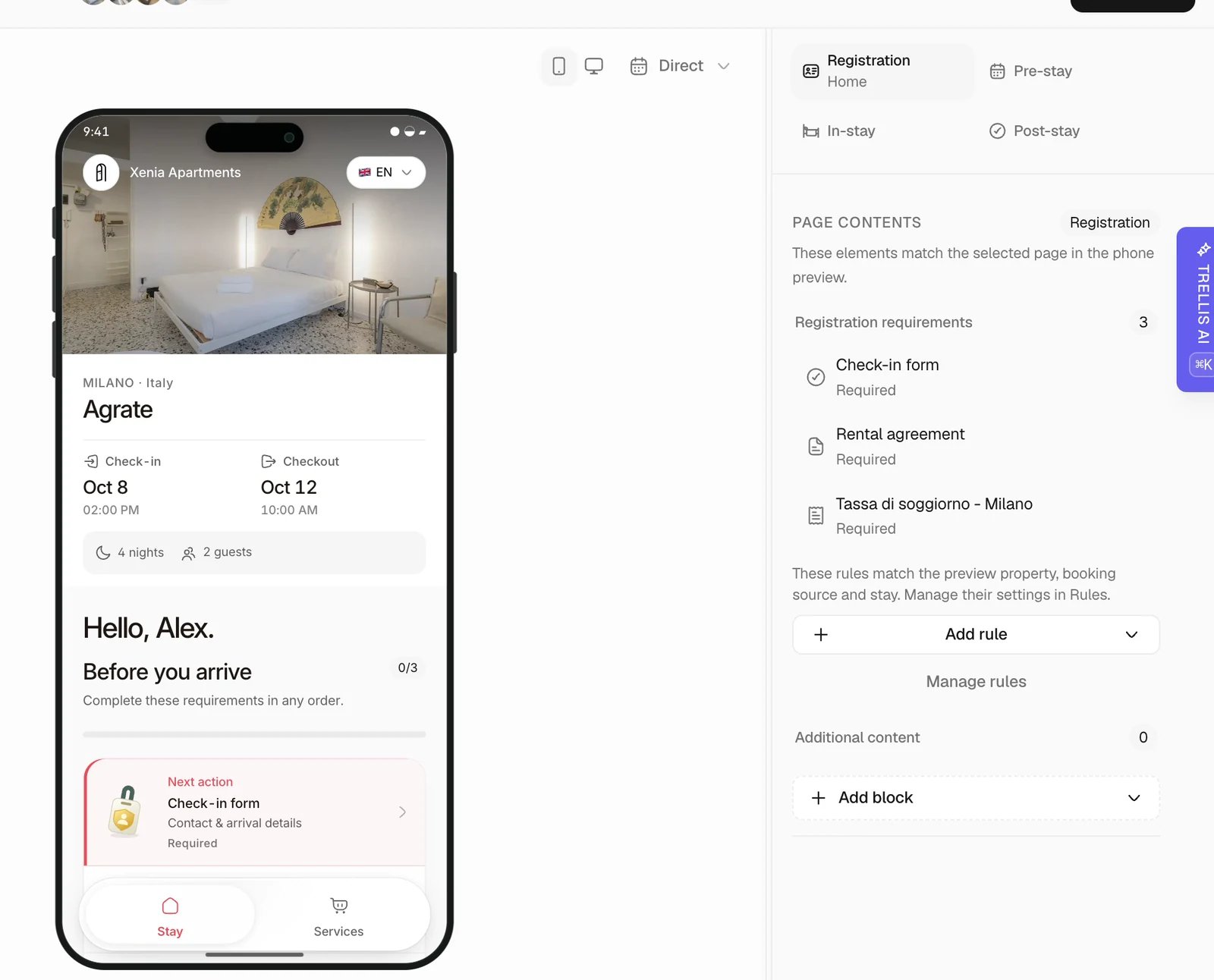
Build and publish a portal
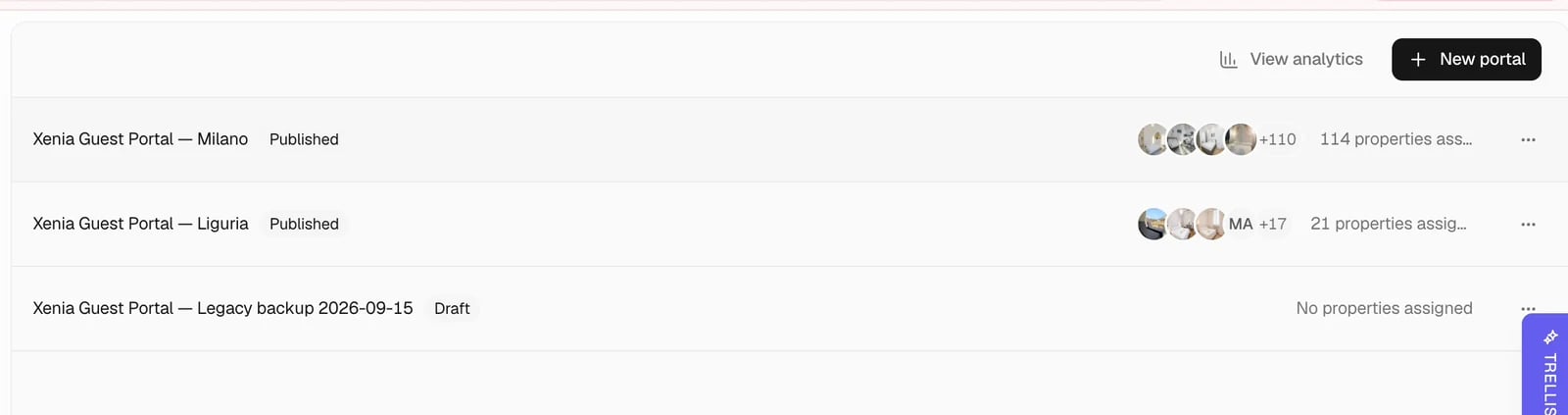
Create the template and assign properties
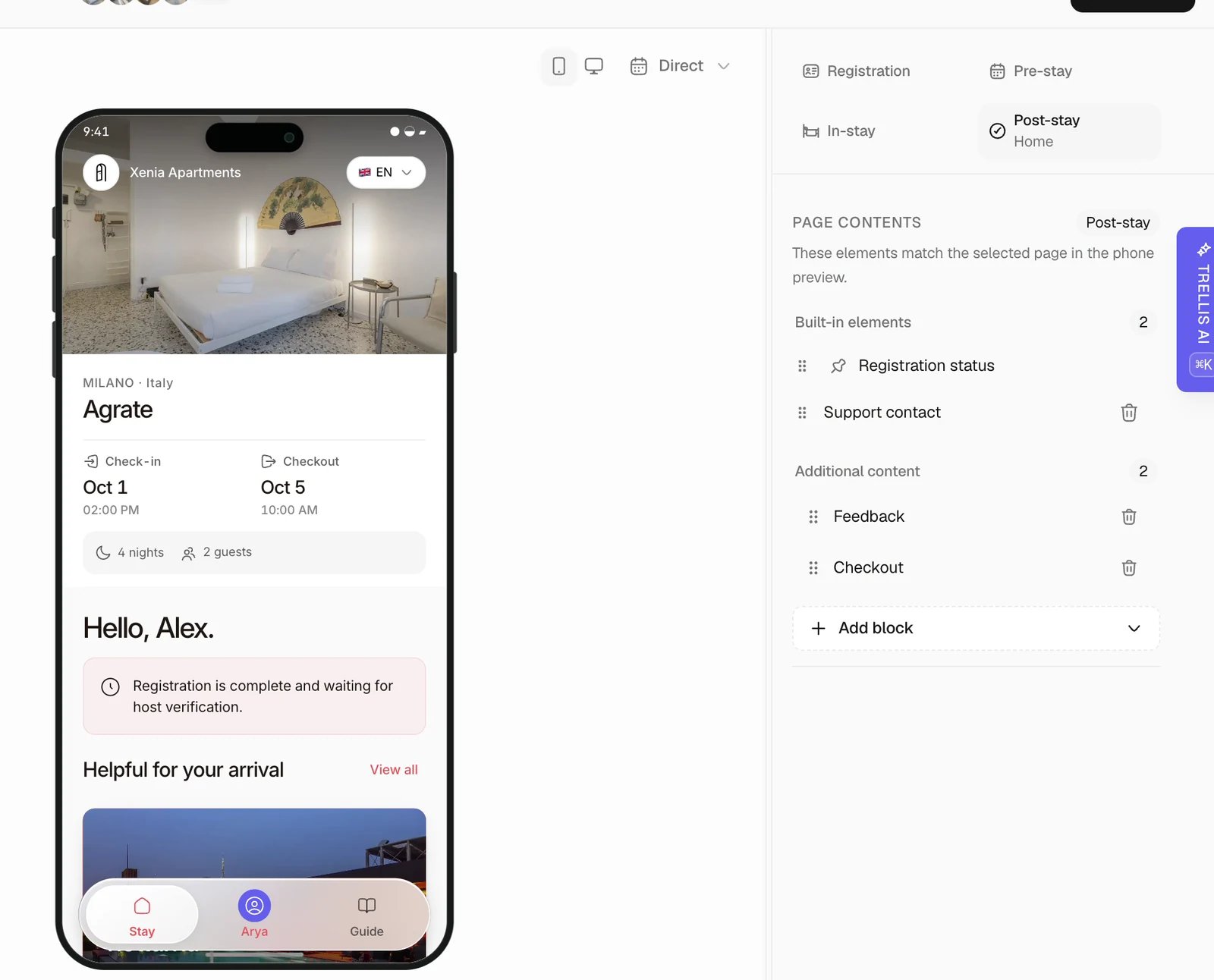
Arrange the guest journey
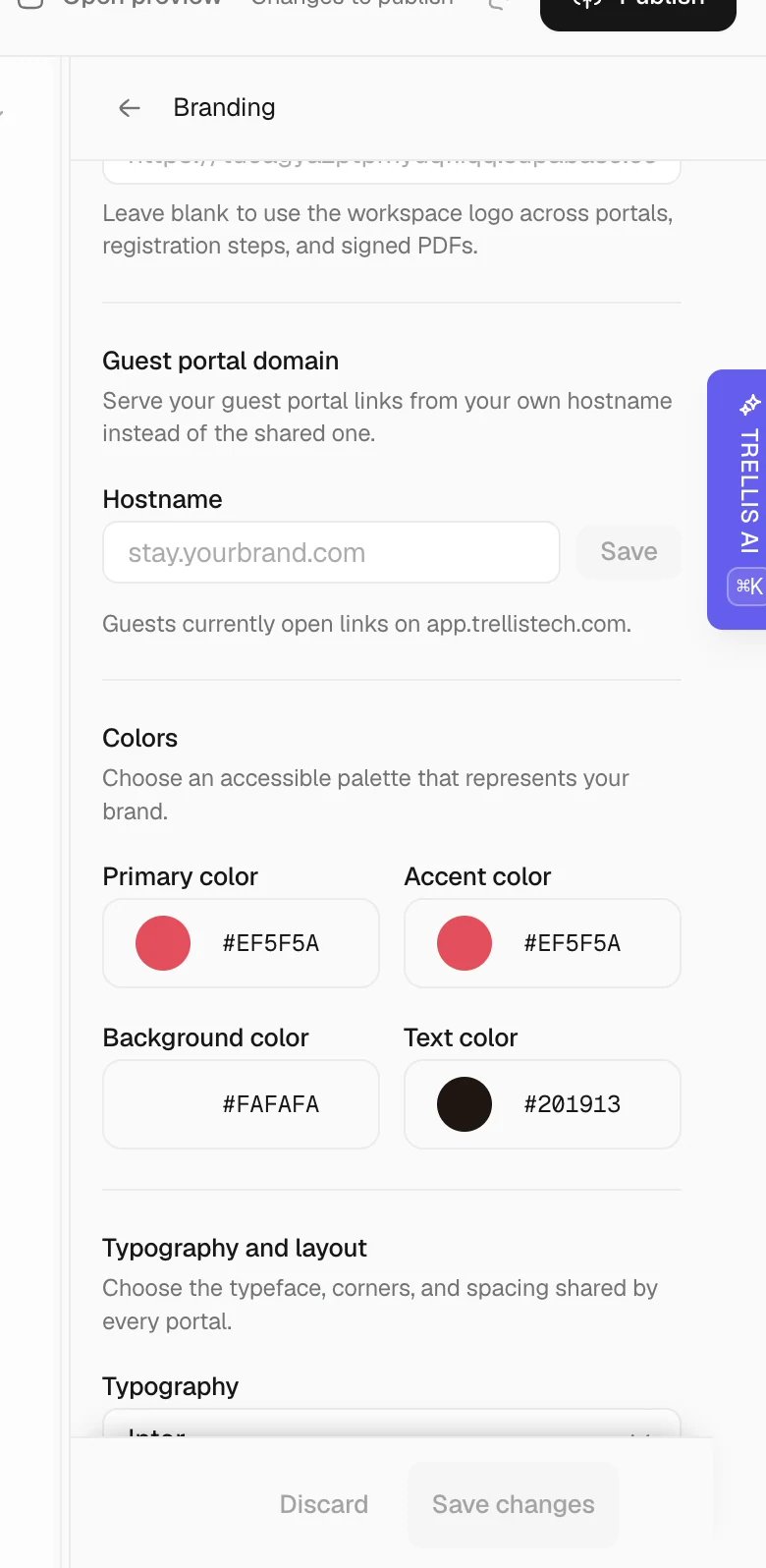
Set appearance and support
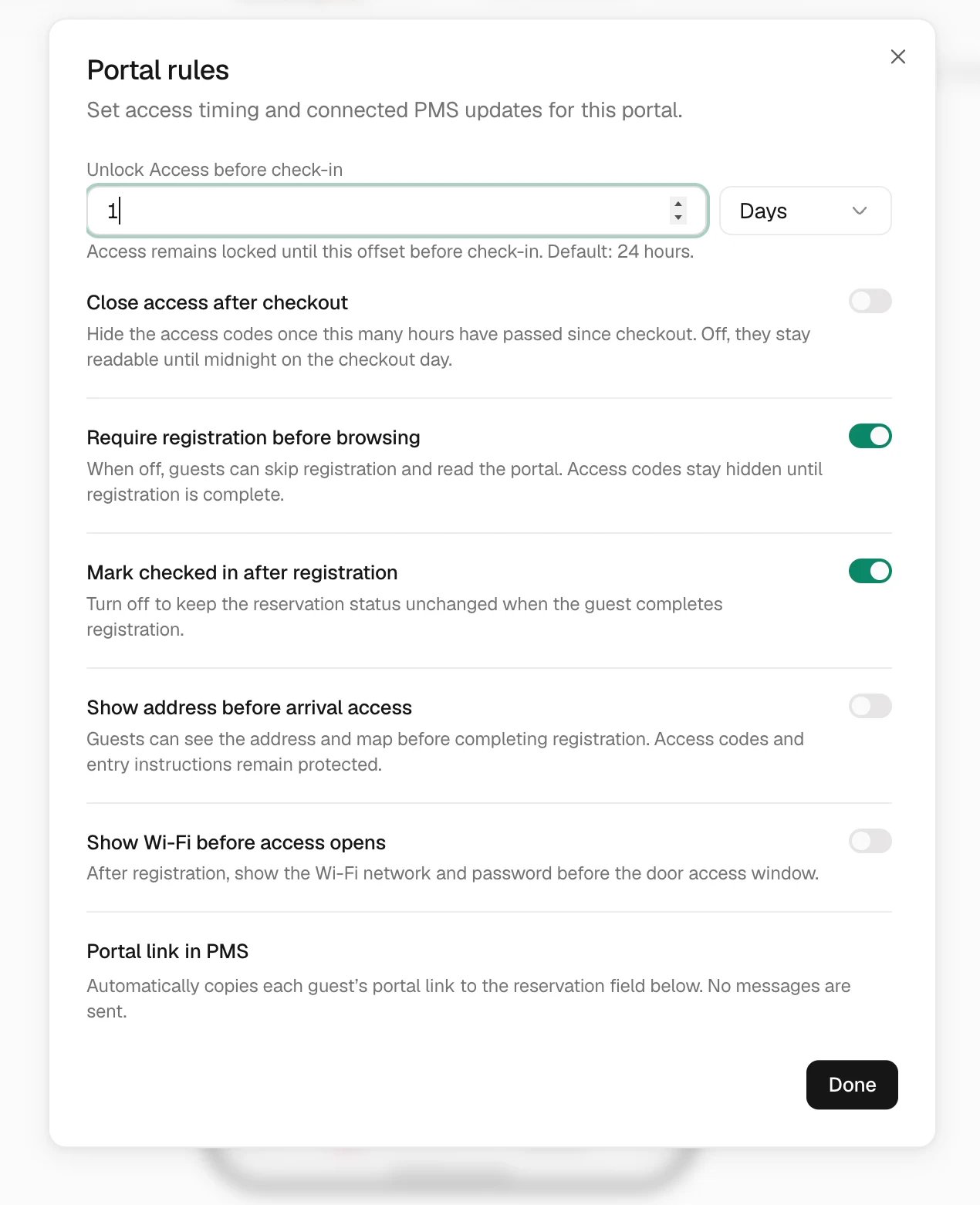
Decide when entry information unlocks
Choose what to preview
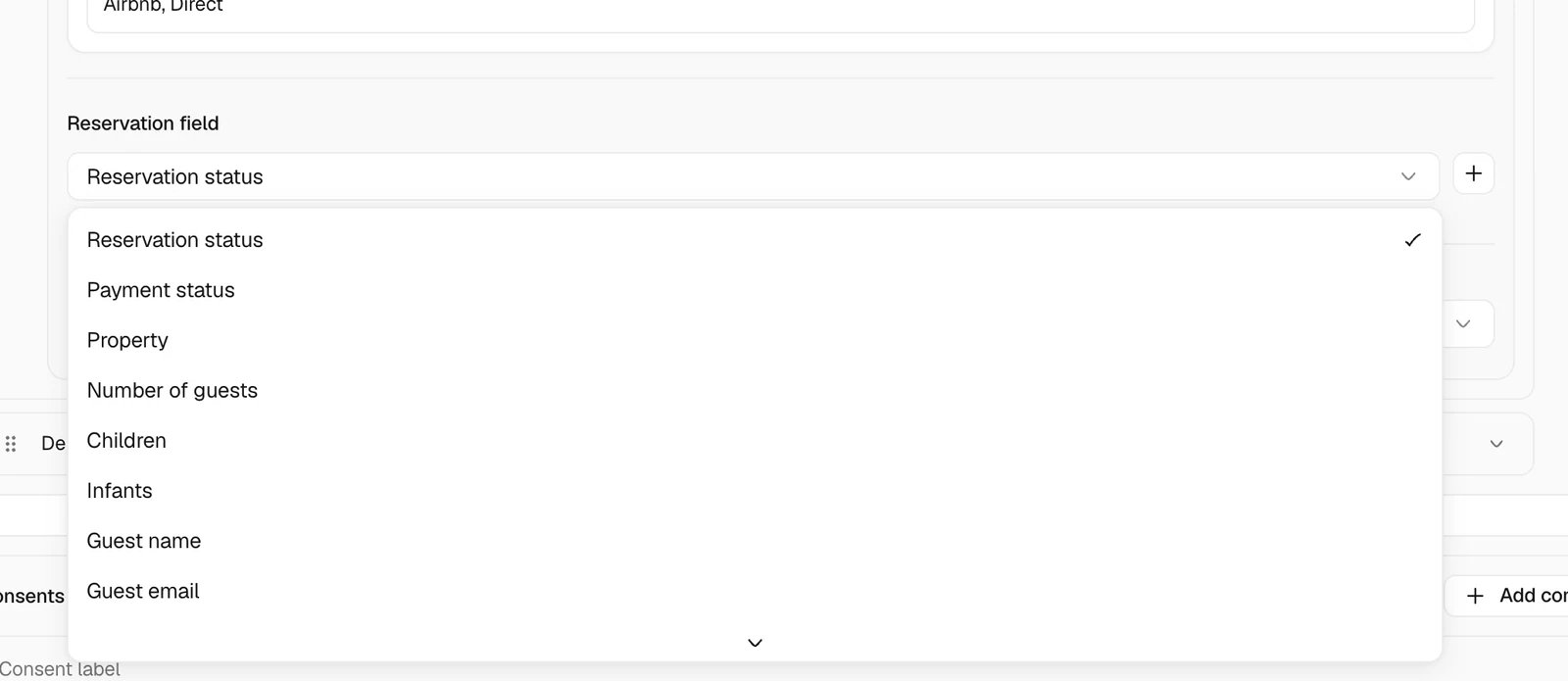
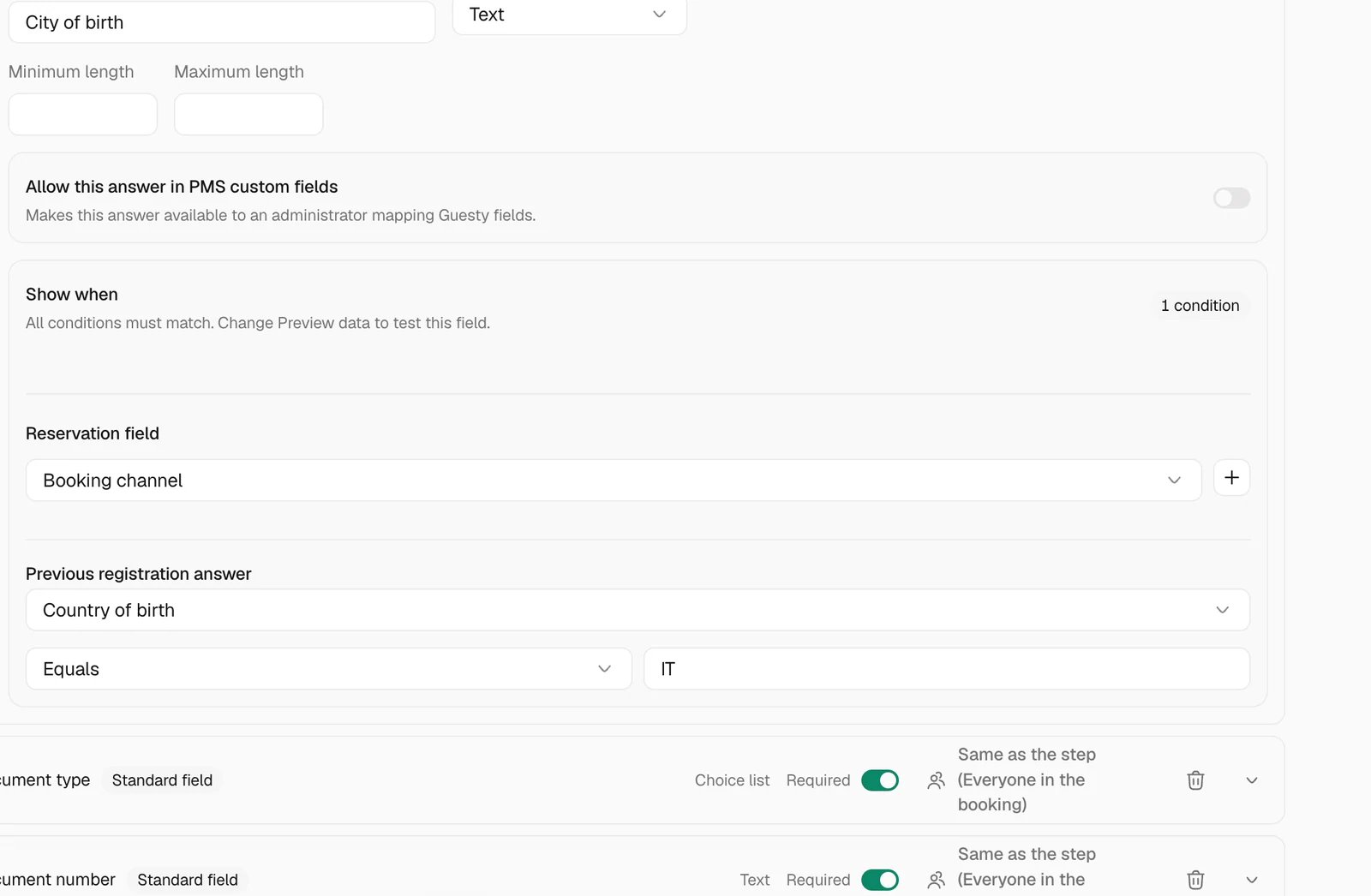
Open Simulate a reservation in the preview toolbar. Choose a stay from the calendar, or select a Property and Booking channel, then Preview property to use sample guest data. Expand Custom data to enter preview details yourself. Apply the selection to update the preview and house manual editor. Closing the dialog without applying discards those changes. Preview selections do not change saved reservations or portal assignments.Preview and publish
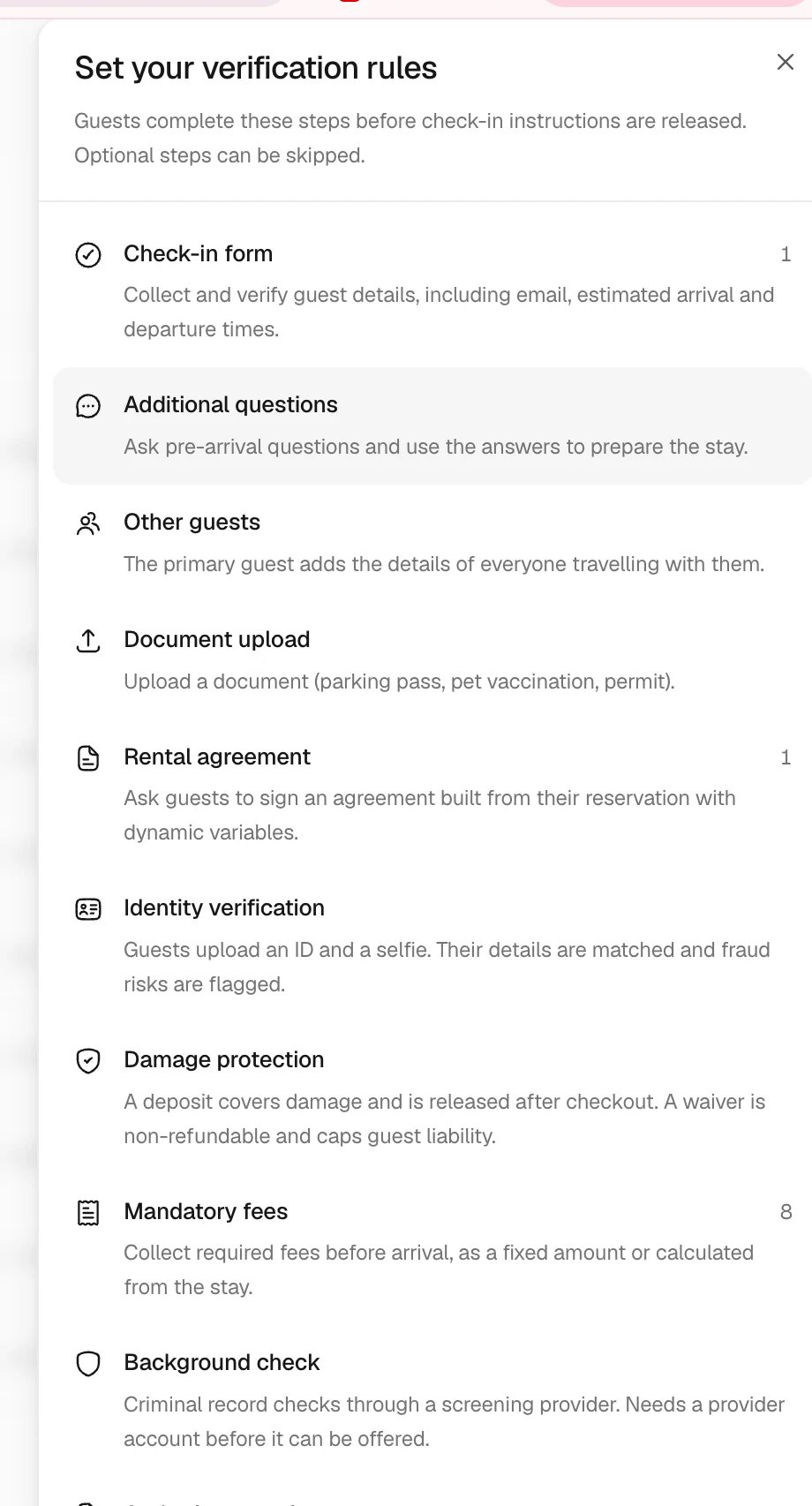
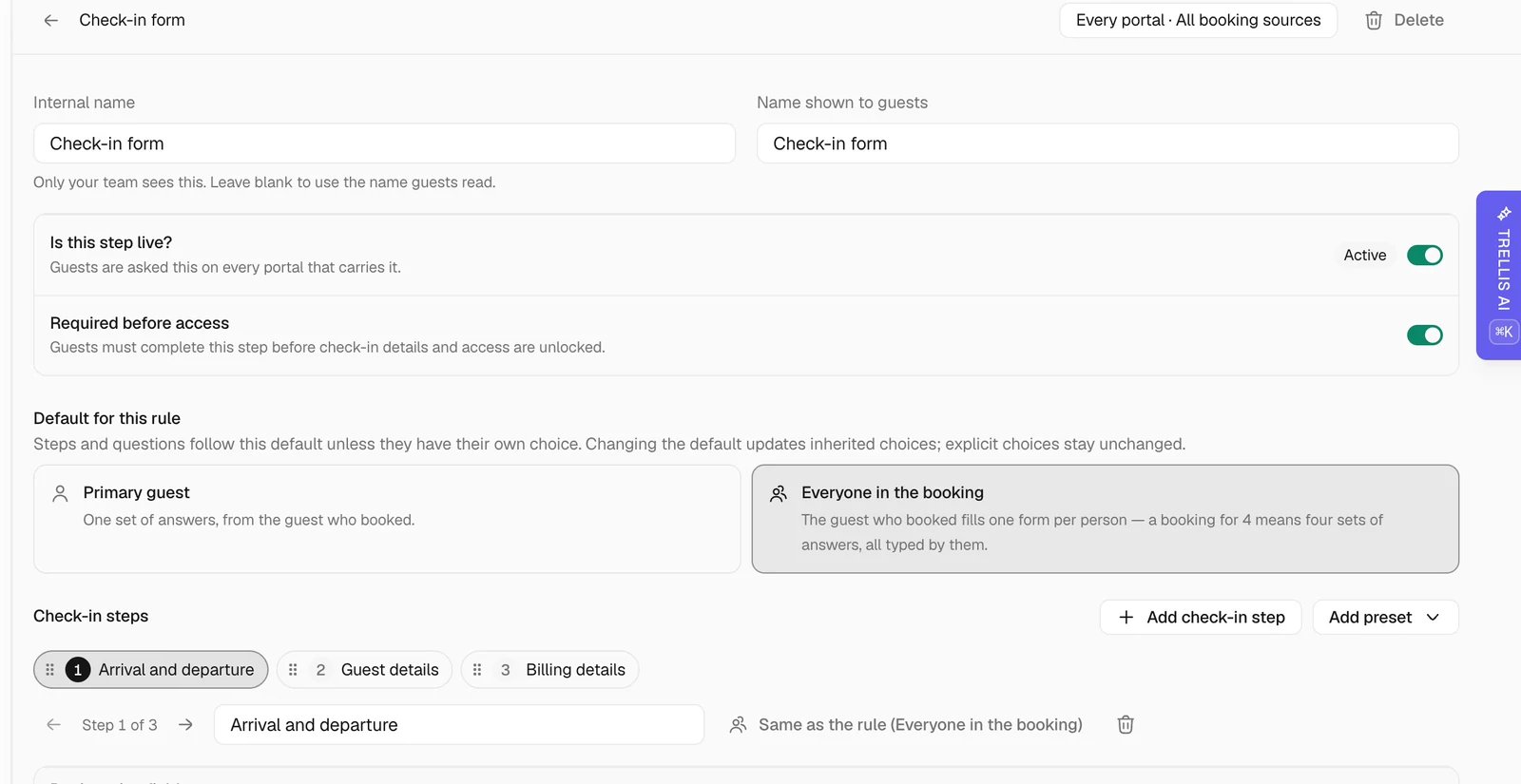
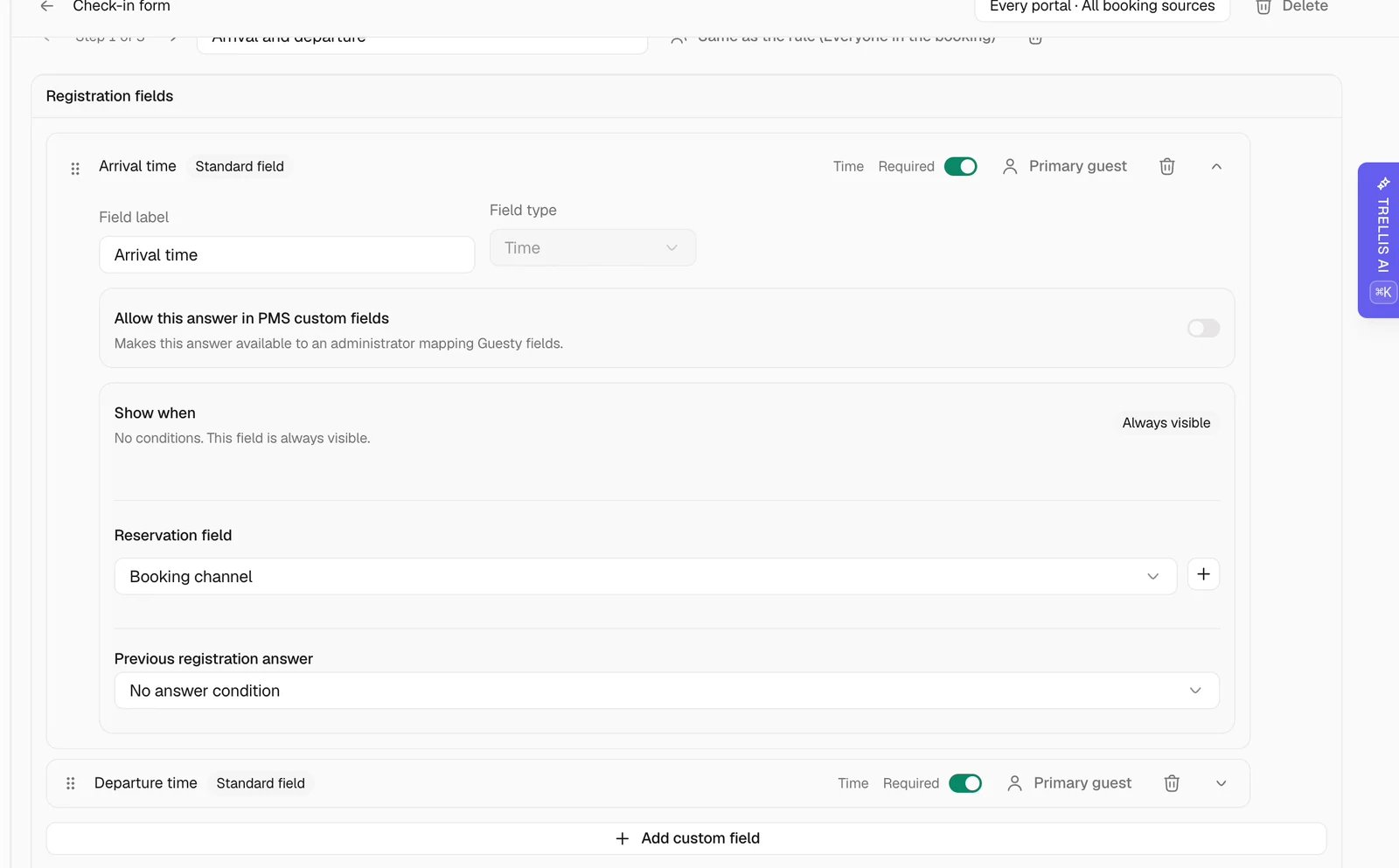
Check desktop and mobile previews with representative bookings. Confirm the assigned properties, registration steps, prices, support buttons, and protected access content. Publish when the configuration is ready; Trellis fills missing translations and the header shows Published. Changes to a draft are not yet the guest’s published experience. Publishing automatically updates appearance and informational content in existing guest portals when there is no conflicting reservation customization. Access changes, registration changes, removals, and other guest actions are held for review. Choose Review unapplied updates after publishing, or open the reservation’s Guest Portal section, to see the reasons and use Apply updates anyway. Started registration and its existing records remain protected. Older portals without a known previous version require review. Draft edits save automatically. Use Publish, including in Rules, to make them live. Making existing form fields optional also updates existing portals immediately, even after registration has started, when the rest of that form is unchanged. Existing answers remain intact.Configure registration rules
Additional travellers
In an Other guests step, enable Exclude the primary guest to collect only the remaining travellers. The booking holder keeps their existing details, and solo reservations skip this step. Enable Exclude owner stays in a rule’s conditions when that rule should not apply to reservations classified as owner stays.Consent settings
In a consent field, Ticked by default is off initially. Enable it only when the checkbox should start selected; guests can change it, and previously saved answers take precedence. For terms, Require consent is on by default. Turn it off to show the document for information only. It will not block registration, record acceptance, or create a signed copy.Prepare a rental agreement
Collect registration charges
Set a mandatory fee
Offer damage protection
Pricing scopes and request history
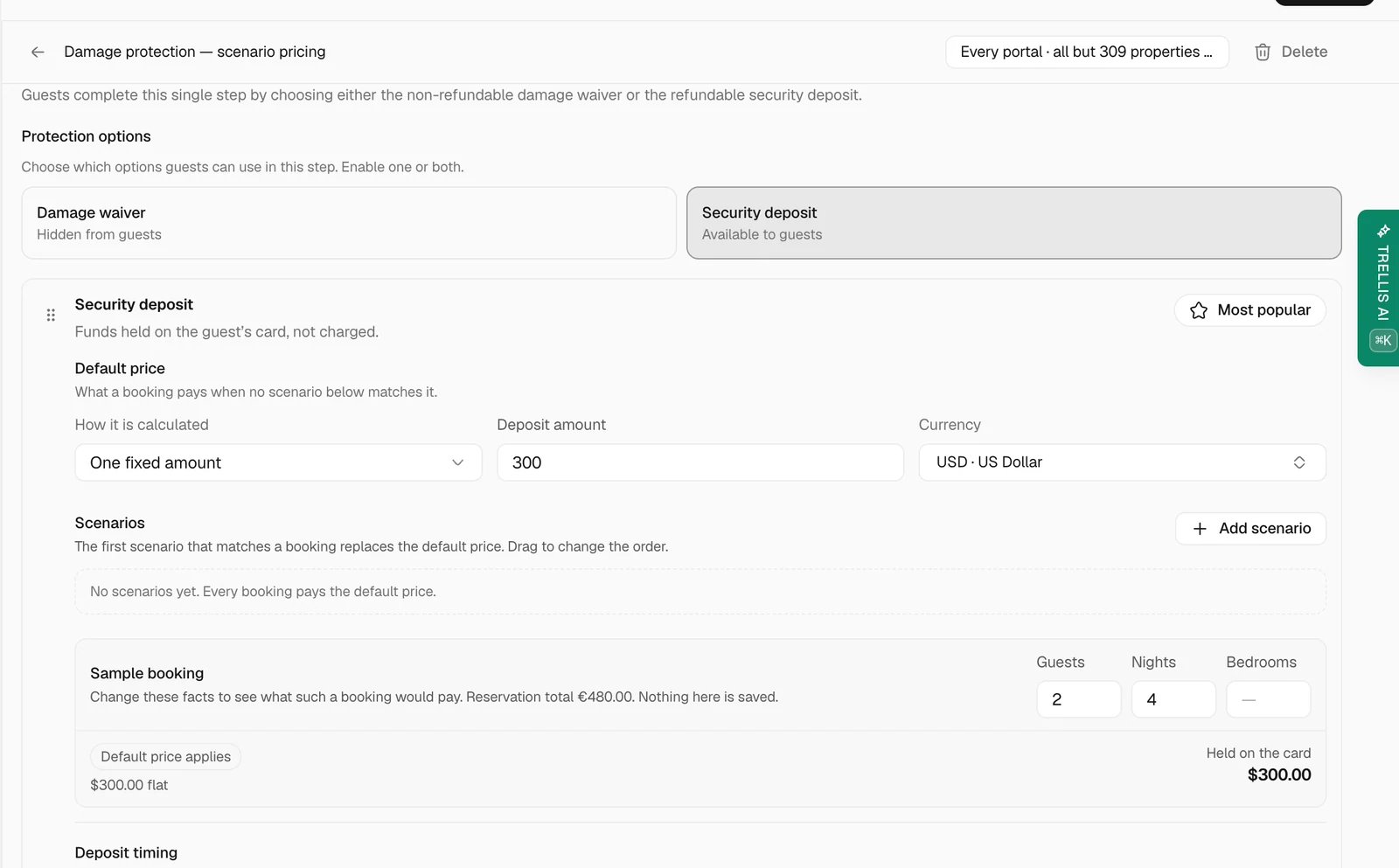
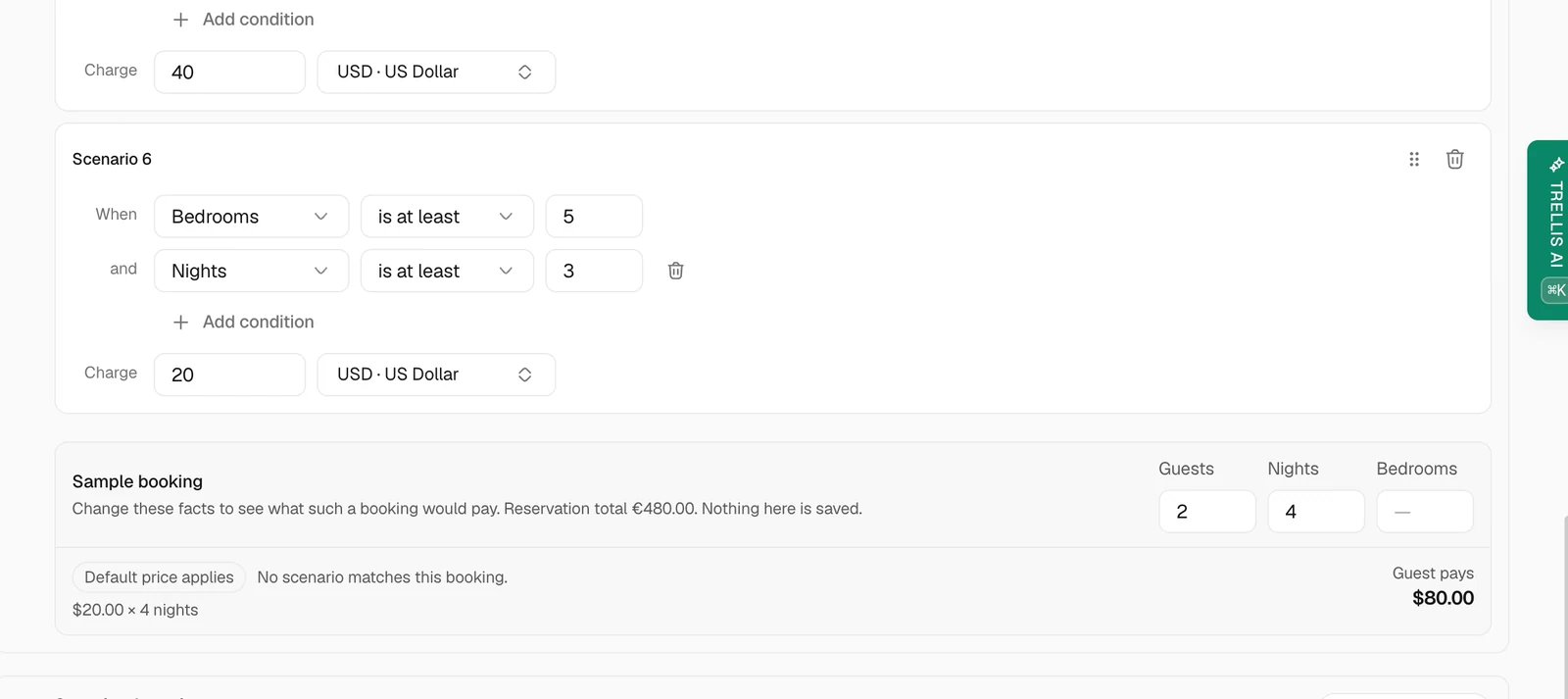
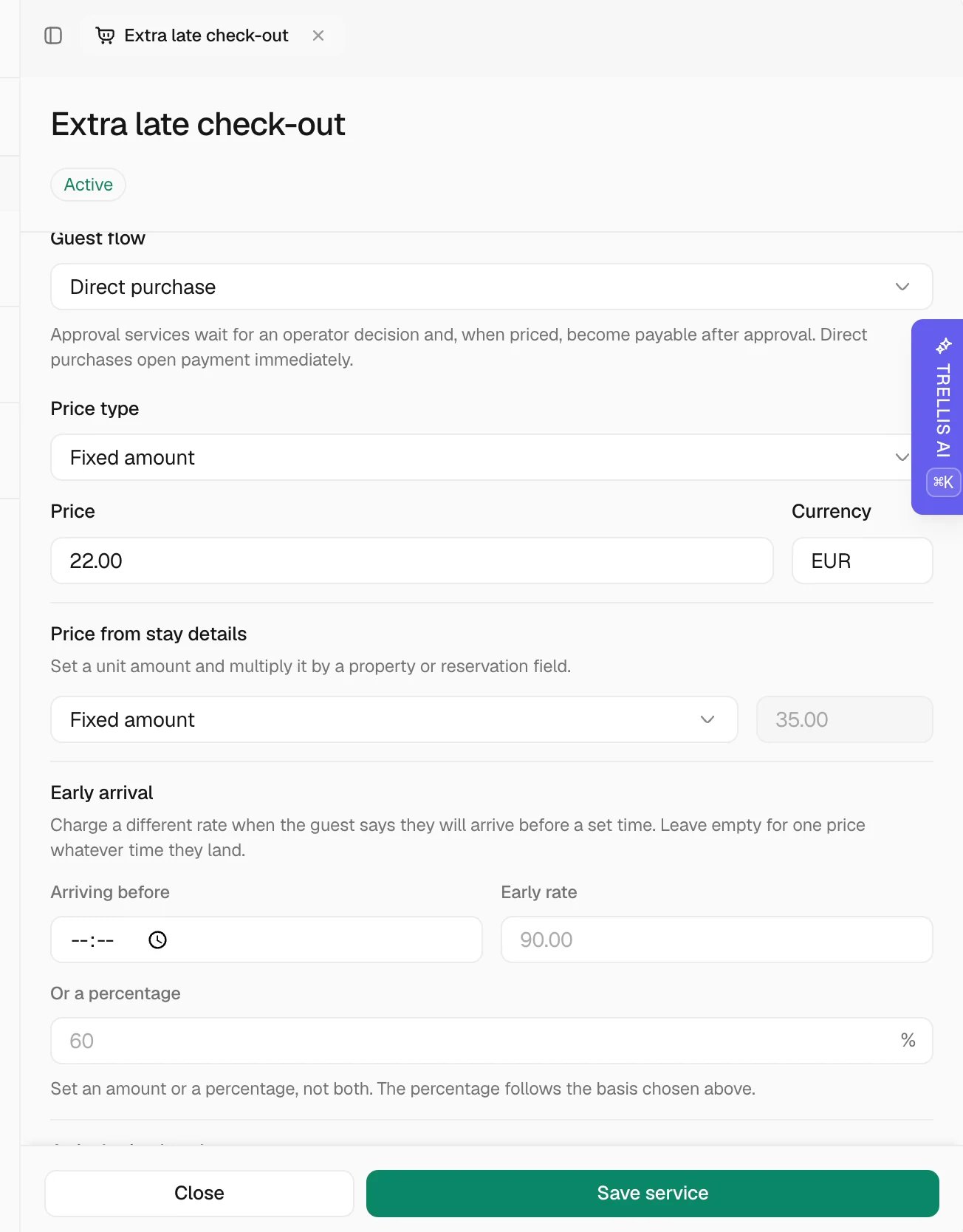
Pricing scenarios for fees, waivers and deposits can target properties, property groups, or both. If both are selected, both must match. Numeric conditions are optional. The first matching scenario applies; otherwise the default price applies, unless the waiver requires a matching scenario. Check the sample booking before saving. To limit waiver availability, enable Only offer the waiver when a pricing scenario matches in the damage waiver settings. Guests whose booking matches a scenario can choose the waiver. Other bookings keep the security deposit option. Keep the deposit enabled while this setting is on. Use Bedrooms booked when eligibility depends on the accommodation booked, together with conditions such as the number of nights. This count can differ from the property’s total bedrooms. If the booked count is missing, check the reservation’s listing before collecting payment. Existing rules keep their default-price behavior until you enable this setting. Booking-channel exclusions still apply. For service prices by group, create a separate service for each price and use the group selector to add its current properties. Later group changes do not update that selection automatically. Select the group again when its membership changes. A fixed-price service with an amount of zero appears as Free and can only be requested, without payment. See Manage service requests below to follow requests and their quoted totals.Deposit consent and inspection
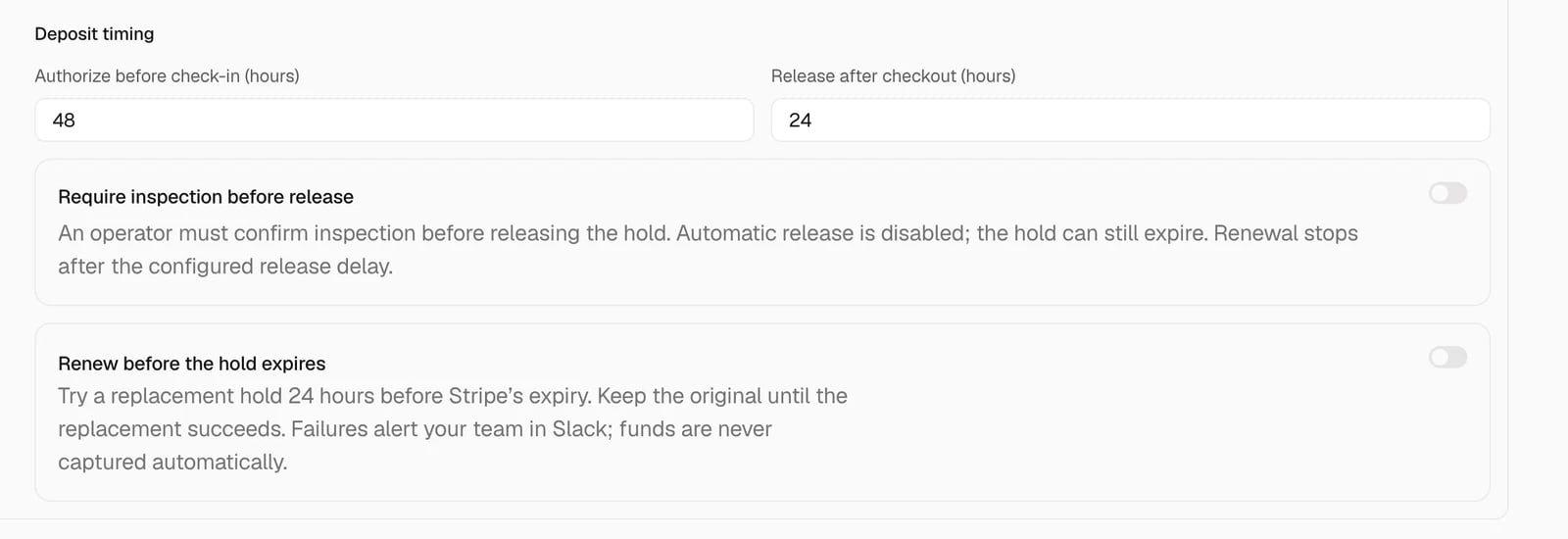
Before saving a card, the guest must accept the displayed deposit amount and hold terms. Continue to card details stays disabled until they select the checkbox. If the quoted amount changes, the guest must accept the new amount. Saving a card does not itself charge the guest or place a hold. Authorization follows the configured timing before the property’s local check-in time. Enable Require inspection before release in the deposit settings when an operator must review the property first. Open the reservation’s Guest Portal, find the deposit, select Release, and confirm that the inspection is complete before releasing the hold. Trellis records that confirmation. This is an operator confirmation, not an automatic check of a cleaner’s task. With inspection required, automatic release is disabled. The bank hold can still expire, and renewal stops after the configured release delay. Review the actual authorization deadline in the reservation. Existing configurations keep their release behavior until you enable and publish this setting.Prepare access instructions and guides
Add guides and house manuals
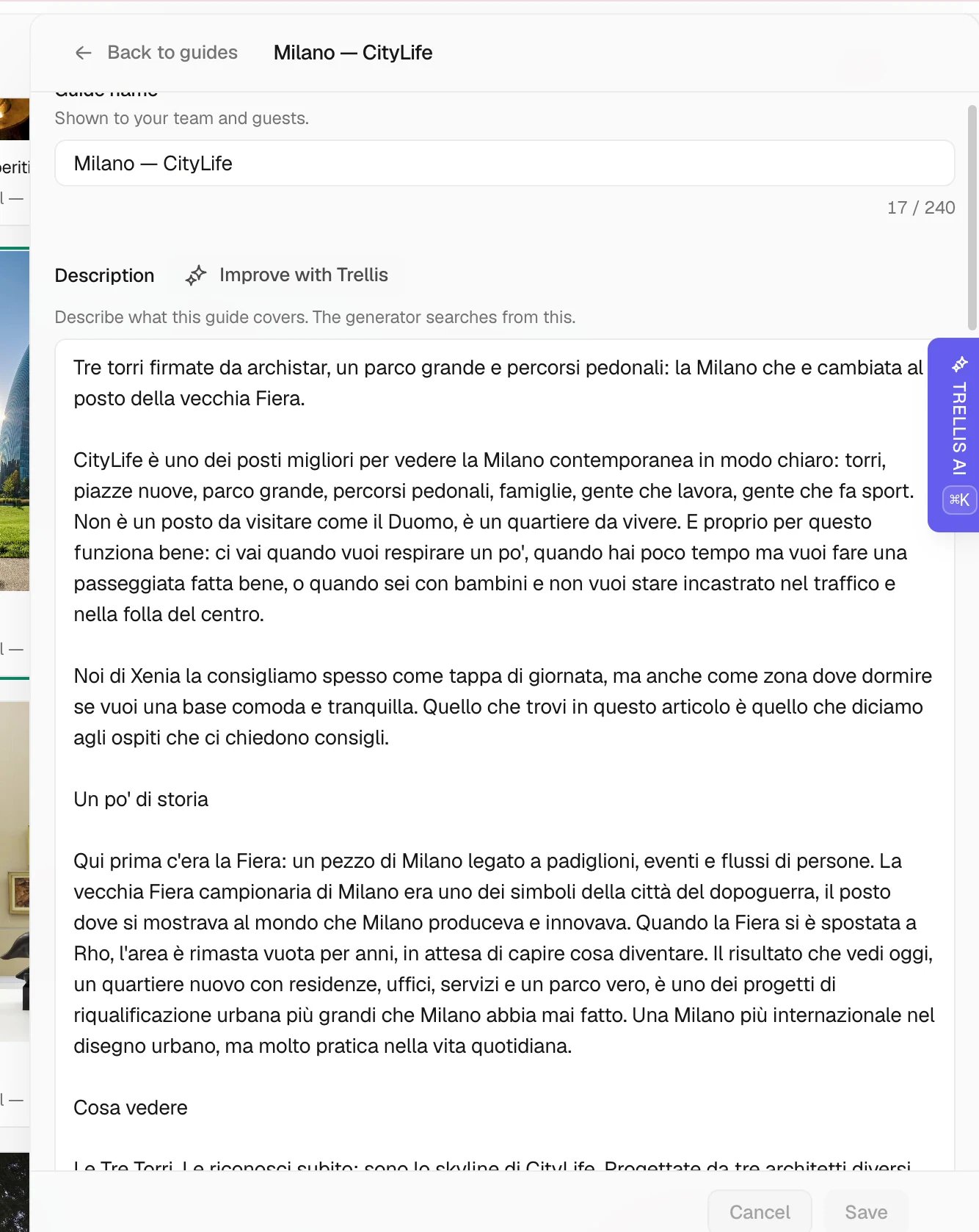
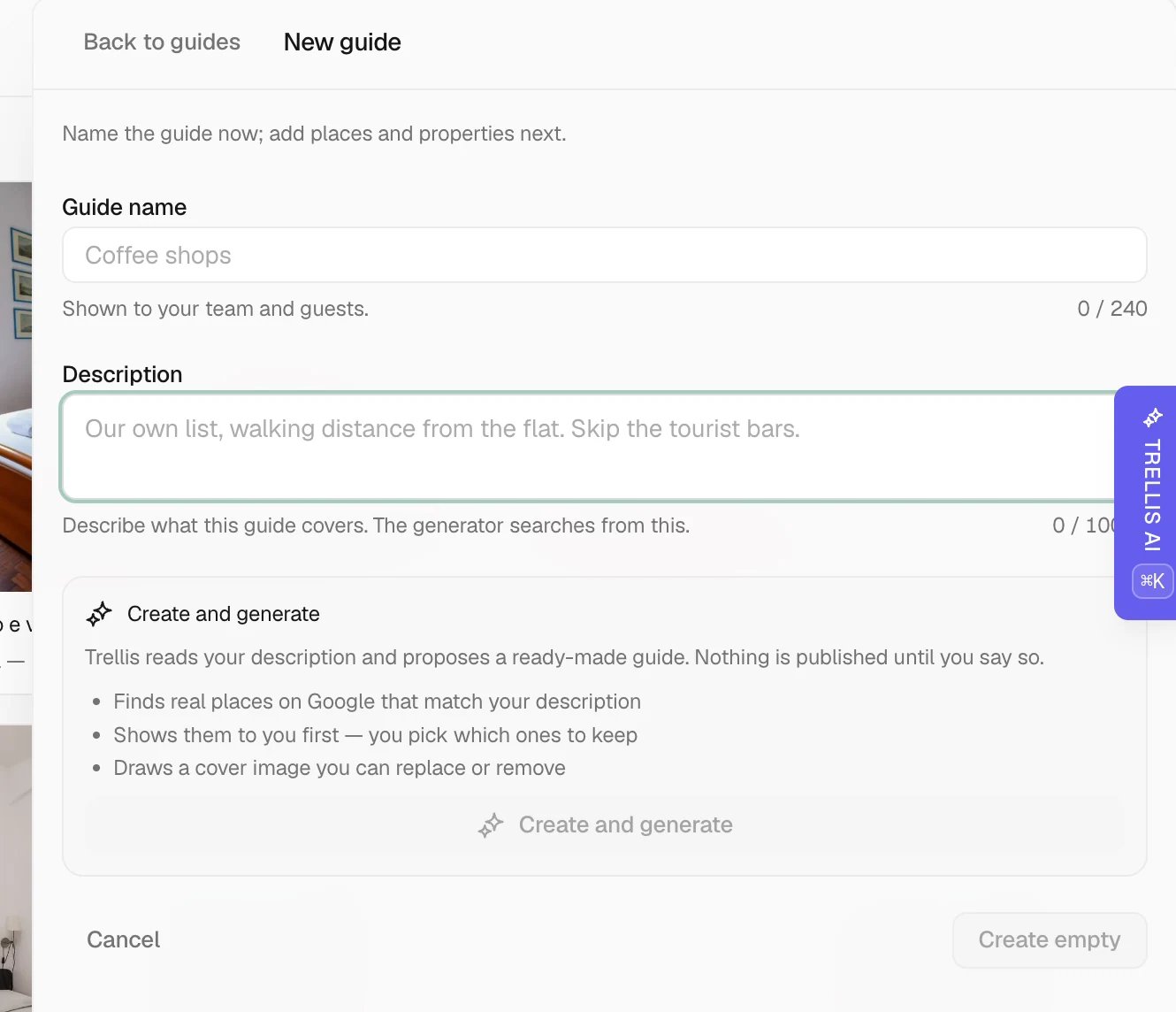
On the Guide page, choose Add → Guide or House manual. Select a template in the sidebar, then Use template to attach it to the property. The template supplies shared content and structure; existing property values are retained and missing values stay empty. If the property already has a manual, use Add guide for another guide. When switching properties, wait for the sidebar to load. A property without manual content or a saved template opens the template chooser; an existing template opens in the editor, even if its guest sections are still empty.Edit the house manual in the sidebar
Select a property in the preview, then open Guide > House manual. Edit its template, guest sections, points of interest, and guest QR code in the sidebar. Changes appear in the preview; select Save property changes to save them. Publishing the portal does not save the property manual. This editor contains guest content only.Sync with PMS
In the check-in instructions settings, enable Sync with PMS to use imported instructions from Guesty, Hostaway, or Calry in every stay phase. Numbered instructions appear as separate steps. Manual steps remain when sync is off or the source is unavailable. To use property custom fields, enter the field key for each language. Leave the keys empty to use the standard PMS instructions.What guests see
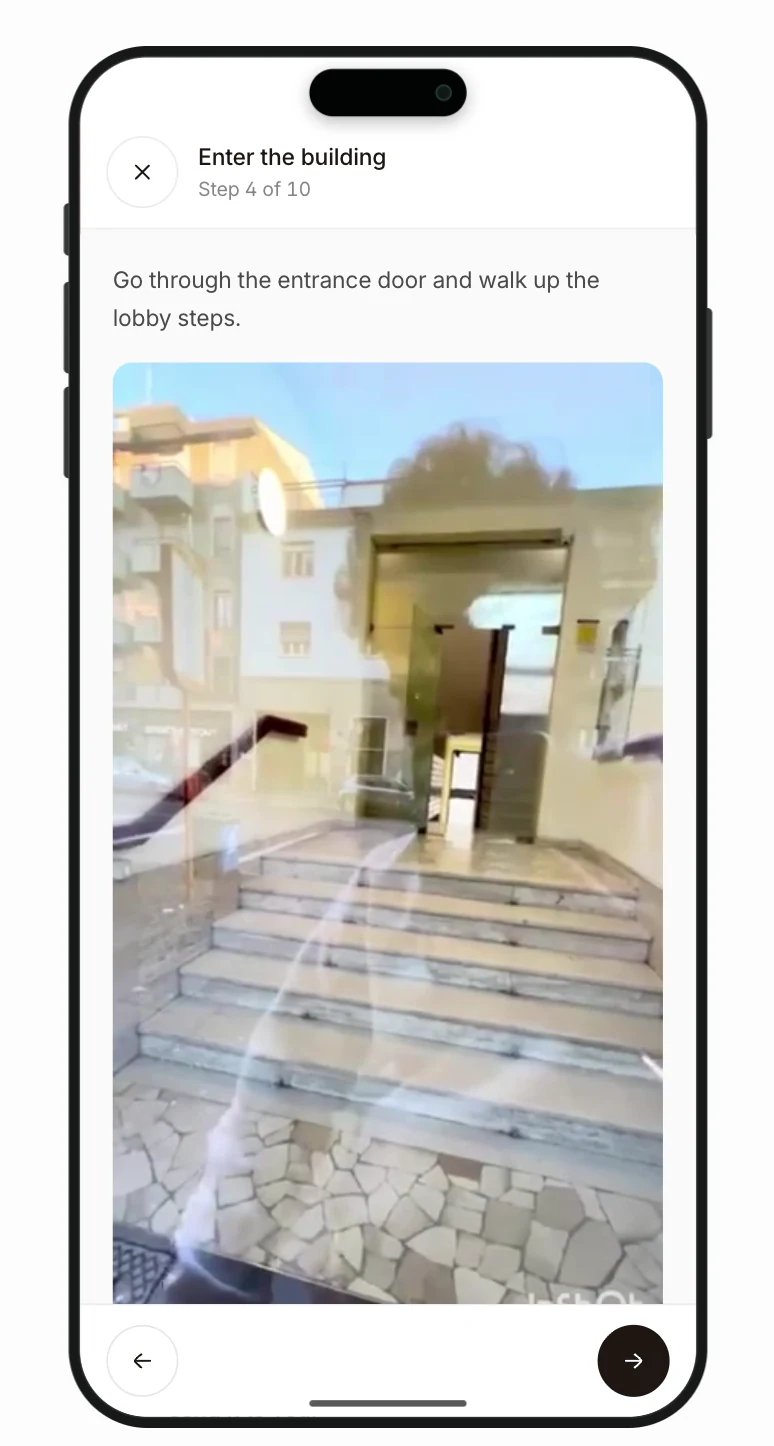
Registration shows the configured steps and a summary before submission. Guests can leave and return without losing uploaded files that are still valid. When registration does not block browsing, they can read the guide while a reminder stays visible; private access information still follows the required checks and unlock time. The Access block shows your ordered manual check-in steps before connected lock or device details. YouTube and Google Drive manual videos play inside the portal; Drive files must allow the guest to view them. Direct video files can include a captions URL in the Markdown link title:captions: https://example.com/captions.vtt.
If a guest does not have their private link, the public Guest Portal access page can find one active portal using the PMS confirmation code or OTA reservation number together with any part of the guest name. Before opening the private portal, the guest confirms the complete surname or full name from the booking. The page does not show reservation results or booking details.
Handle guest questions
In the portal builder, open AI Concierge, select an active AI Agent in the right sidebar, and enable the concierge. If that agent becomes unavailable, choose another active agent before publishing it again. When a guest sends a message through the AI assistant, the conversation appears in Inbox with the Guest Portal channel. Your AI Agent can answer in that same conversation, and your team can review or reply from Inbox. Replies remain visible in the portal, so the guest can continue the conversation without switching to another messaging app. The conversation stays linked to the reservation, which supplies the agent’s stay context.Offer guest services
Create the offer
Choose the payment account
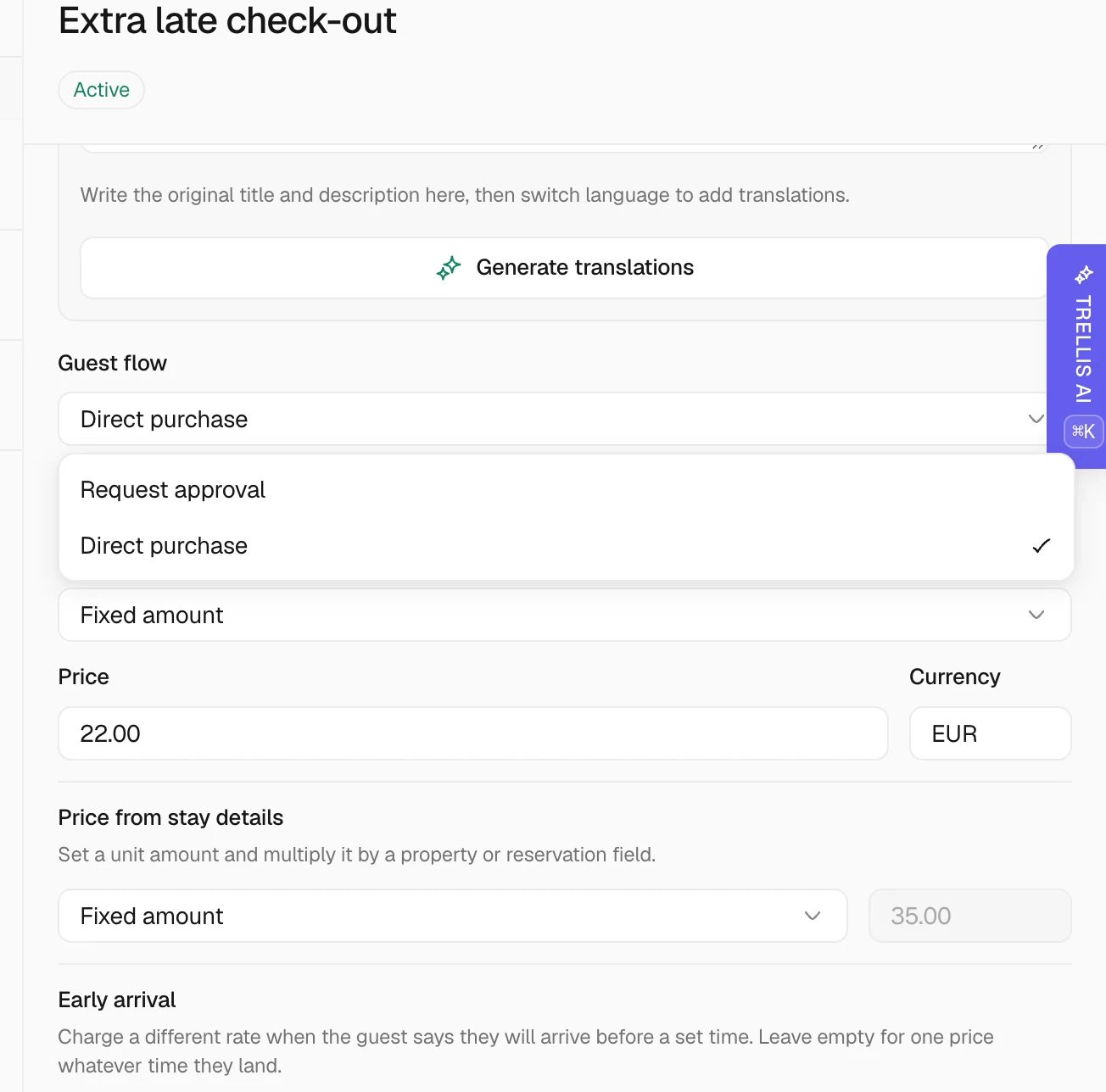
Open Service payment settings at the top of Reservations > Services for the general service payment account. Follow its link to Settings > Integrations > Payments to assign Stripe accounts to specific properties. A new purchase uses its reservation property’s assigned account, or the general account when the property has no assignment. Payment accounts are not selected on each service. An existing payment attempt keeps its account during retries. If the assigned account is unavailable, payment is blocked instead of being moved to a different account.Send service payments to Guesty
In the service’s settings, enable Sync with PMS and choose the Guesty fee category to send its paid orders and recorded payments to Guesty. Confirm the category’s taxes and owner allocation in Guesty. Scheduled payments block automatic sync; reconcile refunds separately. Other PMS providers are not supported for this service-payment sync. Stay extensions use their own reservation sync.Translate and review the catalog
Set the service’s source language and add translations individually, or use Generate translations for all languages or only missing ones. Review the preview before saving. Manual translations remain unless you explicitly choose to replace them; missing translations fall back to the source content. The surrounding catalog and payment controls use the selected app or portal language, including its date and price formatting. Arabic and Hebrew layouts use right-to-left presentation.Follow the guest’s payment
Guests can change quantities and remove items before payment. Compatible services in the same currency can share one cart and Stripe checkout; different currencies require separate purchases. The checkout uses the account selected for that reservation, even when your workspace has several connected Stripe accounts. On supported devices, Stripe offers Apple Pay or Google Pay above the regular checkout button. Card payment and secure Stripe Checkout remain available. A successful payment records each service on the reservation timeline, and Stripe sends the receipt to the checkout email address.Service availability and request details
In Reservations > Services, configure the service type, eligible properties, minimum and maximum stay length, sales opening date, earliest confirmation date, and arrival or departure conflicts. Dates follow the property time zone. A service without valid rules, outside its booking window, or, for a paid service, without an available payment account is hidden. Portal, conversation, and workflow offers use the same checks. Existing payment requests must still meet the current rules. New service payments authorize the amount before a final availability check. An unavailable service is not captured. Requests still require your approval; reaching the confirmation date does not approve them automatically. Early check-in, late checkout, and stay extensions remain unavailable until calendar blocking, reservation updates and cleaning notifications can be guaranteed. Seasonal dates control whether the service appears in the catalog. A season can cross the year boundary. Choose workflow-only visibility for services that should be offered through a workflow rather than listed for every guest. Guests choose the quantity and supply any required note before continuing. Their payment total and retries retain those details.Saved cards and the payment drawer
Service and fee payments open in a drawer from the bottom of the guest portal. Guests can choose to save their card with Stripe and reuse it for later payments during the same stay, when those payments use the same payment account. Saving is optional. Each purchase still requires the guest to confirm payment.Manage service requests
Review registration applications
Go to Reservations > Registration to review submitted registrations. The left side groups applications into To do, Approved, and Declined. Select an application to review the guest, property, stay, registered guests, and identity-verification evidence. For a manual identity check, review the submitted document and selfie, then approve or decline the application. Checks completed through a connected identity-verification service remain visible with the provider result and do not require a second manual decision.Review an individual guest portal from a reservation
Open a reservation from Reservations or Inbox to review its Guest Portal without leaving the reservation. The Guest Portal section appears only when that reservation already has a portal. Use the section to:- Check whether the portal is active, when the guest last opened it, and which registration step needs attention.
- Review registration answers and uploaded files, download the signed rental agreement, and approve or reject a manual verification when required.
- Approve or decline service requests, mark paid services as fulfilled, and review relevant payment or deposit status.
- Review recent portal activity, open the guest preview, or copy the current link.
Review a blacklisted guest’s reservation
When a reservation is linked to a contact on the guest blacklist, a workspace administrator must review that reservation before its portal releases access details. Open the reservation, read the reason in Blacklisted guest — reservation review, and choose Approve access for this reservation or Deny access for this reservation. This review is available even before a guest portal is created. While the review is pending or rejected, the portal withholds entry codes, private check-in instructions, and Wi-Fi details. The AI concierge is also unavailable. The guest sees a neutral review message; the internal reason and blacklist label are not shared with them. Approval satisfies only this reservation’s blacklist review. Registration, identity verification, and access timing still apply. Each future booking needs its own review. Rejecting access keeps these details locked; it does not cancel the reservation.Clear and restart registration
Workspace administrators can open an active reservation’s Guest Portal and use the trash icon beside a submitted field, file, or registration step. Confirm the action to clear the selected data and reopen the affected step. Other answers and files remain available when only one item is removed. Use Reset registration to clear registration answers and uploads and restart the non-payment steps, including identity verification and agreement signing. Resets remove the previous host approval. Payments, deposits, and historical signed agreements are retained. Guests complete the reopened steps through their existing portal link.Send completion status to Guesty
In portal rules, turn off Mark checked in after registration when registration and physical arrival are separate. Completing the required steps still records registration completion; the reservation keeps its current status. Existing portals keep their previous behavior until this setting is changed and published. Guests can then confirm their arrival from the scheduled check-in time, after completing registration and any required verification. After arrival, they can confirm departure. Both actions require confirmation and are recorded in the reservation history. Guesty receives the current guest-stay status through a retryable update with readback verification; the booking dates and booking status are unchanged. Other PMS providers do not yet receive these guest-operated stay confirmations. In the portal PMS mappings, map Registration completed to a Guesty Boolean custom field. It becomes true when registration and any required manual review are complete. Incomplete, revoked, or expired portals return false. Configure your Guesty message conditions to use this field before sending arrival instructions. Creating the mapping does not change existing Guesty workflows.Test the guest journey
Before publishing, test a booking through registration, identity review, and the access-unlock time. Download the signed agreement and confirm that portal messages and Inbox replies appear on both sides. For payments, check the transaction and deposit status in the reservation; a saved card alone does not create a hold.Common problems
My changes were not saved
My changes were not saved
Read the editor error and fix the highlighted field or assignment. Reload to check the saved draft, then publish when ready. A saved draft and a published portal are different states.
A property is missing from the assignment list
A property is missing from the assignment list
Clear the search and check whether another published portal already uses that property.
A guest cannot upload a file
A guest cannot upload a file
Check the permitted format and size for that field. Supported registration uploads include JPEG, PNG, WebP, and PDF. Ask the guest to retry before the portal expires.
Access is still locked
Access is still locked
Open the reservation’s Guest Portal and check required registration, identity review, the access-unlock time, and any blacklist review. Completing the form alone may not satisfy all of those requirements.
A service is missing or cannot be paid
A service is missing or cannot be paid
Check its property assignment, availability rules, booking window, and payment account. An approval-required request must also be approved before payment becomes available.
Related articles
- Properties — maintain the source of guest instructions.
- House manuals — choose information for each audience.
- Inbox — answer portal messages and review the reservation.
- Workflows — automate supported follow-up steps.