Stop doing the same things over and over
Every property manager has tasks they repeat dozens of times a week: sending check-in instructions, creating cleaning tasks after checkout, notifying the team about an issue. Automations handle these for you — reliably, every single time.What can you automate?
Guest messages
Send check-in instructions, checkout reminders, review requests, and follow-ups — automatically timed to each reservation.
Task creation
Create cleaning, maintenance, or inspection tasks when specific events happen — like a guest checkout or a new reservation.
Escalation alerts
Notify managers immediately when something needs human attention — a complaint, a refund request, or a conversation the AI cannot handle.
Owner reports
Send property owners automated summaries of bookings, revenue, and maintenance activity on a schedule you choose.
Team notifications
Alert your team when tasks are assigned, conversations are escalated, or urgent issues come in.
Data updates
Automatically update records, change statuses, or tag conversations based on conditions you define.
How automations work
Every automation has three parts: a trigger (what starts it), optional conditions (when it should run), and actions (what it does).Triggers — what starts the automation
- Event-based
- Scheduled
- Manual
The automation runs when something happens in Trellis:
- A new reservation is created
- A guest checks in or checks out
- A conversation is escalated
- A task is completed
- A new message arrives
Conditions — when it should run
Add conditions to make your automations smarter. For example:- Only create a cleaning task if the checkout is at a specific property
- Only send a check-in message if the reservation is confirmed (not cancelled)
- Only escalate if the guest has mentioned a specific keyword
Actions — what it does
Actions are the steps your automation takes. You can chain multiple actions together:| Action | What it does |
|---|---|
| Send a message | Send a templated message to a guest, owner, or vendor through any channel |
| Create a task | Create a cleaning, maintenance, or inspection task with all the details pre-filled |
| Update a record | Change the status, assignee, or any field on a property, reservation, task, or conversation |
| Notify your team | Send a notification to specific team members or roles |
| Wait | Pause the automation for a set time, until a specific date, or until something happens |
| Ask for approval | Pause and ask a manager to review before continuing — perfect for high-stakes actions |
| Run the AI agent | Have the AI agent analyze a situation, draft a response, or make a decision |
Human-in-the-loop approval
Some automations should not run entirely on autopilot. The approval step pauses the workflow and asks a team member to review before continuing.Automation reaches the approval step
The workflow pauses and creates an approval request visible in your inbox.
Reviewer is notified
The assigned reviewer gets a notification with all the context they need to make a decision.
- Before sending messages about sensitive topics (refunds, policy changes)
- Before creating expensive maintenance tasks
- Before sending owner reports with financial data
- Any time you want a human checkpoint in an otherwise automatic flow
Getting started with templates
You do not need to build automations from scratch. Trellis comes with pre-built templates for the most common property management workflows:Guest check-in message
Guest check-in message
Trigger: 24 hours before check-in
Action: Send the guest their check-in instructions, including property address, door code, Wi-Fi password, parking info, and house rules. Property details are pulled in automatically.
Checkout cleaning task
Trigger: Guest checks out
Action: Create a cleaning task for the property, assign it to the default cleaning team member, attach the standard turnover checklist, and set the due date to the same day.
Escalation notification
Trigger: Conversation is escalated (by AI or manually)
Action: Send an immediate notification to the on-duty manager with the conversation summary, guest details, and a link to the conversation.
Owner monthly report
Trigger: First of every month
Action: Compile each property’s booking count, revenue, occupancy rate, and maintenance costs for the previous month. Send the summary to the property owner.
Review request
Review request
Trigger: 1 day after checkout
Action: Send the guest a friendly message thanking them for their stay and asking them to leave a review. Only sends if no issues were escalated during their stay.
Maintenance alert from guest message
Trigger: AI detects a maintenance issue in a guest message
Action: Create a maintenance task, assign it to the on-call maintenance person, and notify the property manager.
Building your own automation
Choose a trigger
Select what starts your automation — an event (like a checkout), a schedule (like every Monday), or manual activation.
Add conditions (optional)
Narrow down when the automation should run. For example, only for specific properties, reservation sources, or guest types.
Add actions
Define what the automation should do. Add as many steps as you need — send a message, create a task, wait, notify, and more. Steps run in order.
Tips for great automations
Start with the templates
Templates are battle-tested and cover the most common workflows. Customize them to match your operation rather than building from scratch.
Use approval steps for high-stakes actions
Messages about refunds, policy changes, or financial data should always have a human review step.
Layer conditions for precision
The more specific your conditions, the smarter your automations become. A checkout cleaning automation that only triggers for confirmed stays avoids unnecessary tasks for cancellations.
Review automation logs regularly
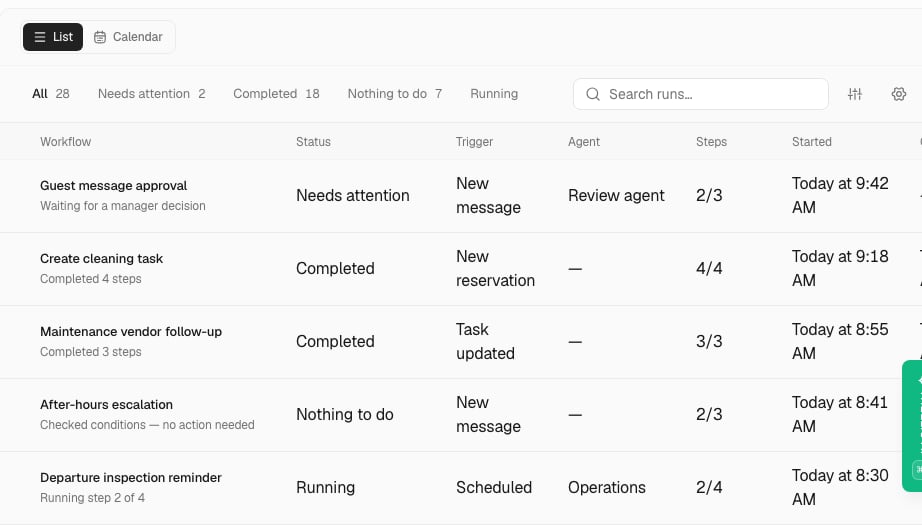
Check the run history to make sure your automations are working as expected. Look for skipped runs or errors that need attention.