
Before you start
Prepare the property facts and policies the agent needs. Your workspace role determines which agent settings and knowledge you can edit.Put information in the right place
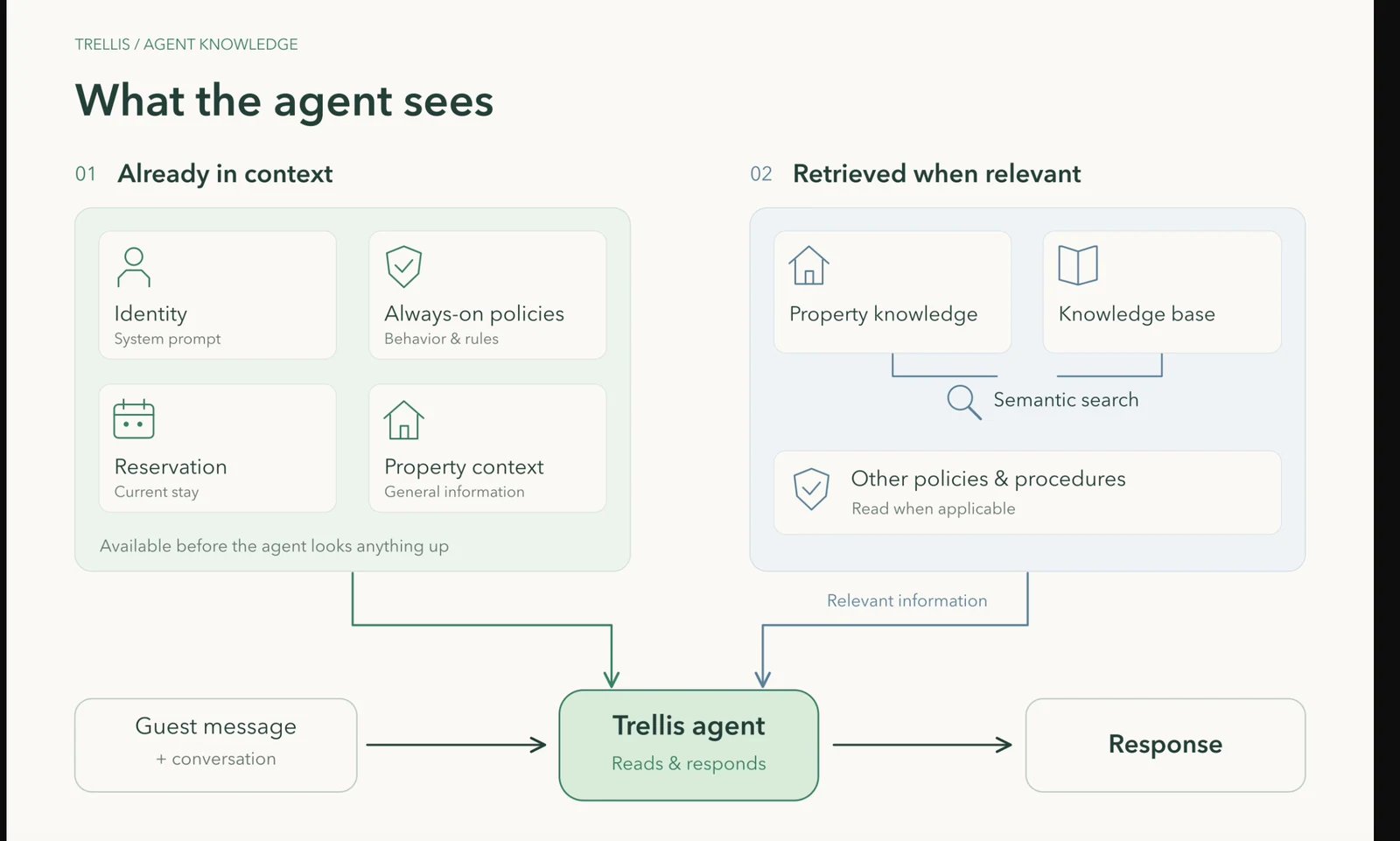
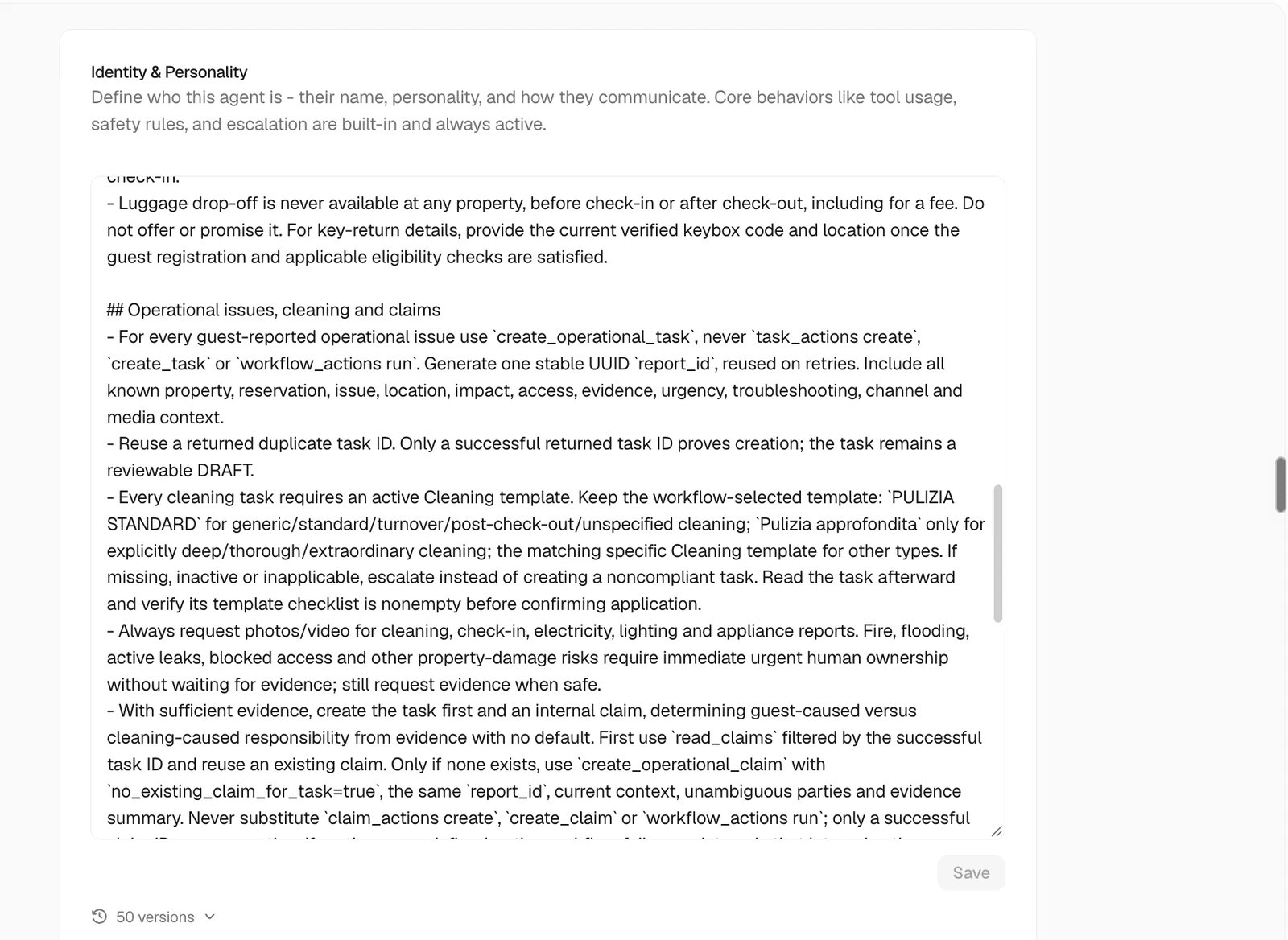
- Agent identity and instructions: tone, purpose, and stable limits.
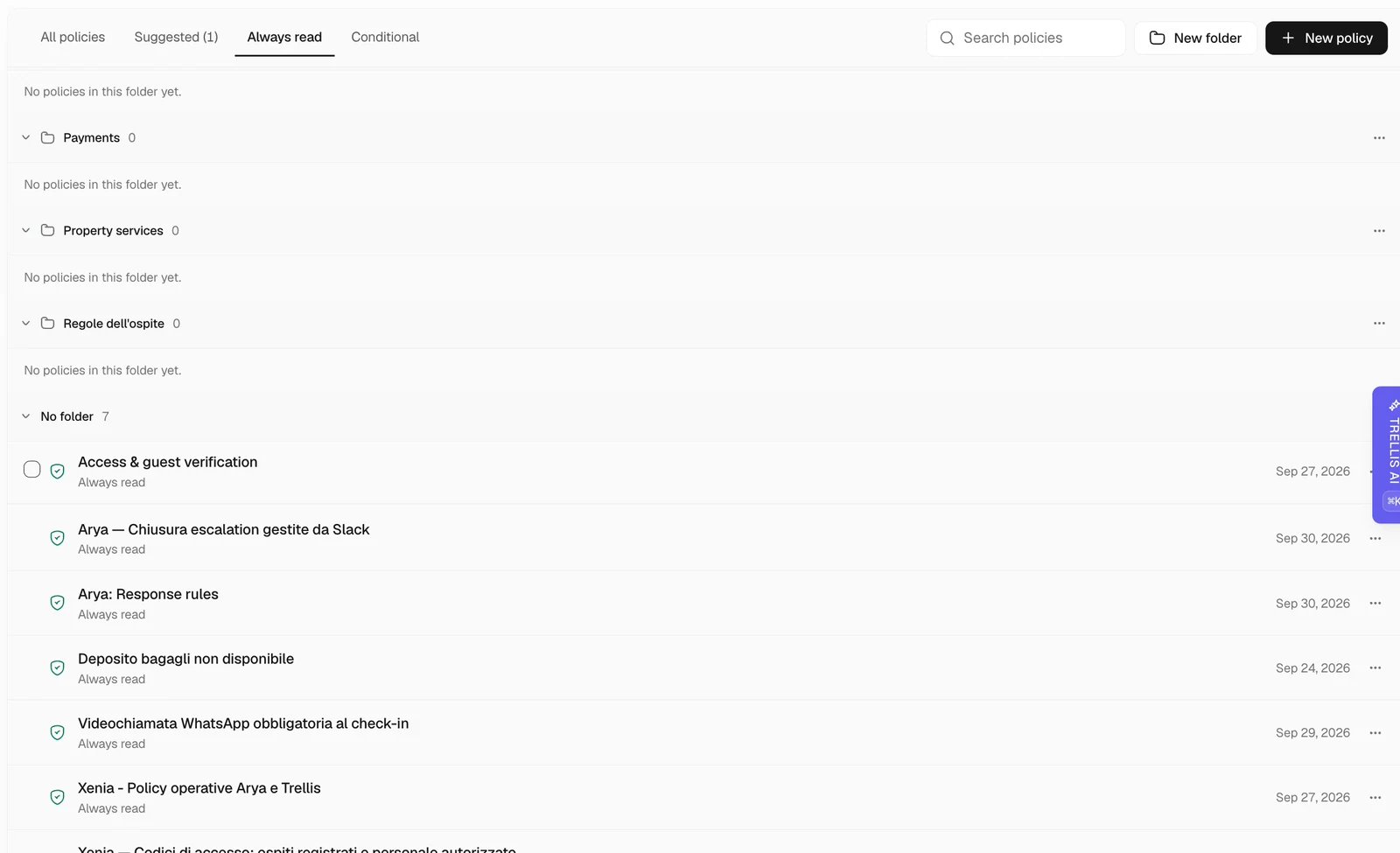
- Policies: how to handle a situation, including when to ask a person.
- Property and reservation records: facts about the home and stay.
- Documents: reference material the agent can look up.
- Skills: procedures for carrying out a repeatable task.
Set up an agent
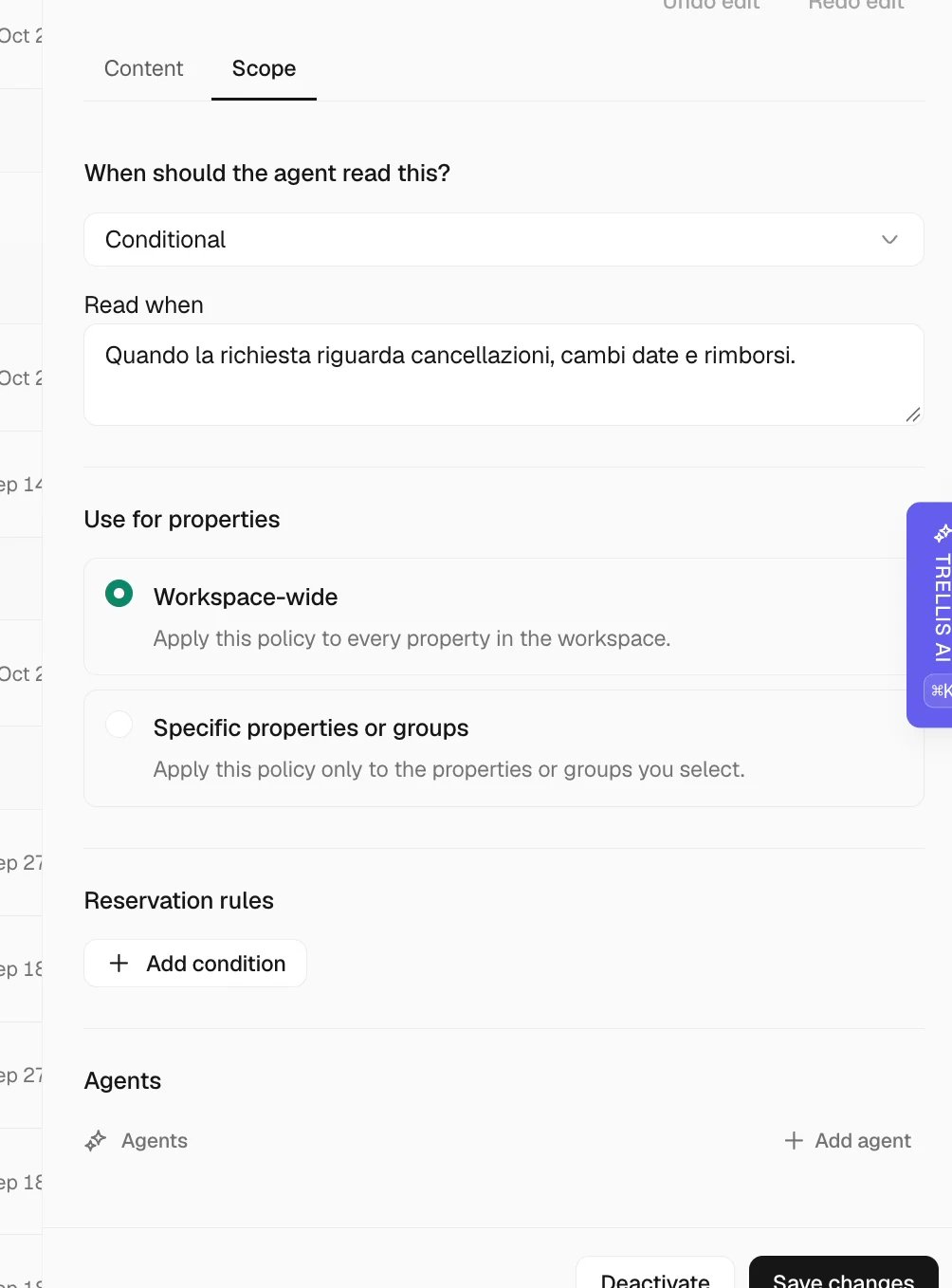
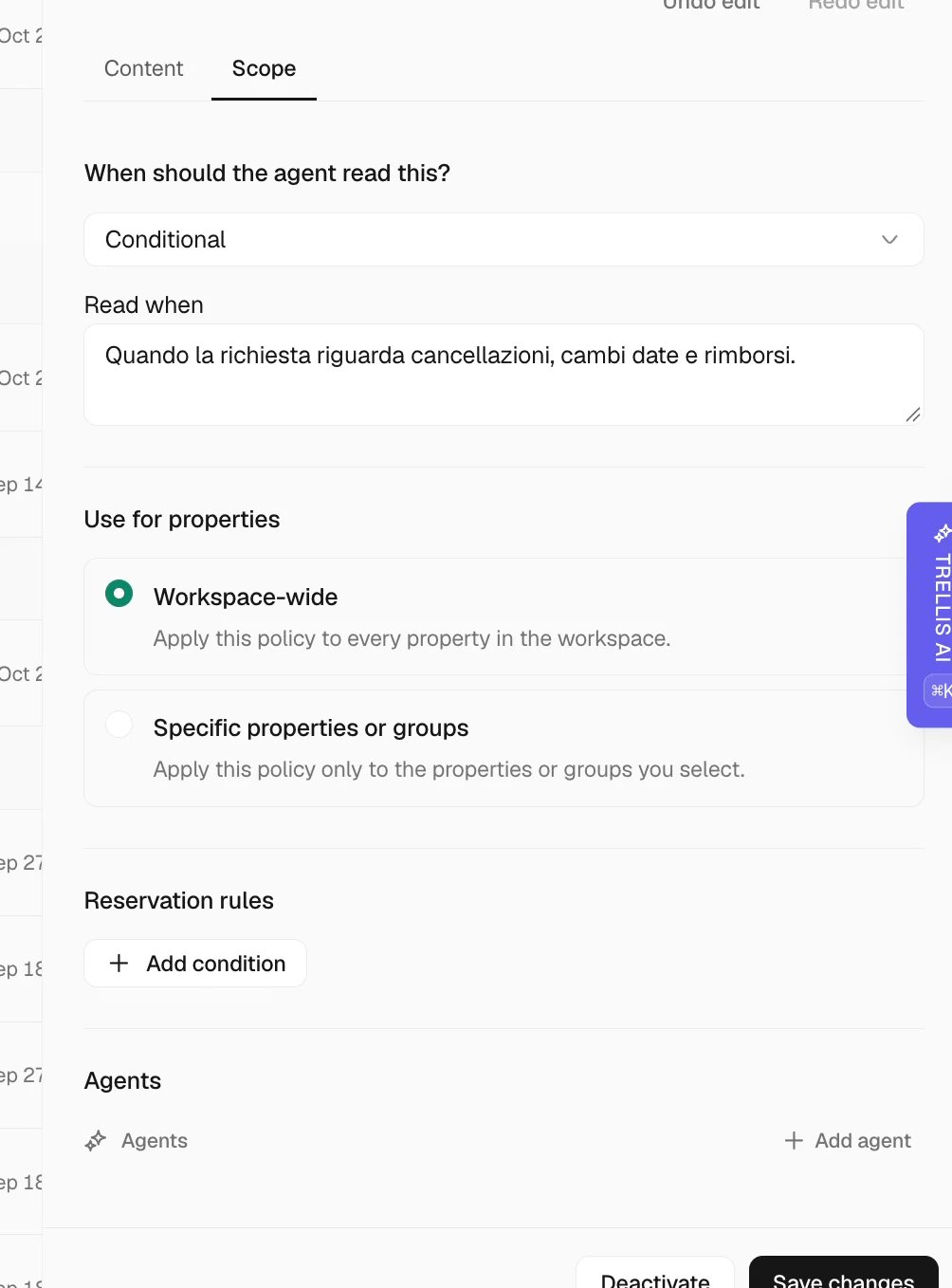
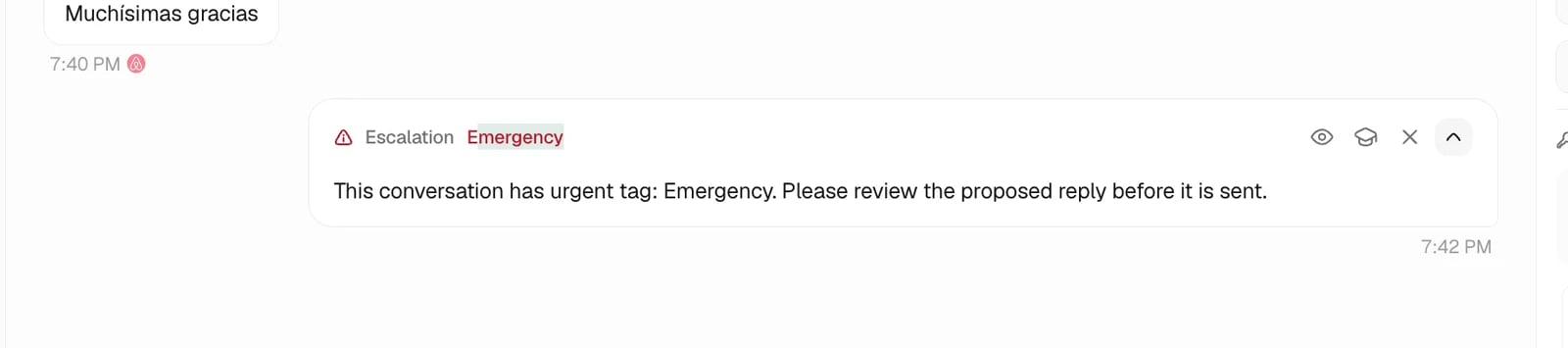
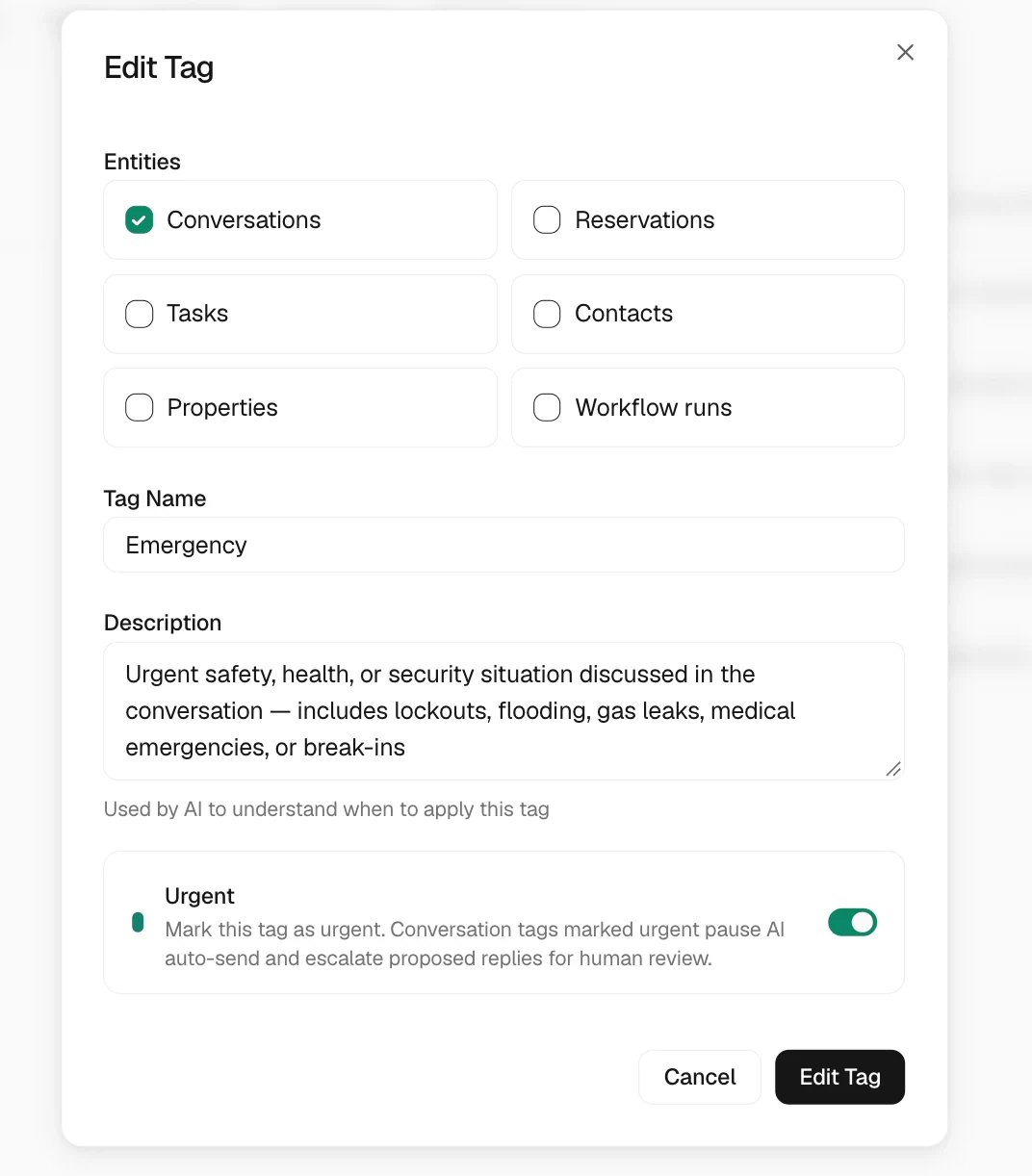
Choose when a policy applies
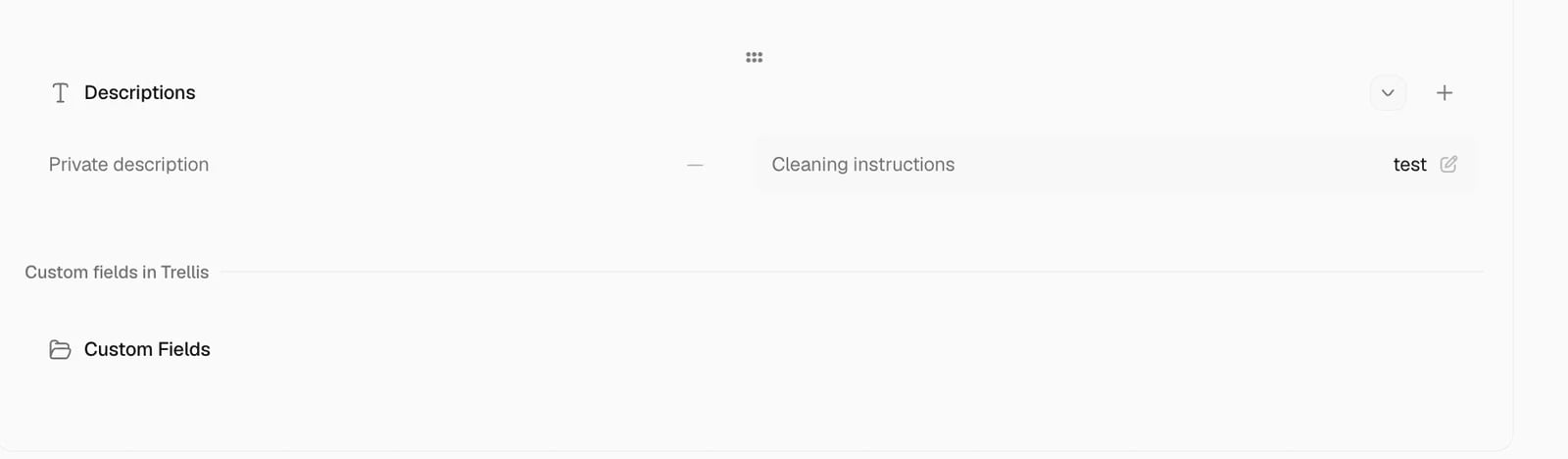
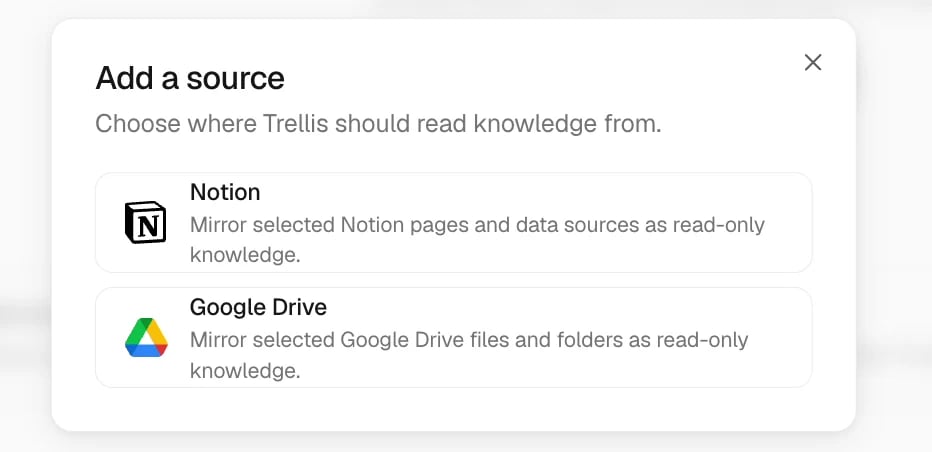
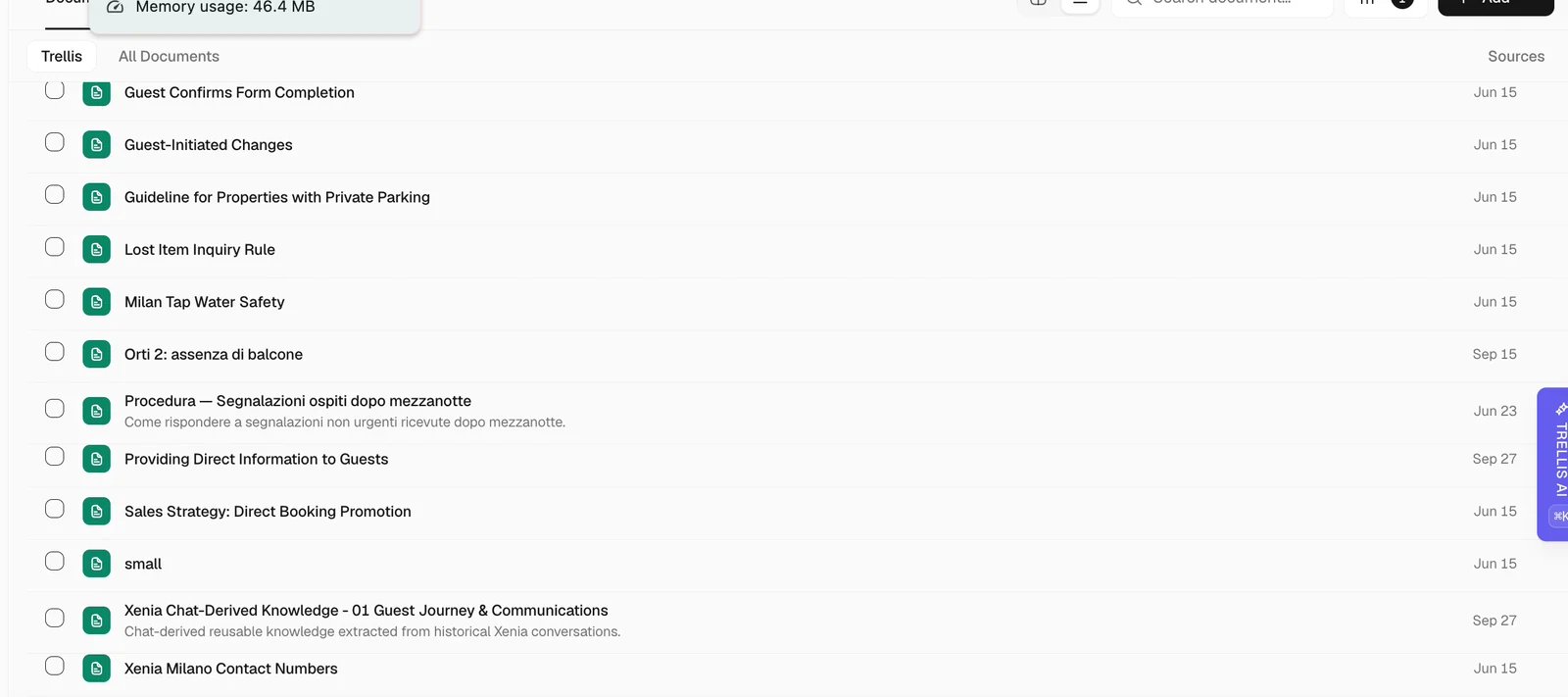
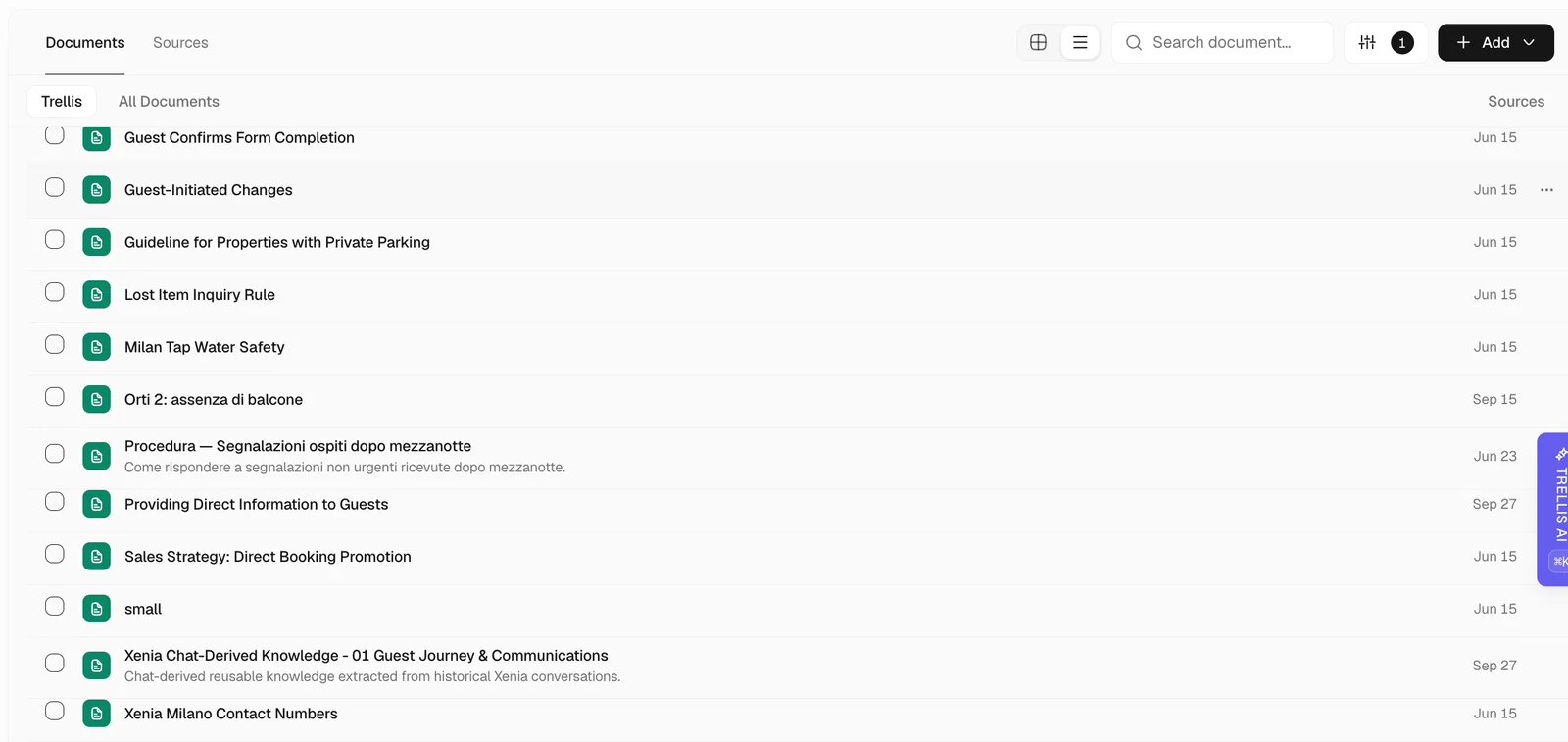
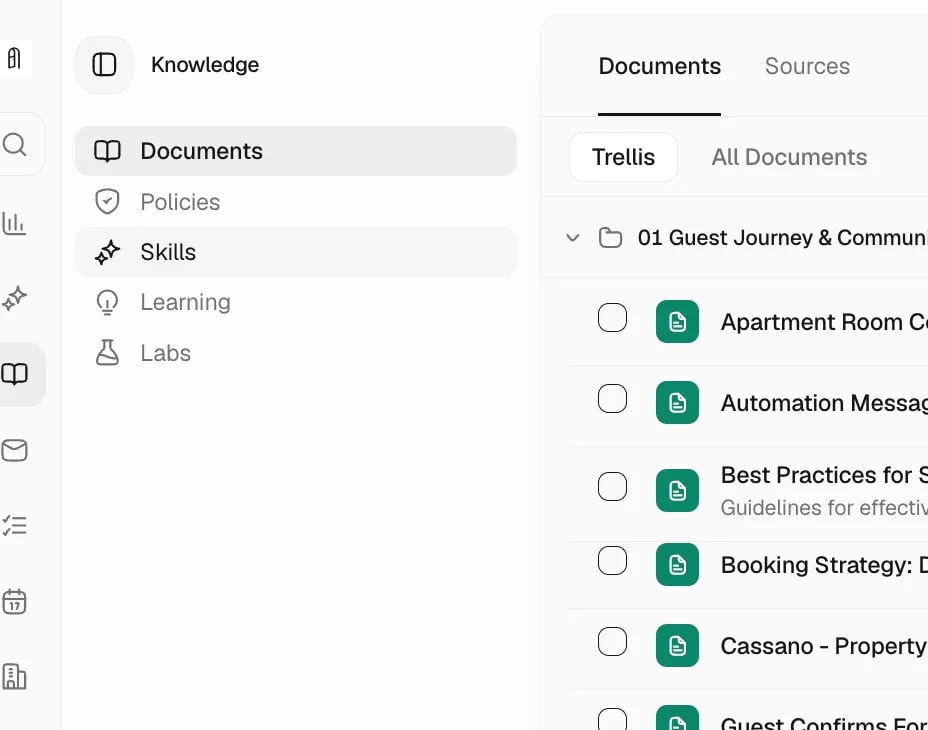
Maintain property facts and reference documents
Define the fallback and escalation
Add a repeatable procedure
Choose how Autopilot handles properties
When Autopilot is on, property access controls which conversations can receive an automatic reply.- If you do not select a property or property group, Autopilot can reply for any property it can identify.
- If you select properties or property groups, Autopilot sends automatic replies only for those selections.
- For conversations outside the selection, use Create drafts for unselected properties to choose whether Trellis saves a draft for review or does nothing. This setting appears after you select at least one property or property group.
- Properties in Never responds for do not receive an automatic reply or a draft.
When a team member messages the inbox
Autopilot treats inbox contacts as guests: it shares door codes and other access details only with a guest who has a confirmed reservation at that property. If the contact is linked to an active workspace member, Autopilot treats the conversation as that member writing from their own phone:- It can share the access details of the properties where the member has a task today or a task in progress, if the member’s role allows viewing properties.
- The member can report progress on those tasks: start or pause the task, tick or answer checklist steps, add notes and photos, and complete it. Completion follows the same required steps and photos as in the app.
Test the agent
With automatic replies off or under review, test one property question, one policy case, one procedure, and one request that needs a person. Open the available sources or trace to confirm which information was used. Check an in-scope and out-of-scope property when testing filters. If a result is wrong, correct the source and repeat the same case. Follow Fix wrong AI information before expanding automatic use.Common problems
The agent gives a generic answer
The agent gives a generic answer
Check whether the necessary property fact or reference exists and whether the agent can read it. Add the missing detail to its proper source, then test again.
The agent cannot see a conversation or property
The agent cannot see a conversation or property
Review its property, Inbox, and tool access, together with the teammate’s own access.
The agent should ask before acting
The agent should ask before acting
Review the relevant tool in Access & Safety and use Ask first where review is required. A written instruction and a tool permission serve different roles.
A website login fails
A website login fails
Open the agent’s connected account, verify the intended account, and complete any additional sign-in step through the provided flow.
Related articles
- AI Agent — use the agent in daily work.
- Launch and hand off your AI Agent.
- Fix wrong AI information.
- Connected accounts.
- Meetings — configure attendance and review call notes.