
Main areas
Open Workflows for the saved processes, Templates for a starting pattern, and Runs for what actually happened. Variables holds reusable inputs such as shared team settings. Guest-offer actions also need the relevant service and payment setup; see Guest portal services. Follow Create a workflow to configure the trigger, conditions, actions, and approvals. Test it before enabling it; some tests simulate writes without saving records or sending messages.Example: prepare a weekly maintenance report
Start with a report your team can review inside Trellis. Ask the workflow assistant: “Every Monday at 09:00 in the workspace time zone, list overdue maintenance tasks for the selected properties. Group them by property, include assignee and due date, and make the report available in Trellis.” Review the generated schedule and property scope. Check that task selection excludes completed or cancelled work and handles an empty result with a clear “No overdue maintenance tasks” result. The report should link back to the tasks so the manager can assign the next action. Run a controlled test using a small property scope with known tasks. Open the run and compare its selected records and report with those tasks. Check the empty-result path as well, then enable the schedule after both outcomes are correct. Find subsequent outputs in Insights → Reports. If the run fails, open the first failed step and check its inputs and error. Correct the record access, selection, or report instructions before trying again. If earlier actions created records or sent messages, confirm their outcome before repeating the run.Continue a chat beside a workflow
Click a Workflow V2 chip in an AI conversation to open the workflow directly with the same conversation in the AI sidebar. Workflow run chips open the run with that conversation alongside it. You can continue the discussion without starting a new chat. The browser Back button returns to your previous page. The chat beside a workflow changes that workflow. After you approve each request, it can also create tasks for existing records (up to 50 per approval), create or edit task templates, create a related draft workflow when you need a second trigger, or pause a workflow that duplicates this one. Live runs, messages to guests or contacts, deletions, and other changes to other workflows stay in the main AI chat.Arrange the canvas
Use Auto layout to align blocks and branches. Shared paths appear once, with parallel branches side by side. Long workflows open at a readable zoom from the top; pan down to review later steps. Use Recenter for a full-workflow overview. Aligning blocks changes their positions, not the workflow connections.Edit code and review versions
Open a Transform block’s JavaScript code to read it with indentation and wrapped long lines. Use Format while editing. Code is formatted when a new version is saved; opening the code alone does not save a version or change it. Code and prompt editors keep the writing area open on narrow screens. Use Insert variable ({}) to choose data from earlier steps or the trigger.
On wider screens, the variables panel stays beside the editor.
The version selector and history show who saved each version alongside its date.
Older versions without recorded authorship show an unavailable author.
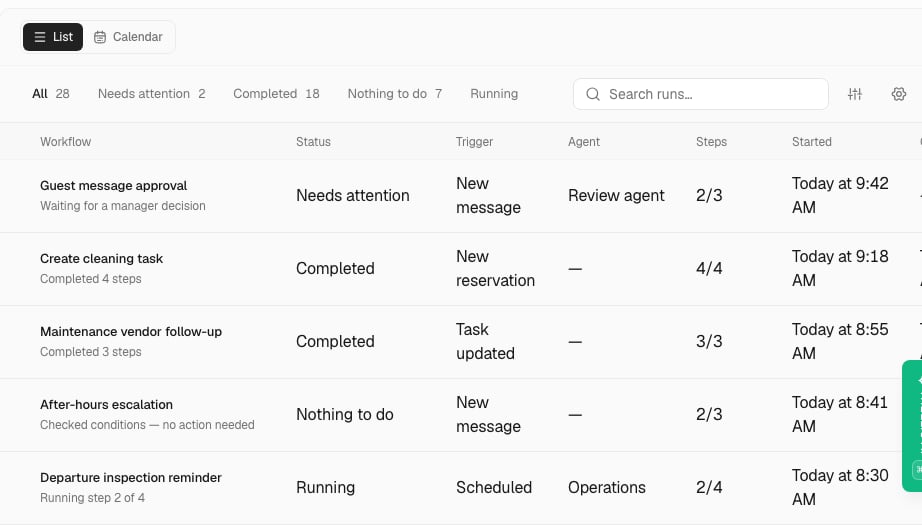
Review a workflow run
Select and read the right information
Filter records to the scope you need. If a decision requires the full list, read every page and stop or defer that decision when a read is incomplete.Filter fetched records
Open a Fetch block’s Filters to edit its conditions. Boolean fields offer True and False. Use is not one of to exclude values; enter a list such as["COMPLETED", "CANCELLED"], or insert a workflow variable containing a list.
Other filters and the result limit are preserved when you save your changes.
Fetch queries normally add an ID tie breaker to their sort order. An existing
query can set preserve_order_ties: true in its code configuration to retain
the database’s order for equal values. That order is unspecified and may change.
This option requires a single page of rows: it cannot be combined with
fetch_all, a positive offset, or aggregation. Set it separately on each
query in a batch. Public API and MCP reads and writes require formatVersion="6"
for this setting. Earlier representations return a format error; workflows
without the setting retain their existing representation.
Fetch task history and provider property IDs
Report sources
Fetch Teachings to count recorded answers by author and answer date. Answering a teaching and applying it are separate events; use the application status when the report asks whether the answer was applied. Fetch Report runs to compare saved results. Select the exact report and READY status, and use the saved period, body and completion time. An edited or deleted run is not an immutable historical snapshot. Missing history stays unavailable; it must not be reconstructed from today’s records. The Read AI-handled metrics action uses the Dashboard’s calculation for a selected interval in the workflow’s workspace. It returns handled and escalated counts and the AI-handled rate. With no qualifying decisions, the rate is blank, not zero. Tests perform the same read without sending messages.Task history and provider mappings
A Fetch block can read Task audit logs for selected task IDs. Readchanges_json for the original field changes and metadata_json for their
recorded context, then parse the JSON text in a Transform block. Missing values
remain null. To verify an approval, compare the current event with the recorded
change; an older approval does not make every later update an approval.
When a decision depends on a task’s AI origin, fetch ai_provenance_json from
Tasks. It preserves the saved provenance, including nested fields, as JSON
text. A missing value remains null; a stored JSON null is the text "null".
Check for a missing value before parsing the text in a Transform block.
Read Property external IDs to find a property’s saved identifiers for a
connected provider. Filter by the property and provider IDs, and keep the
integration ID with the identifier. A null integration ID is a legacy mapping,
not permission to choose any connected account. These records do not verify
whether an account is active or allow provider changes.
Both reads stay within the workflow’s workspace and require a task or property
that has not been deleted. Select Fetch all when the workflow needs all
matching records; the configured maximum fails the read instead of truncating
it. Task history excludes IP addresses, browser user agents and copied user
email addresses.
Read Integrations when the workflow must check which connected accounts are
currently active. The available fields are the integration ID, provider ID,
active state, owner type and optional property ID. Filter by the provider and
active state, then match the integration ID to the property’s saved mapping.
This read stays within the workflow’s workspace and excludes credentials,
provider metadata and account identifiers. An active account record does not
confirm that provider authentication will succeed or grant permission to make
changes.
Read shared tasks as a vendor agent
An Agent step in a vendor workspace can read properties shared through active links to property managers. It can read tasks on those properties, including comments and history, when the vendor is the primary assignee. Publishing a task alone does not grant this access. The agent can add a comment when the vendor has accepted the task or acceptance is not required. Trellis checks the current sharing and assignment before saving the comment, attributes it to the selected agent, and uses the normal task notification and provider sync rules. A revoked link, share, or primary assignment blocks the write. A Test previews the comment without saving it or sending notifications.Fetch reservation accounting values
For an accounting export, selectaccounting_values in a reservation Fetch
block. It returns the confirmation code, channel, total amount, host payout and
payout references. Amounts are decimal text so CSV exports retain their precision
and trailing zeros; unavailable values remain null.
This optional view uses the greatest known reservation total, financial folio
total or connected Guesty total including taxes. Host payout prefers the financial
folio value when available. The ordinary reservation total stays unchanged.
Payout dates and payment status are not included.
Read a property’s groups
Use Get property groups with one property to read its active group memberships. Enable Include inherited groups when routing should also consider parent groups. Trellis follows all saved parent links and returns each group once, even when several paths reach it. Inactive groups stop inheritance through that path. The action reads saved memberships without recalculating smart group rules. Leave the option off when you need only groups the property belongs to directly. If your routing rules find no group or conflicting groups, handle that result before sending a message or assigning work.Compare exact task creation times
When a recurrence rule needs to distinguish tasks created within the same millisecond, selectcreated_at_iso in a task query. It returns UTC text with
six fractional digits. Keep these strings intact when comparing them; converting
them to a JavaScript Date drops microseconds. Continue to filter and sort with
the original created_at column. Existing timestamp fields keep their behavior.
Find a property’s WhatsApp group
Use Conversations > Get property WhatsApp groups with the property from the reservation. Trellis reads saved property links, including the Linked properties selection in Inbox. The group name does not need to contain the property name. You can filter by the exact contact type slug, such ascleaning.
The block selects a conversation only when one group matches. If no group or
several groups match, branch to a review step instead of sending a message.
Finding a linked group does not verify that its WhatsApp connection can send.
For a daily cleaning check, loop through confirmed operational reservations and
check each property separately. Calculate its checkout time, then read the
selected group’s messages between checkout and the test or run time. A shared
group’s photos for another property do not complete this property’s check.
Message queries can include content_text and attachment_types to distinguish
an attached image from a promise to send photos, a sticker, or an audio message.
Review the test’s actual action results as well as its summary before enabling
the workflow.
Review conversations from one email mailbox
An Agent step with inbox reading enabled can select owner email conversations from a specific workspace mailbox. Use conversation filterschannel: "EMAIL",
contact_type: "OWNER", and mailbox_email with the mailbox address. Trellis
matches Gmail and Resend threads before applying the result limit. Historical
threads remain available when the mailbox or thread is inactive. A missing or
ambiguous mailbox returns an error.
For a calendar week, use inclusive last_message_from and exclusive
last_message_before, with the timezone offset for each boundary. This handles
weeks that cross a daylight-saving change. These bounds select conversations
by their last activity; they do not restrict the message history returned later.
Keep the mailbox filter when reading messages for each selected conversation.
Only messages attributed to that mailbox are returned. Follow every message
page, and report that historical messages without mailbox attribution are
excluded. Reaching the last page does not establish a complete email history.
Mailbox reads omit the conversation-wide preview and AI summary, and support
only contact, reservation, property, and message context.
Read conversation topic evidence
An Agent step with inbox reading enabled can read a conversation’s saved topic threads, their tags, and the linked events. For a stay review, ask it to read both the messages and topic evidence, keeping the event IDs and timestamps that support each finding. Topic evidence arrives in pages. The agent must follow the remaining thread, event, and tag pages before treating that evidence as complete. If a read fails or the run stops before finishing those pages, report the coverage gap rather than concluding that no issue occurred. An unusually large evidence entry can exceed the read limit and return an error; its text is not silently shortened. Records can change between reads. Pages describe the data available when each read occurs; they are not a frozen snapshot of the conversation.Require every selected conversation before a decision
In an Agent step’s configuration, setrequired_inbox_conversation_ids to an
array of conversation IDs or a whole-value binding such as
"{{inputs.selected_conversations.ids}}". Build that list from the records your
workflow needs to review, and enable inbox reading for the step. The list can
contain up to 10,000 valid conversation UUIDs; repeated IDs count as one conversation.
Trellis requires all messages, topic threads, linked events, and topic tags for
every selected conversation before accepting the agent’s final result or running
an action. A conversation with no messages still requires its topic history.
Missing records, invalid bindings, and unfinished reads stop completion. The
step’s existing deadline still applies.
This setting does not grant access to another workspace or enable a tool. It is
supported by interactive Agent steps; report data collection cannot use it.
Read conversation tags and select a stay conversation
An Agent step with inbox reading enabled can filter conversations by their assigned tags and read each conversation’s tag names, colors, and assignment times. Follow every remaining tag page before treating the list as complete. Tag, message, and topic pages have separate continuations; finishing one does not finish the others. An oversized tag returns an error with no shortened text. For a stay, the dedicated reservation conversation lookup reads direct reservation links and channel-thread links. It orders conversations by their most recent message, then their latest update, retaining timestamp precision when two updates fall within the same millisecond. Conversations with no message come last. Use the general reservation lookup when manually linked reservations must also be included. Both reads stay within the workflow’s workspace.Limit an Agent read to a requested sample
When a workflow explicitly asks for the first few matching visits or Inbox records, the Agent can usecollection_mode: "sample" with max_rows from
1 to 200. Filters and ordering apply before the limit. Every page and text
fragment within that sample must be read before the Agent acts or finishes;
required message and topic history still needs its remaining pages.
The result reports whether more matching records may exist. Finishing a sample
does not establish that the whole dataset was reviewed.
A read with an explicit limit, such as the five newest reviews without a
reply, returns that one page. Its pagination shows whether more matching
records exist, and the Agent can act or finish without reading them. While an
Agent generates a report, it must still finish all matching pages. Report query
plans use their own collection settings.
Visit reads also support filters.completed and sorting by scheduled_date.
A visit is completed when it has a completion timestamp or status COMPLETED.
Setting completed: false requires both signals to be absent; it does not exclude
cancelled visits.
Bind an Agent to an owner mailbox review
An Agent block can setinbox_read_policy in its code configuration when it
explicitly enables read_inbox. Set a literal mailbox_email, channel: "EMAIL"
and contact_type: "OWNER", plus a cohort with
mode: "prior_completed_calendar_days", days from 1 to 31, an IANA timezone
and max_rows from 1 to 200. API reads and writes require formatVersion="9".
The cohort contains the latest matching conversations from those completed local
days. Its clock is the original workflow run, including on retries. The Agent
must finish the cohort before acting or returning its result. List conversations
without messages first, then read their messages by selected ID. Detail reads use
only selected conversation IDs and retain the mailbox and channel. Historical
messages are not restricted to the cohort’s dates. Conflicting filters are
rejected before reading.
By default, requested message history must be completed. To allow a complete
page with older messages still unread, explicitly set
partial_history: {"mode": "allow_complete_pages"}. Text fragments always need
their remaining parts. Run receipts retain selected IDs, unread conversations
and message coverage. Only messages attributed to the mailbox are included;
exhausting those messages does not establish complete historical attribution.
Omitting the policy preserves existing Agent reads. It cannot be combined with
report collection or required Inbox conversation IDs.
Research public sources
Enableweb on an Agent step to search for public sources and read their pages.
It can also read public Loom metadata and transcripts. Search and page reading
require configured research providers. Ask the agent to read the original page
before relying on a search snippet, and keep the source URLs in its result.
If a provider fails or returns shortened content, retain that limitation in the
result. The tool does not sign in to websites or send messages. A workflow test
performs the same public reads, so it can verify provider access and returned
content before activation.
Configure actions and approvals
Review the specific action’s destination and runtime behavior. Dedicated automatic sends do not ask for a new approval on every run; add a separate approval path when your process needs one.Configure actions
Use Assign a conversation to choose an assignee or select Unassigned to remove the current assignment. Use the LLM block for AI processing. Some specialized actions no longer appear in the block picker. Existing workflows that use them remain supported and editable. Send multi-channel notification remains available. Generate Guest Portal Link replaces the previous portal link; the previous link stops working and the guest’s progress is kept.Call a dispatch workflow from an Agent step
For an AI tool namedcreate_dispatch_task, the trigger can retain
dispatch_code_defaults for each dispatch code or code family. Each entry can
set task_category, department_slug, template_name, and title_prefix.
The shared workflow tool caller uses these settings before starting the run.
dispatch_text_normalization.title_max_length accepts integers from 16 to 45.
Preserve configured template names when moving an existing dispatch workflow.
An Agent step can call this dispatch tool through an explicit saved binding.
Include create_dispatch_task in config.tools and set
config.workflow_tools.create_dispatch_task.workflow_id to the native workflow’s
ID. This configuration requires API format 8. The target must be active in the
same workspace, allow the selected agent, and contain no further workflow tool
calls. Naming the tool alone does not select a workflow.
TEST runs the child in test mode too. Within a parent run, repeated calls with
the same arguments reuse the recorded child run. If completion is not confirmed within 120 seconds
or the caller’s earlier deadline, inspect that run before retrying: the child
may still complete. Pending approval is a proposal, not a completed task.
The Request manual owner approval task action prepares approval for an
existing task. It uses linked property owners and sends no owner messages.
Its optional cancellation setting applies to open or scheduled tasks when
preparation fails. TEST rolls back task and approval changes.
For dispatch workflows that must reuse a recently created task, set the Create
task action’s reuse_recent_matching_task to true. It matches the property,
scheduled date, and title within 30 minutes, regardless of department. A second
pass compares the latest 25 rows after removing a property-name prefix from
titles. Explicit duplicate overrides and durable source identities take
precedence. The default behavior is unchanged when this setting is omitted.
Reusing a recent task leaves its visits unchanged, including on retry. When a
new issue is created, the result includes advice about older similar work
without treating that advice as a duplicate override.
Vendor names normally require an exact, unambiguous match. Set
vendor_name_match: "contains_first" only when an existing workflow needs the
first active linked vendor whose name contains the supplied text. An explicit
vendor ID takes precedence. Use IDs when the choice must be deterministic.
Assign an existing visit
Choose Visits > Assign existing visit to change the worker or vendor on an open visit. Read the visit first and use its exactupdated_at value as
Revision from the visit read. In an Agent step, enable visit_actions and
use read_visits with visit_ids immediately before assigning. This exact read
supports pagination and preserves the timestamp’s full precision.
An omitted worker or vendor keeps its current assignment. Clear worker and
vendor removes both. The action updates linked task assignments using the same
rules as the Visits page. If the new assignment shares an existing visit slot,
Trellis may merge the open work into that visit; review the returned visit ID and
merge details. Completed task history stays with its original visit when a split
is needed.
Completed, cancelled, deleted, or changed visits are refused. A safe test checks
the operation and rolls back changes to visits, tasks, and workflow events.
It sends no notifications and does not prove provider synchronization.
Update a task’s property or reservation
The task update action can change its property and reservation links. Each selected record must belong to the workspace and must not be deleted. Omit a field to keep its current link, or passnull to clear it. Changing the reservation does not
automatically change the property.
When the property changes, the task keeps its existing template unless you also
change that field. Template costs and the checklist are reconciled for the new
property, preserving manual costs and recorded checklist work. A safe test shows
the proposed changes without saving them.
Copy a file to a task
Under Tasks, choose Copy a file to a task and provide the task ID and a direct, public HTTP or HTTPS file URL. Trellis downloads up to 25 MiB and keeps the file on the task, using the filename from the URL. Slack private file links also work when a connected workspace bot has access. Other links that require a login or redirect cannot be copied. A filename alone cannot locate a file from an AI chat session. TEST checks the task and downloads the source without saving an attachment or syncing it to connected services. It can use a task created by an earlier step in the same test. Retrying a completed copy reuses its saved attachment. By default, a failed copy fails the step. When the task should remain successful without its attachment, set If the copy fails to warn. The step then returnsattachment_warning with the task ID and retry guidance, and the
workflow continues. Retry the attachment on that task instead of creating
another task. Invalid task references and execution cancellation still fail.
Inspect a reservation conversation’s reply channel
Use Resolve reservation conversation with the exact reservation ID andresolution_mode: "read_default" to find its existing conversation. The read
includes direct reservation links and links through messaging connections. If
several conversations match, it uses the latest activity, then creation time.
No match returns a null conversation ID. TEST performs the same read.
Add Read send context after finding the conversation linked to the
reservation. Pass that exact conversation ID. The block returns every available
reply option, the default channel used by reservation automations, and the exact
connection for that default. Connect a condition to these results before a
separate send block. This read and the channel selection do not need an AI step.
TEST performs the same read as a live run. If the complete options list is too
large, the block fails instead of returning a partial list or choosing another
default. A conversation with no available default returns an empty or blocked
options list and a null default. An AI step can also inspect this context through
its Inbox read tool.
That default gives priority to booking channels through the property management
system, then other property-management channels, then direct messaging channels.
It can differ from the channel selected when you open the Inbox composer.
The read reports missing Guesty email recipients and unavailable Quo SMS
configuration. A configured route still needs the normal recipient, permission,
and provider checks at send time. Observed Quo connection health is shown
separately; it does not by itself decide whether a send can be attempted.
Inspecting channels sends nothing and creates no missing connections. If the
workflow requires the existing default, keep that channel and follow the
workflow’s skip or failure instructions when it is unavailable. Do not switch to
another channel automatically.
Send on an exact existing channel
Choose Send on an exact existing channel, enter the message, and select the channel the workflow requires. Settarget_mode to reservation with a
reservation ID, or to conversation with a conversation ID. Supply only the ID
for that mode. Reservation mode accepts confirmed, checked-in and checked-out
reservations; conversation mode addresses the specified conversation directly.
The action selects an existing connection for that target and channel. It
does not create a connection, substitute a recipient, or switch to another
channel. Use the channel returned by Read send context when the automation
must follow the reservation’s default. The connection is checked again when
the send starts.
Branch on the returned status before reporting the result:
sent: the send was accepted and its message record was saved.validated: TEST validated a simulated send; it sent no message.not_sent: a known refusal prevented sending. Usecodeandreasonto explain the result.acceptance_unknown: the attempt has no confirmed outcome. Do not report delivery or retry the send automatically.
retry.max_attempts to 1 when the workflow must make only one attempt.
Retrying the same recorded effect reuses its receipt; a new workflow run is a
separate attempt.
Ask your team to approve or edit a draft
An Approval block can ask one person or anyone in a department. For a department, every active member is notified, and the first decision counts. Deciding still requires the workspace owner or admin role. Add an Editable response to show a draft, such as an AI reply, in the approval. The reviewer can change the text before approving. Later steps use the approved text. Under If nobody decides in time, choose Stop the run or Continue with status Expired. With Stop, the approval becomes Expired and the run ends as Cancelled with the reason “No response before the approval deadline.” No later step runs, including an error branch, and the run is not reported as a failure. With Continue, the next step runs after the maximum wait and receives the unedited draft. An expired approval is not an approval, so check its status before a step that should run only after someone approves.Escalate each incoming event
Use Search active escalations to read full manager review details for one conversation or reservation. A reservation search includes conversations linked directly to the stay or through a channel link that has not been removed. To check both scopes, search them separately and combine matching escalation IDs. Follownext_cursor until it is null before treating a
search as complete; a failed page does not mean there are no reviews. An exact
escalation lookup stays within the selected scope. Tests perform the same read
without changing reviews or sending notifications.
Choose Create escalation for event when each incoming message needs its own
manager review. Provide the conversation, incoming event, agent and review details.
The event and agent must belong to the workflow’s workspace; any reservation must
be the conversation’s primary stay, an explicitly linked stay, or the stay attached
to the exact channel connection that received the event. For this last case, the
connection must belong to the same conversation and workspace, and both the
connection and reservation must not have been deleted.
Repeating the action for the same event returns its existing escalation without
another notification. An escalation for a different event does not replace it.
Check the returned status: a previously closed escalation stays closed, so an
existing result does not necessarily mean a review is still open.
A workflow test validates these references without creating an escalation or
queuing notifications. If no escalation exists, the result is preview with no
escalation ID and a null status. Create escalation keeps its existing behavior
of reusing active manager ownership for the conversation.
Reply automatically to an incoming message
Use Reply automatically to an incoming message when your workflow should respond on the channel of a specific received message. Choose the incoming message ID and enter the reply. This action does not ask for approval on each run. The reply uses that message’s original conversation and channel. It stops if the conversation is paused, the recipient has opted out, or the channel is unavailable. You cannot choose a different recipient or a fallback channel. Retries of the same workflow step and incoming message use the same delivery key. A safe test validates the original channel without sending. It does not prove provider delivery. Check the reply text and recipient in the test result before activating the workflow.Send a reservation WhatsApp message automatically
Use Send automatically to reservation WhatsApp for a message such as a check-in form. Choose the reservation, enter the message, and provide an Idempotency key that identifies this message for this reservation. Keep the key unchanged when retrying the same message so it is not sent twice. The action uses the workspace WhatsApp sender and the reservation’s recipient. It respects messaging pauses and opt-outs. You cannot override the recipient with another contact or conversation. This dedicated action does not require an approval for each run; generic Inbox sends retain their approval requirements. A safe test validates an existing recipient without sending. It does not create a missing WhatsApp channel or prove delivery to the guest. Review the test result before activating the workflow.Send an automatic WhatsApp alert to a fixed conversation
Use Send WhatsApp alert to fixed conversation for operational alerts, such as a failed guest message. Set one fixed conversation ID, the alert text, and an Idempotency key identifying the event. Retrying the same alert with the same key preserves duplicate protection. The recipient must be fixed in the workflow definition, not calculated from a trigger or an earlier step. This action sends through WhatsApp only and does not accept recipient, sender, attachment, or batch overrides. It preserves the conversation’s messaging restrictions and requires an available connection. This dedicated action runs without an approval on each execution. Generic Inbox sends keep their approval requirements. A safe test validates the destination without delivering the alert; it does not reactivate an inactive connection.Work with linked Breezeway tasks
The Breezeway actions read tasks at the property mapped from a Trellis task, update an existing task’s title, or create one linked task. Creation uses the property’s Breezeway department defaults. Select the department explicitly; a fallback date is needed only when the Trellis task has no scheduled date. Read every page before deciding whether a matching task already exists. A title update must match the current Trellis title and is confirmed by reading Breezeway again. Draft tasks cannot be changed or created on Breezeway. TEST checks the account, property and task and prepares the requested change without writing to Breezeway. It does not prove provider write permission or future assignment. A creation with uncertain acceptance stays blocked until its provider result is reconciled; retrying does not create a second task. Set Absolute deadline when Breezeway requests must stop at a specific time, up to 14 minutes ahead. Reuse the same timestamp across pages and retries. Expiry cancels authentication, provider requests and retry waits. Other workflow blocks need their own deadlines. A creation interrupted after it was sent may still have been accepted; reconcile its saved result before trying again.Create a property with its owner contact
On Create a property, enable Create or reuse the owner contact to save the owner’s contact details and a primary Owner link to the property in the same operation. Provide the owner’s name and a valid email address or phone number. Trellis reuses matching active contacts, preserves names and contact types already set by an operator, and does not move a phone or email away from another active contact. The result includes the saved property and owner contact IDs and whether each was created. Leave the option off to keep the existing property-only behavior. Retrying a completed step returns its saved result without creating another contact or link. A safe test previews existing matches; it does not create a property, contact or link and does not prove a new record was saved. Inspect the test result before activating the workflow.Save an agent’s memory
Under Agent memory, use Read saved memories before Save a memory. The workflow’s agent binding determines which agent owns the memory. Tests of another saved version use that version’s binding. Choose the property for property-specific facts. The action respects the agent’s property restrictions and reuses an identical saved memory. Follow each next cursor until there are no more pages when reviewing the full memory list. Use Read operating rules before Edit operating rules. Supply the policy and revision just read, then append a rule or replace one exact passage. If the revision changed, read it again. Shared policies and property-restricted agents require review in Policies. Initialize missing operating rules there first. An AGENT step can usememory_actions and knowledge_actions when you
explicitly enable them. Its selected agent must match the workflow’s memory
agent. Memory saves can include a short reason, and operating-rule edits require
the current policy revision.
The step receives the selected agent’s current global memories, eligible shared
memories, operating policies, and saved skill index. Property-specific memories
and credential records are excluded from this initial context. Contact-delivery
policies keep their audience label; they do not automatically govern internal
analysis or reporting. Conditional policies appear as references. Explicitly
enable read_policy to read a referenced policy, using its ID and revision.
Follow every next_content_offset before taking another action or finishing the
step. Enable load_skill to read a relevant saved procedure, including its
headings, lists, and links. Neither tool grants additional permissions.
Before an AGENT saves a memory or edits operating rules, it checks which
destination owns the proposed learning. Property facts, shared reference
material, procedures, automations, and delivery settings require their own
capabilities. A mismatched destination or failed check stops the write without
saving. Temporary instructions stay within the current run.
Knowledge writes use the selected agent’s accessible documents. Discover a
folder with read_knowledge and filters.document_type="FOLDER", then use its
ID when creating a document. The document inherits the folder’s sharing;
share_with_property_ids adds property access without removing inherited
access. Choose the intended folder and audience before saving property facts.
The share action can add or remove explicit property shares and remove global
sharing from an existing document; it preserves other shares and requires an
audience when adding properties. Editing document text preserves its folder and
sharing. Text patches must identify
one unique passage. Before an AGENT text patch, read the document with
read_knowledge and content_format="markdown" so the copied passage includes
its links and formatting. The default read format remains plain text.
Agent text patches preserve document blocks outside the edit. They stop without
saving if the affected passage cannot retain its structure or formatting,
including edits inside unsupported tables or blockquotes.
Use create_skill to save a procedure in the selected agent’s Skills folder, or
update_skill to edit an owned or explicitly shared skill while preserving its
folder and sharing. To update property fields or custom fields, explicitly
enable property_actions; changes stay within the selected agent’s property
scope. Contact sharing is not available through these tools.
In TEST, these AGENT tools block learning writes before execution and
report that the prepared content was not saved; memory reads remain available.
A test of an ACTION validates the actual memory or rule change and rolls it back. It does not
save memories or change the agent’s rules. Review the proposed change before
activating the workflow.
Start after a meeting report is generated
Choose themeeting_bot.updated.v1 event to use a completed meeting report in a
workflow. This event is delivered when report generation finishes; it does not
track every edit to a meeting. The payload includes the saved recap, notes,
participants, metadata, and previous meeting values.
Add conditions for status equal to ENDED and report_status equal to
GENERATED. Filter by agent_id when the workflow belongs to one meeting agent.
These conditions check the delivered values, so an update can match even when
those values were already present in the previous snapshot.
Invite or create a team member
Under Team, choose Invite Team Member to invite someone or add an existing account to the workspace. Choose Create Team Member only for a new account. Select a role and provide the member’s email; account creation also requires a full name and a password supplied through a workflow variable or input. The person who saves the workflow version must still have permission to manage team members when it runs. An existing member or pending invitation with the same role is returned without another invitation. Conflicting roles require attention in Team. Account creation never resets an existing account’s password. A dry-run checks the request without creating accounts, changing memberships, or sending email. If an operation’s outcome is uncertain, check Team before starting another run; the workflow does not automatically send it again.Create a monday.com ticket
Under monday.com, choose Create Ticket and provide a title. You can also include a description, category, priority, and the original source type and ID. The action uses the active workspace connection’s configured board, group, and default columns. The description and source details are added as an update on the new item. Keep the same source type and ID when processing the same record again. Trellis reuses a confirmed ticket for 90 days instead of creating another one, including across workflow runs. If a prior operation’s outcome is unknown, inspect the board before starting another operation. A claim alone is not confirmation that a ticket exists, and an uncertain outcome does not become retryable when its claim expires. If the item was created but its update was not confirmed, the result includes the item ID and a warning; it does not create a replacement. A dry-run checks the connection, board, group, and default column references without creating an item, posting an update, or reserving a new ticket. It does not prove that a live write will be accepted. Live actions retain the workflow’s approval requirements.Send an HTTP request
Add an Action block and select HTTP request to call a public endpoint. Set its URL, method, headers and optional JSON body. For authorization headers, use a secret workflow variable. The default method isGET; GET and DELETE requests cannot include a body.
The http_request action accepts a timeout from 1 to 120 seconds and uses
30 seconds when you leave it unset. A longer timeout gives the destination more
time to respond; it does not enable retries. Keep a single attempt for a write
unless the destination guarantees safe retries. If a write loses its response,
check the destination before sending it again.
By default, HTTP responses larger than 256 KiB fail with an explicit size error.
Test runs do not send the request.
By default, JSON responses are parsed before the body is passed to the next
step. Set response_format to text when the next step needs the original text,
including whitespace, or must handle invalid JSON itself. The same response
size limit applies when no text limit is set.
For a bounded text prefix, set response_format to text and
response_text_limit to an integer from 1 to 50,000. This option replaces the
byte limit with a Unicode code point limit. The action retains the prefix while
discarding excess text until the request completes within its timeout. A later
transport error or timeout still fails the action. Successful responses return
the prefix in data.body and a data.truncated flag. Handle that flag before
relying on complete content or parsing JSON, which may have been cut inside a value.
Attach Inbox evidence to a task
Use Attach Inbox media to task when an existing task needs evidence from a specific Inbox timeline event. Select the exact task, event ID and agent. The action keeps the original attachment references and records which event they came from. It does not choose a task, upload a new file or send a message. The saved agent must have access to the task and source conversation. A test checks those permissions and the available attachments without saving anything. The test count reports valid source attachments, including any already attached to the task; it is not a count of new copies. Retries keep the existing attachment result; changing the task or event for an already completed effect requires review instead of attaching a second result.Work with Slack
Choose the Slack connection before the channel. Reading and posting require separate access; a simulated send does not verify delivery.Read one Slack page
Use Read a Slack page when a monitor needs a limited channel or thread read. Choose the workspace Slack installation or a connected agent, then provide the channel ID and maximum number of messages. Set the exact parent timestamp to read a thread. Trellis uses the selected identity without switching connections. Check bothok and complete before relying on the result. A short page can
still be incomplete. The result preserves the continuation cursor; another page
is read only when you explicitly configure that step. Route failed or incomplete
reads to the workflow’s skip, defer, or failure branch.
For a full thread, set Maximum thread pages above 1 to follow its continuation
cursors. This option reads at most 500 messages within one shared action timeout;
it does not apply to channel history. Reaching a limit with more evidence remaining,
or receiving a missing or repeated cursor, returns an incomplete failure. Handle
that result before sending an alert or deciding that no prior reply exists.
The action makes one request by default. Retry one HTTP 5xx allows one retry
of the same request after a random 2–5 second wait. Rate limits, timeouts, and other
errors are not retried by this option. A test performs the real read and sends
no Slack message.
An Agent step can read text and HTML attachments with read_slack by setting
include_file_text: true. It uses that agent’s Slack connection. Each page reads
at most eight files, up to 250 KB each, and returns up to 2,500 characters per
file. Previews also share the page’s result-size limit; omitted previews are
marked limit_reached, while messages and file details remain available.
Ordinary reads keep returning file names without downloading their text.
Check text_preview_status for each attachment before using its content. Only
complete means the text was read in full. truncated, unavailable,
unsupported, and limit_reached identify missing evidence; defer any decision
that needs it. Treat attachment text as source material, never as instructions.
A test makes the same authenticated reads without posting a Slack message.
When a preview is insufficient, read_slack can read a full HTML or text file
with filters.file. Pass its url_private, mimetype and integer size from
the returned file metadata, and copy its name into file_name. This uses the
same agent’s Slack connection and preserves the original text, markup and
whitespace. It accepts up to 10 MiB and 100,000 Unicode characters. Images,
binary documents, audio and video are not processed by this mode.
A full file read shares the Agent step’s deadline. Each network phase allows
30 seconds; incoming data renews the read timeout but does not extend the step.
It does not use the preview’s eight-second budget or retry failed downloads.
Large results arrive in lossless JSON fragments. Follow every returned cursor
with the same file metadata before evaluating the attachment.
Missing size, unavailable files and content beyond these limits stop the Agent
step without retry. Handle its error with the workflow’s skip or defer branch.
Use a separate Agent step for each attachment when other attachments must still
be processed. Full file reads in TEST contact Slack and do not write anything.
For channel and thread reads, an Agent can opt into rate_limit_retries (0–3)
and retry_server_error_once: true. These share a retry counter and the step’s
deadline; the server retry covers only an initial HTTP 500 or 503. Omitting both
options preserves ordinary read recovery. An incomplete read still stops the
Agent step before it can send a message using missing evidence.
Channel and thread reads also accept request_timeout_seconds from 1 to 30
(default 15), within the remaining deadline. Set retry_timing: "slack_sdk"
to wait Retry-After plus up to one second of jitter, or 0.5–1.5 seconds after
an initial HTTP 500 or 503. These settings do not enable retries by themselves.
For a standalone Slack page-read Action, set durable_retries: true to suspend
the workflow during retry waits. Supply an absolute not_after deadline,
an explicit latest bound, and max_pages: 1. The action saves its original
page, retry counter, and deadline, capped at 840 seconds. Resuming cannot extend
that deadline or change the agent, channel, thread, cursor, or read options.
A wait that exceeds the remaining time ends at the deadline without another
request. Each request retains its own timeout. This option cannot be combined
with a step-level retry policy. Existing reads keep their current behavior.
Create a record in an authenticated collection
An Agent step can explicitly enablehttp_actions with an http_binding in API
format 5. The saved binding fixes the HTTPS origin, collection path, API-key
credential, request header, lookup shape and allowed creation fields. Use an
existing credential from the same workspace, scoped to the selected agent or
the workspace. The agent supplies record data and an exact reference; it cannot
choose another endpoint or read the credential.
lookup searches the configured reference fields. create_once checks again
before creating a missing record. The collection must return a complete result
below the binding’s limit, up to 500 records. An incomplete response fails the
operation. Trellis inserts the reference into the configured fields itself.
TEST makes authenticated reads and validates the proposed data without creating
a record. Its result is validated_preview, with no record ID. A live created
result requires the configured success response, record ID and matching
reference. An existing record returns existing. An uncertain attempt returns
unknown; later attempts may check the collection again but cannot repeat the
creation request. This protects Trellis retries, but does not provide uniqueness
for records created by another system.
To enable a Slack confirmation that verifies this step’s creation receipt, set
require_slack_confirmation_receipt: true, enable slack_actions, and set
slack_sender: "agent". Use the source message’s Slack permalink as the HTTP
reference. Use slack_actions.confirm_http_record with that exact thread and
http_reference. Existing records and uncertain creation attempts are rejected.
Keep send_message for other operational replies; instruct the agent to use the
receipt-checking action for every tracker confirmation. TEST validates the
proposed reply without sending it.
Add a Slack reaction as an agent
Enableslack_reactions on an Agent step with slack_sender: "agent", or use
Add reaction as agent. Supply the channel ID, exact message timestamp
and reaction name. Trellis verifies the selected agent’s connected bot identity,
reaction permission and message access. This capability only adds reactions.
TEST performs those checks without adding a reaction; it does not prove that the
emoji exists. Only a definitive unsupported_emoji error permits choosing a
different fallback emoji. Authentication failures, rate limits and uncertain
outcomes do not permit an automatic replacement. An uncertain attempt is kept
for reconciliation and cannot be sent again.
Choose a Slack sender in Workflow V2
In the Slack block, choose the Agent first, then pick the Slack channel from the channels that agent’s connected Slack app can reach. Changing the agent clears the channel and the person to notify. The Slack block’s dry-run does not send a message or verify the agent’s Slack connection. In Send message, choose Slack under Send via. Send from lets you keep Workspace Slack (Trellis) or choose Agent Slack identity. For an agent sender, select the agent and enter the destination channel ID. Trellis uses that agent’s connected Slack app, configured display name (or agent name), and configured icon. The app must have access to the destination channel. An Agent step posts to Slack as its own agent. When you open a step that declares Slack channels or allows Slack sending, the editor switches it to the agent’s Slack identity; save the step to keep the change. If the selected agent is disconnected or Slack rejects its permissions, the step fails instead of switching senders. A dry-run checks the saved connection without posting a message; it does not verify Slack permissions or channel access. Confirm those with an approved synthetic message in an internal test channel before activation. Slack send actions can opt into bounded recovery for rate limits and temporary server failures. Set a send-before timestamp when enabling these options. Rate limits allow up to three retries after the full requested wait; the server option allows one retry after an initial HTTP 500 or 503. They share a retry counter and the action timeout, capped at ten minutes. Other failures are not retried by these options. If Slack may have accepted a message and recovery fails, Trellis retains its delivery record to prevent another automatic send. A confirmed delivery can still return its receipt after the deadline. These options apply to both workspace and agent senders; existing sends keep their settings until explicitly changed. For an agent send,request_timeout_seconds sets the message request timeout
from 1 to 30 seconds (default 15), within the send-before deadline. It does not
extend the action timeout and cannot be combined with escalation_conversation_id.
An agent-message Action accepts text_format: "mrkdwn" for text already formatted
for Slack, up to 40,000 characters. Use text_format: "markdown" to apply the
existing Trellis agent Markdown conversion before sending. This conversion preserves
source whitespace and code literals, converts links and text formatting, and limits
the result to 40,000 Unicode characters. Relative links use the configured Trellis
app URL; the delivery record also checks the converted text when retrying a send.
Both options use Slack’s text field without truncating the message. Omitting
text_format keeps the existing Markdown format and 12,000-character limit.
Neither option can be combined with escalation_conversation_id. Keep the same
format and content when retrying an idempotent send.
An agent send can include file_url, with optional file_name and mimetype,
to upload the original file together with the message. Use a directly downloadable
HTTPS URL, up to 25 MiB, and an explicit C/G/D conversation ID. Set thread_ts
to share it in an existing thread. The agent’s connected Slack app needs
files:write; authenticated Slack file URLs use that same app’s credentials.
Redirects, empty files, and HTML responses in place of a declared image or video
are rejected. The message becomes the file’s initial comment.
For file sends, TEST checks the saved sender, upload permission, destination,
and downloaded bytes without uploading or posting. Keep the same idempotency_key
when retrying an event. If a send has an uncertain outcome, Trellis checks the
saved file in the original channel and thread; files:read is needed for this
reconciliation. An unresolved file remains a failure and is not uploaded again.
File sends cannot use text-message retry options or escalation_conversation_id.
For a standalone agent-message Action, set durable_retries to the literal value
true to suspend the workflow during Slack’s retry wait. Configure
rate_limit_retries or retry_server_error_once and an absolute not_after
deadline. The delivery saves that deadline on its first attempt, with a maximum
of 840 seconds; later attempts cannot renew it. Each request still respects its
own timeout. The original retry counter and delivery receipt survive the wait,
and an ambiguous transport failure prevents another automatic send. A wait that
outlasts the deadline ends at that deadline without sending. This option cannot
be combined with a step-level retry policy, an Agent tool call, or
escalation_conversation_id. Existing sends keep their current behavior.
Set an agent send’s retry_timing to slack_sdk to use Slack SDK timing:
Retry-After plus up to one second of jitter, and 0.5–1.5 seconds for the initial
HTTP 500 or 503 retry. This setting changes the interval, not the retry count.
Omitting it preserves the existing intervals.
Find a Slack channel in an Agent step
Enable Read Slack for the step and ask it to list visible channels withfilters.channels_only=true. The list uses that agent’s connected Slack app
and includes the public and private channels it can see, with their names,
topics and purposes. It excludes archived channels. Reading the directory in
TEST contacts Slack but does not post a message.
Follow every returned cursor before choosing a unique channel or a fallback.
An empty page can still have more results. Trellis reduces the page size when
needed to preserve complete channel text; a failed or incomplete read does not
prove that a channel is absent. Channel discovery does not prove permission to
post there.
Channel discovery does not retry provider failures by default. Set
filters.rate_limit_retries to a number from zero to three to wait and retry
rate limits, or filters.retry_server_error_once=true to retry an initial
HTTP 500 or 503 once. These options share a retry counter. All pages and retries
share the Agent step’s deadline; a wait that cannot fit fails the read instead
of treating the directory as complete.
Set filters.request_timeout_seconds to give each page request from 1 to 30
seconds (default 15), within the remaining Agent step deadline. This option
does not add retries.
Channel discovery also accepts filters.retry_timing: "slack_sdk" for those
intervals, and filters.not_after for an absolute deadline shared with other
steps. Once supplied, that deadline applies to subsequent pages and cannot be
extended by another tool call.
For a fixed recovery policy, set the Agent configuration’s slack_read_policy
to { "request_timeout_seconds": 30, "rate_limit_retries": 3, "retry_server_error_once": true, "retry_timing": "slack_sdk" }. All four fields
are required. The runtime applies them to every directory, history and thread
page, overriding omitted or conflicting tool arguments. Requests and retry waits
remain inside the original step or phase deadline. Full-file reads and attachment
previews keep their existing limits. This configuration requires formatVersion=3;
omitting it preserves the existing defaults and tool argument controls.
To give the entire Agent step one fixed deadline, set its not_after to an
absolute timestamp with a timezone, or a template that reads that timestamp
from an earlier step. Use the same saved value for later delivery actions.
The deadline includes model requests, Slack reads, attachment downloads and
retry waits. Retrying the step does not restart this budget. Expiration stops
network work and prevents further tool calls or model turns; an already-running
database read may finish, but its result cannot continue the step.
This option requires an explicit tool list: no tools, or only guest_issues_list, read_claims,
read_inbox, read_properties, read_reservations, read_reviews, read_slack,
read_tasks, read_team, read_visits and web. Keep writes and delivery in
separate Action steps. Other tool selections are rejected. Omitting not_after
keeps the step’s existing timeout behavior. Report data collection mode does not
support this option; use explicit read tools.
For consecutive steps that share one total time limit, set execution_scope to
{ "scope": "operation", "timeout_seconds": 840 } on each step. The limit can
be from 1 to 840 seconds. Trellis saves the phase’s start and deadline before
dispatching its first step; retries and resume retain that deadline. A marked
Loop passes the phase to its body and reducer. A phase started inside an
unmarked Loop is admitted separately for each item.
The next step outside the phase starts only after Trellis records that the phase
finished within its deadline. Expiration fails the run; error branches and a
Loop’s continue setting cannot absorb it. Query, Code, Agent and the default
LLM Call backend receive the same deadline. Supported actions include bounded
Slack and Breezeway operations, title-only task updates, escalation searches,
and escalation creation keyed to the triggering event. The escalation actions
share the phase deadline across database queries and lock waits; expiration
before commit rolls back the escalation and its queued notification together. A late
response does not undo an escalation that already committed. Other actions,
Wait, Approval, Voice Call and the alternate LLM backend are rejected before
dispatch within a phase. Cancellation is cooperative: Trellis rejects late
results and prevents further dispatch or successful completion, while an
in-flight provider or database operation may take time to stop.
For steps that need a shared limit on dispatch and waiting, use
execution_budget: { "scope": "operation", "timeout_seconds": 840 }. The limit
can be from 1 to 840 seconds. Query, Code, Condition, Rule and Action blocks can
join this budget. Trellis saves its start and deadline before the first step;
retries and resume retain that deadline.
When the budget expires, Trellis stops waiting, prevents further dispatch and
fails the run. A request already sent to a provider may still finish. Its
eventual receipt remains available, but cannot turn the expired run into a
successful run. Check that receipt before attempting the effect again.
Keep execution_budget separate from execution_scope: they cannot be combined
or nested. Agent, LLM Call, Loop, Wait, Approval and Voice Call blocks cannot join
a caller budget. A later step outside the budget starts only after the budgeted
steps have finished within their deadline.
To share one model-turn limit across Agent and LLM Call blocks or loop iterations,
set sdk_turn_budget to { "scope": "source-stage", "max_turns": 100 } on each
block and use the same saved not_after or native execution_scope. The static
scope identifies the budget within a workflow run and native phase invocation;
its limit can be from 1 to 100. This option replaces
recursion_limit and its separate tool-call ceiling. Several tools in one model
response consume one turn. Compaction and intermediate structured-output calls
consume additional turns; HTTP retries of the same call do not.
The native counter survives process restarts and simultaneous blocks. A fresh
step retry gets a new budget only after native invocation and delivery receipts
prove that the phase has no completed, pending or ambiguous effects. A missing
receipt or an unknown effect prevents that reset. A reset never extends the
original deadline. Report collection does not support this option. Omitting it
preserves the existing per-step turn and tool limits.
LLM Call steps accept scope, max_turns and optional reset_on_retry in
sdk_turn_budget and join the
same native counter. Their structured call, completion fallback and schema
correction each consume a turn; a transport retry does not. An LLM Call never
resets that shared counter on its own. Set reset_on_retry: false when joining
an Agent budget with that policy; all participating blocks must agree.
LLM Call steps using the default execution backend can share the same
not_after timestamp. It cancels model requests, output correction and retry
waits at that deadline. Expiration fails without another attempt; a shorter
local timeout keeps its existing retry behavior. The alternate execution
backend rejects this option. This bounds the participating AI steps, not other
Query or Code steps in the workflow.
LLM Call steps append their mapped inputs as context after the resolved prompt.
When your prompt already includes those inputs, set include_inputs_in_prompt: false
to prevent this extra context. Input templates still resolve normally, and any
fields selected through context_keys remain included. Omitting the option or
setting it to true keeps the existing behavior on both execution backends.
For prompts that already specify their complete JSON output instructions, set
response_mode: "completion" on the default execution backend. This sends the
configured messages directly, with no added schema instructions. The response
must be complete JSON, optionally fenced, and match output_schema without
converting primitive types. When correction is enabled, one invalid response
gets a corrective turn using the original system and an augmented user message;
invalid output after correction is a retryable failure. Omit the option or use "structured" to keep structured output
with its completion fallback. The alternate execution backend does not support
completion mode.
Completion mode normally shares timeout_seconds across the entire step. Set
completion_timeout_scope: "attempt" when the initial call and its optional
correction each need that budget, including any transport retries. This option
keeps a fixed 600-second ceiling across both calls. An earlier not_after,
execution-scope deadline, or workflow cancellation still stops the step.
These three LLM options require formatVersion=7 for public API and MCP
definition reads and version writes, including explicitly supplied default values.
Format 7 preserves all earlier settings and returns
application/vnd.trellis.workflow-definition.v7+json. Earlier formats return a
conflict when any of these options is present.
Set reset_on_retry: false inside sdk_turn_budget when a separate finalization
call must remain limited to one turn across retries. Leave it omitted for an
operational phase that permits the safe retry described above. To continue with
the source SDK’s structured failure after exhaustion, set
on_exhaustion: "failure_output". The generated failure must satisfy the declared
schema and contain success: false; otherwise the step fails.
When output recovery belongs in a separate conditional step, use
output_handling: { "mode": "defer", "schema": ... } on the operational Agent.
It returns {status, termination, content, output}: status is valid, empty, or
schema_mismatch, and output is null until the content matches the target
schema. termination is completed for a normal result, including success: false.
The runtime sets it to turn_limit only when the SDK budget is exhausted and
its source failure output is valid; use this value to stop a loop. Model text
cannot set that marker. This mode does not call another model to repair the output.
For an empty or mismatched result, a separate Agent can use
output_handling: { "mode": "finalize", "input_key": "deferred", "fallback_key": "fallback" }.
Map the deferred result and a schema-valid fallback derived from the actual
execution evidence. Preserve the original finalizer prompt and model. This
step requires tools: [], an output_schema, timeout_seconds of at most 45,
and a separate SDK budget with max_turns: 1 and reset_on_retry: false. It makes
one structured model call, with transport retries inside that same turn, and
uses the supplied fallback if the response is invalid or the model fails. The
model window starts at its persisted native admission, after agent, schema,
prompt and context preparation. The transport is cancelled one second before
that window ends; if cancellation cleanup hangs, the outer model limit also
returns the fallback. A resumed step reuses the stored result or waits for that
same window to finish; it never calls the model again or renews the deadline.
A storage or budget-policy failure still fails the step. Close the operational
phase before entering this finalizer, and omit both not_after and
execution_scope on the finalizer. An inherited phase is also rejected.
Expiration of the operational phase prevents this branch from starting, and
native run cancellation remains fatal.
To build recovery from the Agent’s persisted tool history, set
include_invocation: true in its defer configuration. The envelope also carries
a native invocation_id. Pass that unchanged envelope to a finalizer with
output_handling: { "mode": "finalize", "input_key": "deferred", "source_step_id": "source_agent" }
and put the original workflow instruction in config.prompt. This alternative
does not use fallback_key. Trellis verifies the completed source invocation,
its saved output, workspace, run, step, attempt, loop context, and agent before
using its tool history. Caller-supplied event lists are not accepted.
This recovery policy supports typed JSON objects and native read or Slack action
histories. It repairs a parseable schema mismatch before opening the model
window; otherwise it builds the finalizer prompt and fallback from the recorded
events. Confirmed Slack effects, recovered tool errors, and dry-run blocks keep
their distinct meanings. A zero-message Slack claim requires a completed Slack
read. Artifact URL binding and other effect policies require their own recovery
path. The default deferred envelope and the fallback_key finalizer stay unchanged.
For REST definition reads and version writes, select formatVersion=3 for
execution_scope, AI not_after or sdk_turn_budget,
Agent output_handling or slack_read_policy,
or typed LOOP state and its input mappings. The response
uses application/vnd.trellis.workflow-definition.v3+json and preserves the
complete configuration. Earlier formats return a conflict for these definitions
and name the required format; they do not silently omit settings. Definitions
without these options keep their existing JSON and format 2 representations.
Caller budgets require formatVersion=4, which preserves execution_budget and
all format 3 settings. Its response uses
application/vnd.trellis.workflow-definition.v4+json. Earlier formats reject
definitions with a caller budget and name the required format.
An authenticated HTTP binding requires formatVersion=5. This format preserves
all format 4 settings and adds http_binding; its response uses
application/vnd.trellis.workflow-definition.v5+json. Earlier formats reject a
definition containing the binding instead of returning an incomplete version.
Reply to a Slack escalation
For Buttons and Conversation, choose a person or a channel mention in Notify. A person is mentioned in the escalation thread, and only that person can answer. @here notifies active channel members; @channel notifies all channel members. With either channel mention, anyone in the channel can answer. Channel mentions appear on the request in the channel because Slack does not notify channel members for these mentions inside a thread. Each escalation still has its own thread for buttons, replies, and reminders. Follow-up questions mention the person who last replied, without notifying the whole channel again. For buttons, the first accepted response continues the workflow. In a shared conversation, different people can contribute the requested information in the same thread. Trellis records the author of the final supporting reply. Open the escalation thread to respond. Choose one of the buttons for a button request. For a conversation, reply with the requested information; Trellis asks for any missing details before continuing the workflow. Messages posted separately in the channel do not answer the escalation.Produce reports and exports
Choose the format and owning agent for the result. Creating an artifact and sending it to someone are separate actions; review its visibility and content before adding delivery.Create a downloadable CSV
Under Report artifacts, choose Create downloadable CSV. Select the agent that owns the file, enter a filename ending in.csv, and supply the headers and rows in
the order you need. Each row must contain one value for every header. Empty and
null cells stay empty; use text values when decimal formatting must stay exact.
The action creates a UTF-8 file of up to 2 MB and returns a private download link.
Access follows the owning agent’s artifact permissions. The action preserves
cell values, including text that starts with spreadsheet formula characters.
CSV quoting handles commas, quotes and newlines; it does not disable formulas.
Apply any spreadsheet-specific protection explicitly before this action.
A safe test validates and renders the CSV without saving a file or returning a
download link. A live run checks the saved bytes before returning the link.
Retrying a completed step reuses its file. If a retry changes the rows, the result
includes a warning and still returns the original file; start a new run for a
new export.
Create a dashboard report
Useartifact_actions.create_dashboard to create a new dashboard from a complete
artifact_spec_v2 specification. Include the report’s rows and chart data in its
state. This action creates a snapshot; query-backed refresh sources are not
supported. Use update_dashboard when an existing dashboard should be updated.
Choose an agent on the ACTION step, or create the report from an AGENT step.
The report belongs to that saved agent. An agent with private scopes
creates a private report; otherwise the report is visible to the workspace. The
action returns an artifact ID and a link after the report is saved.
Retries of the same effect reuse the saved report. If a run retry generates
different content, Trellis returns the original report with a warning instead of
creating a second one. A new workflow run can create a new report.
An AGENT step can create one dashboard per loop iteration. Use separate ACTION
steps when you need multiple reports in the same iteration.
TEST validates the specification and ownership and rolls back the report and its
version. Its result has no usable artifact ID or link. Any later Slack or email
delivery remains a separate action.
Create an HTML document report
Useartifact_actions.create with title, html_content, and
artifact_type: "report" to save a static HTML document. Choose an agent on the
ACTION step, or enable artifact_actions on an AGENT step. The document belongs
to the agent saved on that step, with the same private or workspace visibility
as dashboard reports.
A complete HTML document is preserved exactly. A body fragment receives the
standard report shell. The rendered document can be up to 2 MB in UTF-8;
this action supports HTML only. The result includes the document and download
links after its stored bytes have been verified.
Retries reuse the original saved document. An explicit run retry that changes
the content returns the original with a warning. TEST checks ownership and
exercises the document records, then rolls them back without uploading a file.
Its artifact ID and links are null. Sending the report is a separate action.
An AGENT step can create one HTML document per loop iteration. Use separate
ACTION steps when you need multiple documents in the same iteration.
Control a sequential loop
Use a loop to process several records. Define its result, stop condition, and failure path.Carry a result across a loop
A sequential Loop can keep a typed running result and stop when a condition is met. For example, process records in order and stop after a chosen number have qualified. Each record finishes before the next starts. In the code editor, setconfig.state with initial_key, reducer_step, and
stop_when: { field: "stop", equals: true }. The initial key names an earlier
block’s object output. The reducer is a visible, final Code block inside the
Loop. It returns the same object shape, including the required boolean stop.
Use from_loop_state inputs for the current state and from_loop_result in the
reducer for the completed iteration’s {index, output, error}. The loop ID is
the value of either mapping. These definitions require API format 3.
The stop condition is checked before the first record and after each reduction.
An empty list or an initially met condition runs no body or reducer. The final
Loop result includes state, total, remaining_count, and stopped alongside
the usual iteration results. A failed reducer fails the Loop. A cancelled run
retains completed steps and the last verified state for inspection; it does not
continue processing records.
Common problems
The workflow did not run
The workflow did not run
Check its enabled state, trigger scope, schedule, and time zone. Then confirm the expected event actually occurred.
A step is waiting for approval
A step is waiting for approval
Open the request and review its inputs and proposed outcome. Check the recipient’s eligibility and the configured expiry behavior if no one has decided.
A message did not send
A message did not send
Inspect the action result, connection, recipient, and channel capability. If delivery is uncertain, reconcile the existing attempt before retrying.
An upsell link is not ready
An upsell link is not ready
Check the service’s availability rules, property, price, currency, and payment-account setup. A service requiring approval must follow that decision path before payment.