
Before you start
Confirm the property, affected item, urgency, and any restriction on entering the home. Choose who can approve the cost and who will update the guest. The vendor should receive the information needed for the job, including useful photos, without unrelated guest details.Create and assign the work
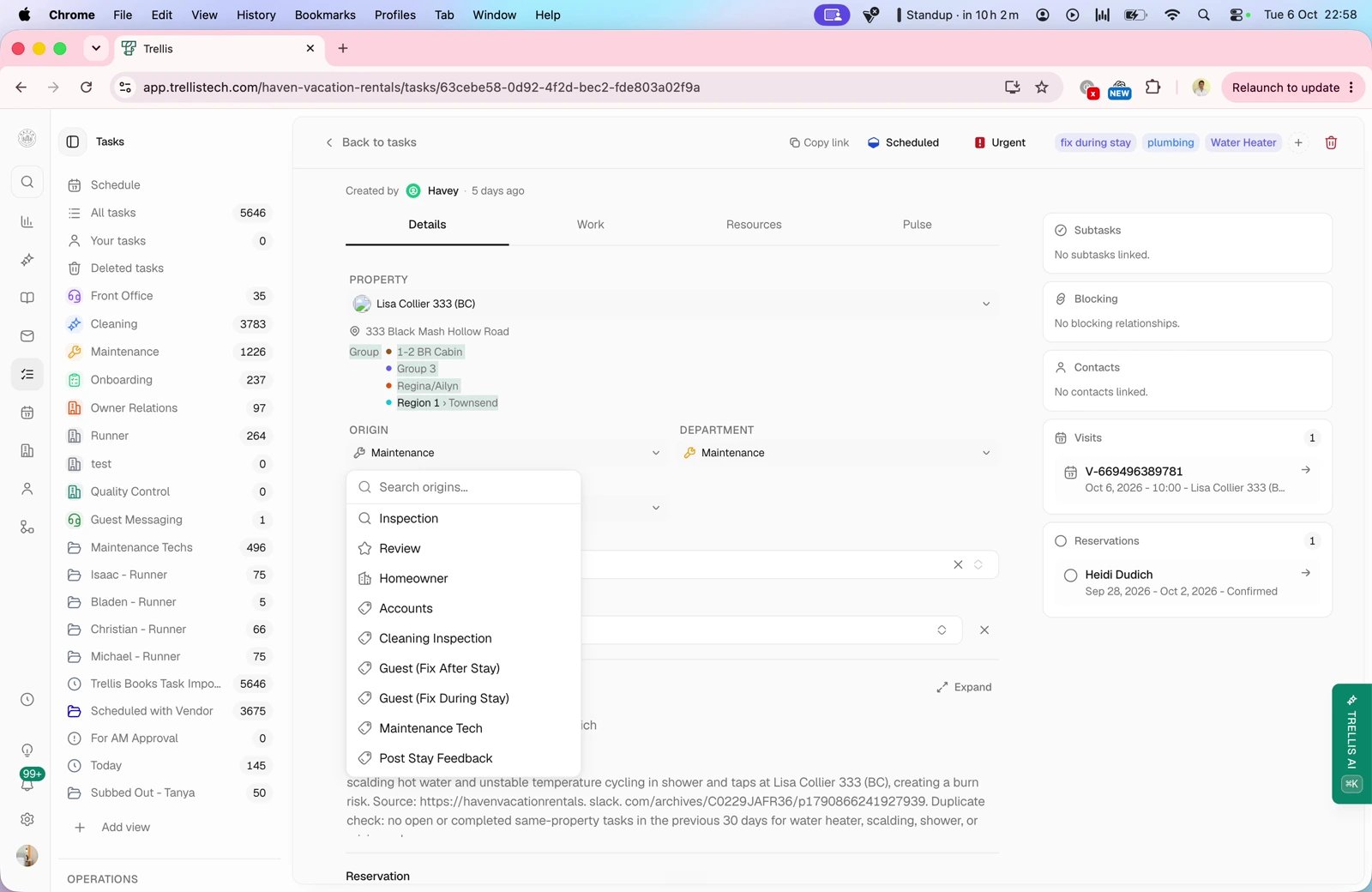
Record the issue
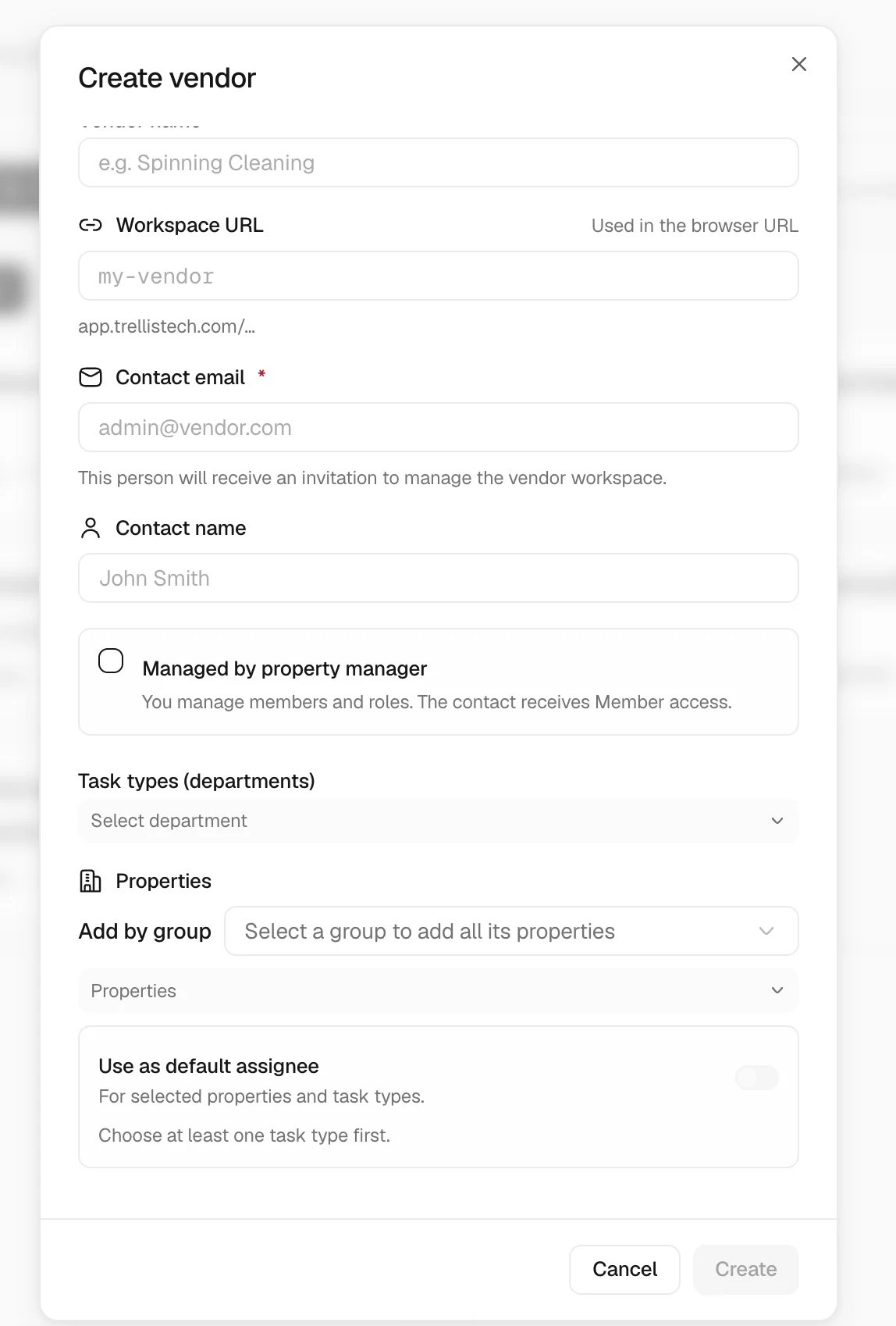
Check the vendor and request a quote
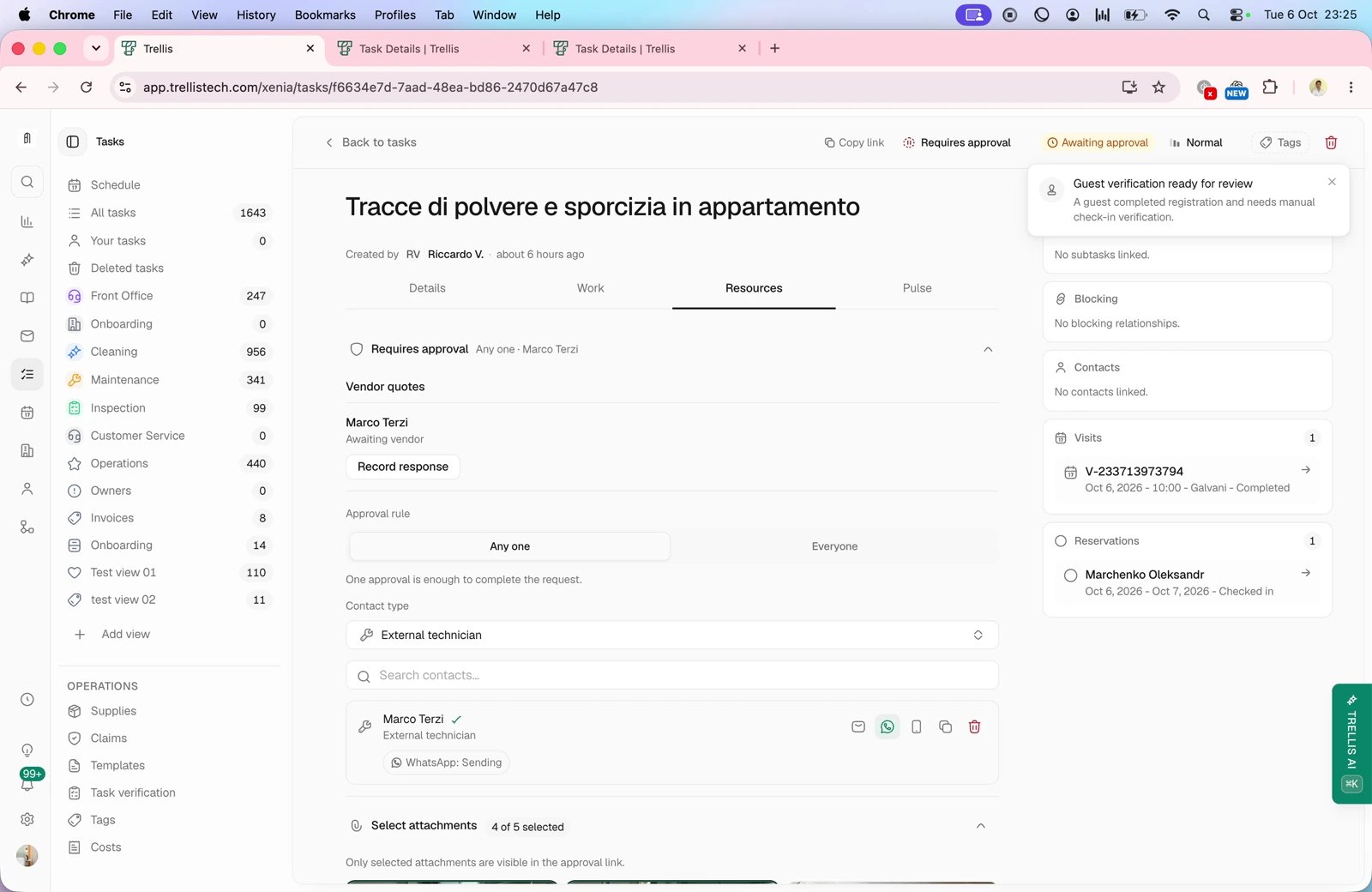
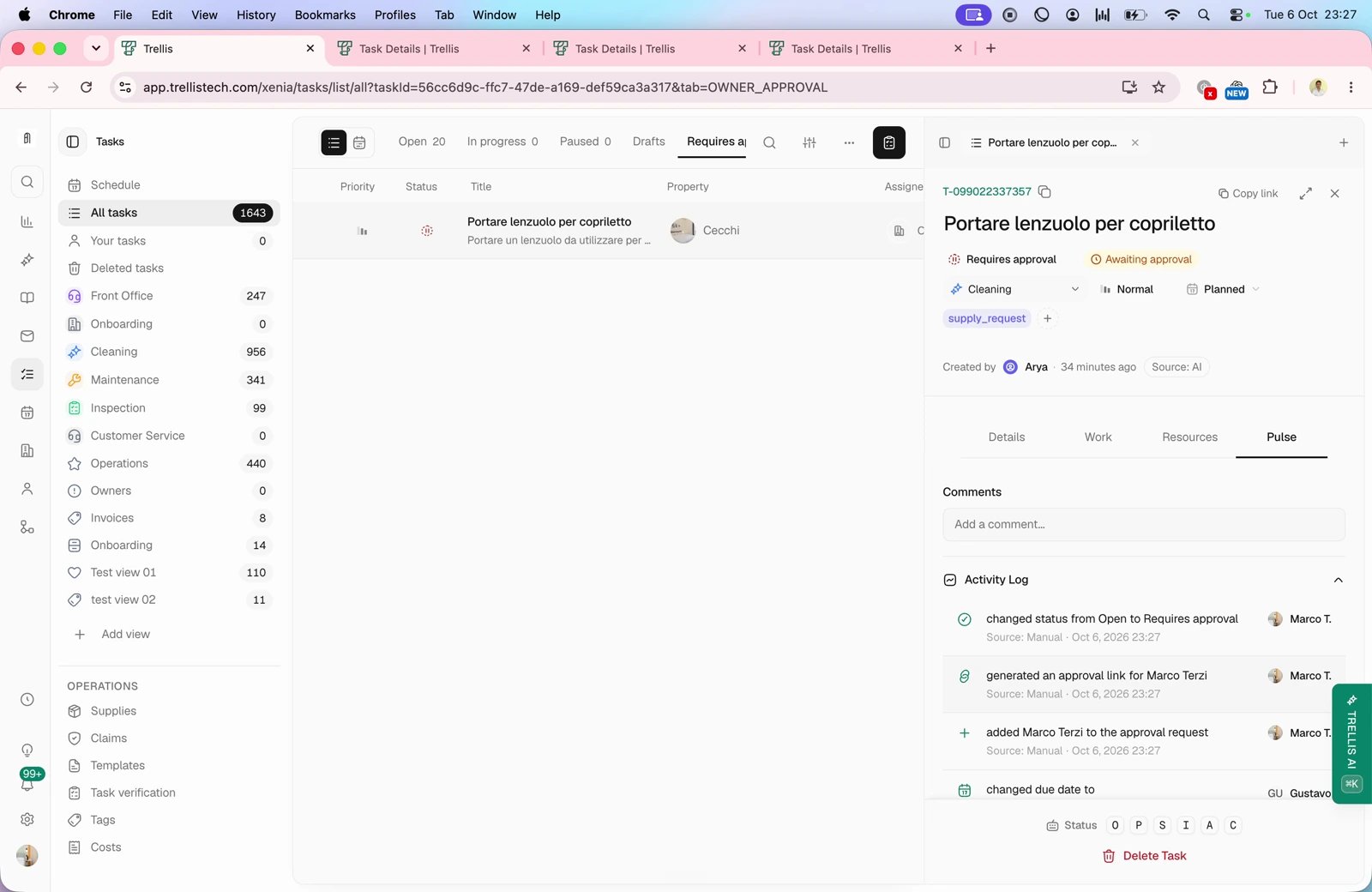
Follow the work through completion
Common problems
The vendor cannot open the task
The vendor cannot open the task
Review the vendor’s contact, invitation status, departments, and property scope in Settings > Team & Permissions. Confirm the link you shared is for the intended task action.
The task went to the wrong vendor
The task went to the wrong vendor
Correct the assignment and review the property’s default assignee for that department so the same mistake does not recur.
The issue needs a guest response first
The issue needs a guest response first
Keep the task pending while the conversation owner confirms access or the guest’s decision. Add the result to the task before dispatching the vendor.
Related articles
- Tasks — approvals, blockers, and resources.
- Assign or escalate a conversation.
- Tasks and visits — review completed work.