
Before you start
Identify the person, workspace, page, and exact missing record. Confirm the record exists from an administrator’s account. Check the affected person’s selected date, filters, and saved view; an empty filtered list is different from a permission error.The three checks, in order
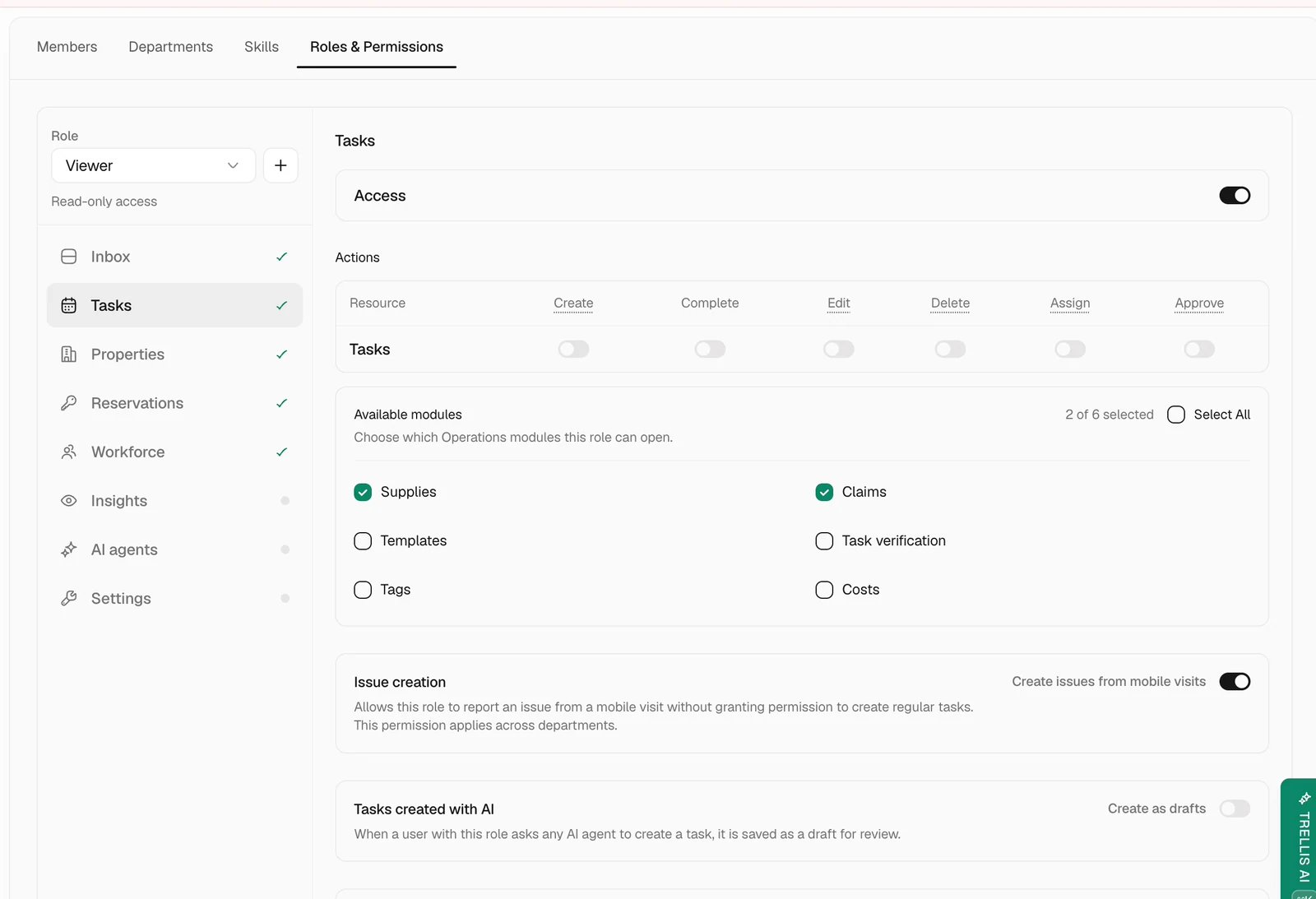
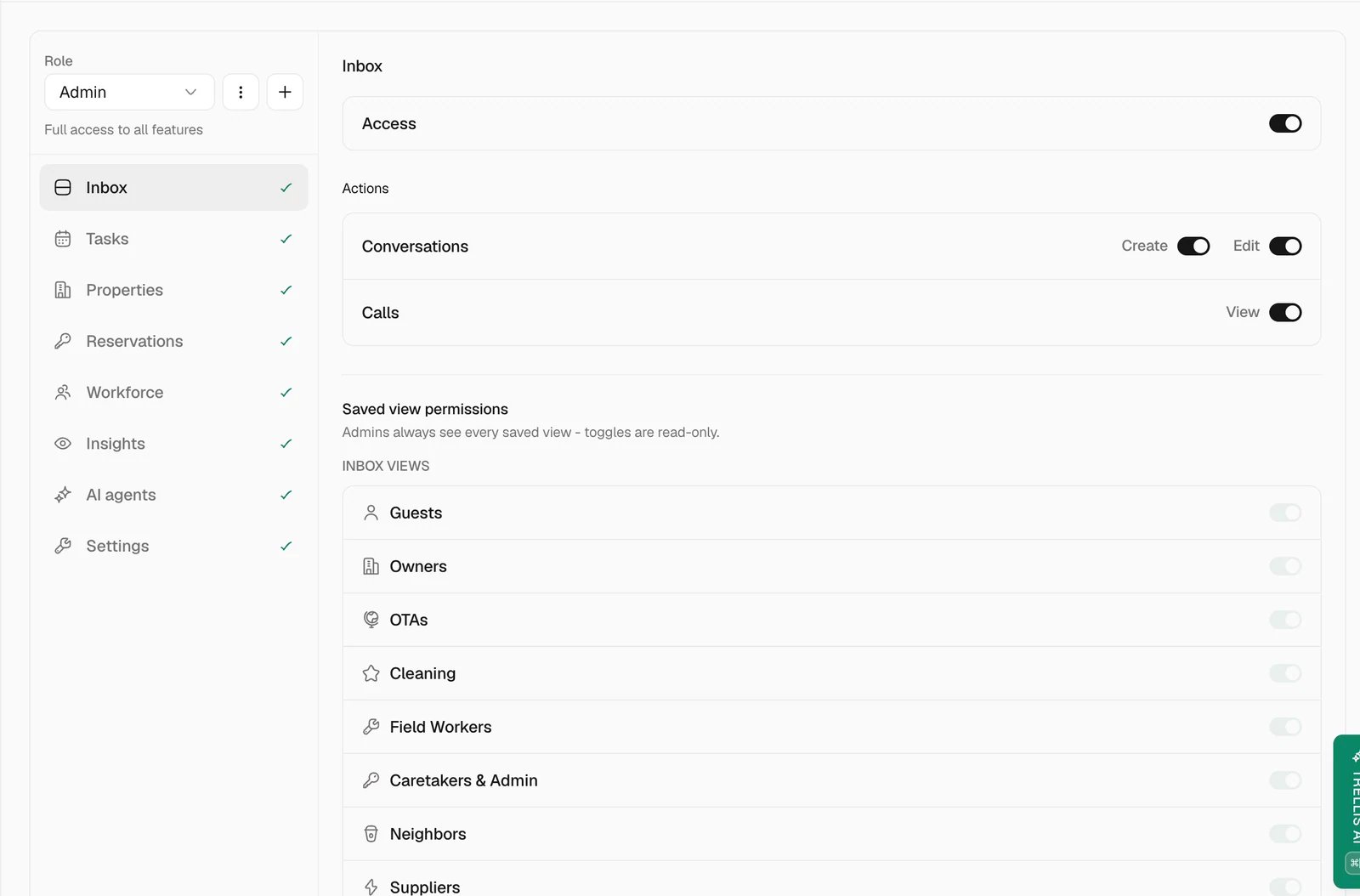
Check the role
Check the property scope
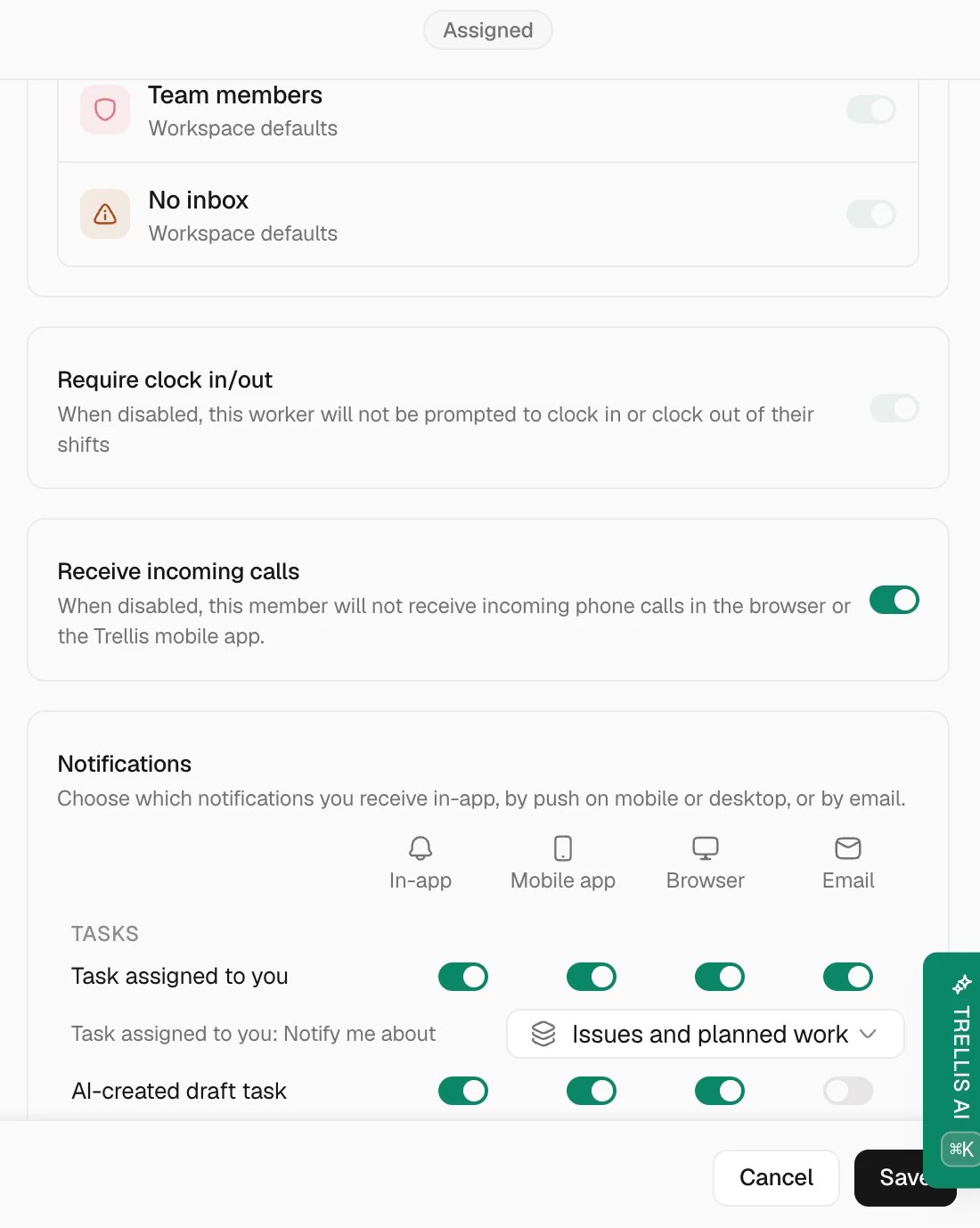
Check narrower visibility rules
Fix at the right layer
Correct the smallest setting that explains the problem. A role change applies to every person using that role; a member override is a narrower exception. After saving, refresh the affected person’s session and open the original record from their account. Check an unrelated record too, so the correction has not widened access unnecessarily.When to escalate
If the record still cannot be opened, give support the workspace, affected person, record link, error, and time of the test. Include which role, property scope, and visibility settings you checked.Common problems
A field worker sees no tasks in the mobile app
A field worker sees no tasks in the mobile app
Check the selected workspace and date, task assignee, Assigned tasks only visibility, department, and property scope. Check shift setup separately if clock-in or the schedule is missing.
A manager sees some properties but not others
A manager sees some properties but not others
Compare the missing property’s groups with the role and member overrides. Correct the intended scope rather than granting access to every property.
Access looks right but the page is still empty
Access looks right but the page is still empty
Clear filters and refresh the affected person’s session. Retest from that account; an administrator’s result does not prove the teammate has the same access.
Related articles
- Choose roles and property access.
- Agent permissions and approvals — agent access is configured separately.
- Troubleshooting.