Choose the handoff based on what the request needs next.

Choose the next action

  • Assign when another teammate should own the conversation and its reply.
  • Escalate when the current owner needs extra attention, authority, or a decision.
  • Create task when the request needs work such as a repair, delivery, or clean.
These can be used together. A maintenance request may need a task for the repair and an assigned conversation owner to keep the guest informed.

Assign a conversation

Assign a conversation in Trellis
Open the conversation’s assignment control and choose the teammate who should take over. Confirm that the conversation shows the new assignee. Assignment changes responsibility; the teammate’s existing permissions still determine what they can access.
Leave comments and mention teammates in Trellis
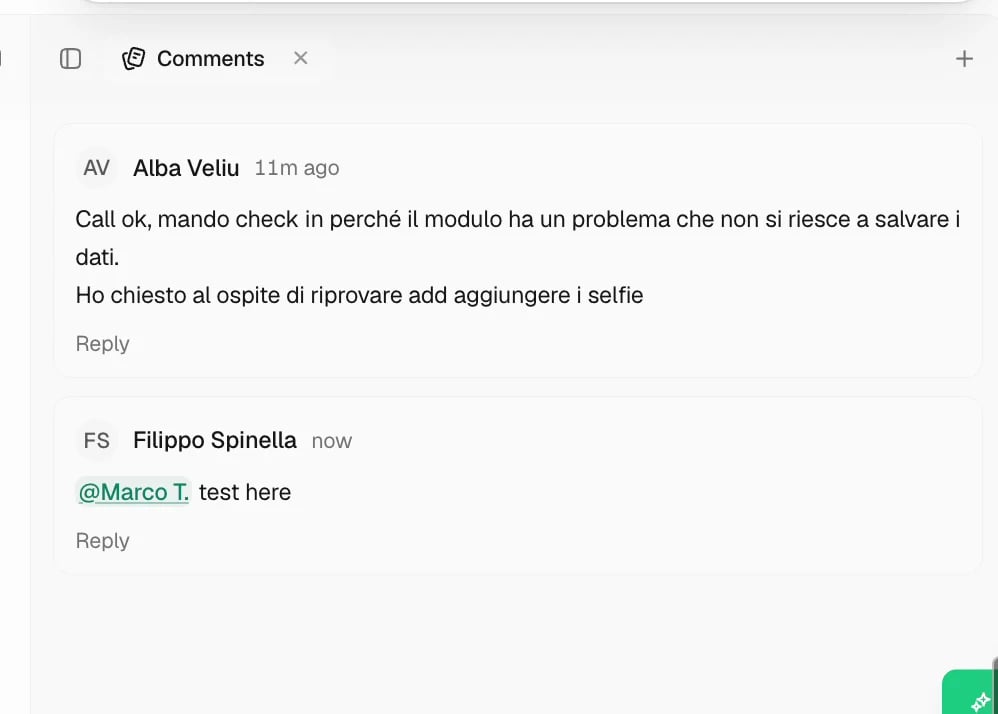
Add an internal comment with what remains to be done, the promised timing, and any decision already made. Mention the teammate when you need their attention. Internal comments stay inside the team; switch back to the reply composer before writing to the guest.

Escalate a conversation

Handle an Autopilot escalation in Trellis
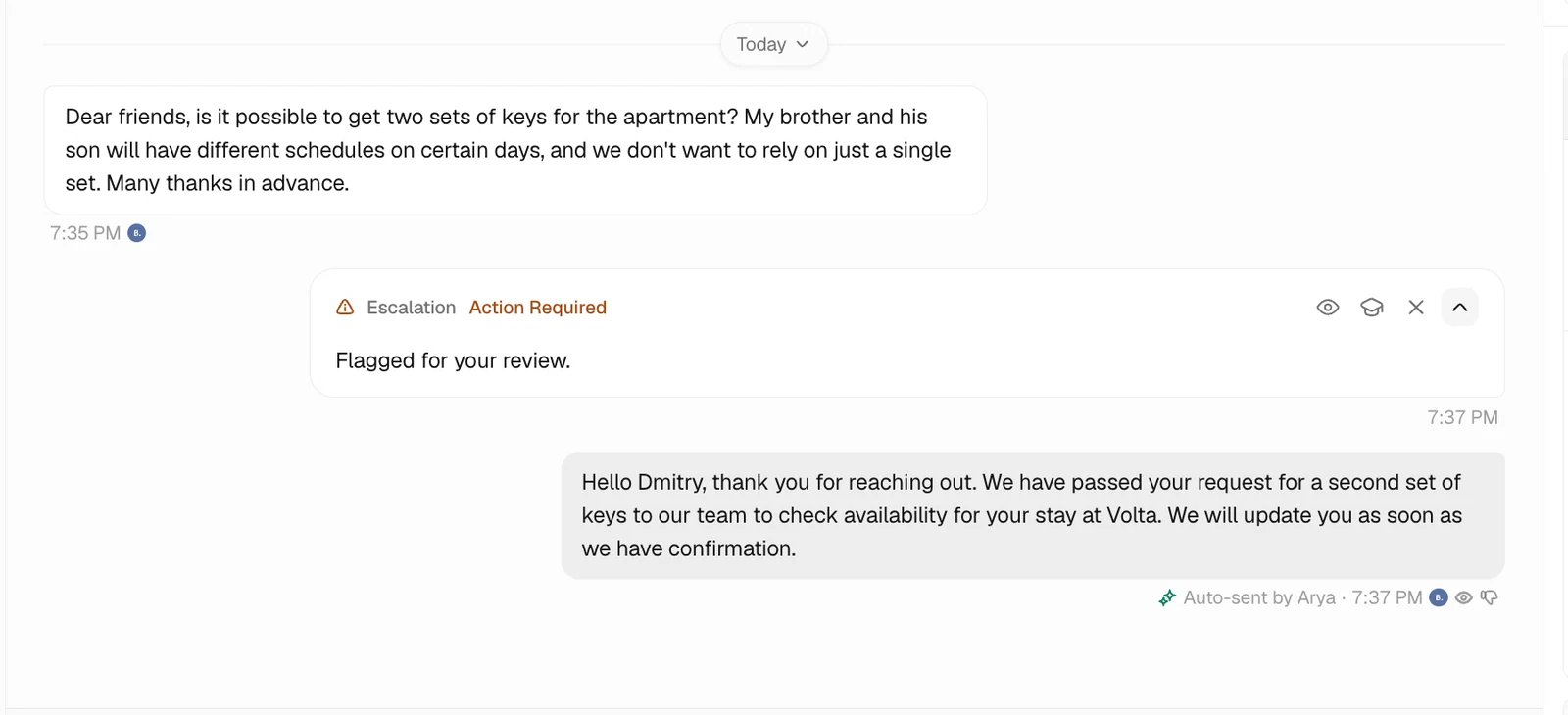
An escalation highlights a conversation for the configured Recipients. When an AI agent escalates, read the reason and review any suggested reply before responding. Check the reservation and policy behind the recommendation rather than treating the draft as an approved decision. Escalation does not replace the conversation owner. Keep one person responsible for the guest’s next update, even when another team or manager is deciding the outcome.

Turn it into a task

Open connected tasks in Trellis
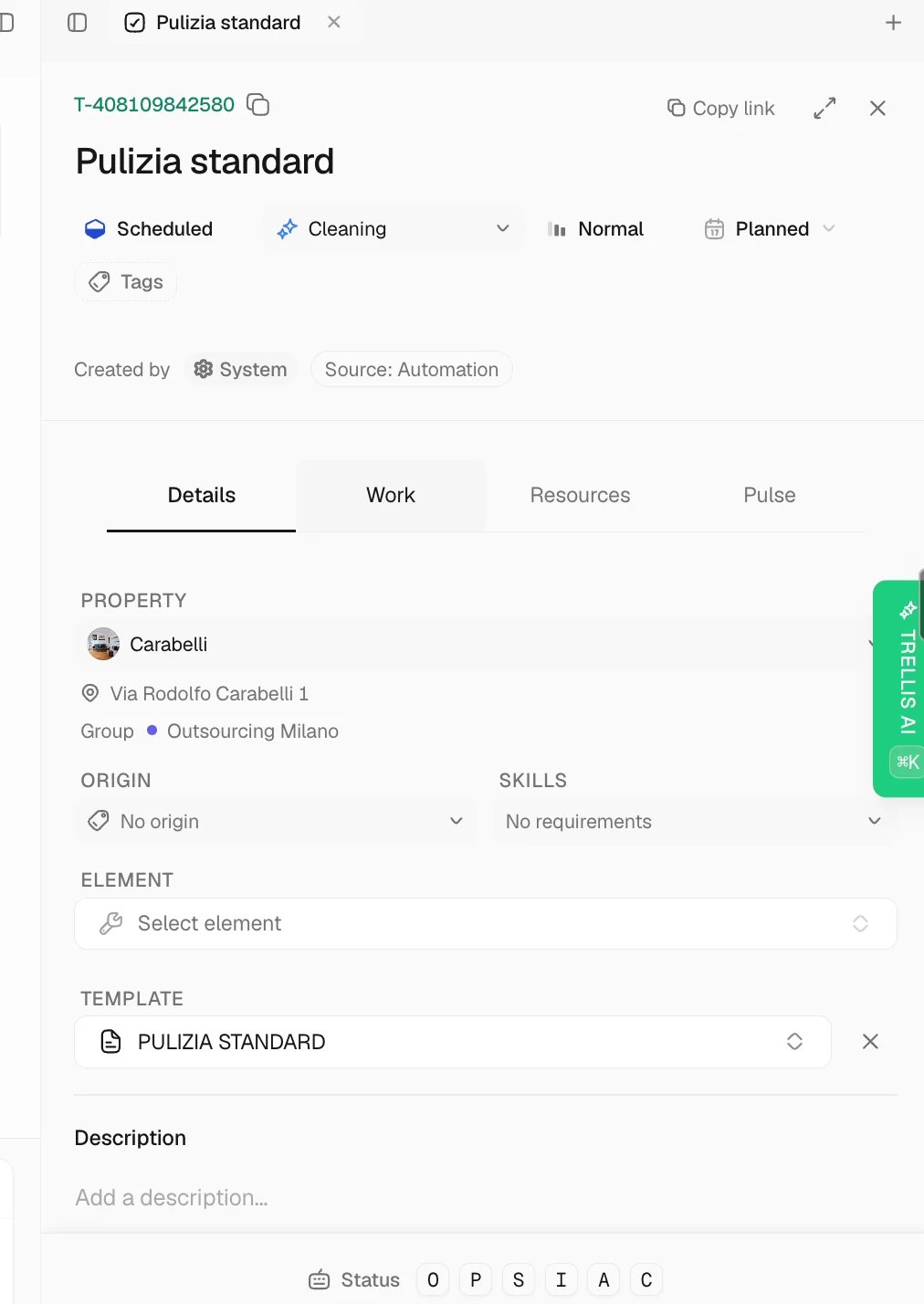
Use the task controls from the conversation when someone needs to carry out work. Confirm the linked property and reservation, describe the expected result, and add the assignee and timing. The link back to the conversation helps the worker understand the request and lets the conversation owner track progress. Follow Create a task for instructions, photos, and completion requirements.

Follow up

Keep the conversation open or set a reminder while a decision or task is outstanding. If the guest only needs an update when the work finishes, use the task-completion follow-up option described in Inbox. Mark the conversation Done after the request has been handled and the guest has the information they need.