
Before you start
List the person’s responsibilities and properties. Decide whether they belong to your internal team or an external vendor, and which actions need manager review. Check the permissions actually shown in your workspace rather than relying on a role’s name alone.Recommended access patterns
Choose permissions for the person’s responsibilities:- Front office: conversations, contacts, and reservations for its assigned portfolio.
- Operations manager: tasks, workforce planning, properties, and the decisions they manage.
- Field worker: assigned visits, tasks, instructions, and completion evidence.
- Owner: the approved communication and reporting for their properties.
- Vendor: the task types and properties covered by their work agreement.
Configure and verify access
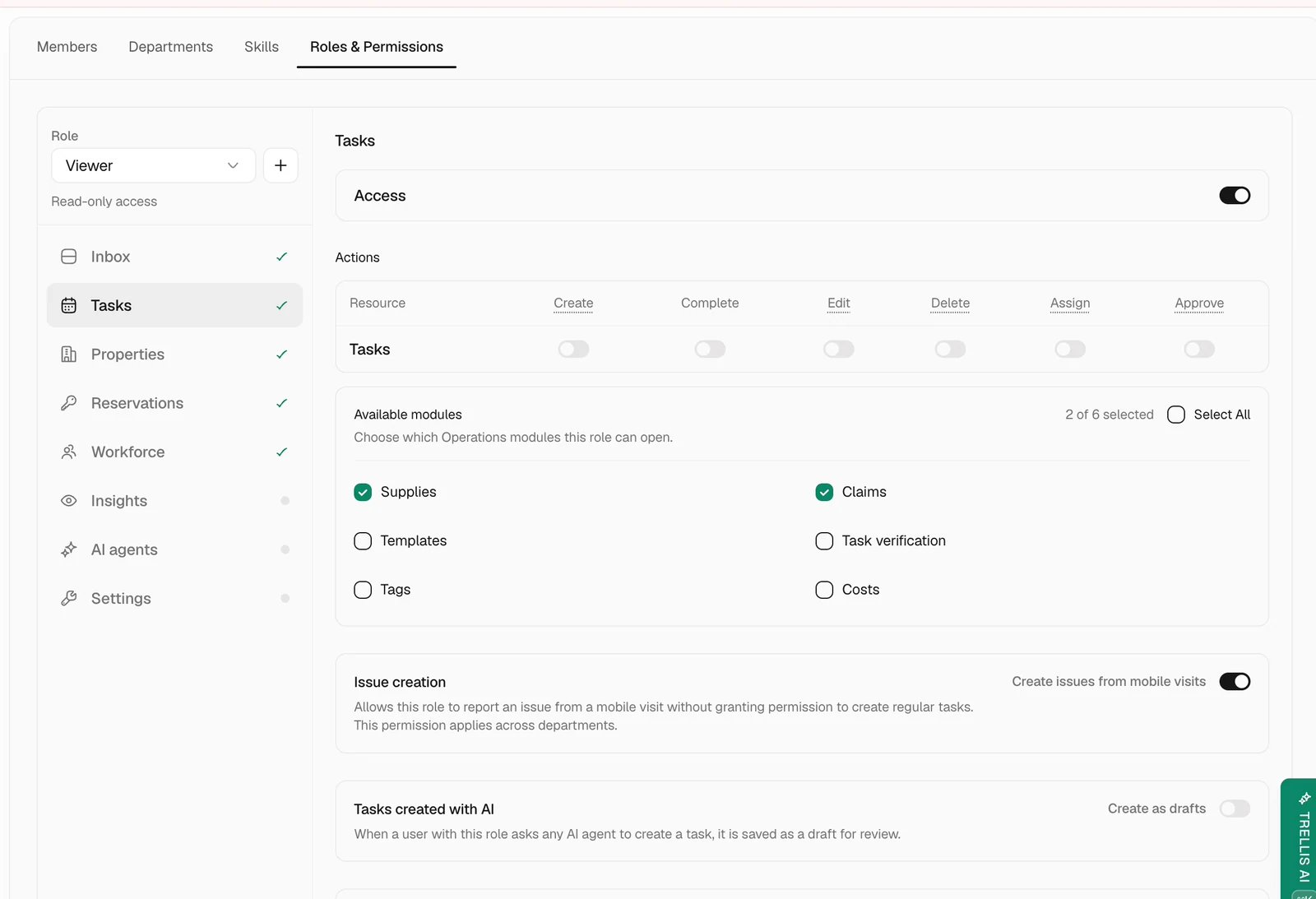
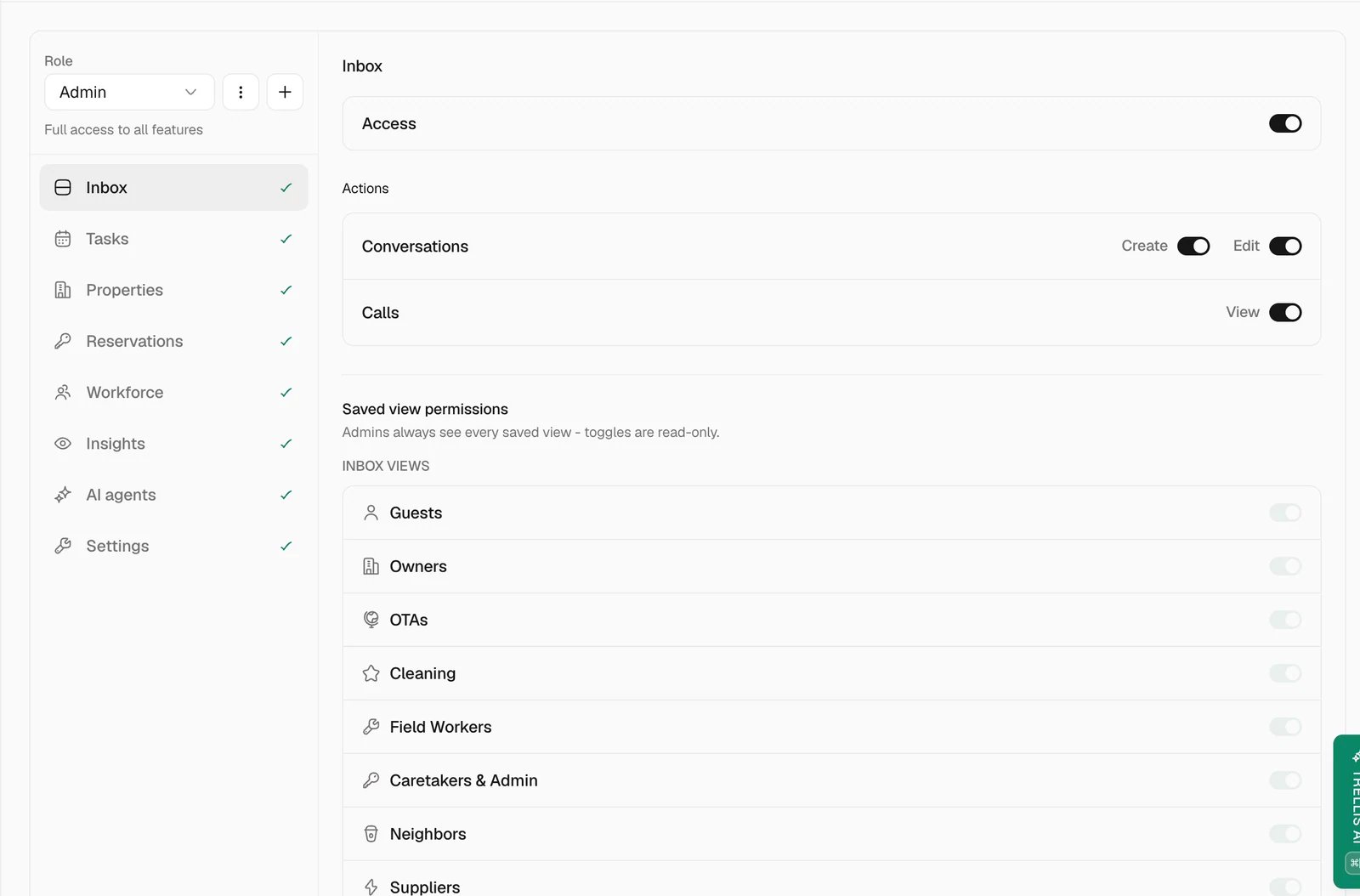
Review the role

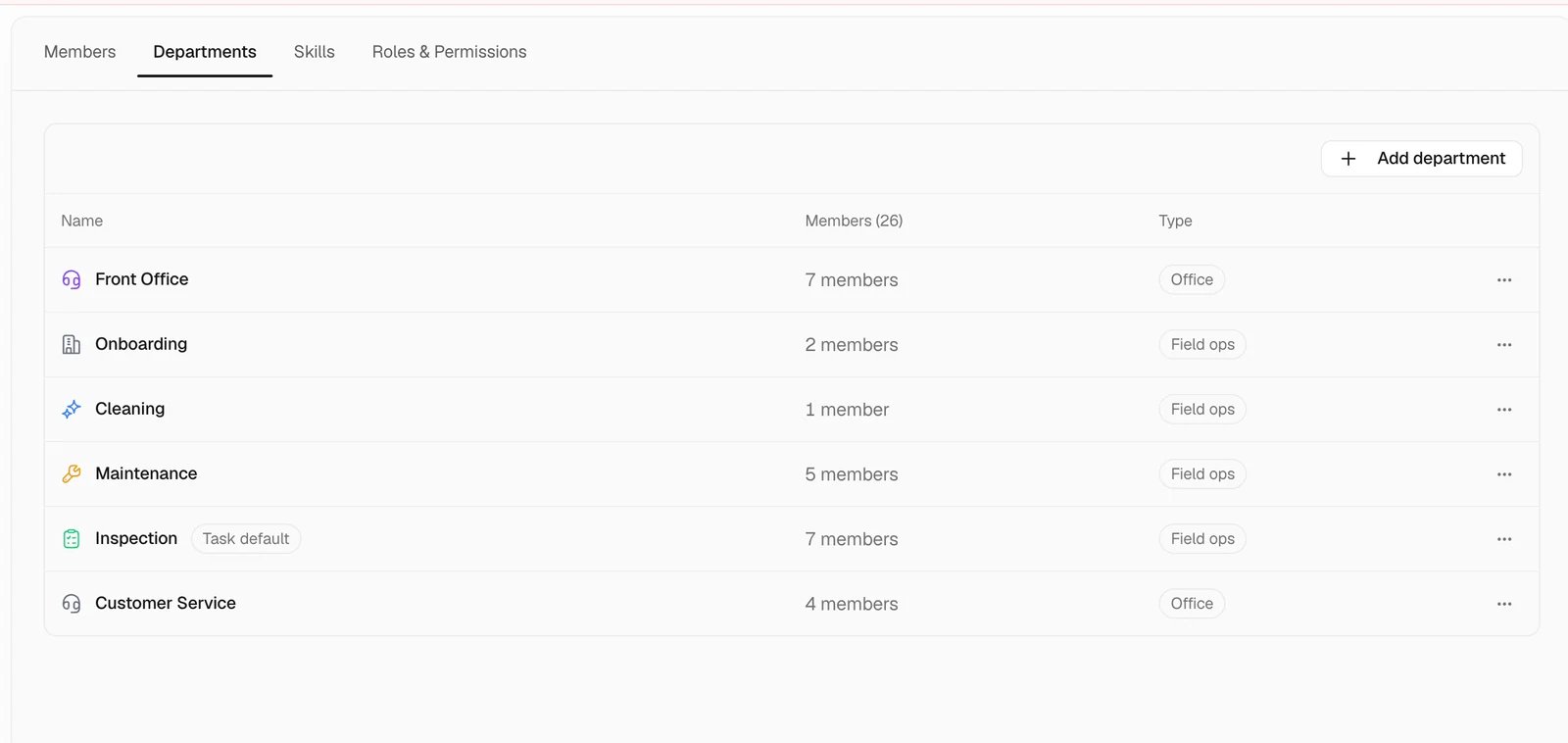
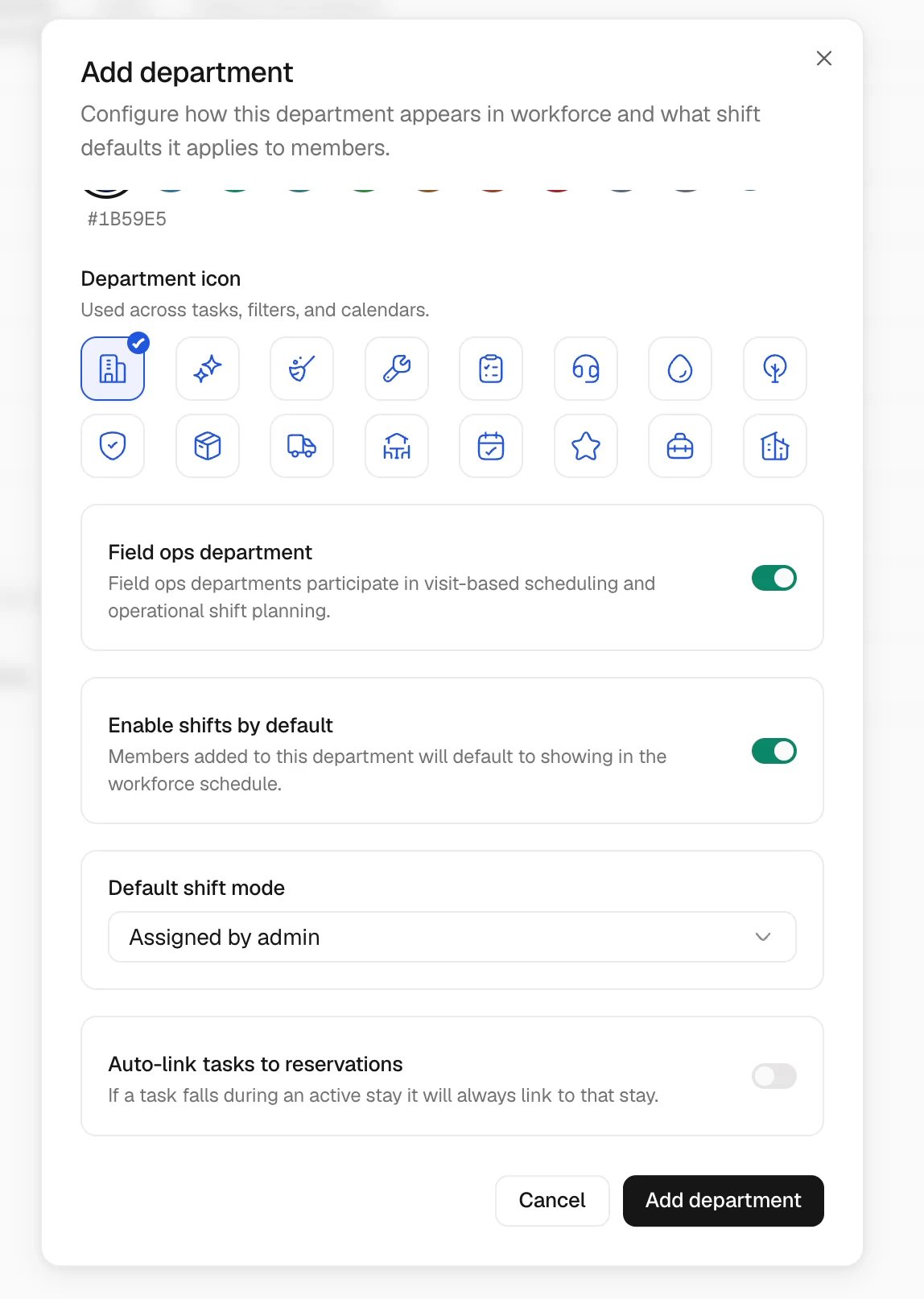
Organize departments
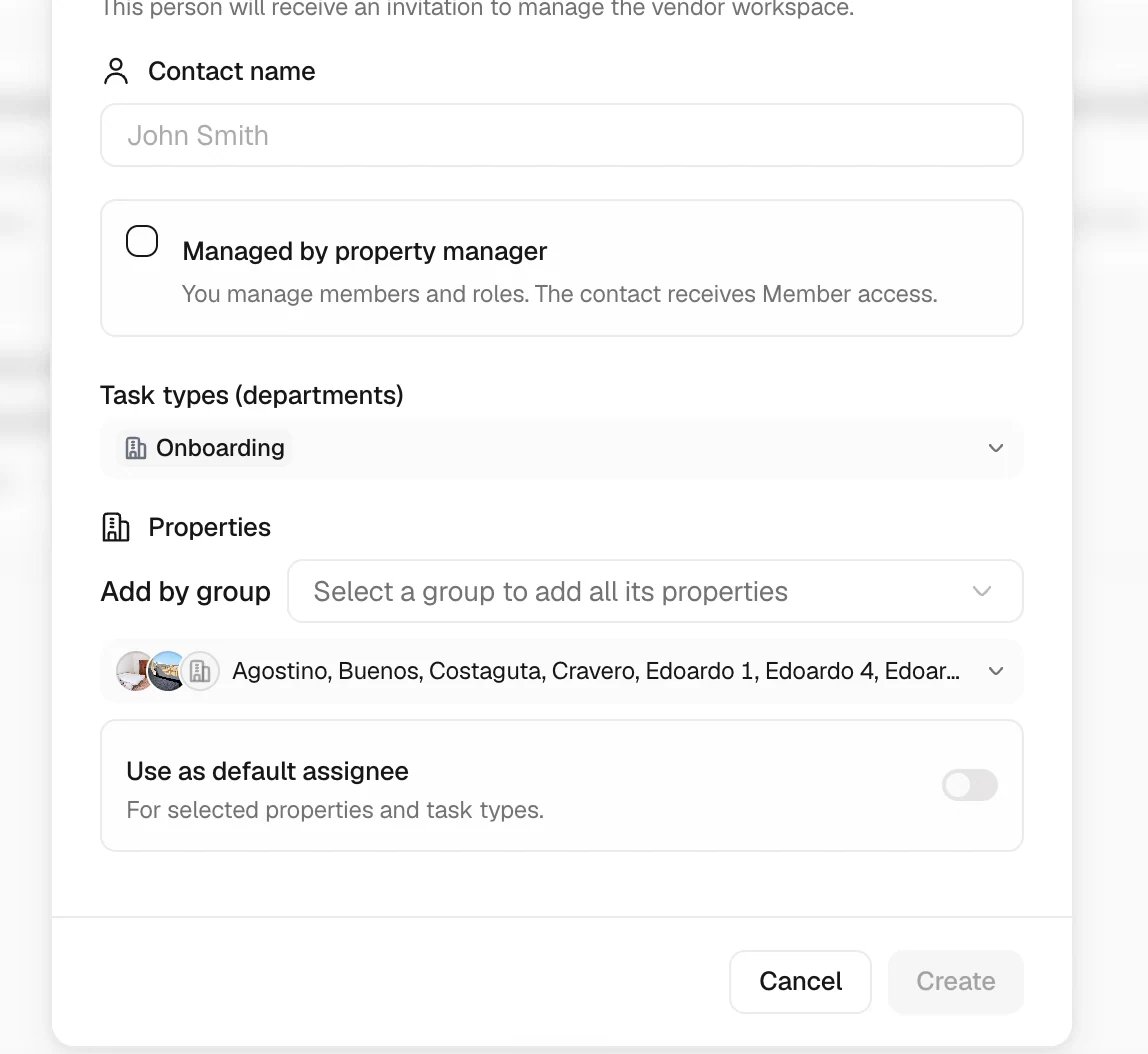
Choose the member or vendor flow

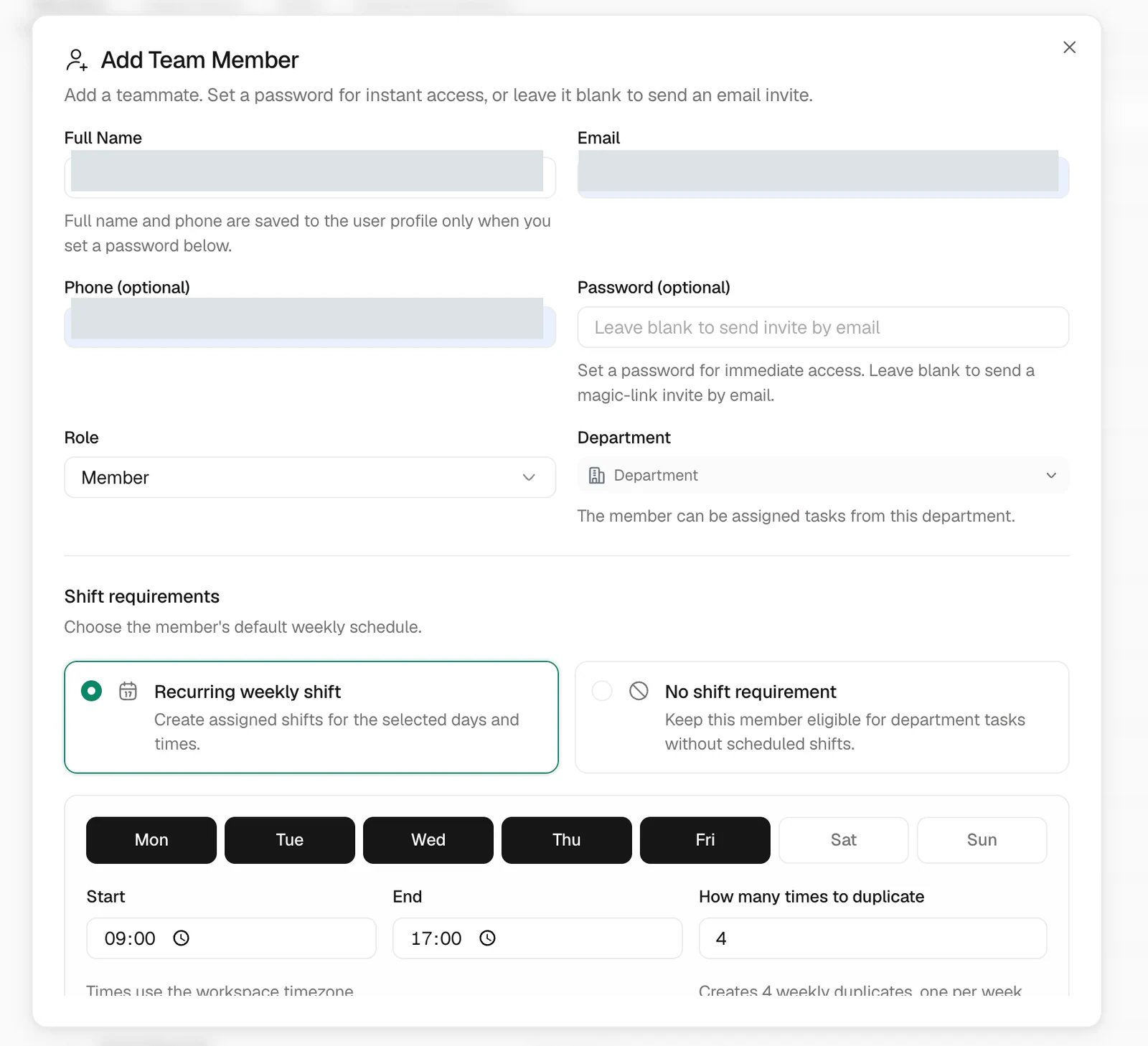
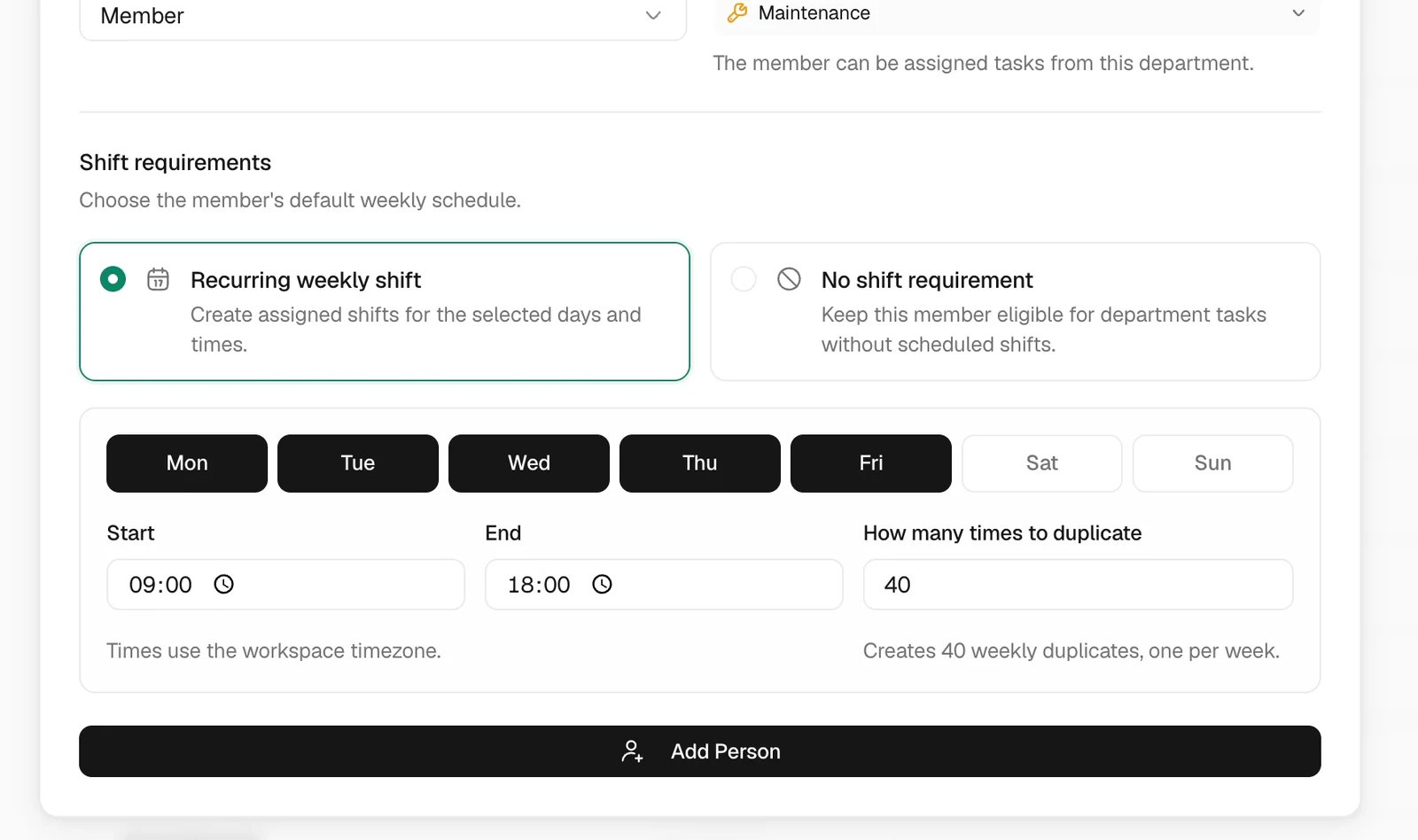
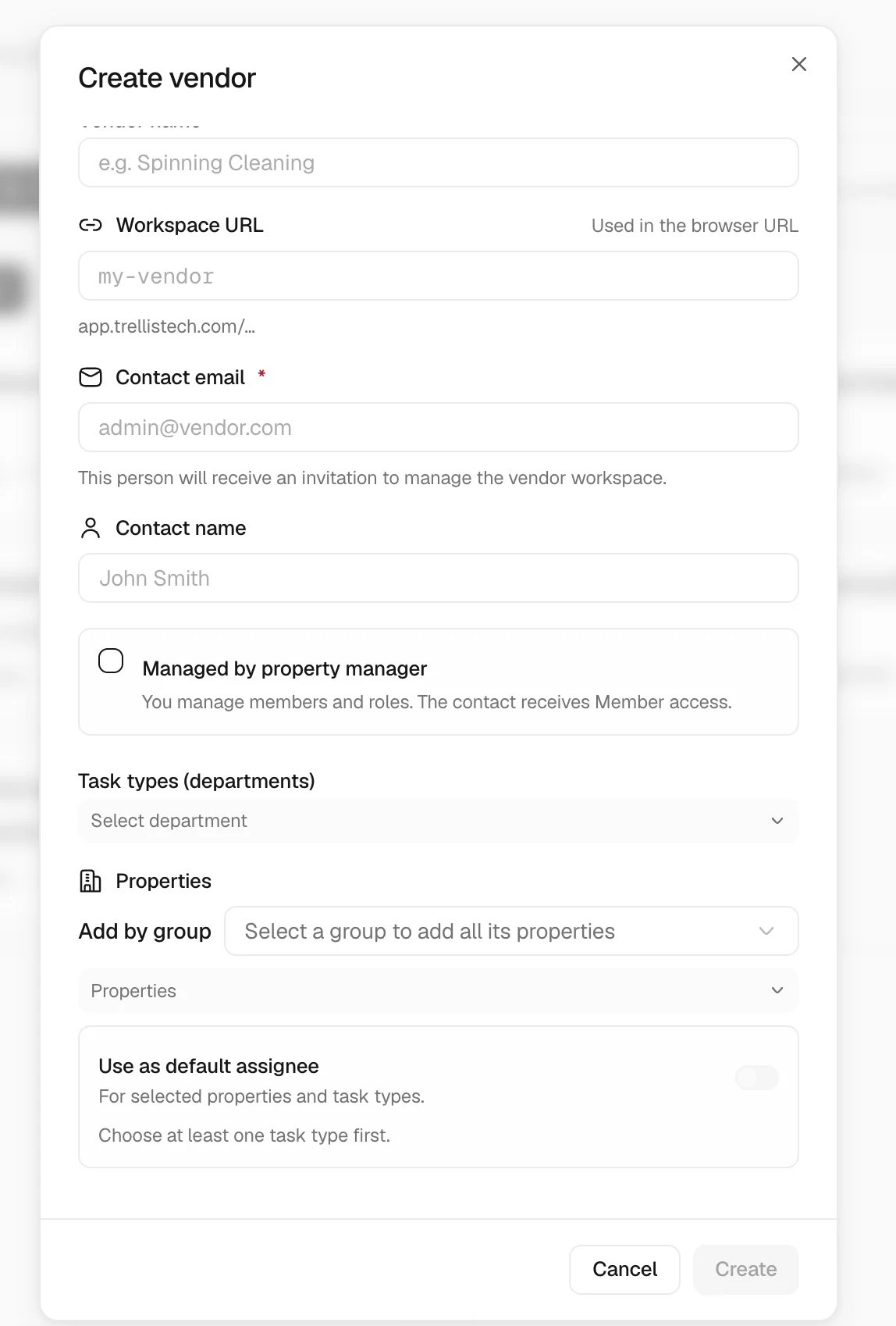
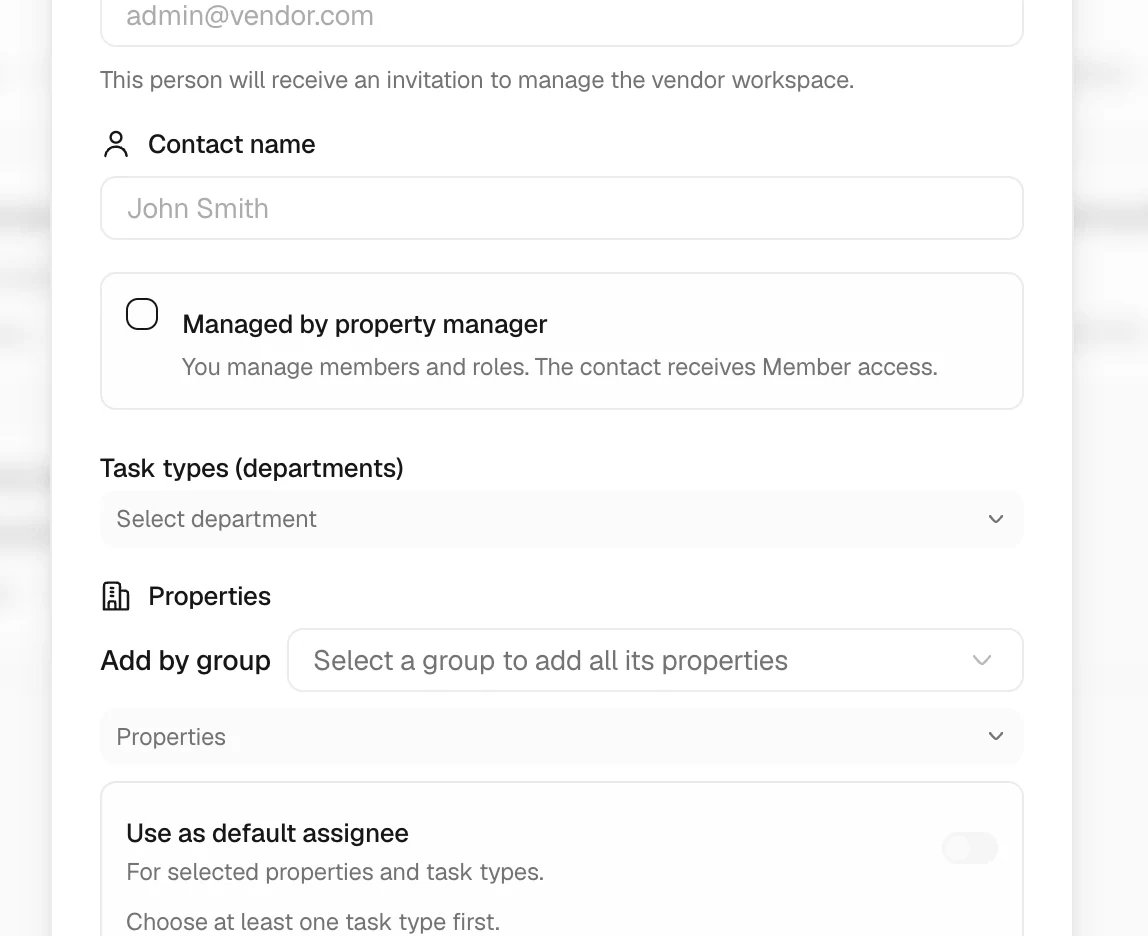
Review individual exceptions
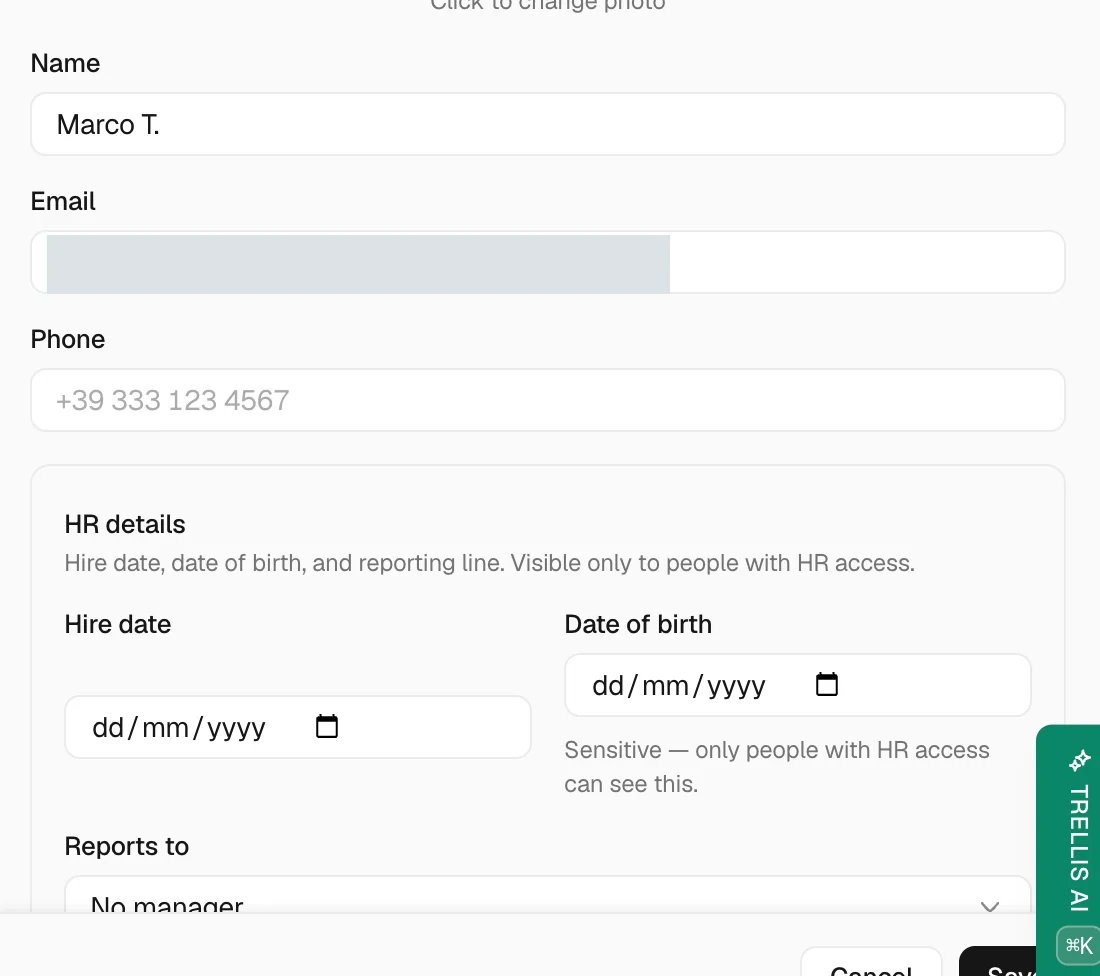
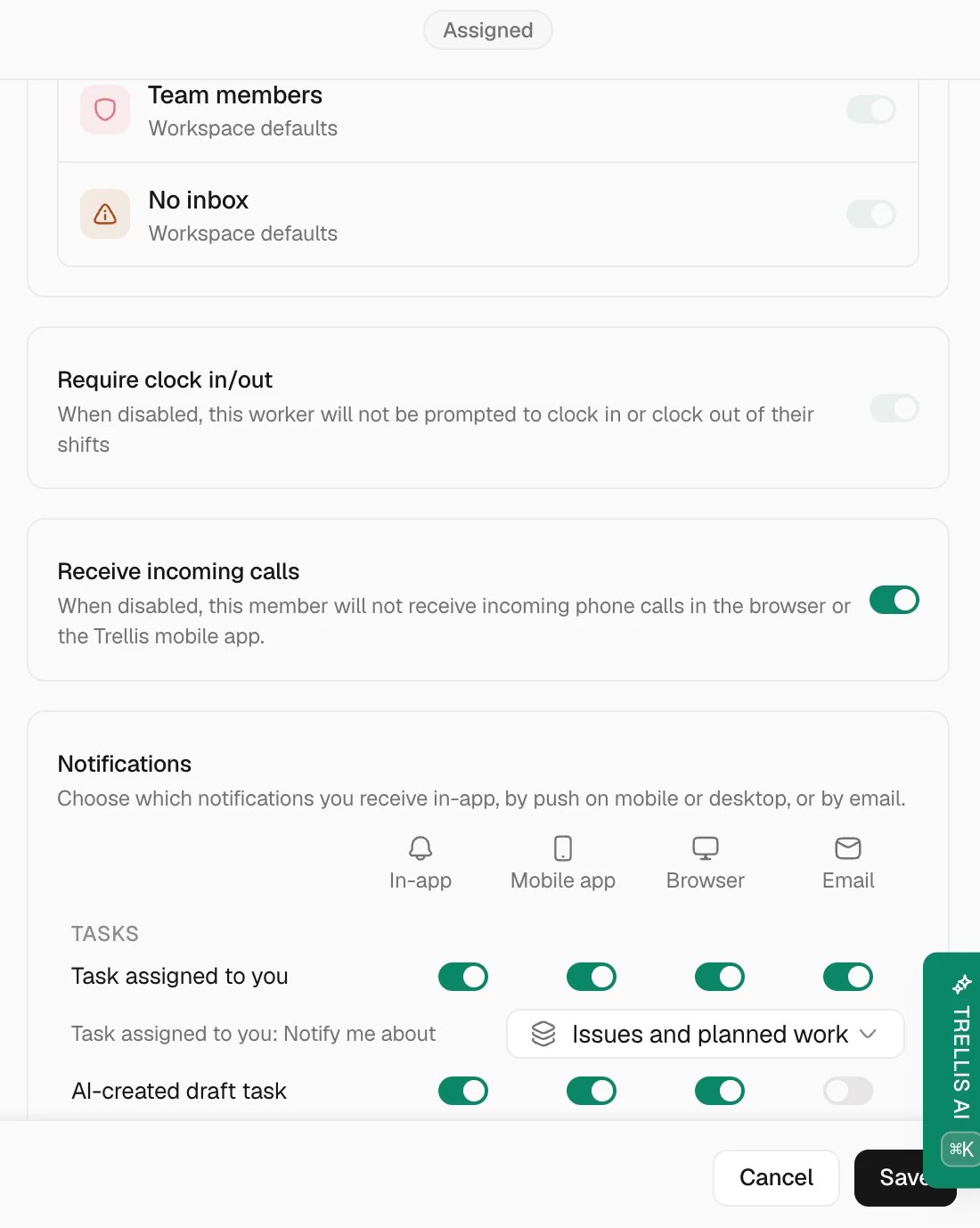
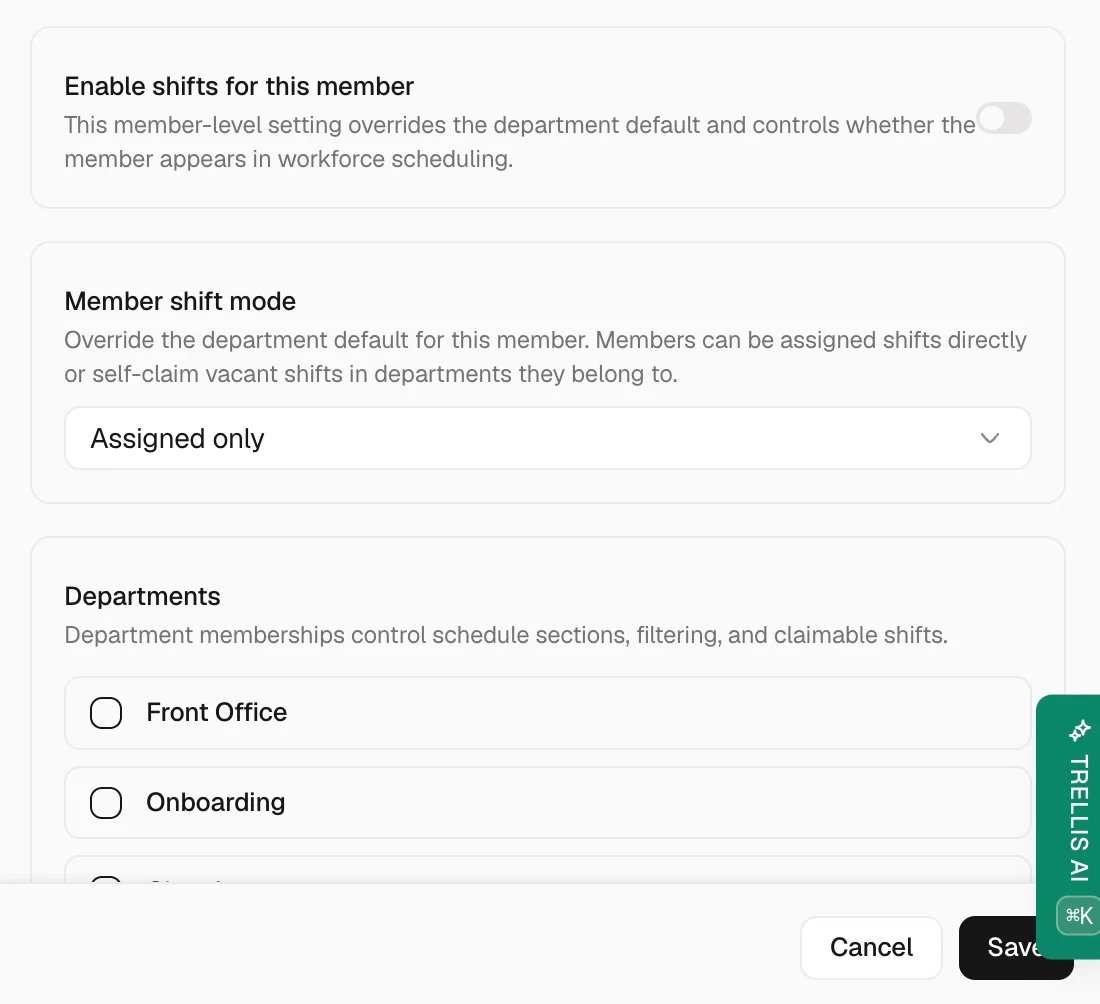
Review access over time
Recheck access when a person changes departments, a vendor’s work ends, or a portfolio changes. Review both the shared role and individual exceptions. Changing a role affects everyone who uses it; changing one member’s override affects that person.Common problems
A teammate cannot open an area
A teammate cannot open an area
Check the role’s View permission, individual overrides, and narrower visibility settings. Retest from that person’s account after refreshing their session.
A teammate sees too many properties
A teammate sees too many properties
Check whether All properties is enabled on the role and whether the member has a property override. After correcting the scope, test that an unrelated property is no longer visible.
A vendor invitation is missing
A vendor invitation is missing
Check the contact email and invitation status in the vendor record before using Resend invite. See Set up a vendor.