Use visits to plan trips and tasks to review each job.

Task versus visit

A task is one job with its own instructions and checklist, such as a turnover clean or a lock repair. A visit groups tasks at the same property on the same day with the same assignees. A shift records the person’s working period and can include several visits.
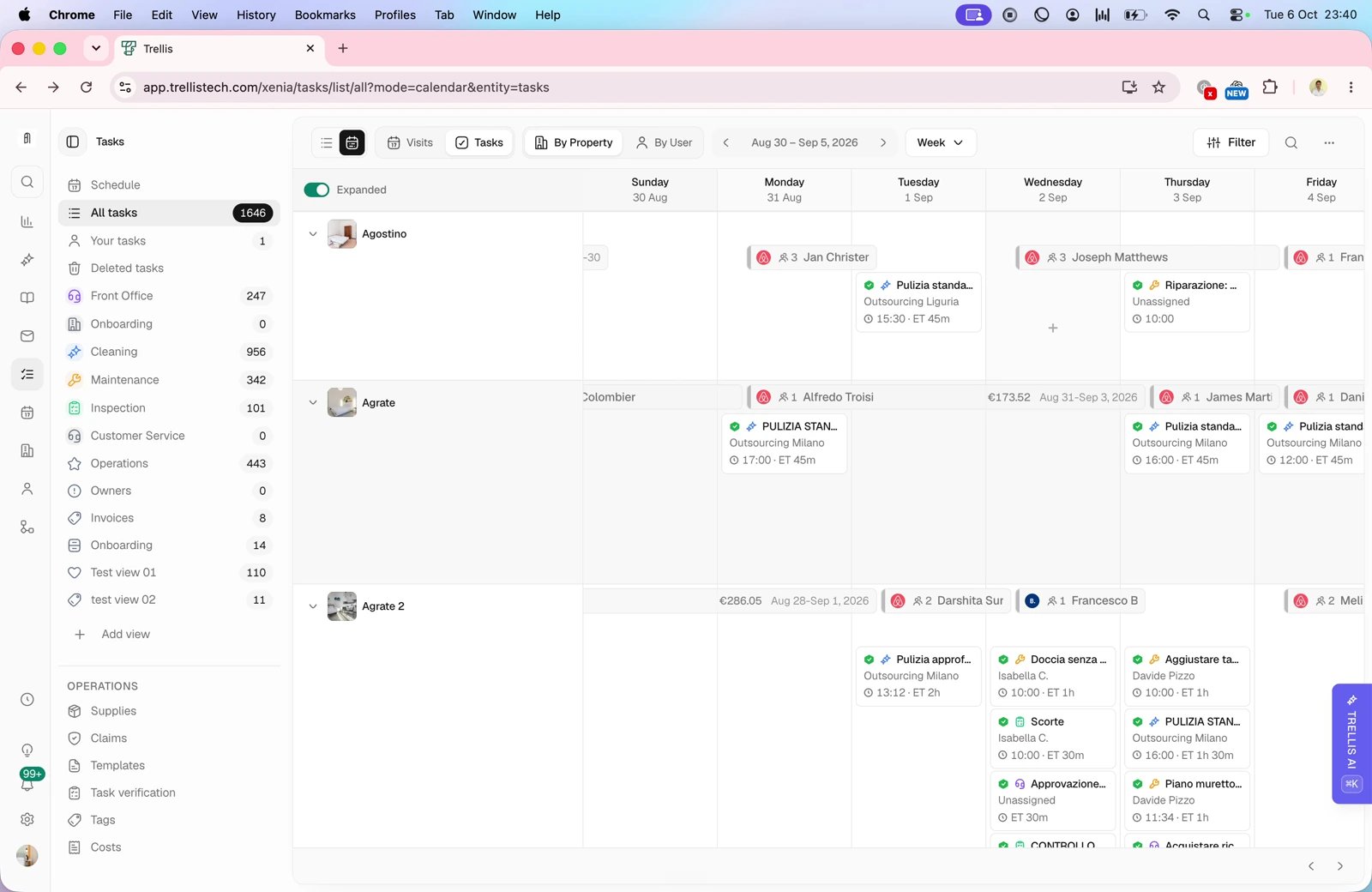
Tasks and visits in the calendar in Trellis
In the Tasks calendar, switch between Tasks and Visits. Two jobs for the same cleaner at one property can appear as one visit; work assigned to a different person remains a separate visit. Group by property to check coverage, or by user to review workload. Choose a day, week, 15-day, or month view and expand visits when you need to see their tasks. Use the compact view to scan a larger schedule.

Review a completion

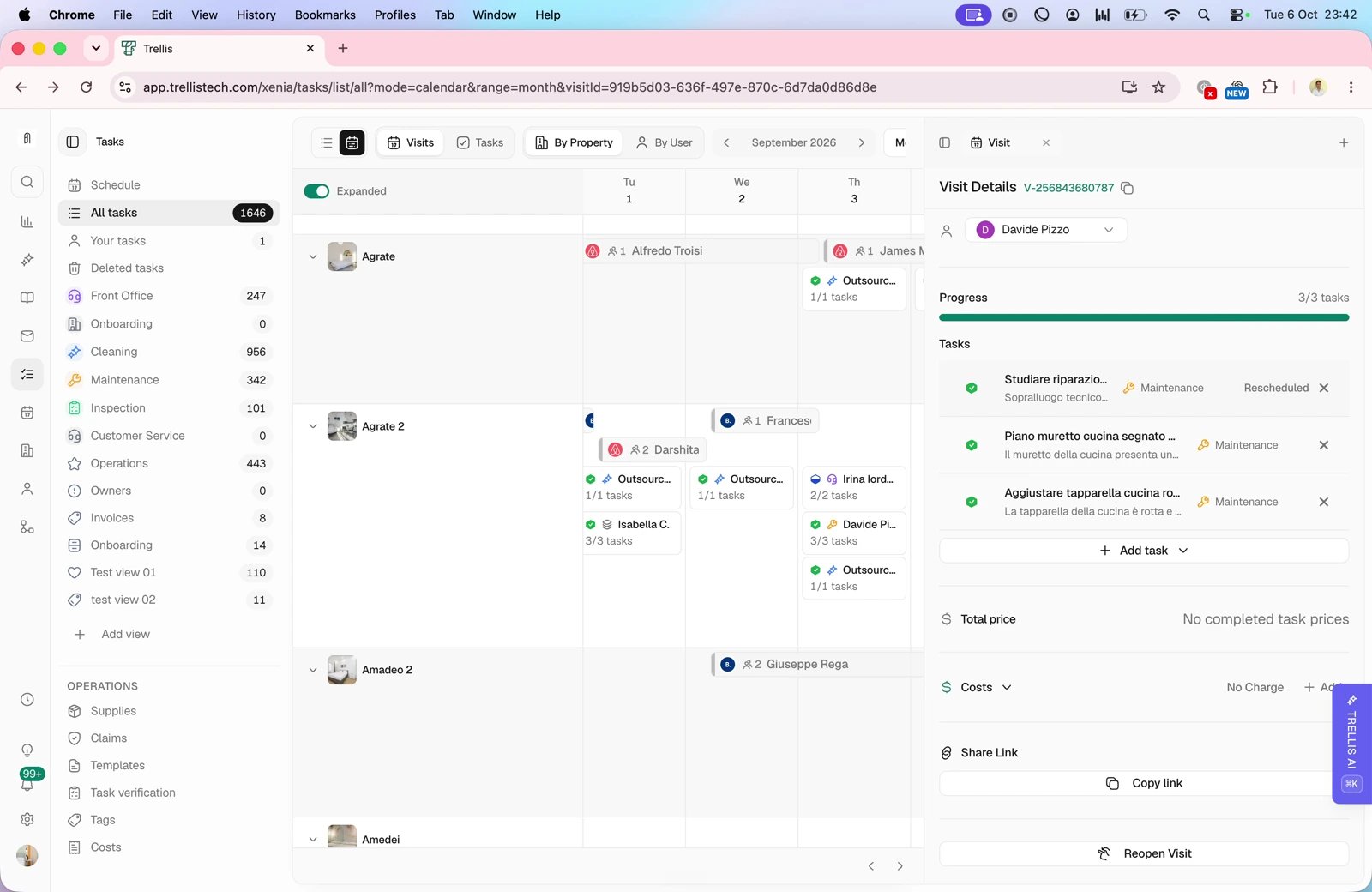
Visit details and completed work in Trellis
Open the visit to check its property, assignee, recorded start and end, tasks, costs, notes, and reported issues. Open each task that needs review rather than assuming the visit status proves every job was done correctly.
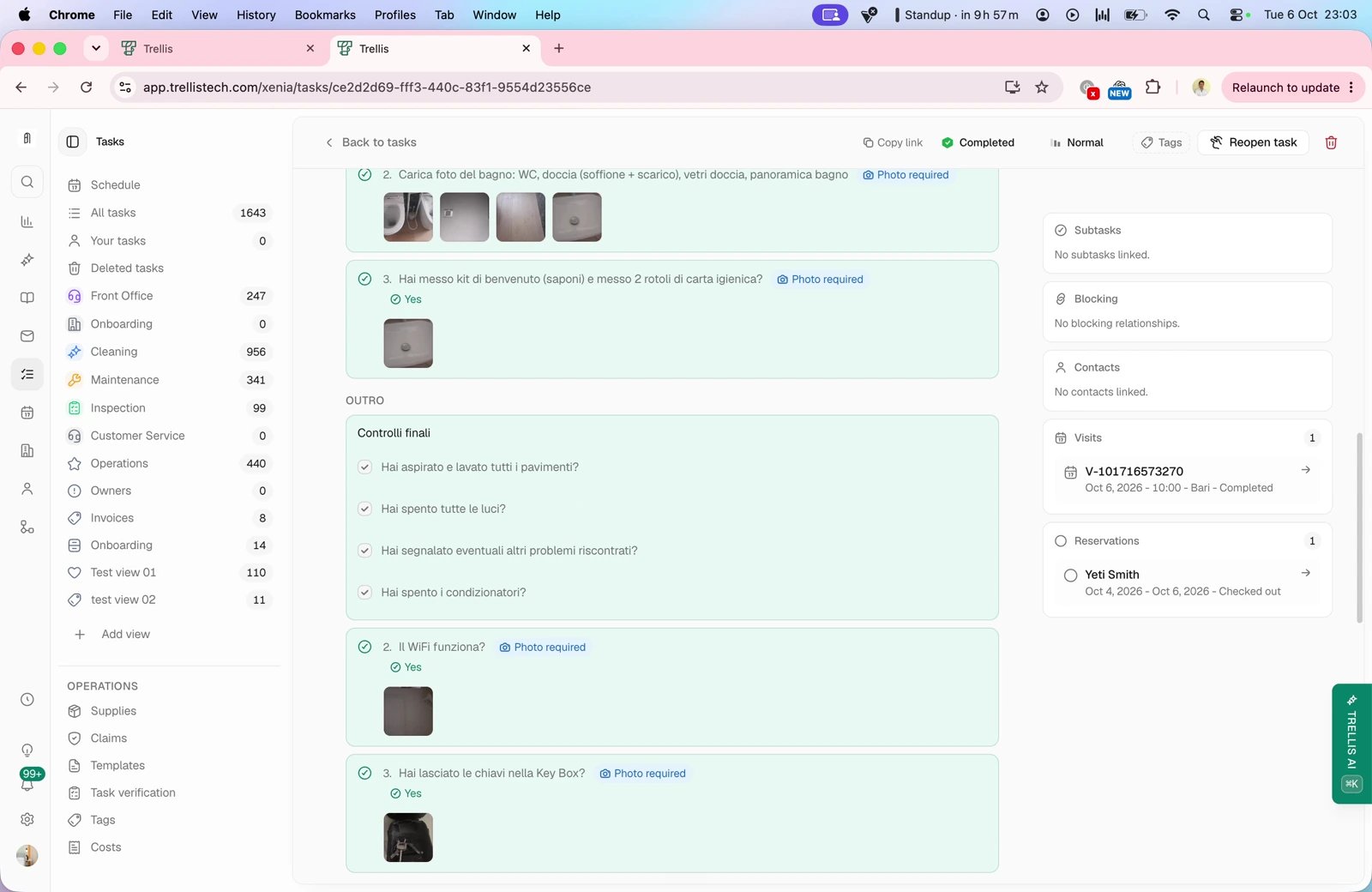
Checklists and resources in Trellis
In the task’s Work tab, compare the completed checklist and photos with the instructions. A required photo should show the requested result clearly. Read the worker’s notes for anything left unresolved, then record a specific follow-up when evidence or work is missing. Where completion review is enabled, accept or decline with a clear reason. Distinguish unfinished work from a task that could not be carried out. A missing part, incorrect access code, or guest still in the property may require corrected instructions and a new date.

Follow up on unfinished work

Assign a follow-up task for unresolved work and update the guest or owner waiting for the result. For task setup, see Create a task. For mobile steps, see Field worker onboarding.