
Before you start
Choose one property and a controlled training clean or planned job. Confirm the worker or vendor has access, and decide the checklist, time window, and required photos. Keep any new checkout automation off until this manual process works.Prepare the work
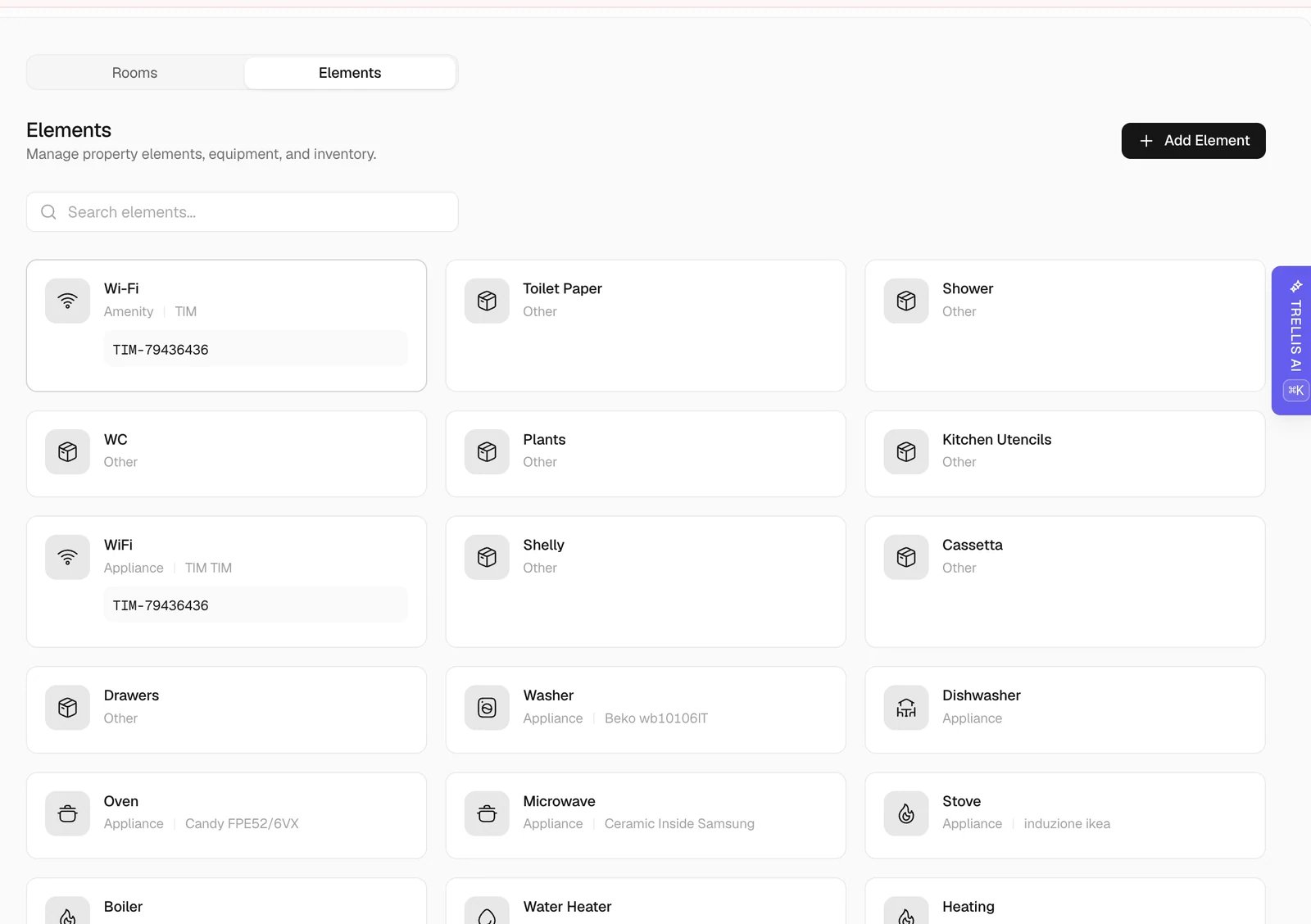
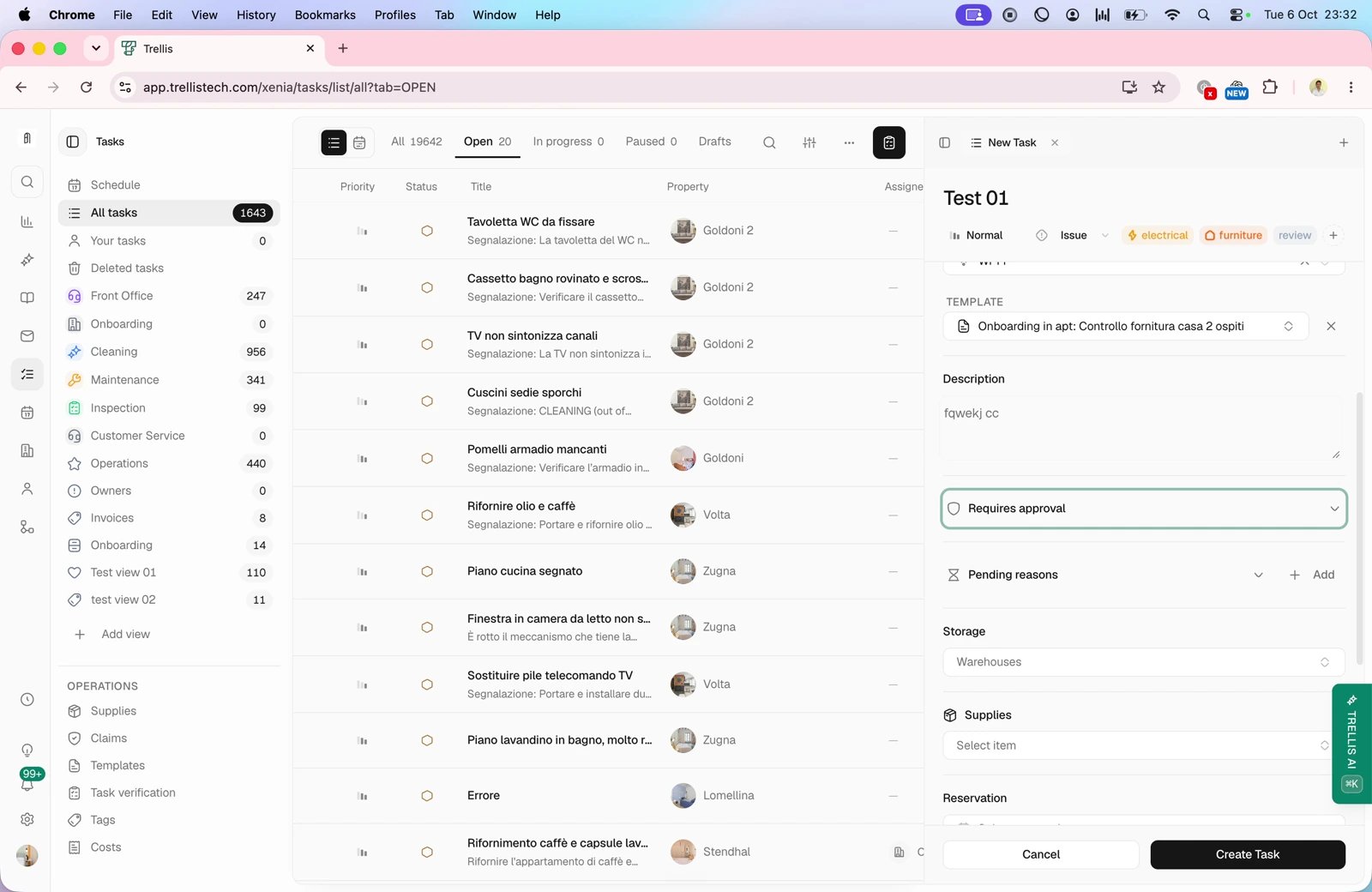
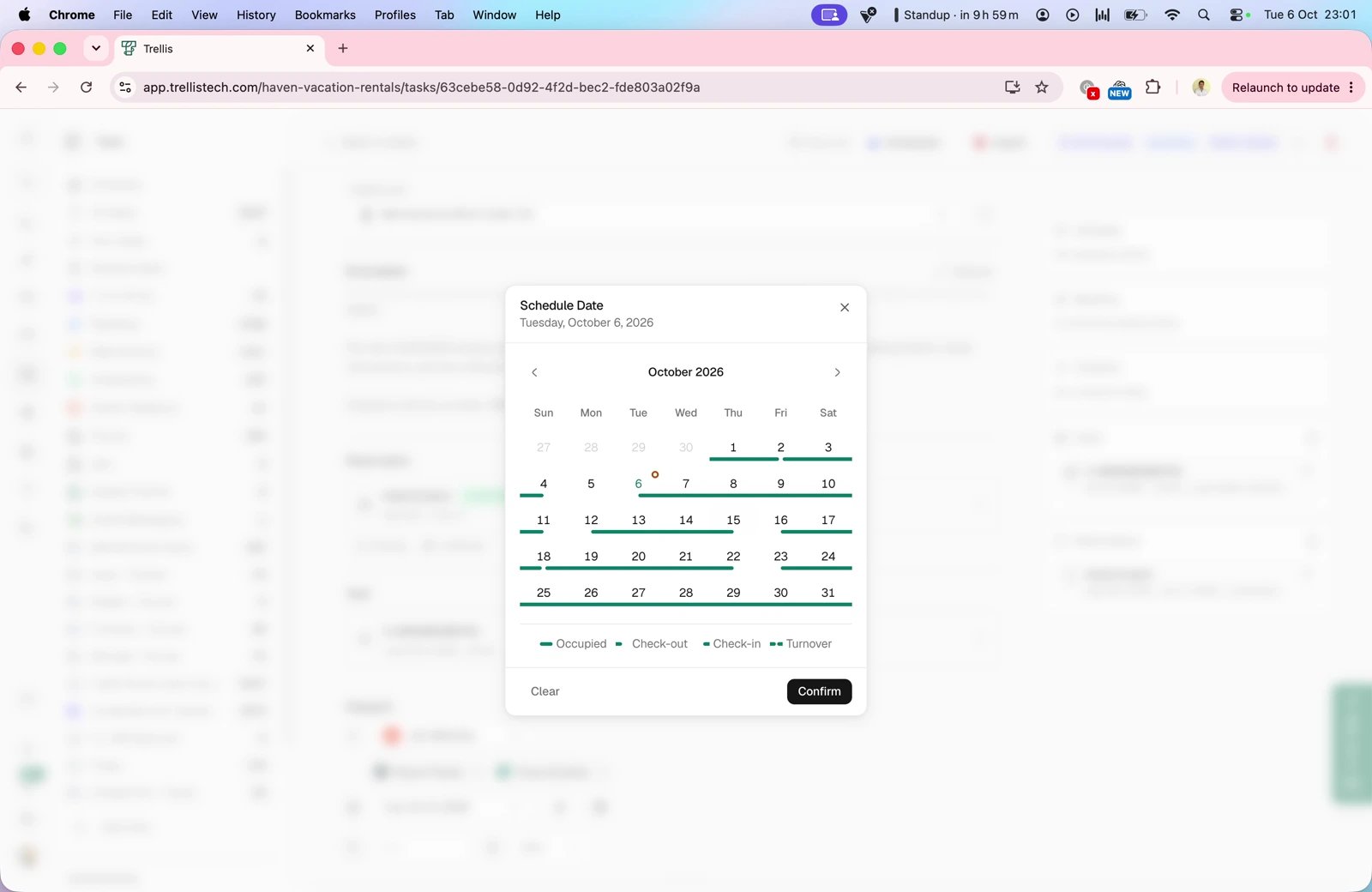

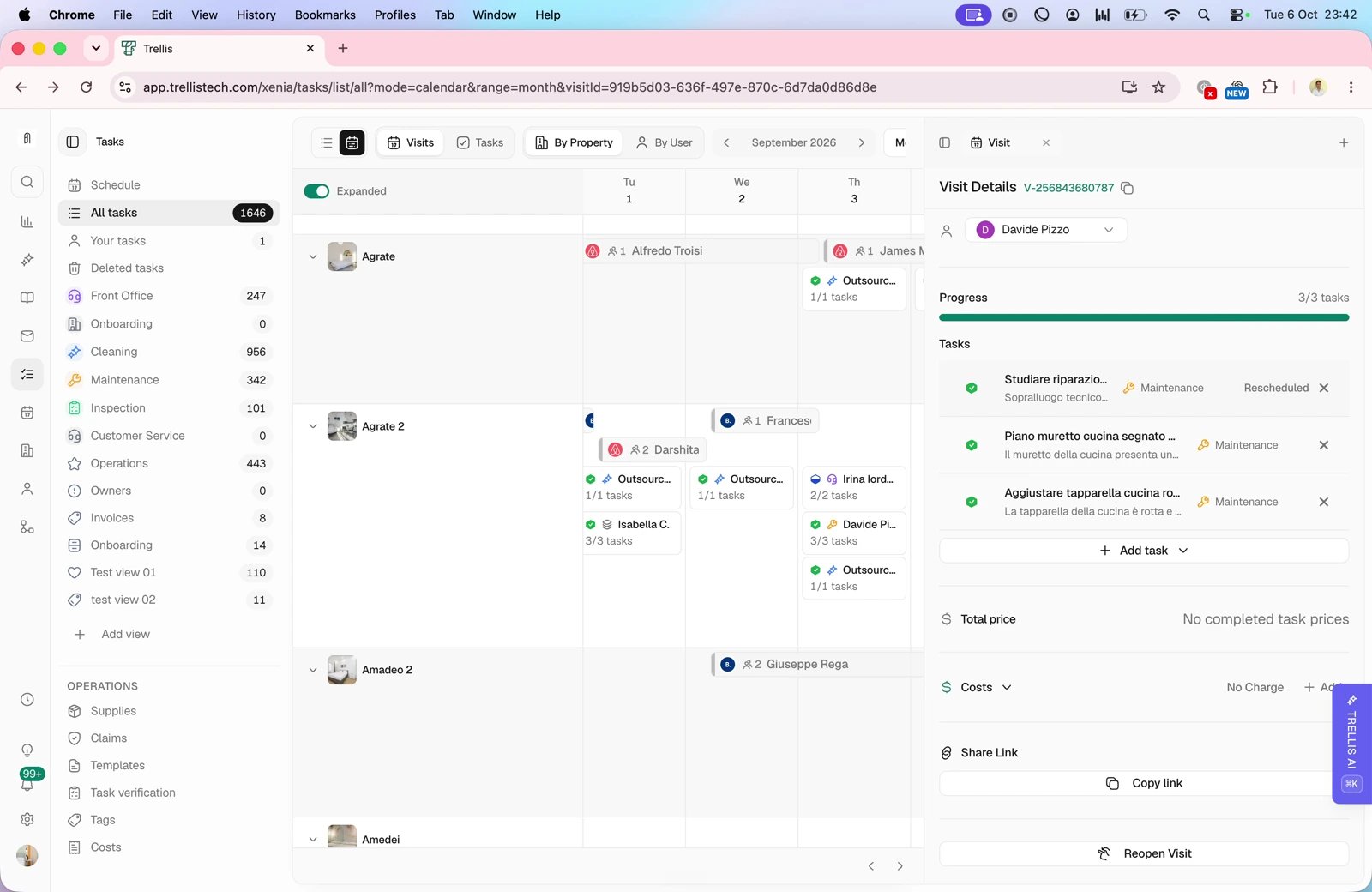
Add checkout automation after the test
Once the task and assignment work correctly, configure the checkout workflow or supported recurring schedule using the same template and routing rules. Check the trigger timing carefully: work that should be planned ahead of checkout needs a different trigger from work created after a checkout event. Run a test and inspect Workflows > Runs when using a workflow. Confirm the property, date, template, and assignee before enabling it across more homes.Common problems
The worker cannot see the task
The worker cannot see the task
Check the workspace, assignment, department, role, and property scope, then refresh the worker’s task list.
The checklist has the wrong rooms or amenities
The checklist has the wrong rooms or amenities
Correct the property’s rooms and active elements first. Review a new task from the template; switching an existing task’s template clears its checklist progress.
The workflow creates the wrong task
The workflow creates the wrong task
Turn it off, inspect the run’s trigger and inputs, and correct the template, property, timing, or assignment. Repeat the test before re-enabling it.
Related articles
- Tasks — templates and scheduling.
- Field worker onboarding — the mobile workflow.
- Workflows — test recurring task creation.