
Before you start
Use an admin or manager account and confirm which business number to connect. Keep automatic replies off or under review during setup and use a team-controlled phone for testing. Choose the connection that matches your operation:- WhatsApp Web: link the account by QR code for messaging, including groups. Calls stay on the phone: Trellis cannot place or answer them, but each conversation shows missed and answered calls. When WhatsApp hides a contact’s number, their chat still arrives under their WhatsApp name and keeps the same conversation once the number appears.
- WhatsApp Business: connect the supported business account. Messages outside the 24-hour service window require an approved template. Calling is available only for eligible direct Meta Cloud API connections, as explained below.
- Coexistence: check the capabilities of the connection shown in your workspace. The supported 360dialog Coexistence mode is for individual chats, not groups or Trellis WhatsApp calls.
Connect and test
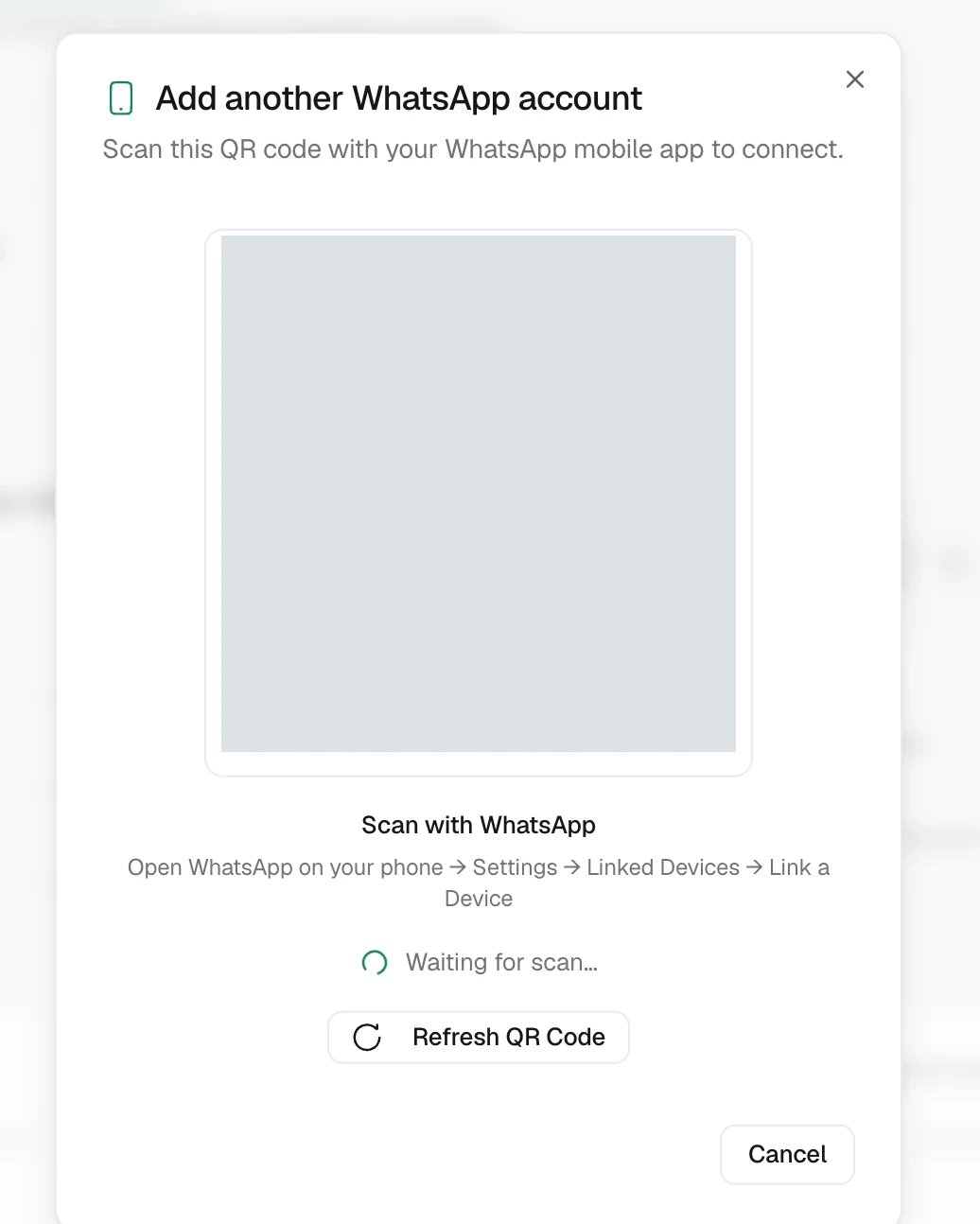
Link the account
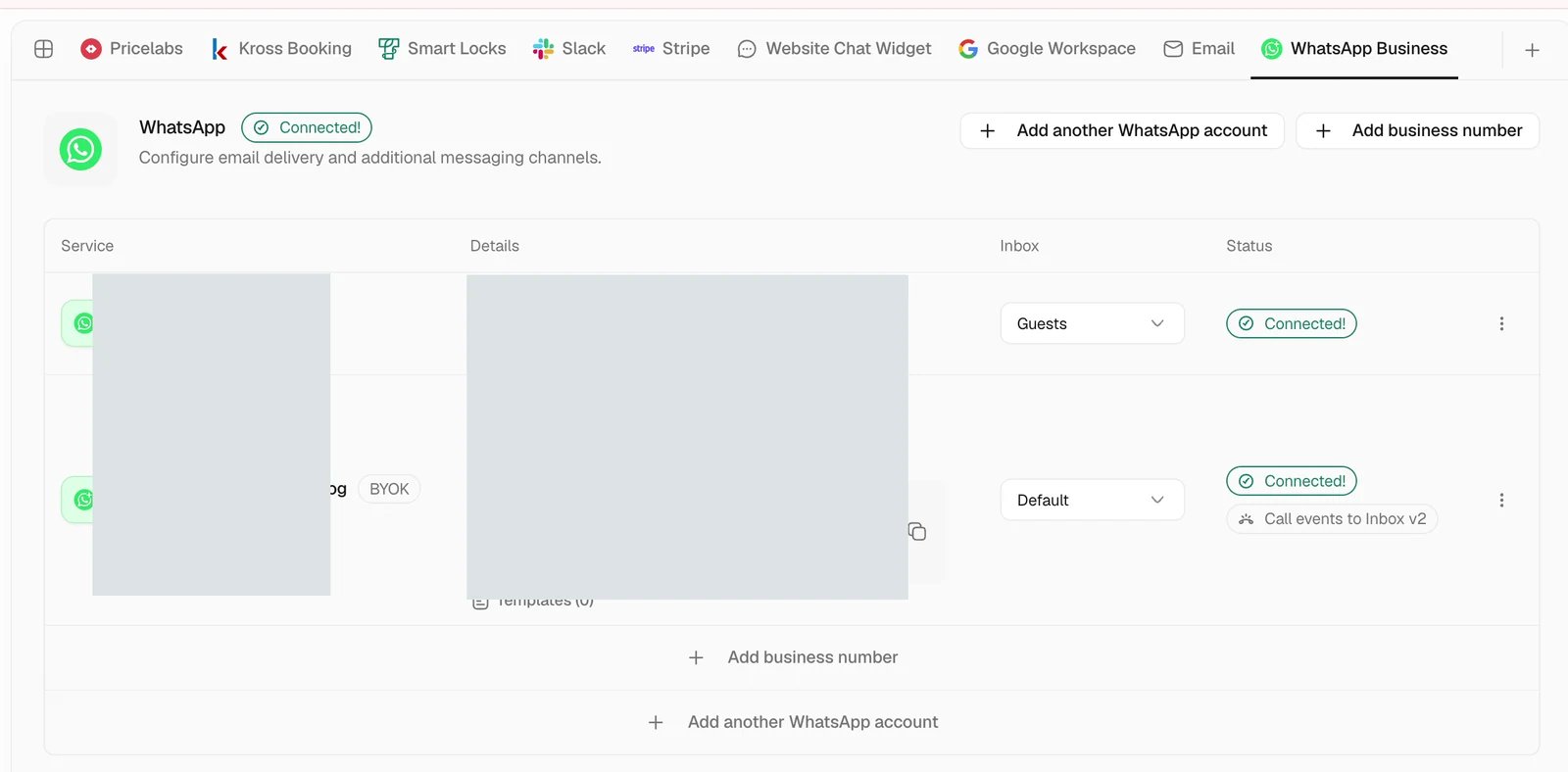
Route new conversations
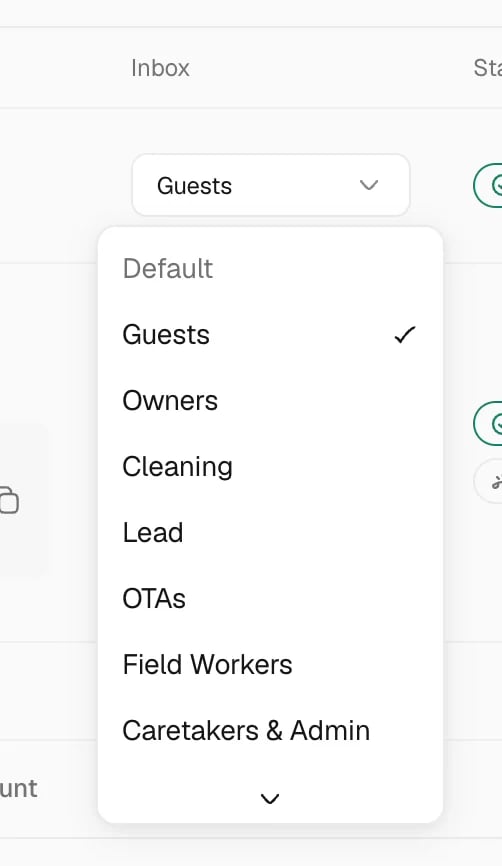
Choose whether the agent needs a tag in WhatsApp Web groups
In Settings > Integrations > WhatsApp, open the WhatsApp Web account’s actions menu and choose AI group access. In the same window, set Require a tag to Tag required or Tag not required. The default applies to groups without a custom rule, including new groups. The Custom rules table contains only exceptions. Choose Add group, search for a group by name, select it, and change its tag requirement. Remove a row to restore the account default for that group. Choose Save selection to apply changes. If another administrator changed the settings while you were editing, reload and review your changes before saving again. A required tag must mention the connected WhatsApp account. Mentioning another participant does not activate the agent. Without a required tag, the agent can decide when to intervene; it does not have to reply to every message. Expand AI group access below the custom rules to choose which groups can activate the agent. Access and tag changes are saved together. Changing only the tag rules preserves group access. Configuring a group selection for the first time also disables automatic AI in private chats, as the window explains. Autopilot stays in the existing inbox and conversation settings, which determine whether replies are proposed or sent automatically. Existing group access rules still apply: removing the tag requirement does not enable an excluded group. Task permissions and workflow messages are unchanged. Manage chats separately controls which conversations are synchronized. Existing accounts start with their previously configured tag requirement and no custom rows. Saving mention rules preserves their group access configuration.Test incoming messages and replies
Send an inbound message from the test phone and find it in Inbox. Confirm the contact, receiving number, and WhatsApp channel, then send a reply and check it on the phone. If several WhatsApp accounts are connected, verify the sending account explicitly.Create a WhatsApp Business group
Open the connected WhatsApp Business account in Settings and select Groups. This requires an eligible Official Business Account connected directly through Meta. Meta limits these invite-only groups to 8 participants. Coexistence connections cannot use this feature. Select + Add group at the top right. Enter a group name and optional description in the new row, then press Enter or select Add. The row immediately shows the group with a loading indicator. Trellis refreshes the list automatically while Meta creates the group, then enables its invite-link action. You can also select Refresh groups. If creation cannot be confirmed, check the list before making another request to avoid a duplicate. Select Get invite link beside the group. Share that link with the intended participants and use Open conversation to view the group in Inbox. Trellis starts new group conversations with AI paused. A participant’s incoming message opens the group’s 24-hour window for regular replies. Group calls and interactive list or reply-button messages are not supported. Your Meta app must subscribe to themessages, group_lifecycle_update,
group_participants_update, group_settings_update, and group_status_update
webhook fields for incoming messages and group changes to reach Trellis.
Send several photos or documents
Select multiple files in the Inbox composer and select Send once. For WhatsApp Business, Trellis sends one file per message, in selection order, with your caption on the first file. Each file has its own delivery status. If a file fails, retry that file from its failed message; files that succeeded remain sent.WhatsApp reply window
Inbox shows the remaining reply time below the contact header for the selected WhatsApp Business line. When the 24-hour service window closes, the composer keeps your draft, blocks free-form sending, and offers Select template to open the approved template picker. A new qualifying customer interaction opens the window again. Each business line has its own window. The mobile inbox has the same countdown and template requirement. Tap Select template, choose an approved template, fill in any required values, and review the message before sending. Your free-form draft stays in the composer.Add quick reply buttons to a template
Open Settings > Integrations > WhatsApp, select the account, and create or edit a template under Templates. In Composer, choose Add quick reply for each button. Meta allows up to 10 quick reply buttons of up to 25 characters each and reviews them with the rest of the template. With more than 3 buttons, WhatsApp shows 2 and moves the rest under See all options. Link, phone, and copy-code buttons are edited in Advanced JSON. Template previews in Settings and in the Inbox composer show every button the guest will receive. After you send a template, the conversation shows its header, body, footer, and buttons as the guest sees them. When the guest taps a quick reply, Inbox shows the button text as their reply.Fill an approved Meta template
Open Settings > Integrations > WhatsApp, select the account, then open Templates > Variable defaults on an approved template. Assign each numbered variable to a field such ascontact.name or reservation.checkout_time, enter
fixed text, or leave it for manual completion. Save the defaults for that template
and language. This configures Trellis without resubmitting the template to Meta.
In an Inbox conversation, choose WhatsApp Business, open Select template,
and select the configured template. Trellis fills its variables from the contact
and selected reservation. contact.name uses the contact’s display name, falling
back to their first and last name. Missing data and unmapped variables remain
empty; Meta examples are never used as guest data. Guest portal button links must
match the approved destination.
Review and edit the Variables fields before sending. Reselecting the same
unchanged template preserves your edits, including fields you cleared. Updated
defaults apply to newly inserted templates, not to drafts you are already editing.
If Meta changes the template content, reconfigure its variable defaults.
For a new message, contact fields require a single selected contact. Reservation
fields remain empty until you open a conversation with a selected reservation.
Check the current messaging limit
Open the WhatsApp Business account under Settings > Integrations, then open Profile. The Meta messaging limit card shows the latest checked limit and the time of that check. Select Refresh limit to read it again. Refreshing the limit preserves unsaved profile edits. This is the number of unique recipients your Meta business portfolio can contact outside the customer service window within a rolling 24-hour period. The limit is shared across the portfolio’s numbers; it is not the remaining allowance or a calling quota. An unavailable value is shown explicitly. If a refresh fails, the last checked value remains visible with an error.Make and receive WhatsApp calls
Team calling supports eligible direct Meta Cloud API connections. Your WhatsApp number and messages stay with Meta. Before enabling calls, ask your Trellis administrator to complete calling setup for the workspace and number. An admin can open Settings > Integrations > WhatsApp, select the number, and open Connection. Under WhatsApp calls, turn on Enable WhatsApp calls. Resolve any setup warning first. The person managing your Meta connection must also subscribe its webhook to calls as well as messages. If the number already uses another calling service, coordinate its replacement before enabling Trellis calling. On the web, use a current desktop browser, allow microphone access, and connect a headset. Keep the Trellis tab open throughout the call. You need access to calls; enable your incoming-call preference to receive alerts. Choose Open dialer, enter the customer’s number with its country code, and select Check permission. If offered, Request permission sends the customer a WhatsApp message asking to allow calls. Wait for their reply, then check again and choose Call on WhatsApp when available. Permission requests require an open 24-hour service window. Outside that window, use an approved calling-permission template. Meta controls permission expiry and request limits; a previous approval does not guarantee that another call is available. You can also open Make a call, choose WhatsApp under Call channel, then select the business number and contact. Choose Phone for an ordinary telephone call, even when both channels use the same business number. In the mobile app, open a conversation and tap the call button. Choose WhatsApp, select the business line, and check the recipient’s permission. The app shows the available call and permission-request limits. Allow microphone access when prompted. Choose Phone to make an ordinary telephone call. After you check permission, the dialer shows its expiry and any usage limits returned by Meta for that contact. Missing quota details are marked as unavailable. Permission changes appear as events in the conversation, with their date and, when supplied, the permission expiry. Incoming WhatsApp calls show the WhatsApp icon in the call panel. For incoming calls, choose Answer to connect. Calls use the same call controls as your other Trellis team calls: mute your microphone, put the customer on hold, resume, or transfer to a colleague. Teammates with call access can join the same call. A colleague can stay connected when the first operator leaves. Administrators can open Call flow from the WhatsApp connection to configure incoming calls. Use the same editor to set opening hours, language selection, keypad menus, team members or active shifts, and simultaneous or sequential ringing. You can route unanswered calls to an available voice agent or voicemail. Telephone forwarding and ordinary-phone fallback are unavailable for WhatsApp. Edits are saved as a draft until you publish them. The WhatsApp flow is separate from any ordinary phone line using the same number. Calls already in progress continue with the flow that was published when they started. Recordings and transcripts appear in Calls after processing. If your workspace uses a recording announcement, the customer hears it before joining the team. When Meta supplies the call identifier needed to match a recording, it is also available from the WhatsApp conversation. Otherwise, use Calls. Outbound availability also depends on the business number’s country. See Meta’s calling requirements for eligibility and availability.Send photos for an assigned task
Workers whose WhatsApp contact is linked to an active team member can send photos to the agent while reporting progress on their assigned task. The agent matches each image to an applicable checklist step on that task. For example, a bed photo can go on the bed-cleaning step while a television photo goes on the television step, even when both arrive together. If no step clearly matches, the image stays attached to the task. This WhatsApp fallback also applies when ordinary task-level photo uploads are restricted. If several rooms have similar steps and the photo does not identify the room, tell the agent which step it belongs to. Photos are saved on the specific task, without changing its shared template. Attaching a photo does not mark the step or task complete. Report the completed work and check the agent’s confirmation; remaining checklist requirements still apply. If an image cannot be analyzed or saved, the agent reports the failure.Recover a disconnected account
Open Settings > Integrations > WhatsApp, select the affected account, and follow its reconnect instructions. Confirm that the number has not changed, then repeat one inbound test. Review any uncertain outbound attempt before resending it.Common problems
Group conversations are missing with Coexistence
Group conversations are missing with Coexistence
360dialog Coexistence supports individual chats. Check your connection type before choosing it for group messaging; WhatsApp Web is the group-messaging flow demonstrated above.
The test does not appear
The test does not appear
Confirm the message reached the connected number, clear Inbox filters, and check No inbox as well as the expected destination. Then review the account’s connection status.
I cannot start a Business message
I cannot start a Business message
Check whether the 24-hour service window is open. If it is closed, choose an approved template and fill its variables with the actual contact and reservation details.
Related articles
- Inbox — channels and routing.
- Outbound messages — start or schedule a message.
- Settings — personal call preferences and workspace administration.