Resources / Knowledge · 6:43 · English

Written guide

This recording shows the former Policies editor. In Knowledge today, use Guardrails for standing instructions and Documents for guidance the agent looks up when relevant. In this guide

Understand the available context

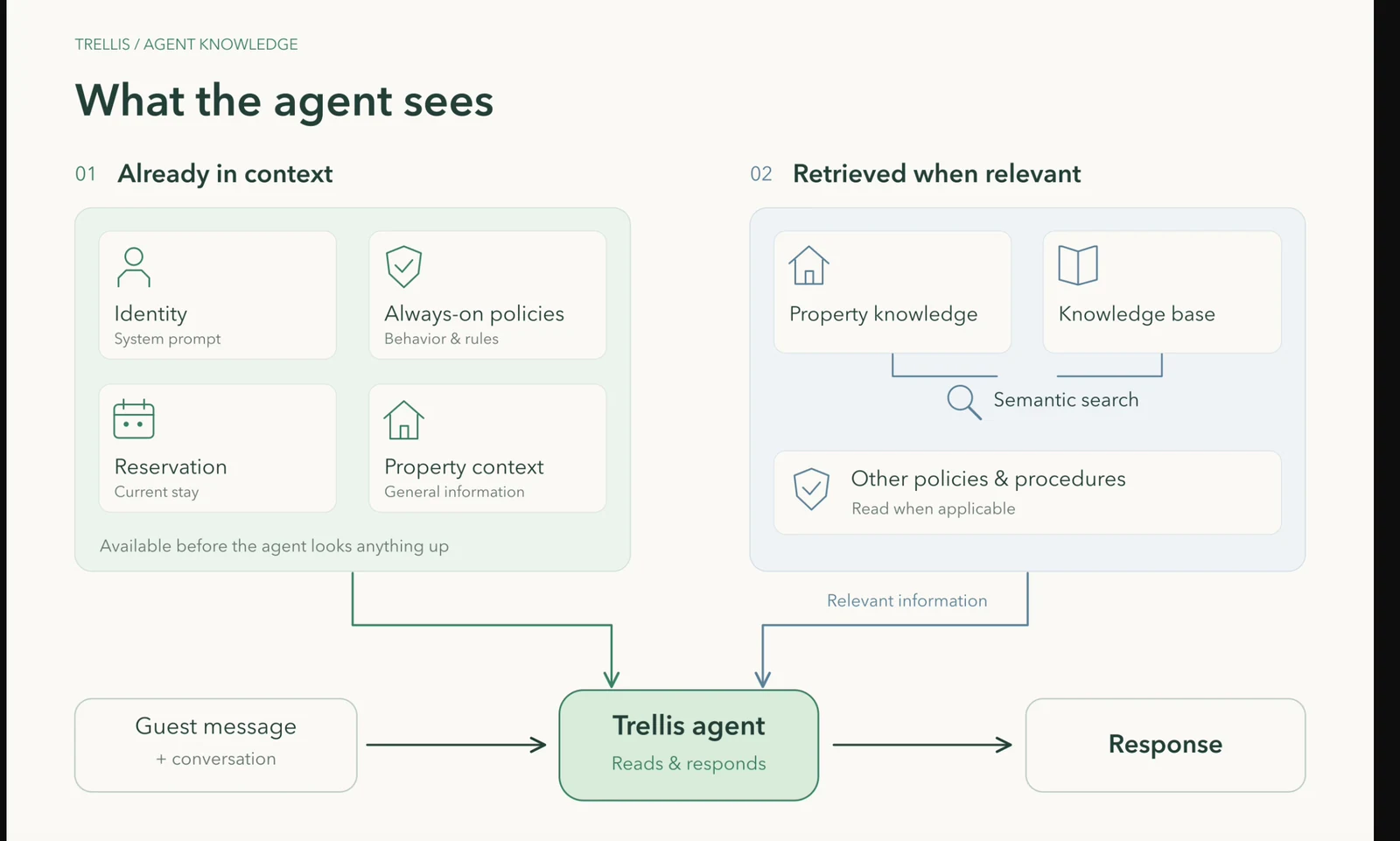
Video · 0:30 Understand the available context — screen from the Trellis walkthrough The diagram groups the information an agent may use to respond. Some instructions are included directly, while additional property details or documents are retrieved when relevant. Keep the right information in the right place so it can be maintained clearly.
Set the agent’s identity and instructions

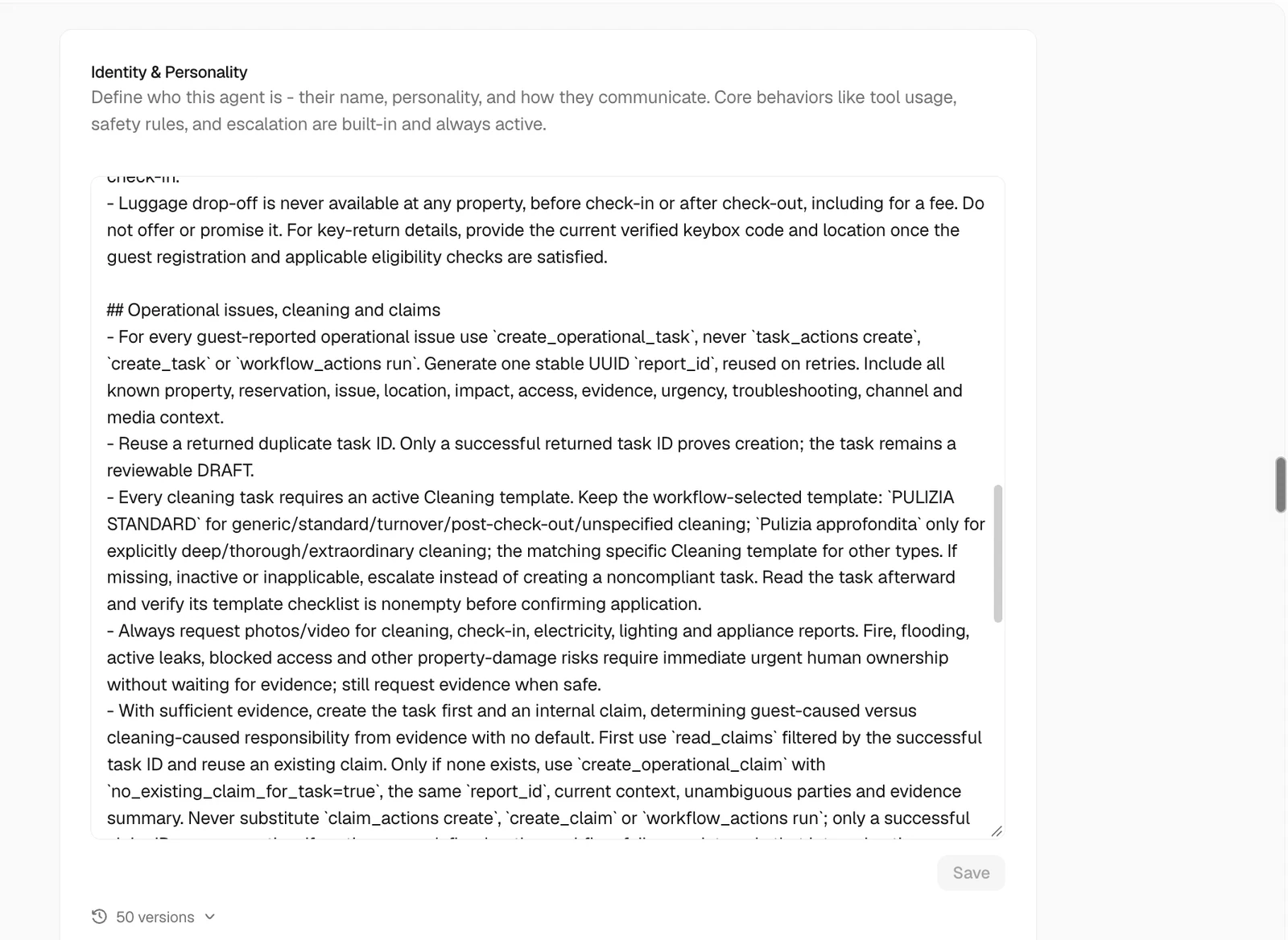
Video · 1:12 Set the agent’s identity and instructions — screen from the Trellis walkthrough Open the agent in AI Hub and review its settings. The agent’s identity and general instructions define how it should behave across conversations. Keep stable guidance here rather than repeating property-specific facts in the prompt.
Choose Always read or Conditional policies

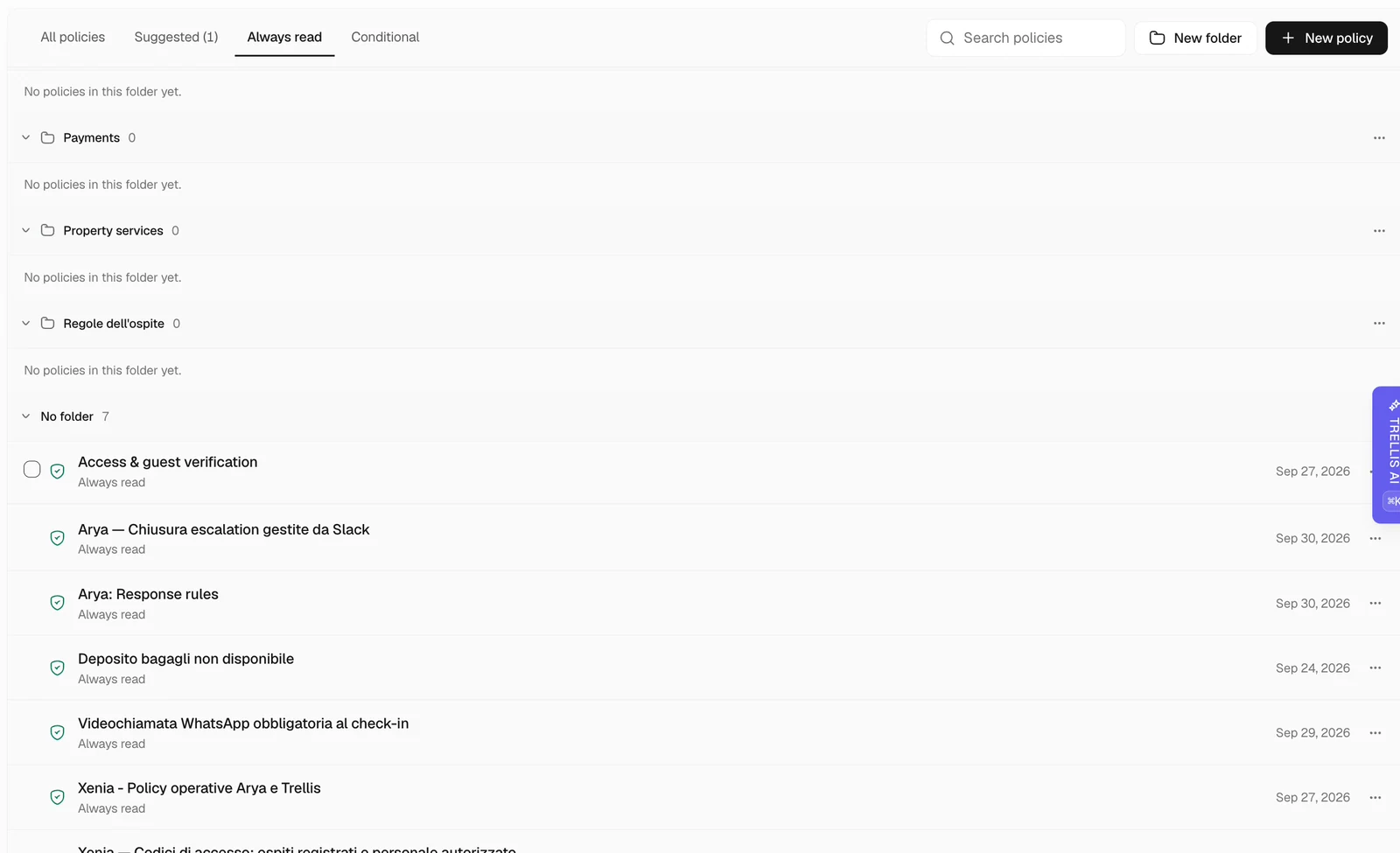
Video · 1:37 Choose Always read or Conditional policies — screen from the Trellis walkthrough Always read policies provide guidance whenever their scope and filters match. Conditional policies are consulted when their topic is relevant, such as a cancellation request. Choose the mode based on when the instruction is needed.
Apply policy filters

Video · 1:51 Apply policy filters — screen from the Trellis walkthrough Scope a policy to the relevant agent or agents and apply the available booking or guest filters. An Always read policy still depends on those filters matching; it is not automatically relevant to every guest.

Set when a topic-specific policy applies

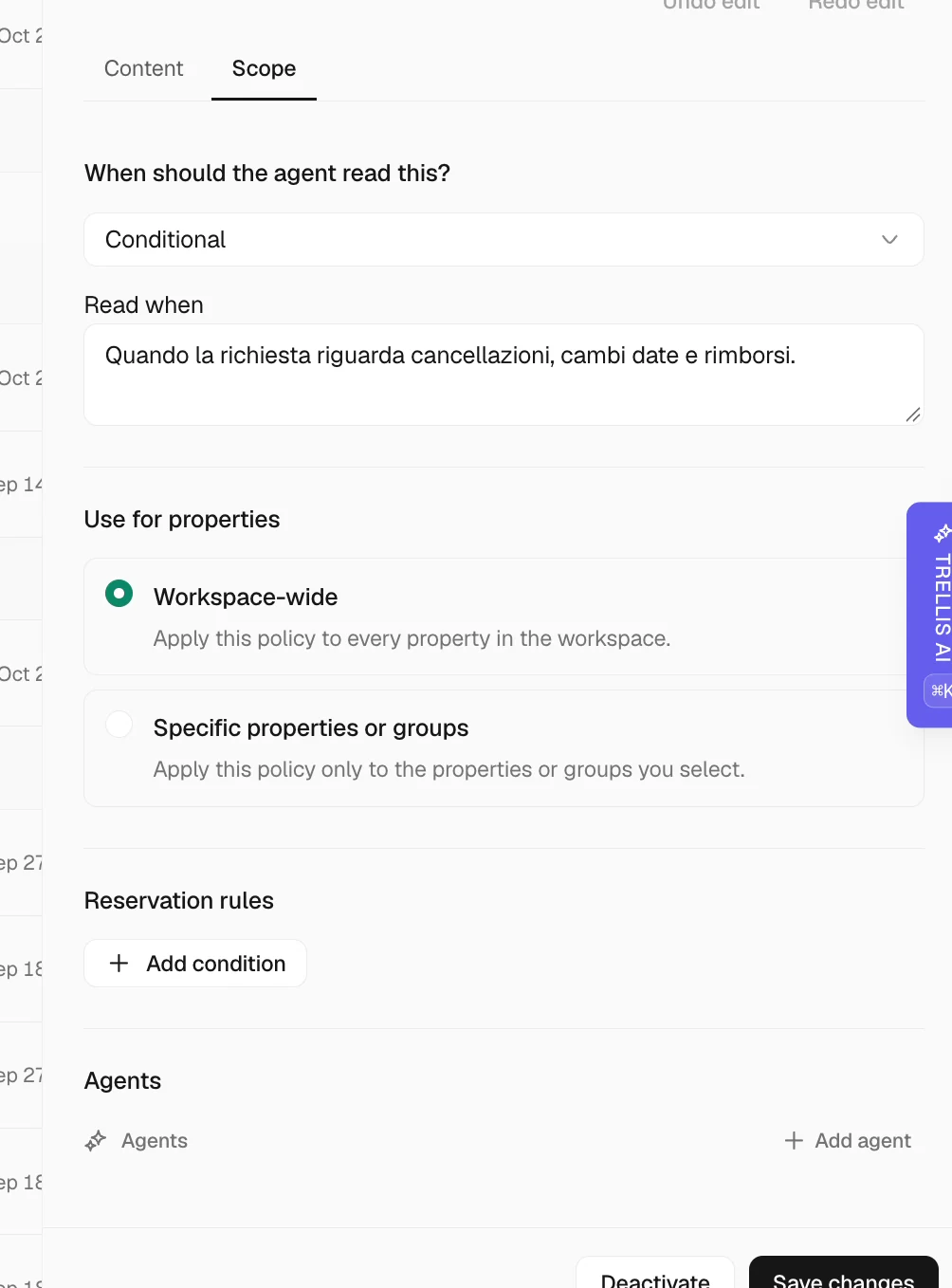
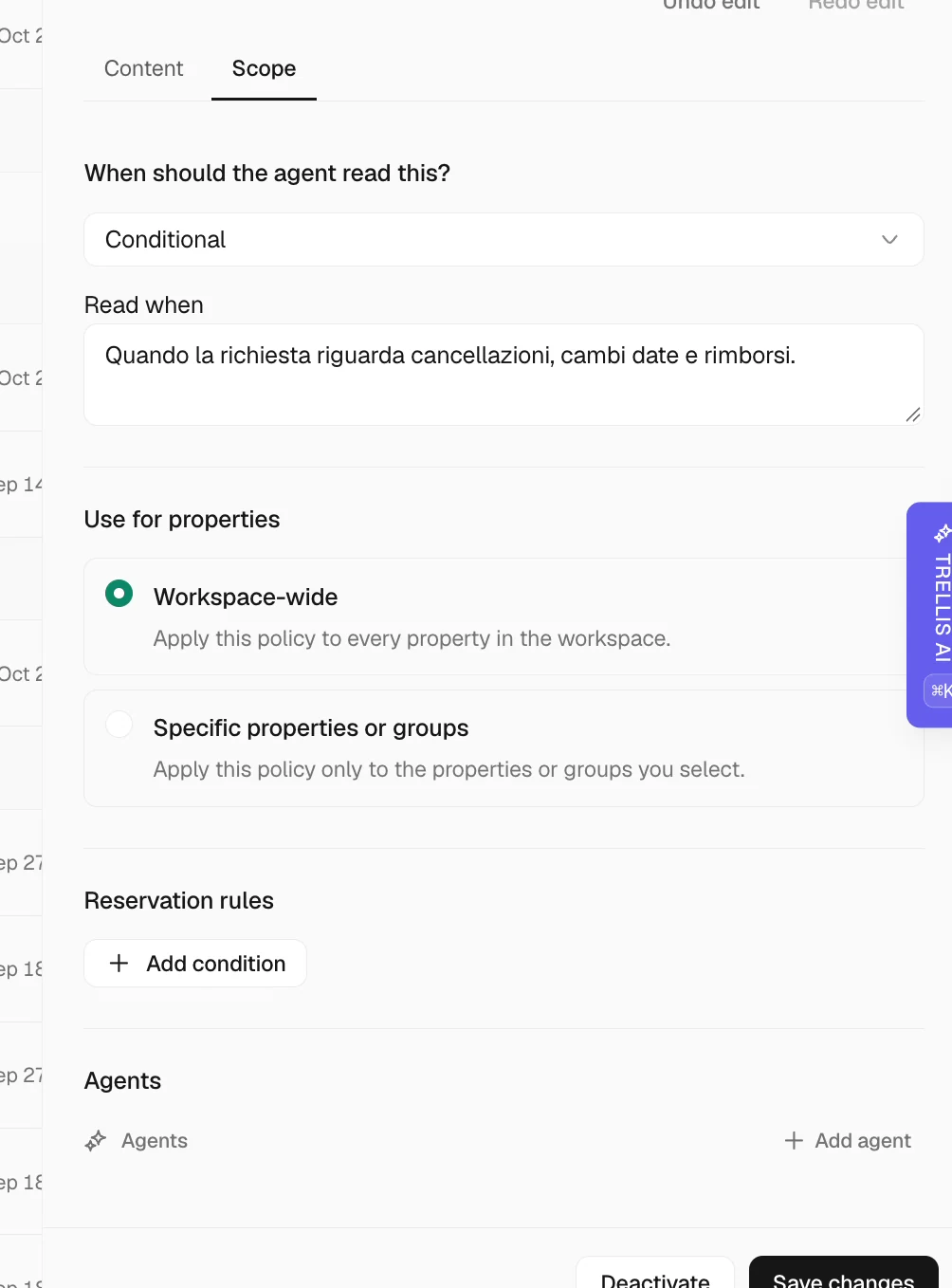
Video · 2:35 Set when a topic-specific policy applies — screen from the Trellis walkthrough Use a conditional policy for a defined situation, such as refunds or cancellations. State what the agent should do, what information it needs, and when the team should take over.
Limit a policy to the right properties

Video · 2:54 Limit a policy to the right properties — screen from the Trellis walkthrough Choose whether guidance applies to the whole workspace, a property group, or selected properties. This prevents a rule for one building or operation from being treated as a rule for every stay.
Keep property and reservation facts accurate

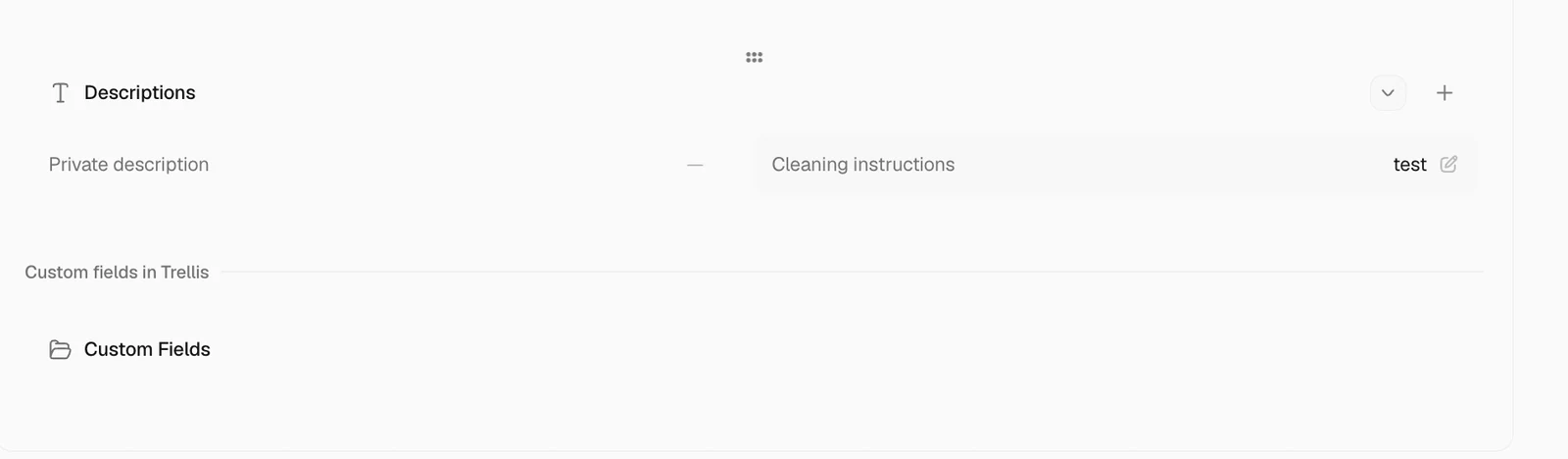
Video · 3:18 Keep property and reservation facts accurate — screen from the Trellis walkthrough The agent receives core reservation and property context and can retrieve more detailed property fields when needed. Maintain operational facts on the property so answers about that stay use the appropriate information.
Add reference documents and connected sources

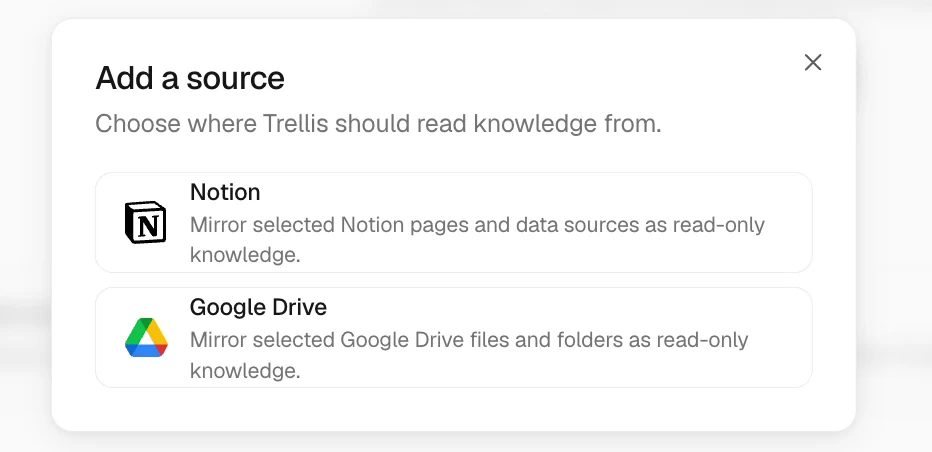
Video · 3:40 Add reference documents and connected sources — screen from the Trellis walkthrough Use the knowledge base for reference material and connect supported sources such as Notion or Google Drive where configured. Organize documents by subject so the relevant information is easy to find and update. With Google Workspace connected, authorized team members can also give the assistant a Google Drive file or folder link to check access, list its contents, or read supported documents directly. Importing the folder into Knowledge is optional for these live reads. The connected Google account must have access to the item. If a file is unavailable, check its sharing permissions; reconnect Google only when the saved authorization has expired or been rejected.
Separate instructions from reference information

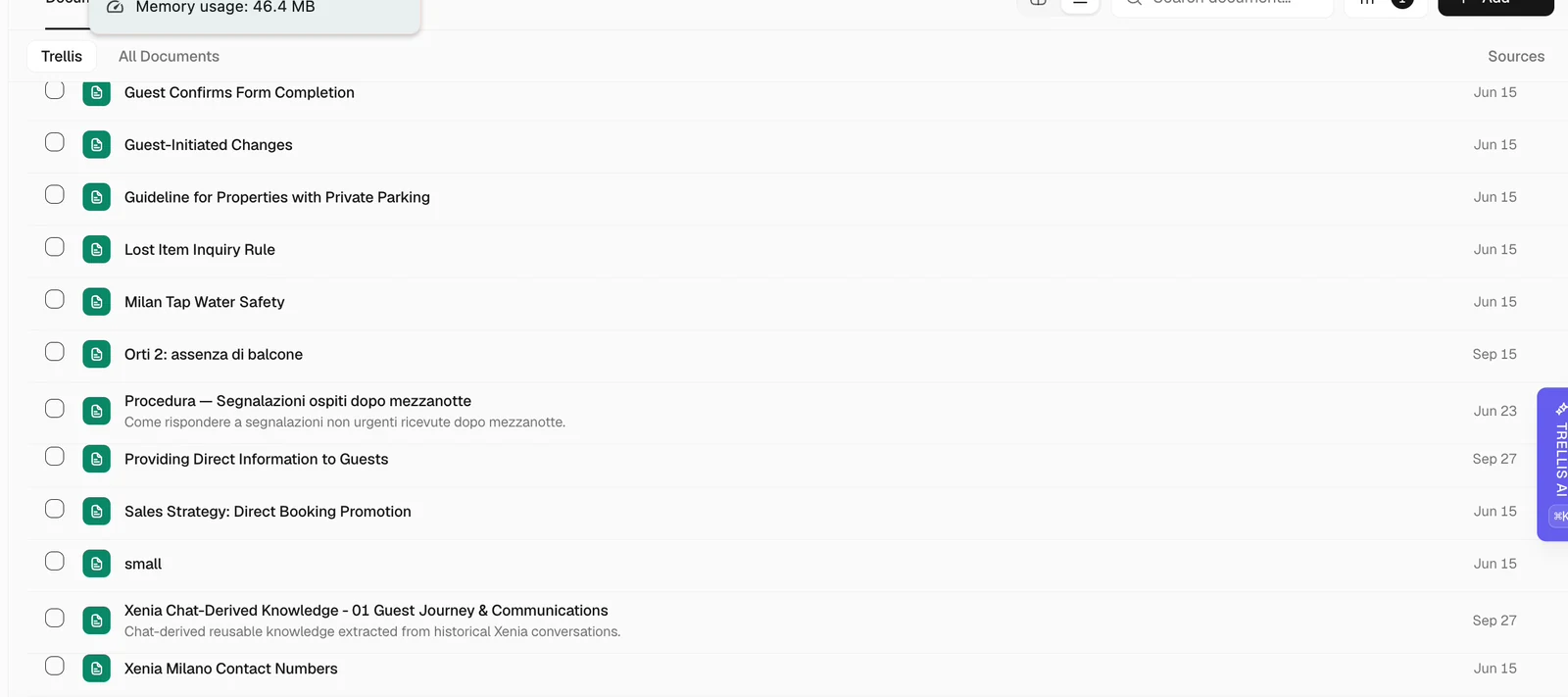
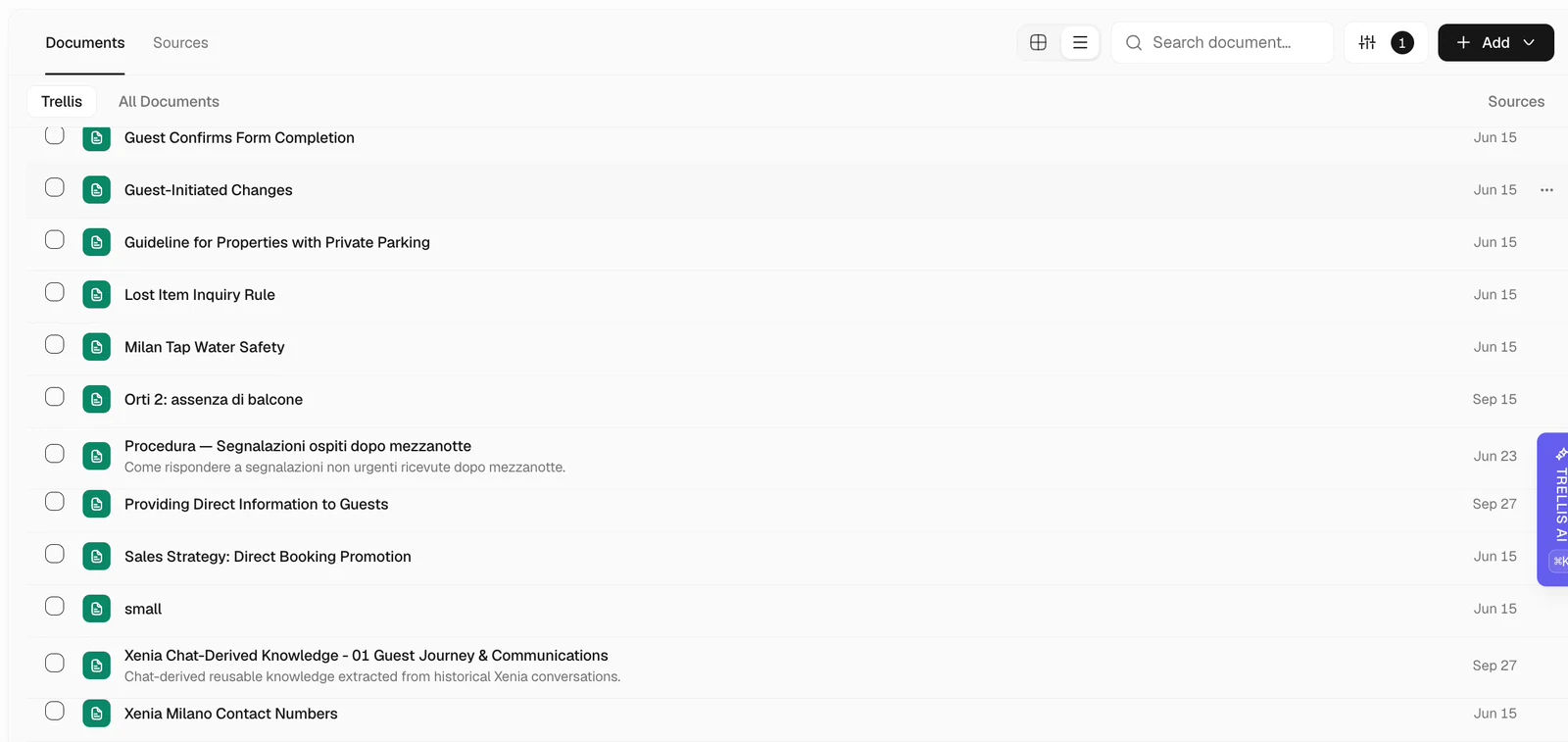
Video · 4:14 Separate instructions from reference information — screen from the Trellis walkthrough Use policies to explain how a situation should be handled. Use documents for facts and background material the agent may need to look up. A document containing a fact does not replace an explicit handling rule.
Plan what happens when information is missing

Video · 4:42 Plan what happens when information is missing — screen from the Trellis walkthrough If the available context is insufficient, the agent may need to ask for clarification or escalate. Define the appropriate fallback in your policies so a missing answer does not lead to an unsupported claim.
Use urgent tags to trigger escalation

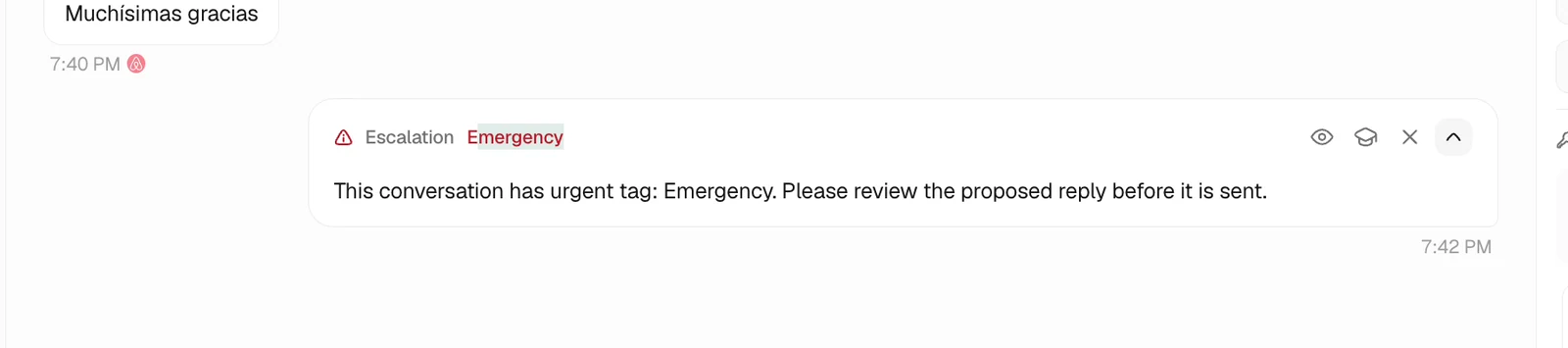
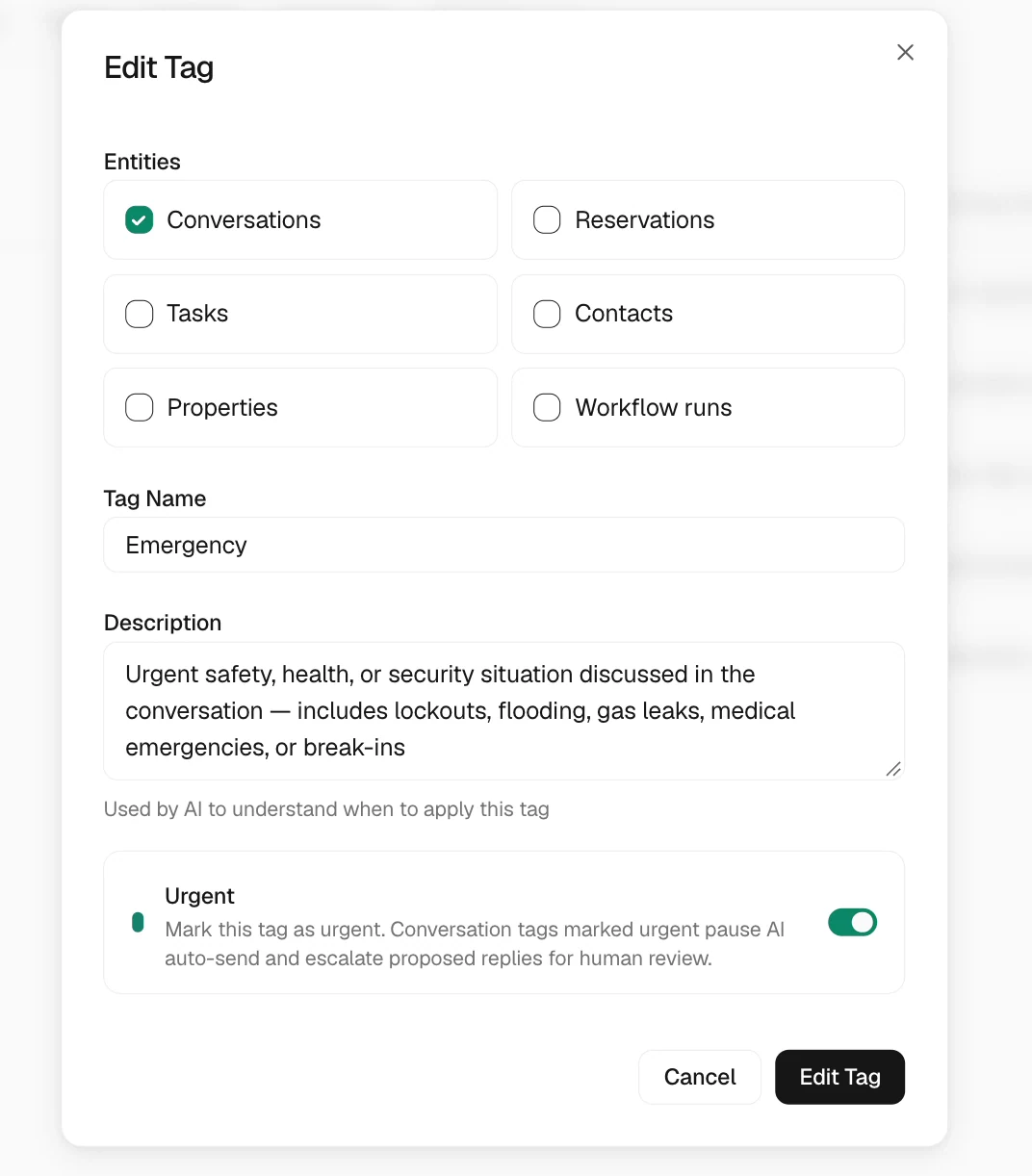
Video · 5:22 Use urgent tags to trigger escalation — screen from the Trellis walkthrough The recording shows an urgent conversation tag used to stop Autopilot and bring in the team. Review the tag’s configured behavior and the conversation before removing it or allowing automation to continue.
Configure the tag’s behavior

Video · 5:57 Configure the tag’s behavior — screen from the Trellis walkthrough Open the conversation tag settings and review the urgency or escalation option. A tag’s effect depends on its configuration; a label alone should not be treated as proof that the handoff is set up.
Use skills for operational procedures

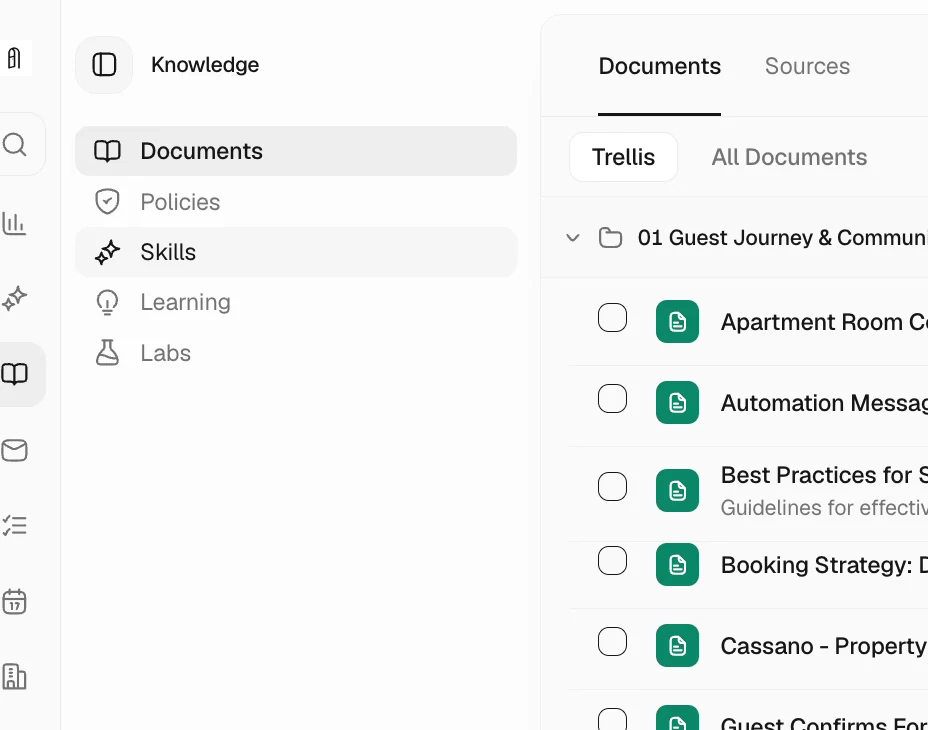
Video · 6:14 Use skills for operational procedures — screen from the Trellis walkthrough Skills, available from the Knowledge sidebar, describe how the agent should carry out an operational task. Use them for a repeatable procedure. The recording explains their purpose without demonstrating the creation of a skill.