Resources / Getting Started · 5:37 · English

Written guide

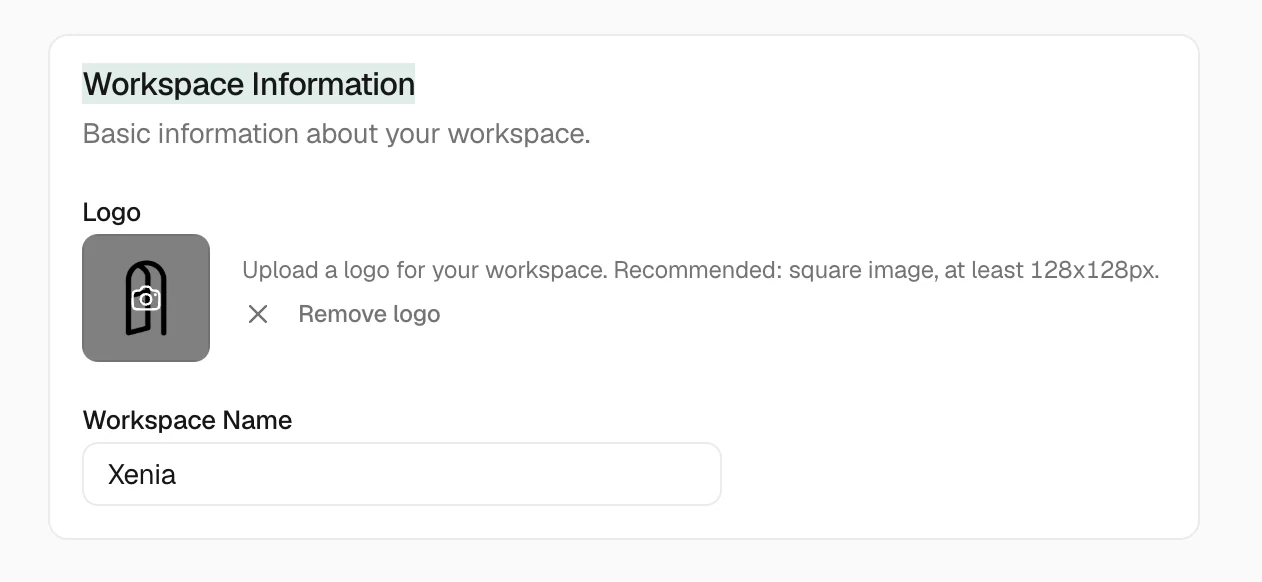
Set workspace defaults and billing, then adjust your own messaging, call, notification, and security preferences. In this guide Video · 0:22 Set the workspace name and logo — screen from the Trellis walkthrough Open Settings → General to update the workspace name and logo. These are workspace settings, so review the selected workspace before making a change.

Review regional defaults

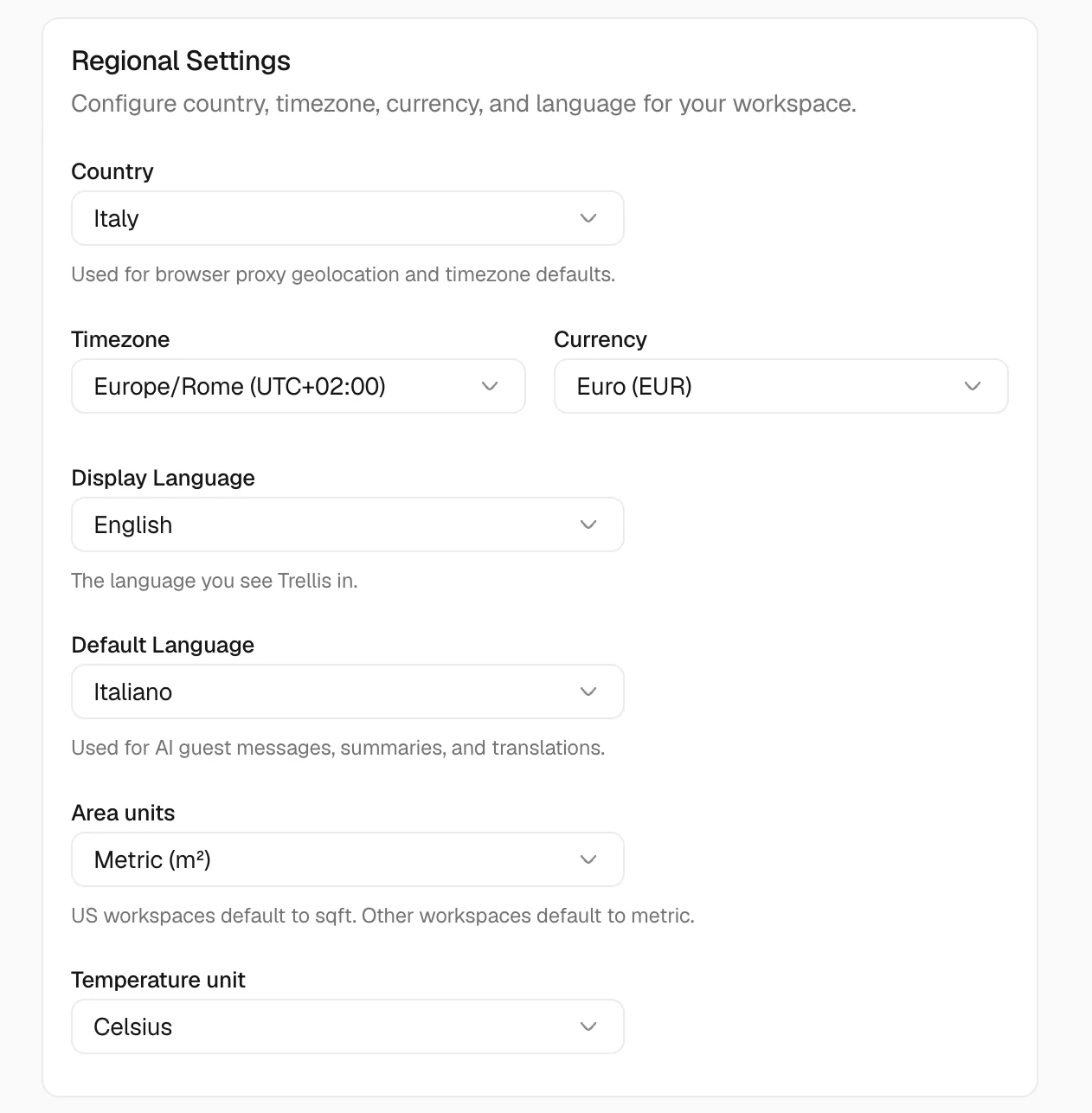
Video · 0:36 Review regional defaults — screen from the Trellis walkthrough Check the location, currency, time zone, and default language. Use values that match the operation so dates, times, and amounts are interpreted consistently.

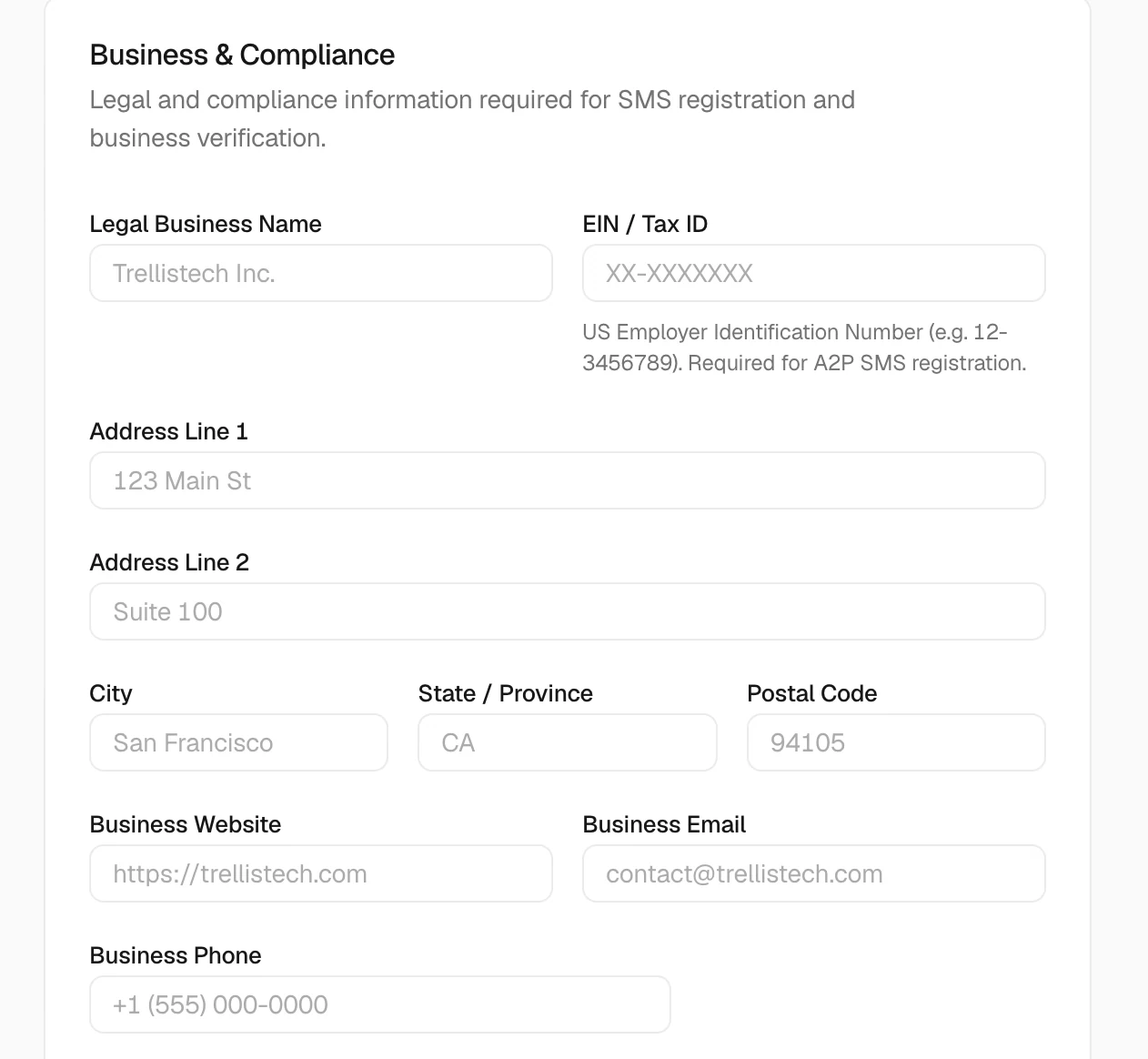
Maintain business information

Video · 0:48 Maintain business information — screen from the Trellis walkthrough Review the business information used for billing and compliance. Keep the company details current rather than using a team member’s personal profile for workspace information.
Review workspace utilities

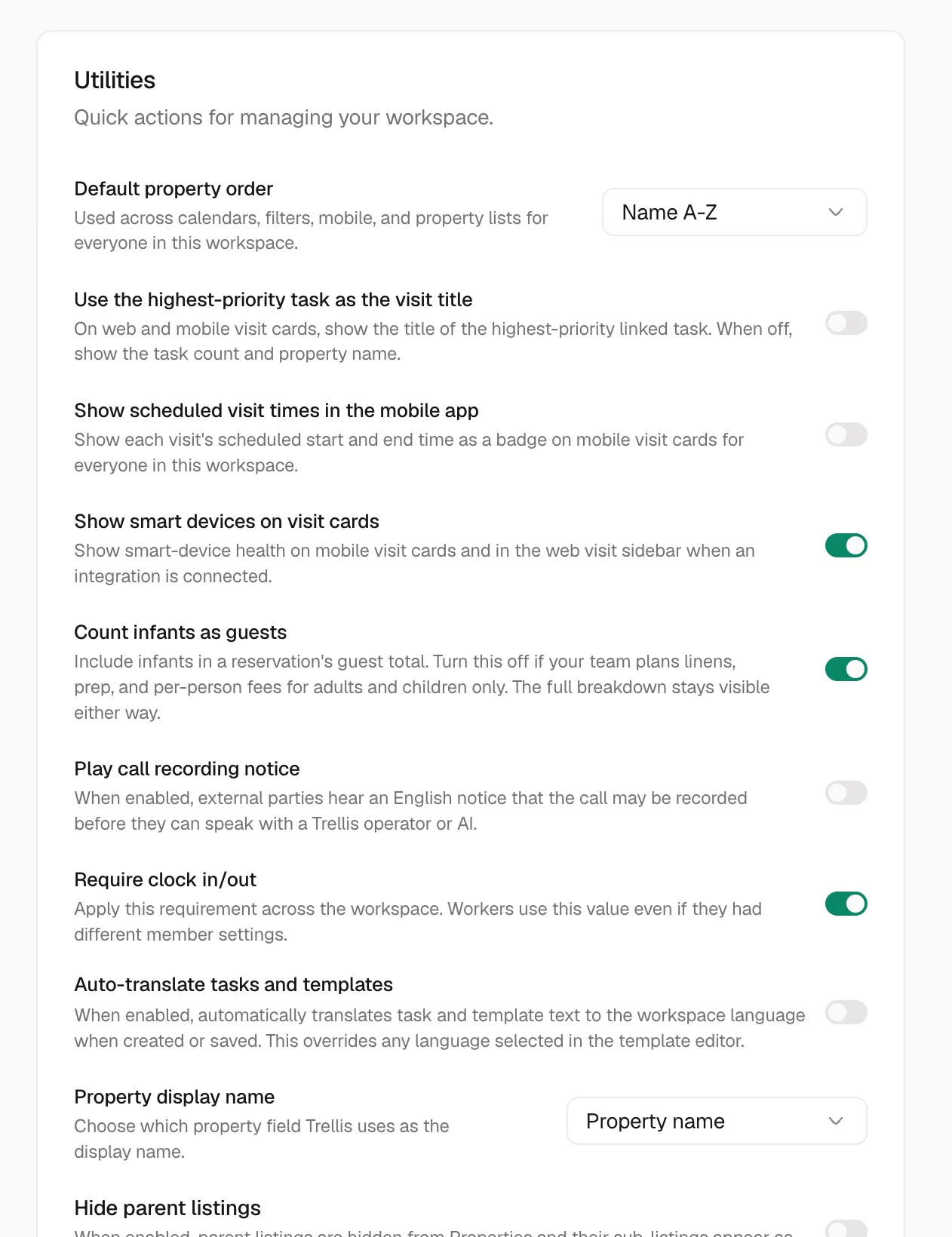
Video · 1:13 Review workspace utilities — screen from the Trellis walkthrough The General page also contains operational options, including guest counting, clock-in requirements, task display, and other workspace preferences. Read each option’s description before changing behavior for the whole team.
Check the subscription and billing

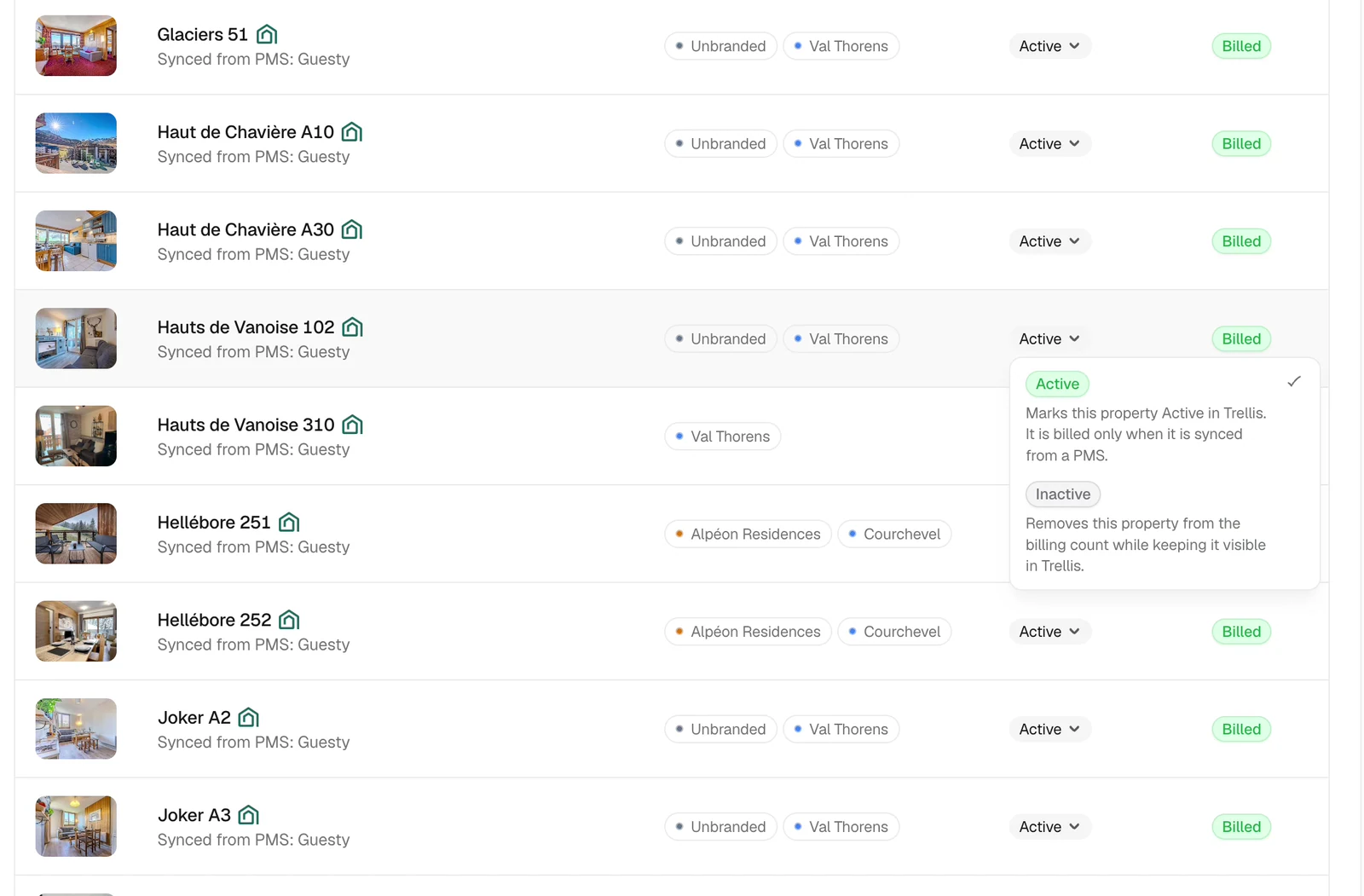
Video · 1:59 Check the subscription and billing — screen from the Trellis walkthrough Open Billing to review the subscription and the active properties used in billing. Use Manage subscription to reach the available payment and subscription controls.
Adjust your profile preferences

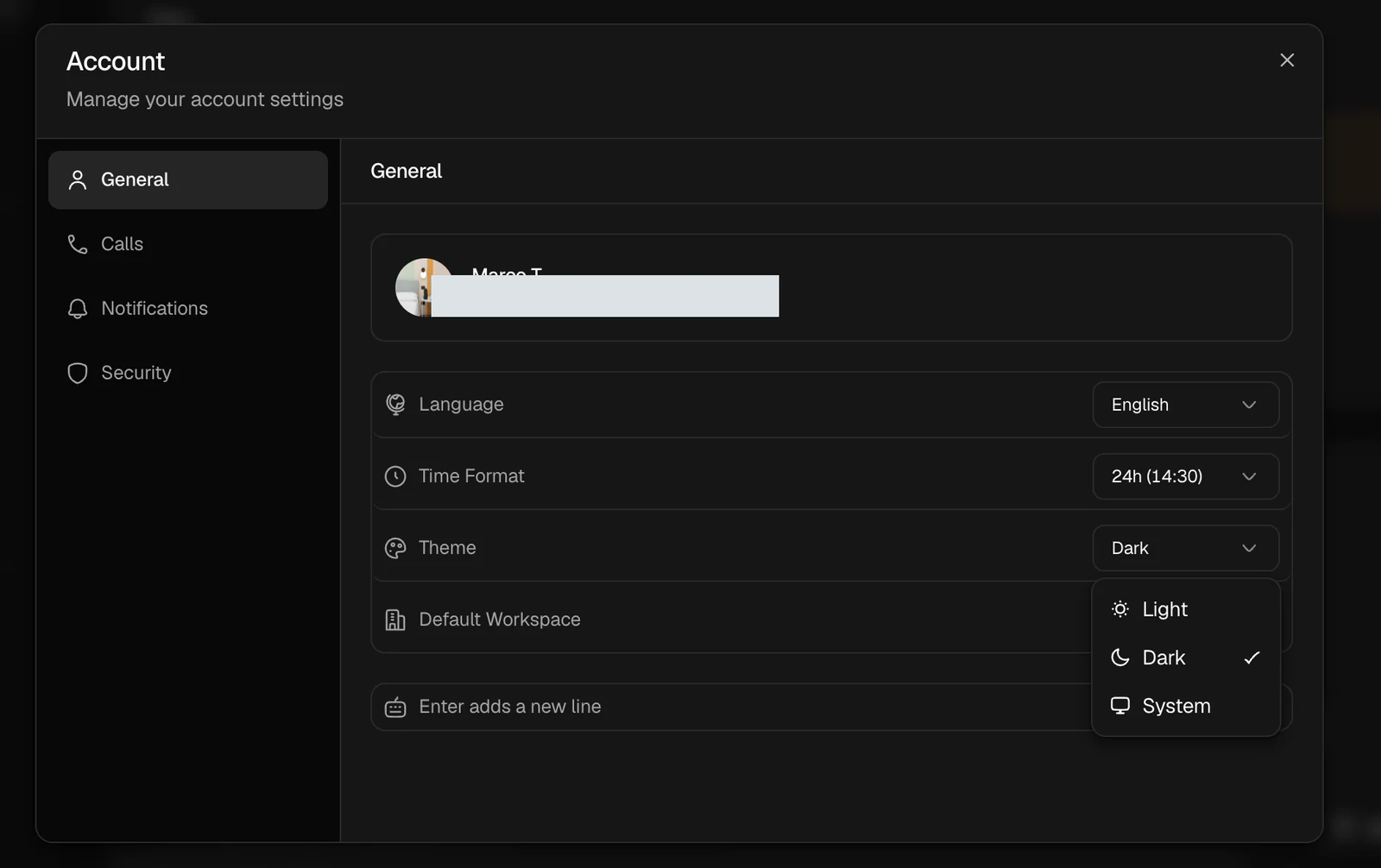
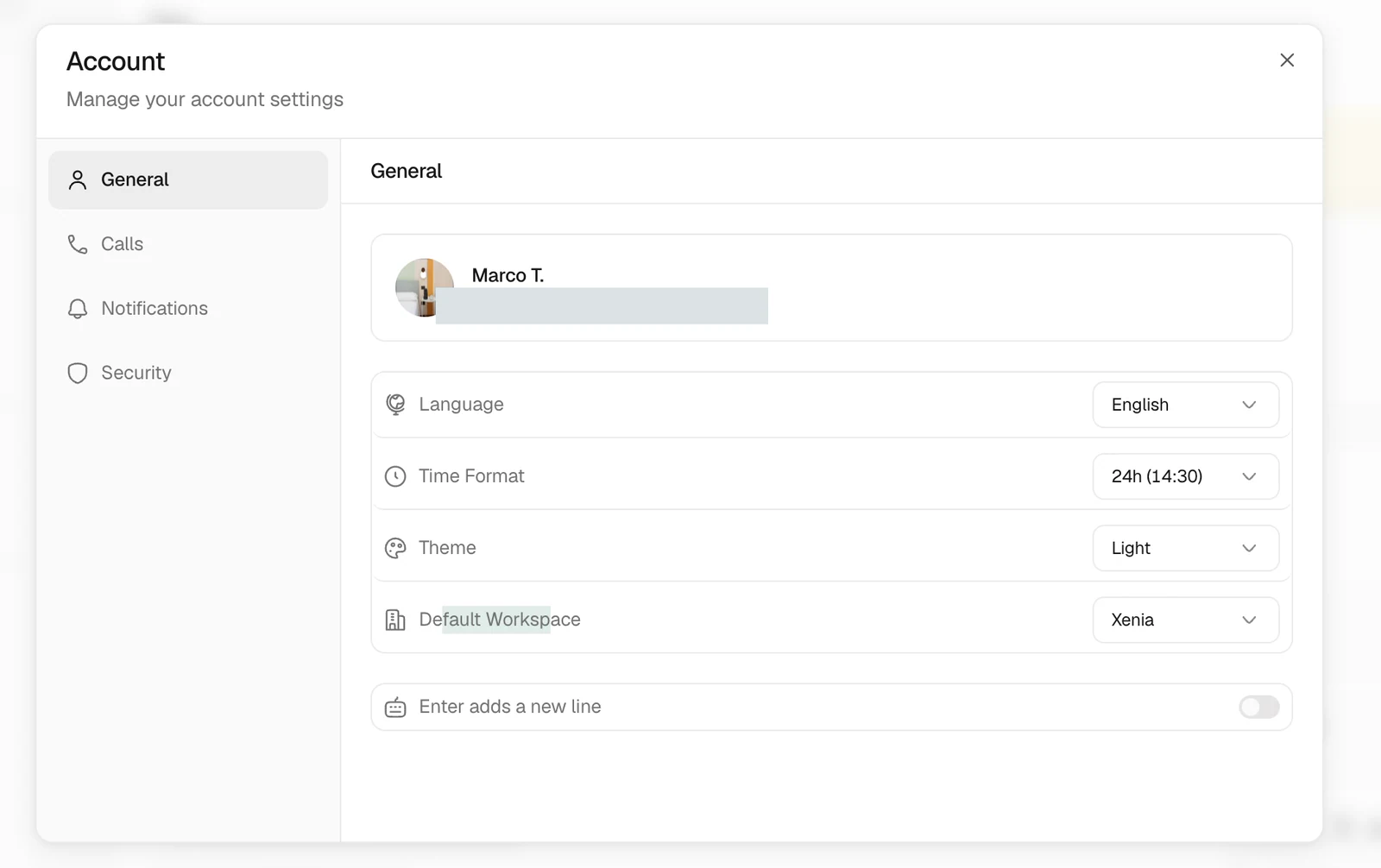
Video · 2:59 Adjust your profile preferences — screen from the Trellis walkthrough Open your profile settings to choose your language, time format, theme, and default workspace. These preferences affect your own account rather than changing the workspace’s regional defaults.
Choose what Enter does in messages

Video · 3:14 Choose what Enter does in messages — screen from the Trellis walkthrough In messaging preferences, enable Enter adds a new line if Enter should create a new paragraph. With it disabled, Enter sends the message; use Shift+Enter for a new line. Check the preference before composing a long reply.
Configure incoming calls

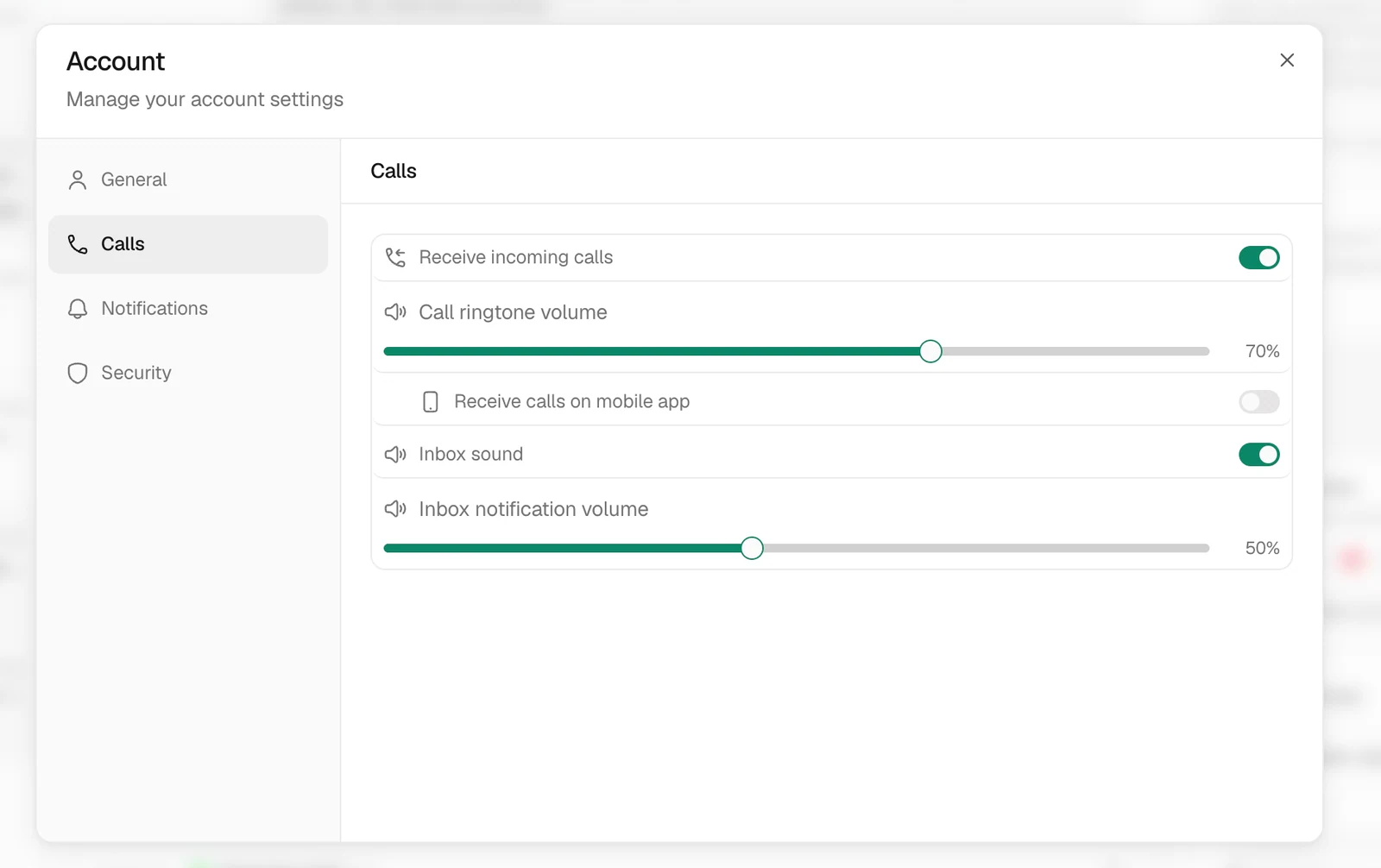
Video · 4:24 Configure incoming calls — screen from the Trellis walkthrough Open the call preferences to choose whether you receive calls and to review ringtone and mobile options. Check these settings when a team member is not receiving the calls they expect.

Choose inbox sounds

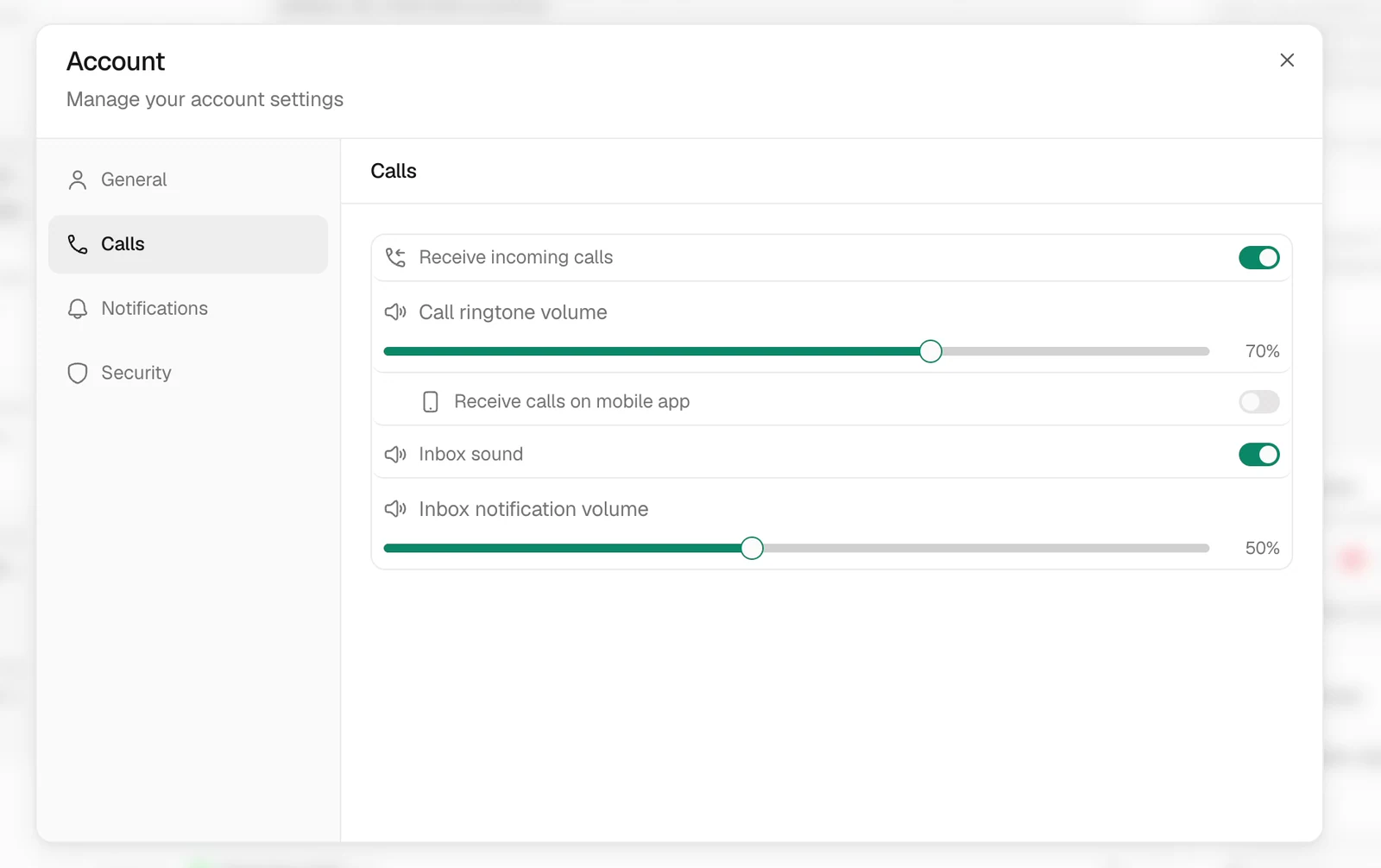
Video · 4:45 Choose inbox sounds — screen from the Trellis walkthrough Use the inbox sound preferences to control the audible alerts you receive. Set these separately from whether browser, mobile, or email notifications are enabled.

Manage notification channels

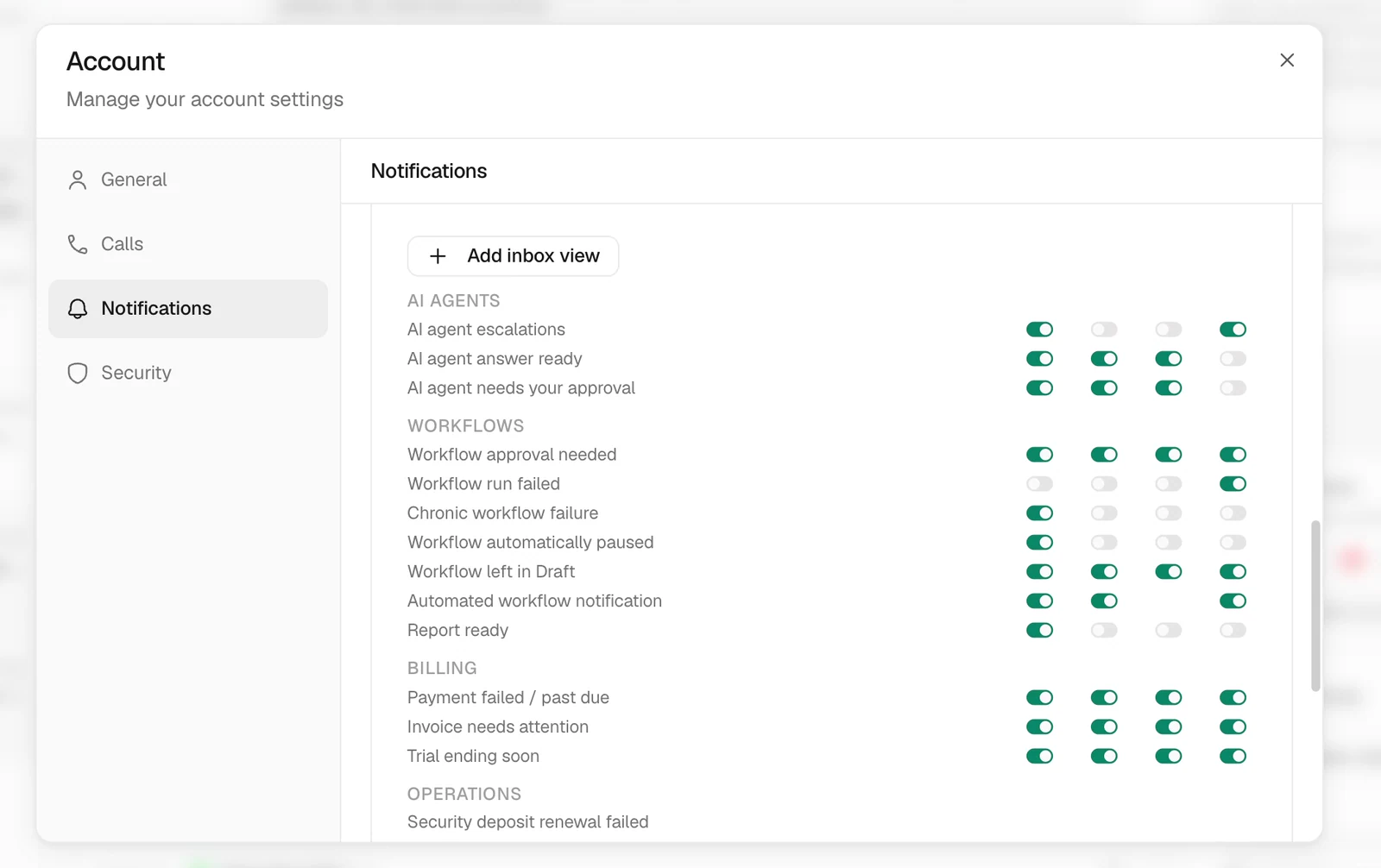
Video · 5:06 Manage notification channels — screen from the Trellis walkthrough Review Notifications for the types of updates you want through browser, mobile, and email. Configure the relevant areas of work so you receive the updates you are responsible for handling.
Review security and sign out

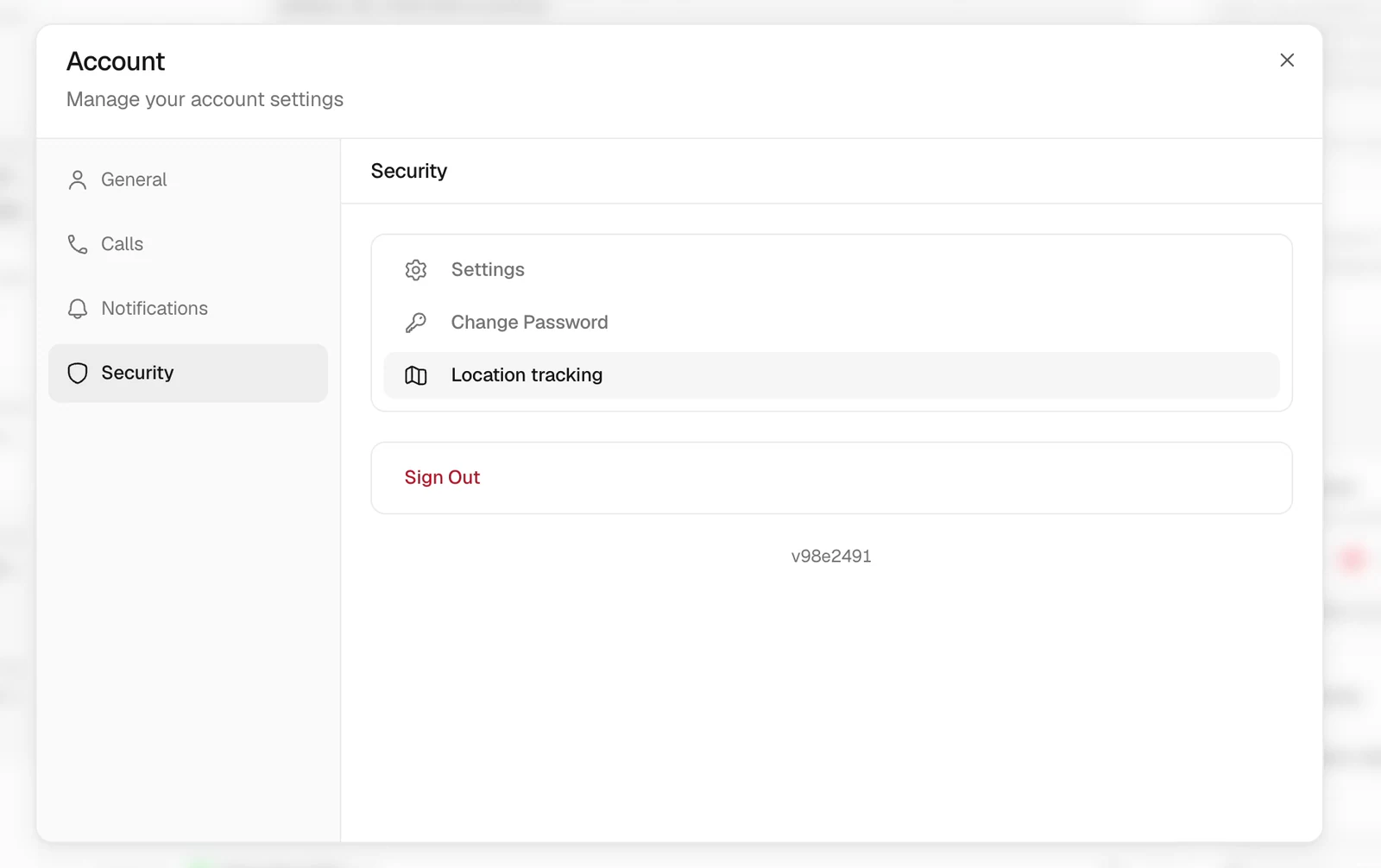
Video · 5:24 Review security and sign out — screen from the Trellis walkthrough Open Security to manage your password and related account options. The profile settings also contain location-tracking preferences and the sign-out action shown at the end of the recording.