
Connect and assign devices
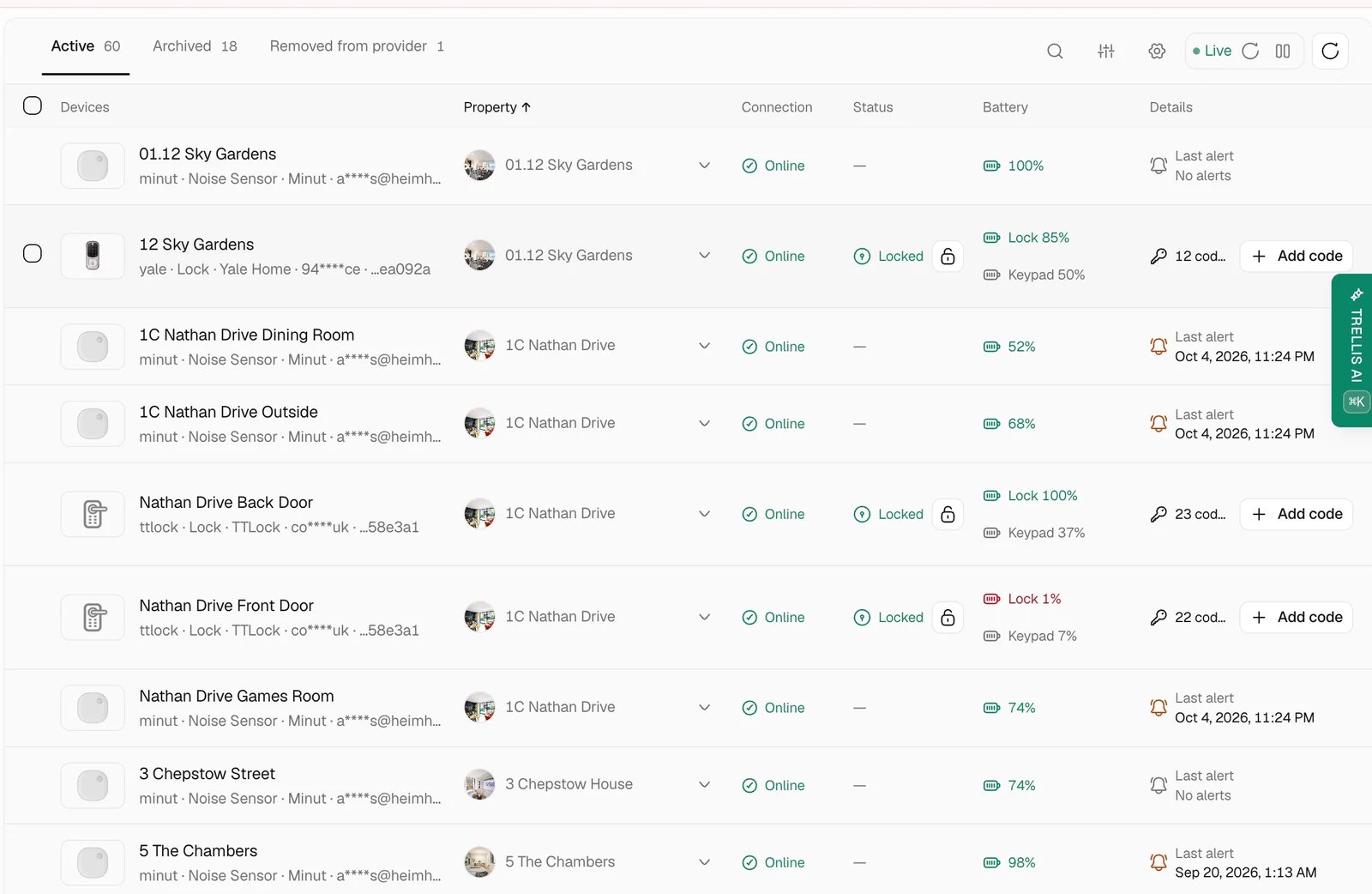
Open Settings → Integrations and connect the provider account that holds the devices. Follow the provider-specific setup for Nuki or RemoteLock when using those services. Open Properties → Smart Devices and assign each device to its property. Check the device name and physical entrance before saving: a connected lock still needs the correct property mapping before your team can rely on it for a stay.Check connectivity and battery
Prepare guest access
For a supported lock, review its existing codes or select Add code. Check who the code is for and, when available, the dates and times it should work. Follow the provider’s PIN rules and confirm the saved result. If you use Automatic guest access, enable it only on the intended property doors. Use one automatic-access provider per property and check its rules for new and existing reservations. For example, RemoteLock does not automatically import existing reservations into its guest-access flow. A pending code request is not confirmation that the code works on the lock. Review synchronization for every approved door. The Guest Portal shows eligible confirmed codes only when its own registration and access-timing rules allow them.Review noise monitoring
Open the property’s sensor settings to review daytime and quiet-hour thresholds. Choose values that match the property’s operating policy, then check the workflow that handles an alert. The threshold determines when an event is raised; the workflow determines whether your team or the guest receives a message. See Properties for the sensor settings and property health view.Test guest access
Confirm the property mapping, online state, battery, and access window. Before relying on a new access setup, test the intended entrance with an authorized team member and check the guest-facing information for a suitable test stay.Common problems
A device is missing
A device is missing
Check the connected provider account and its device list, then use the provider’s synchronization controls. Review whether the device is archived or removed from the provider.
A code is pending or missing from the Guest Portal
A code is pending or missing from the Guest Portal
Check every door’s connectivity and synchronization status first. Then check the reservation dates and the Guest Portal’s registration and access rules.
An alert did not notify the team
An alert did not notify the team
Review the sensor threshold and the workflow’s trigger, conditions, and destination. Confirm whether the event was raised before changing notification settings.
Related articles
- Nuki — supported devices, PIN rules, and revocation.
- RemoteLock — guest PIN synchronization.
- Guest portal — when access details become visible.
- Workflows — inspect alert handling.