Resources / Inbox · 5:53 · English

Written guide

Use the conversation tools, guest sidebar, and linked channels to handle a request with the right context. In this guide

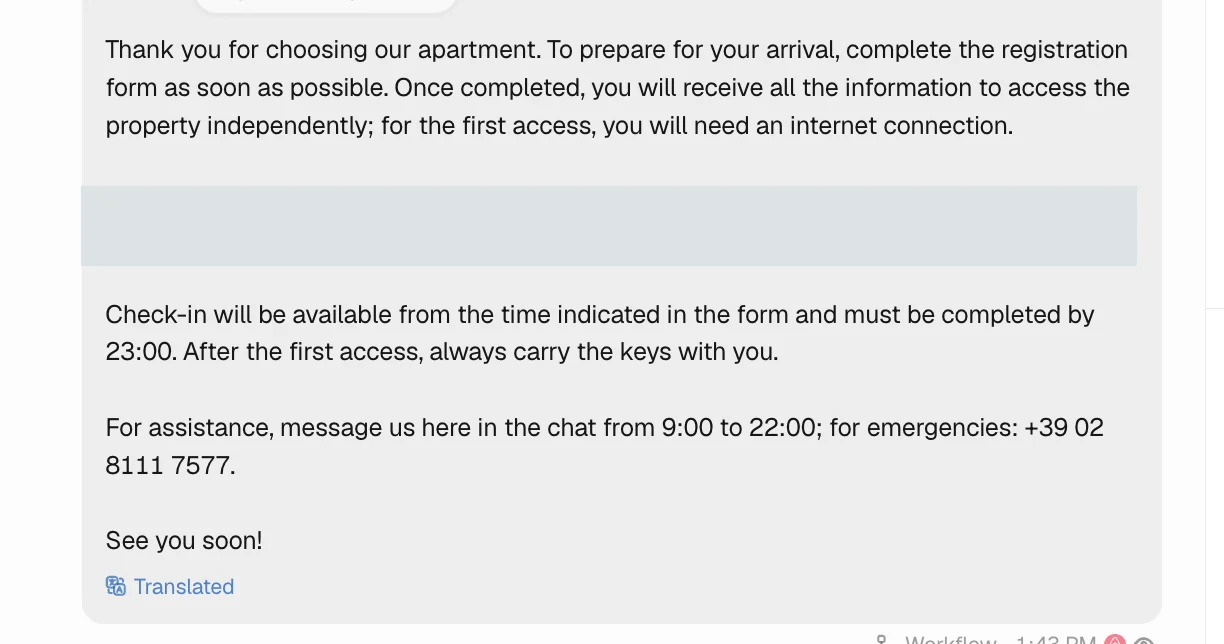
Translate a message

Video · 0:31 Translate a message — screen from the Trellis walkthrough Use Translate to read a message in your preferred language. Switch back to the original when you need to check the guest’s exact wording.

Search and share a conversation

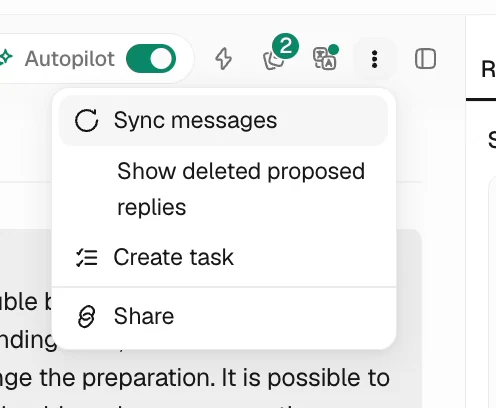
Video · 0:55 Search and share a conversation — screen from the Trellis walkthrough Search within the conversation to find an earlier message. The conversation menu also contains sharing and synchronization options. Use these when you need to open the same conversation elsewhere or refresh its channel context.
Choose the reply channel

Video · 1:11 Choose the reply channel — screen from the Trellis walkthrough Review the channel tabs and the channel shown in the composer before replying. Use Add channel when another contact method is available. The same conversation can contain exchanges from more than one channel.

Draft and edit with Ask AI

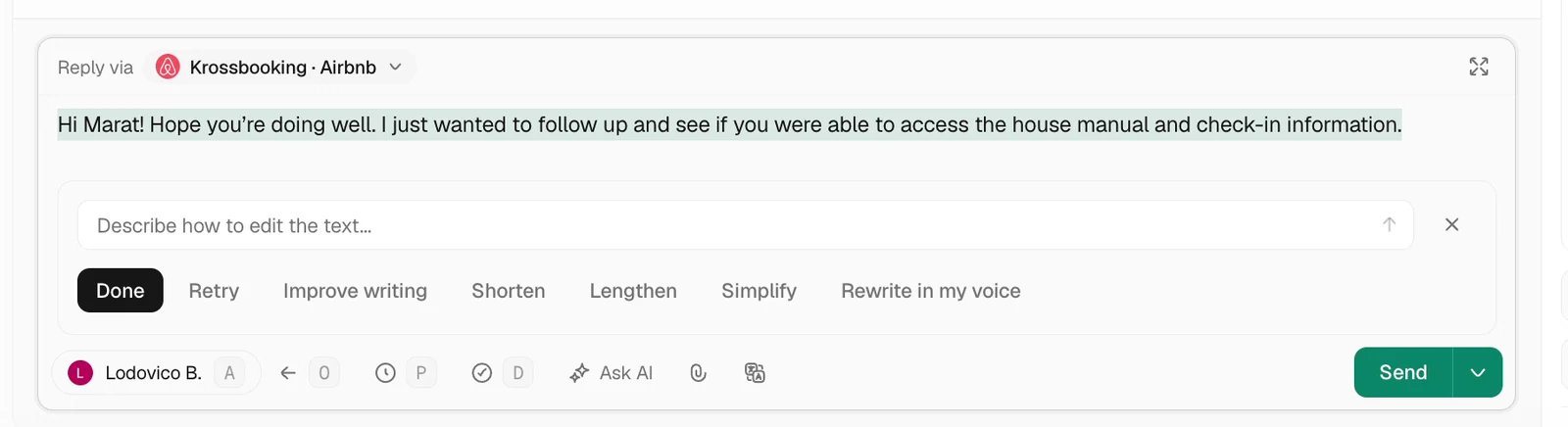
Video · 1:47 Draft and edit with Ask AI — screen from the Trellis walkthrough Use Ask AI, or the Cmd+G shortcut shown in the recording, to prepare a draft. Add instructions, ask for a longer answer, or edit selected text. Review the result and the reply channel before sending.
Read the conversation summary

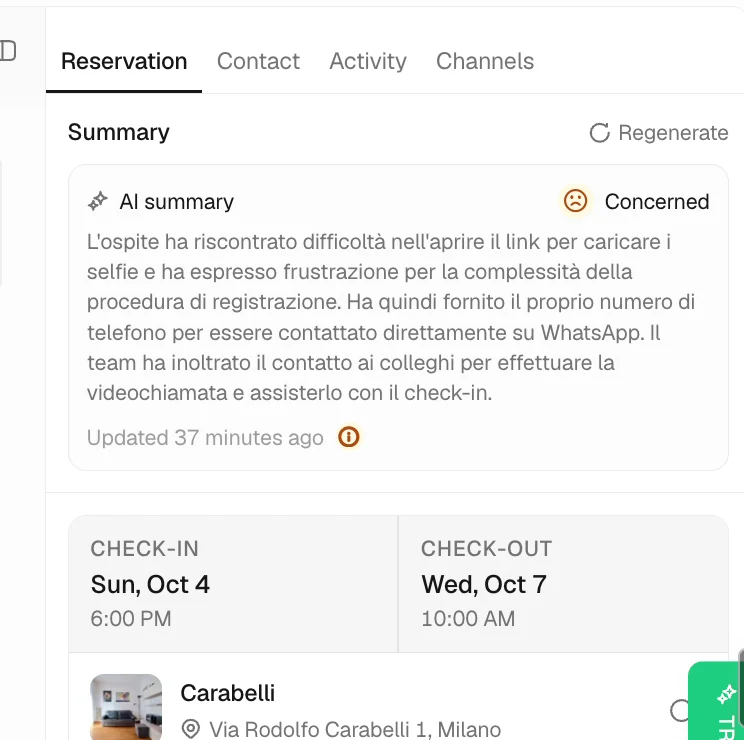
Video · 2:31 Read the conversation summary — screen from the Trellis walkthrough Open the sidebar summary for an overview of the exchange. Regenerate it when you need an updated summary, and use the original messages to check details that affect your reply.
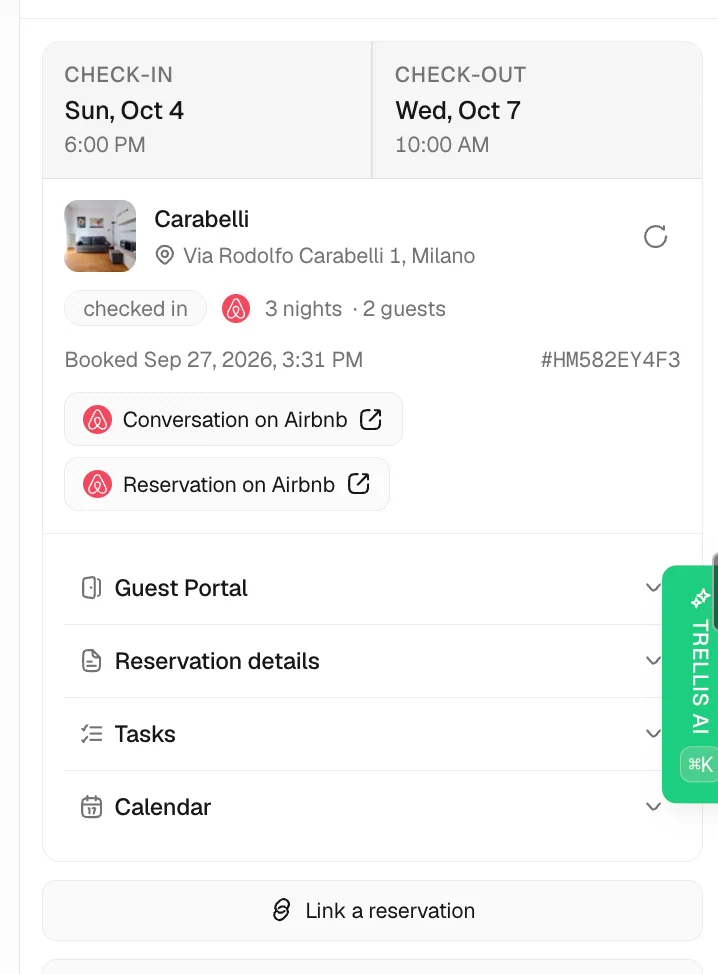
Check the reservation

Video · 2:43 Check the reservation — screen from the Trellis walkthrough Use Reservation details to inspect dates, guests, property, and other booking information. Confirm that the conversation is linked to the correct reservation before using those details in a reply.

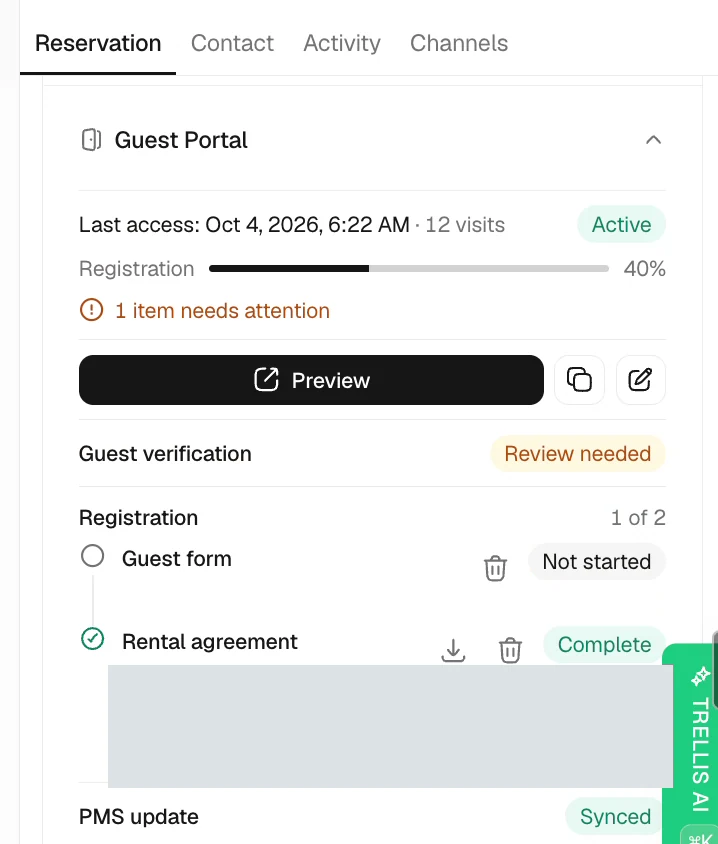
Review guest portal requirements

Video · 2:51 Review guest portal requirements — screen from the Trellis walkthrough Expand Guest Portal to see the registration information, uploaded files, rental agreement, and completion status associated with the reservation. Open the portal when you need to inspect the guest’s view.
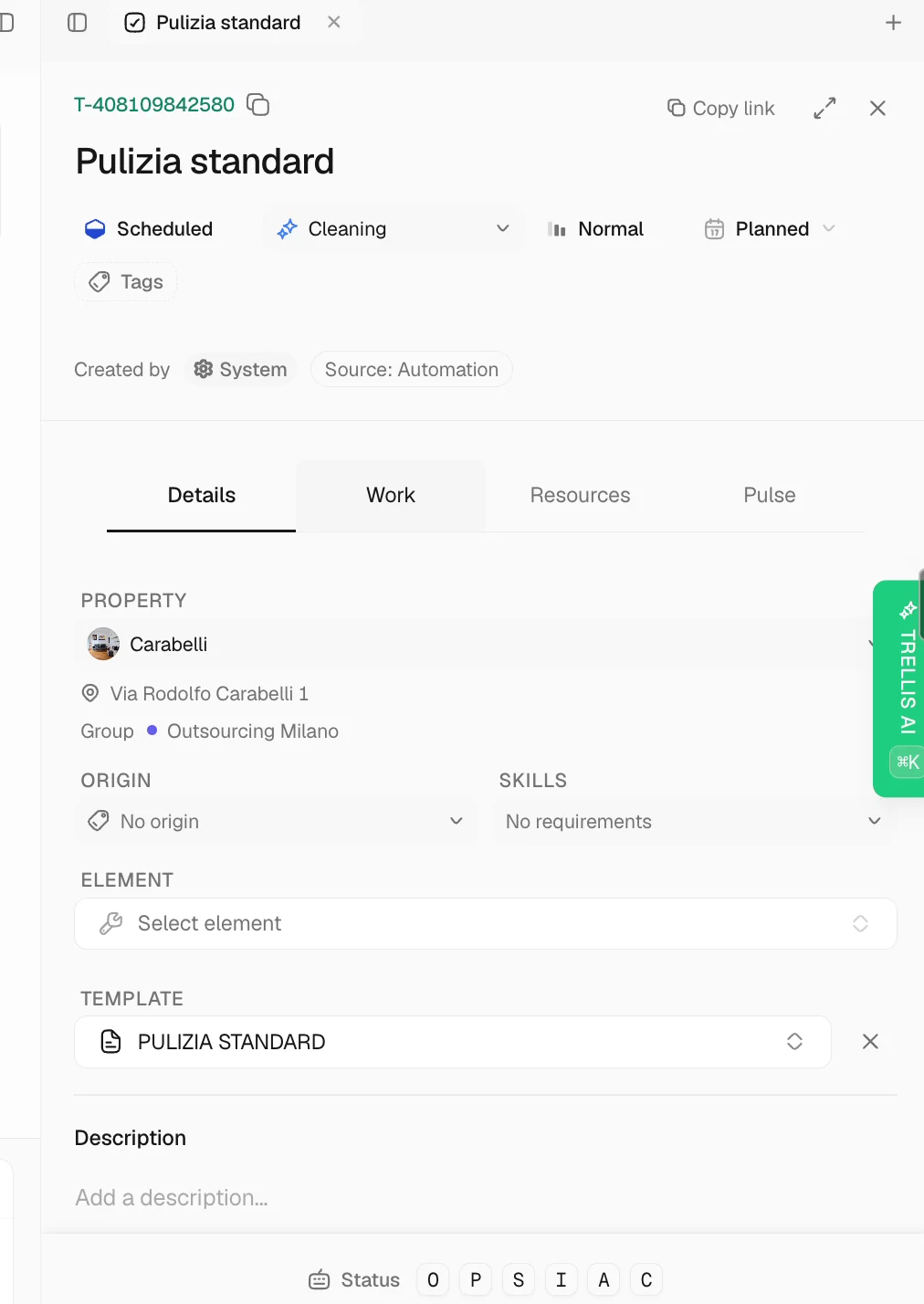
Open connected tasks

Video · 3:35 Open connected tasks — screen from the Trellis walkthrough Expand Tasks to review the work linked to the guest or reservation. Open a task to inspect its status and schedule rather than relying on a message that may be out of date.

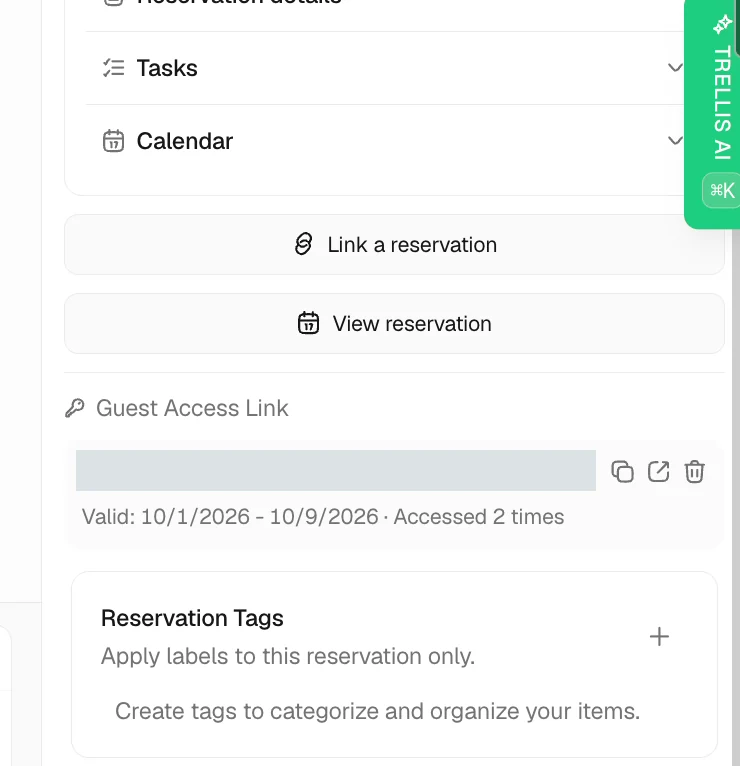
Find access information and devices

Video · 3:58 Find access information and devices — screen from the Trellis walkthrough Use the sidebar to open the guest access link and, where the property has connected devices, inspect those devices. Check the linked property before sharing access instructions.
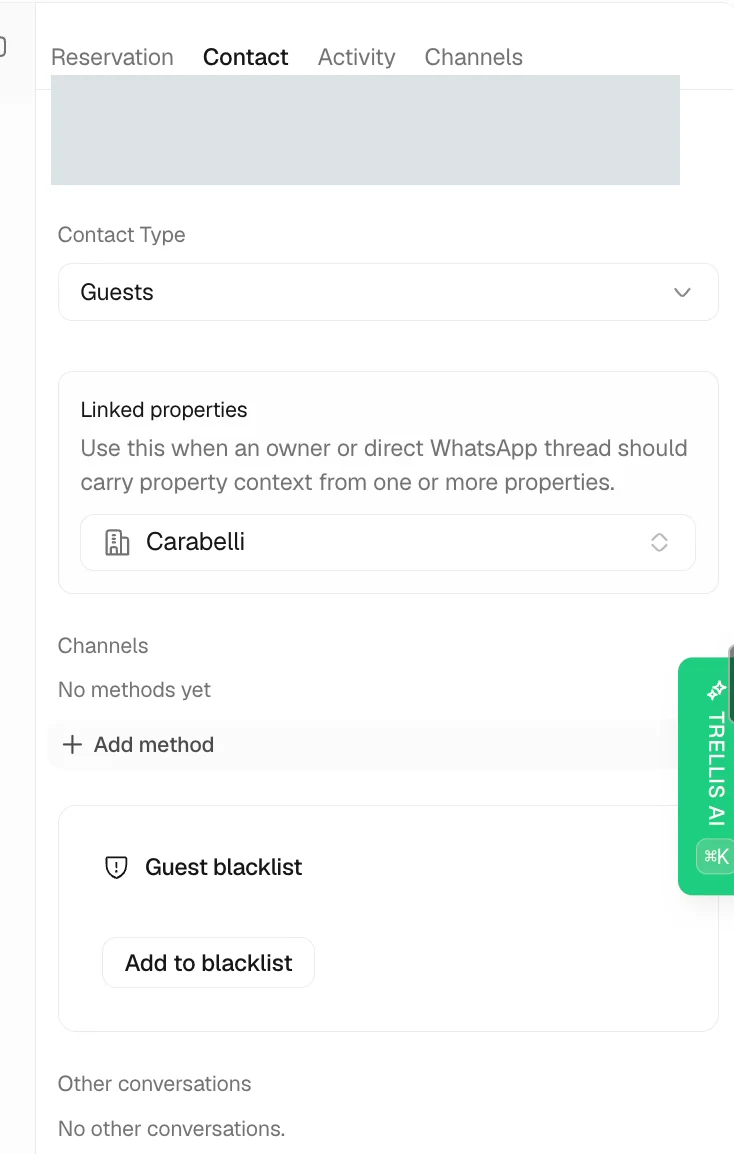
Review the contact’s details

Video · 4:10 Review the contact’s details — screen from the Trellis walkthrough Switch to Contact to review contact methods and linked properties. These details determine which channels are available and help you check that you are speaking to the right person.
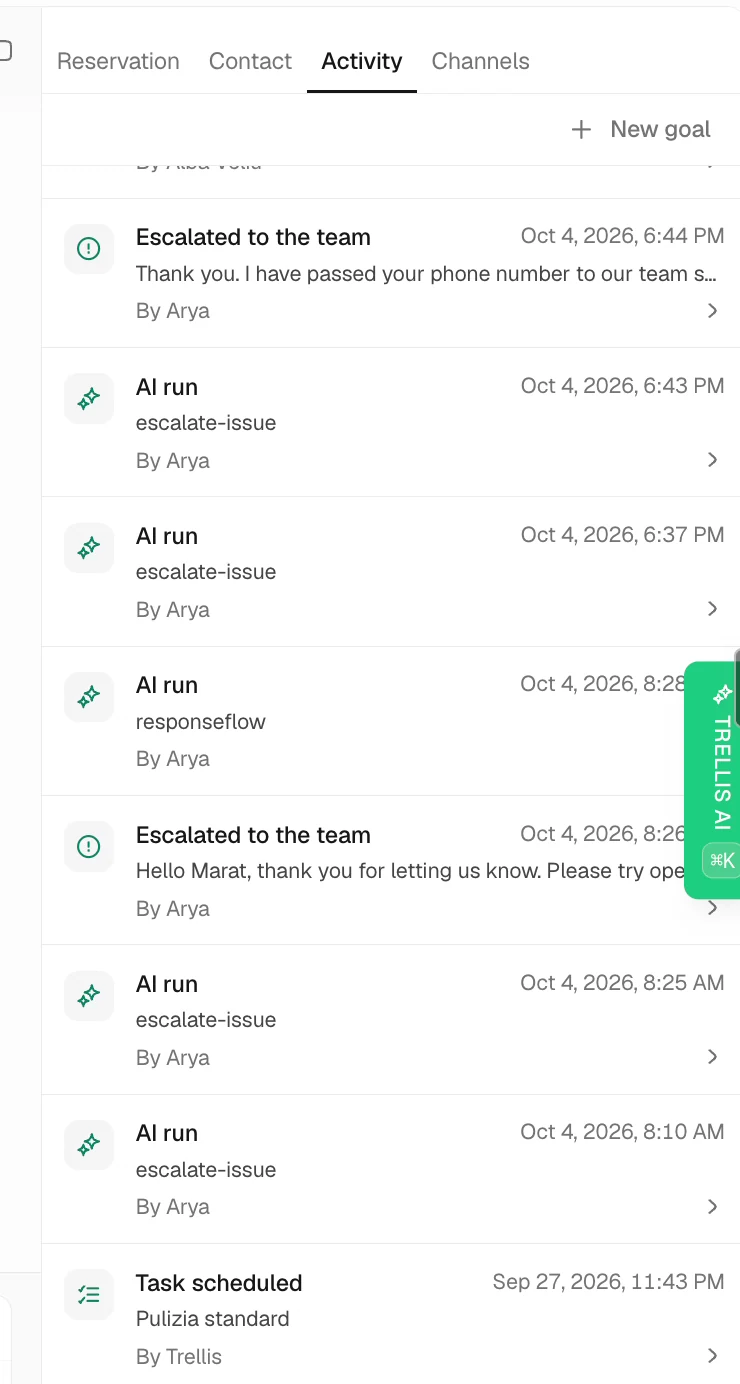
Read the activity history

Video · 4:24 Read the activity history — screen from the Trellis walkthrough Open Activity to see actions performed by people and AI. Use the timeline to understand changes around a message, assignment, or follow-up.

Add a missing contact channel

Video · 5:07 Add a missing contact channel — screen from the Trellis walkthrough If WhatsApp or another channel is missing, add the corresponding phone number or contact method to the contact. When that method matches a connected channel, it becomes available in the conversation.
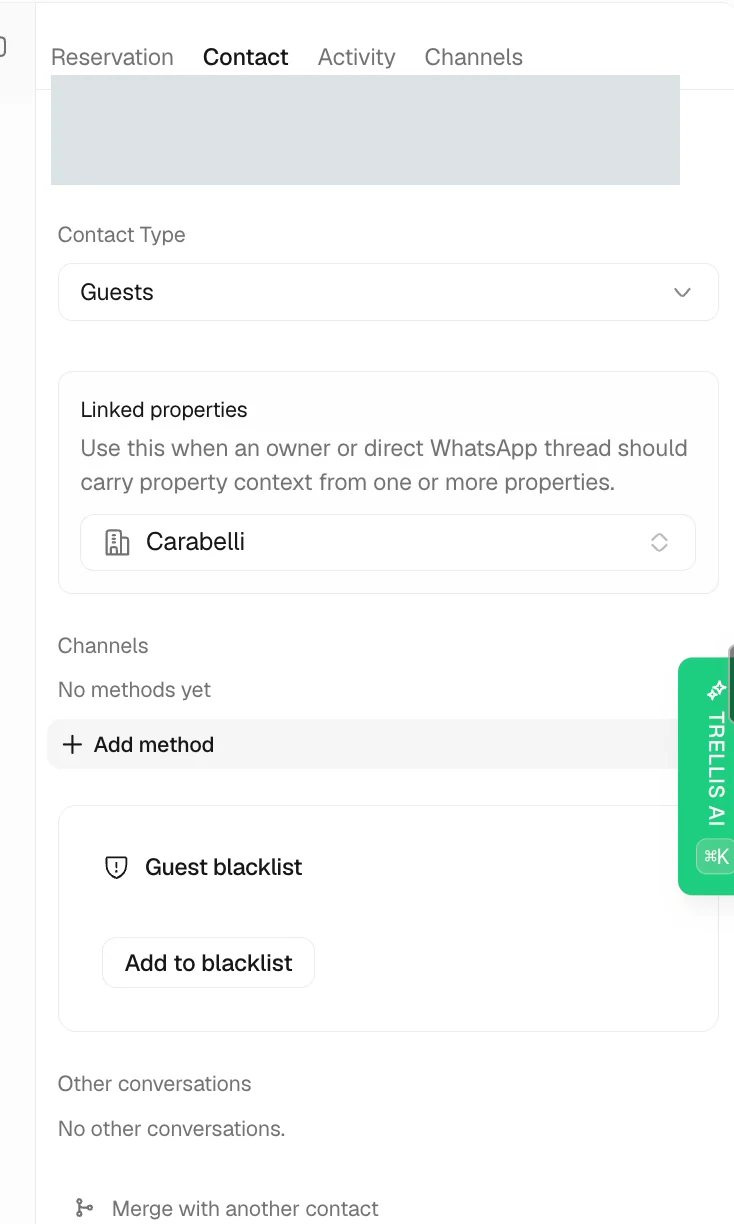
Split or merge contact channels

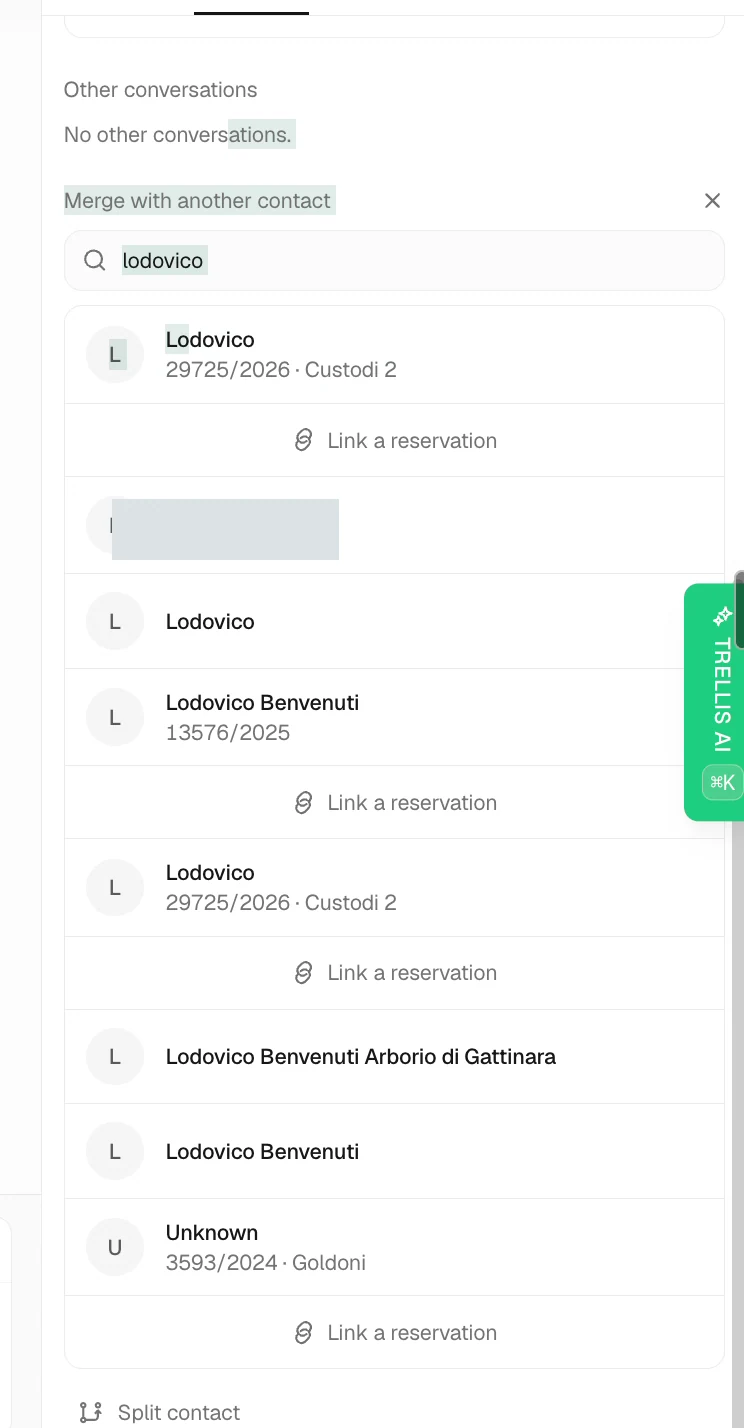
Video · 5:39 Split or merge contact channels — screen from the Trellis walkthrough Use the contact channel controls to separate conversations or merge channels. Within a workspace, the same phone number belongs to one contact across phone and WhatsApp channels. A phone number or email address that only came from a booking does not tie two guests together, so you can split one booking’s channels into a new contact. Channels that reach the guest on the same WhatsApp, SMS, or call number, or the same email address, stay together, and Trellis explains why when it cannot split them. Conversations can keep different assignees and follow separate routing rules.