Resources / Tasks & Workforce · 13:29 · English

Written guide

Understand the information inside a task, from property context and assignment to checklists, approvals and completion. In this guide

Task details and property context

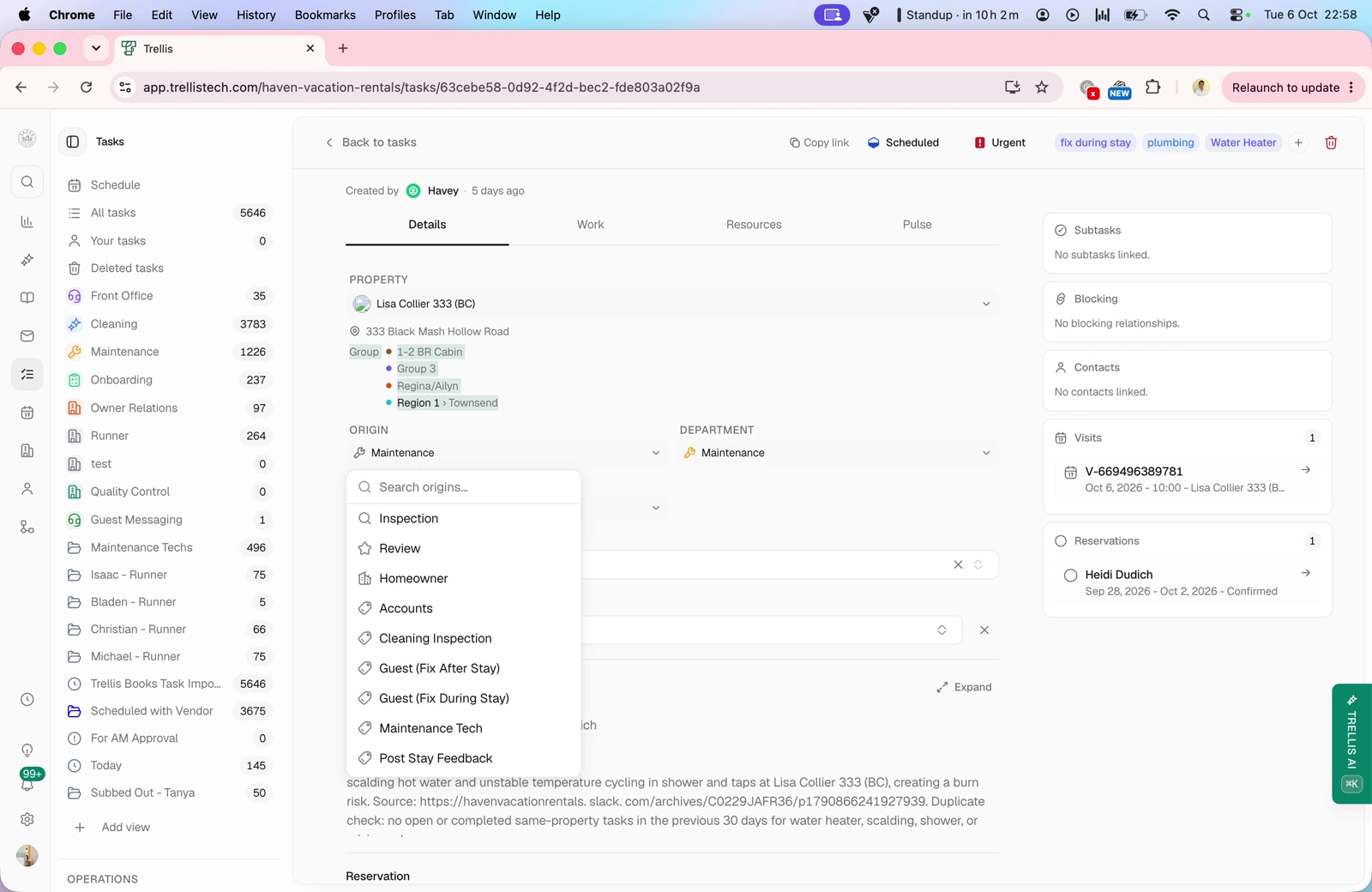
Video · 0:47 Task details and property context — screen from the Trellis walkthrough Review the title, creator, property, source, department and required skills. Link a property element or reservation and use the property’s issue history to understand recurring problems.
Assignment and scheduling

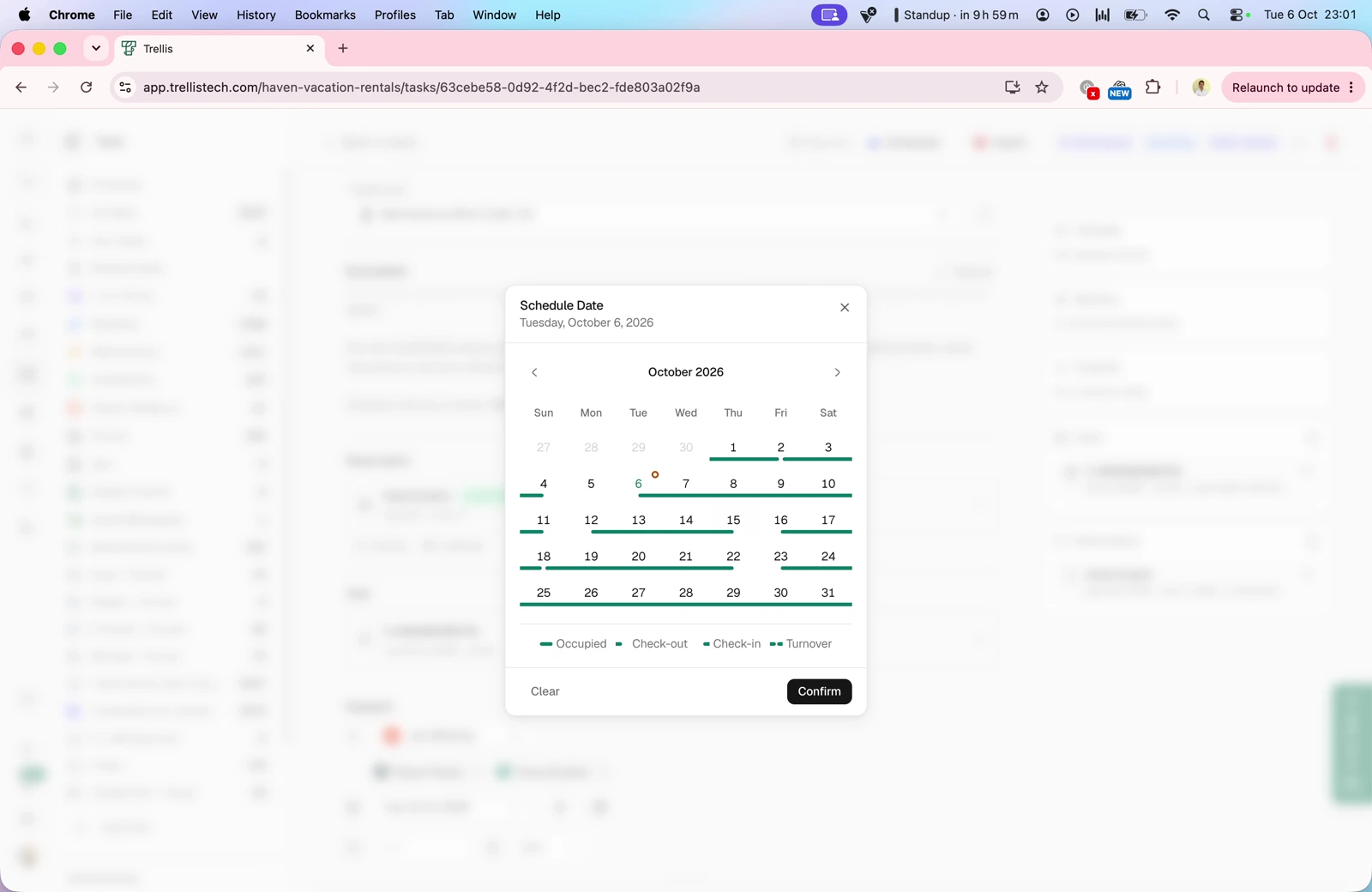
Video · 3:25 Assignment and scheduling — screen from the Trellis walkthrough Choose a team member or vendor, review shift availability, and set a date, time and estimated duration. The walkthrough shows attaching work to an upcoming visit or using the next available checkout.

Checklists and resources

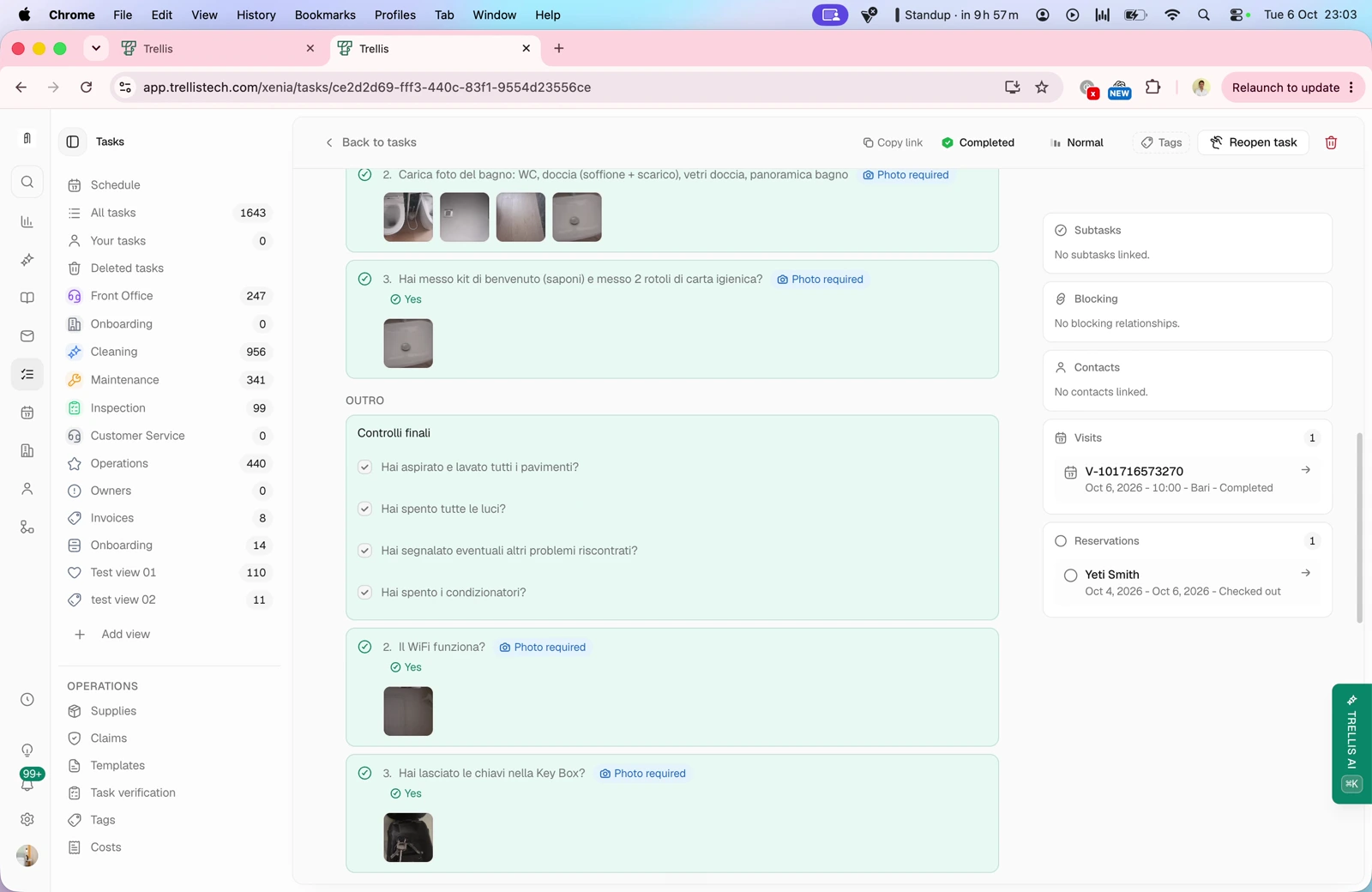
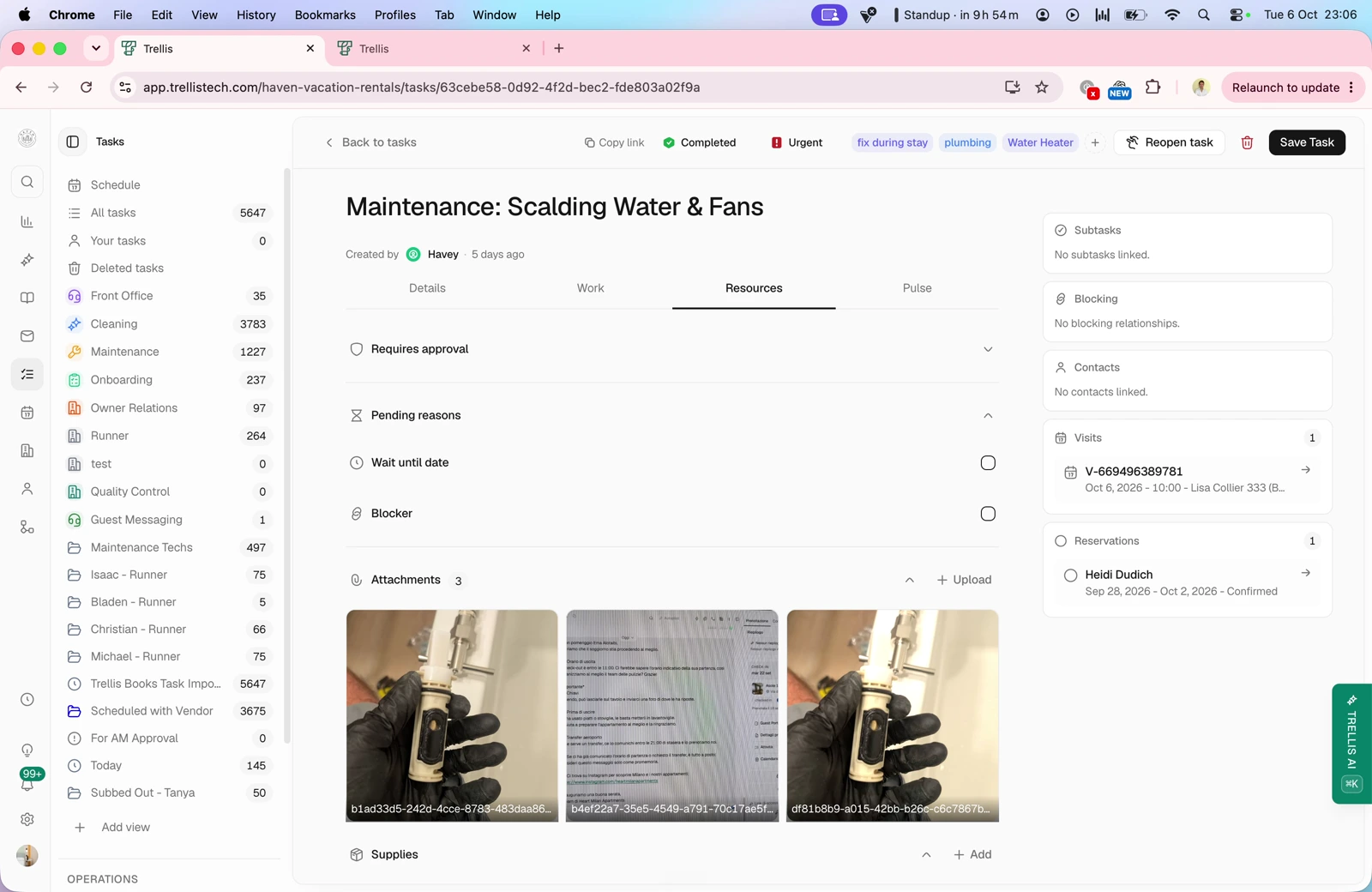
Video · 4:44 Checklists and resources — screen from the Trellis walkthrough Use the Work tab to review checklist steps and completion photos. Keep attachments, supplies and costs in Resources so the person handling the task has the information they need.

Waiting dates and blockers

Video · 7:05 Waiting dates and blockers — screen from the Trellis walkthrough Keep a task pending until a chosen date or link another task as a blocker. The example explains why installing a replacement must wait until the item has been purchased.
Owner approvals and technician quotes

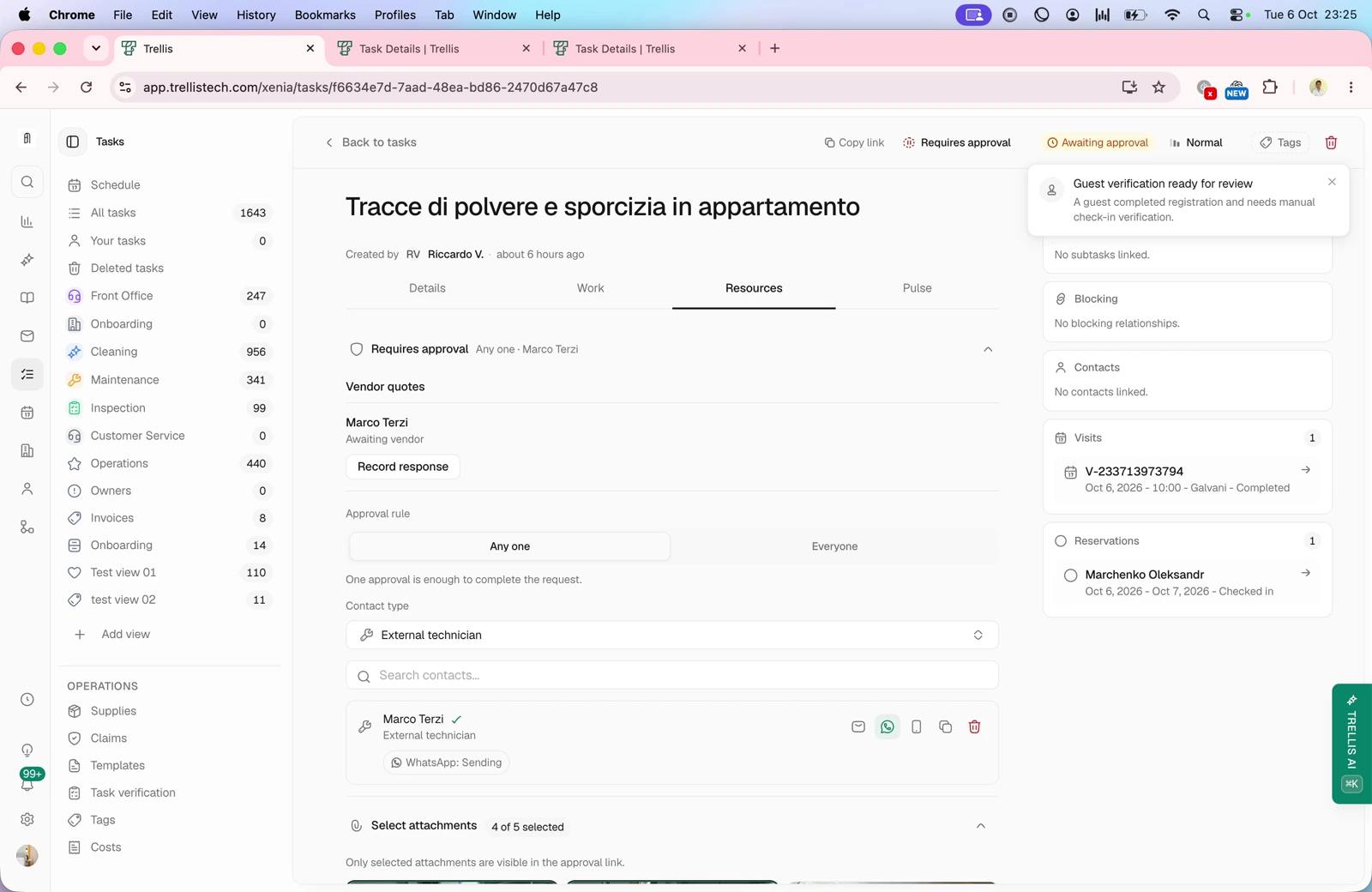
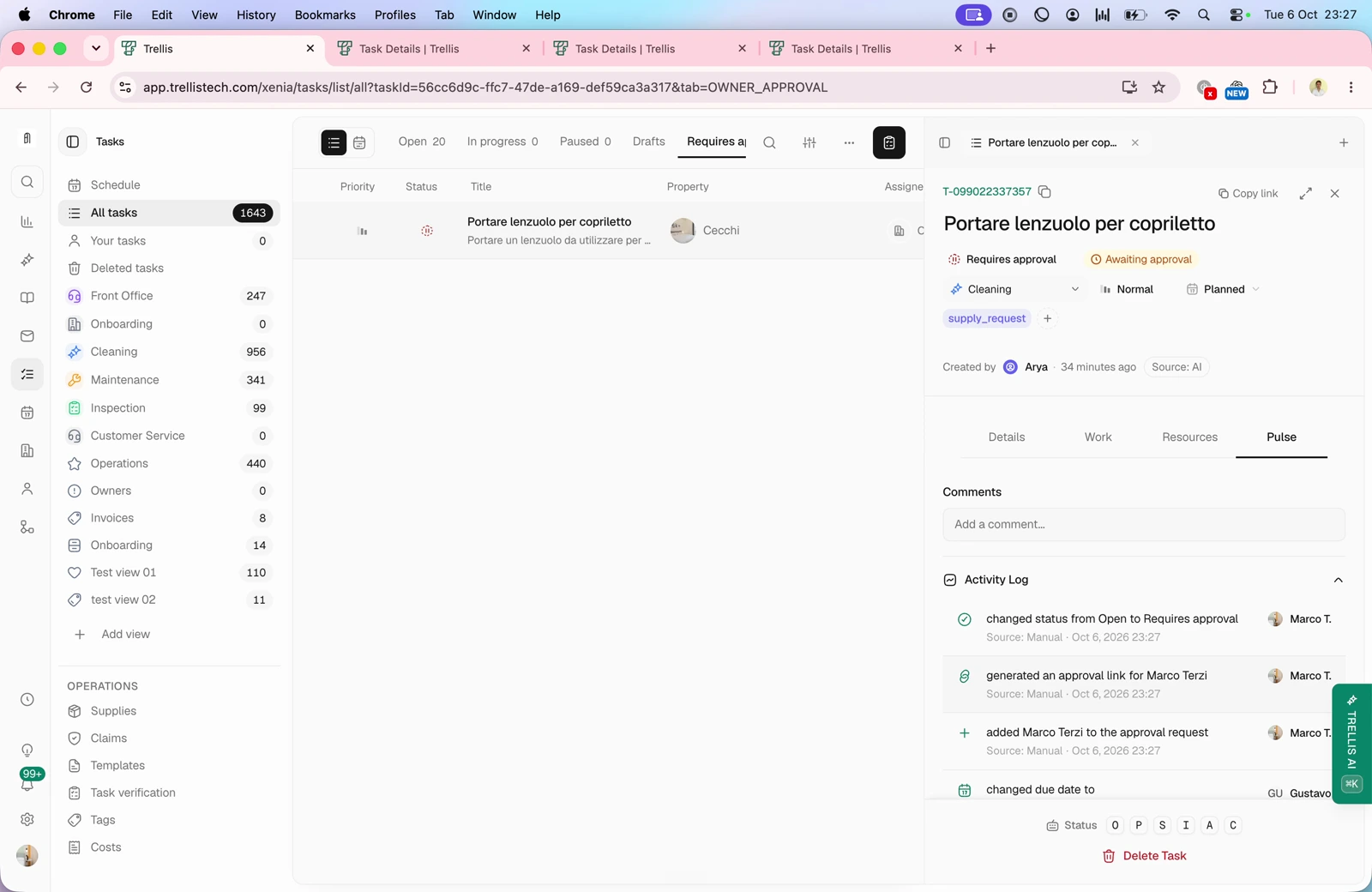
Video · 11:18 Owner approvals and technician quotes — screen from the Trellis walkthrough Choose whether one or all recipients must approve. Share an owner approval request, request a technician quote, review cost and availability, negotiate a counteroffer and schedule the accepted work. Video · 12:49 Activity, comments and task links — screen from the Trellis walkthrough Use Posts to review activity and mention teammates in comments. Share a task link so an external technician can see the relevant instructions and attachments, add comments and mark the task complete.