Resources / Tasks & Workforce · 9:05 · English

Written guide

Organize tasks by department, save filtered views, and switch between the task table and calendar to review daily work. In this guide

Departments and saved views

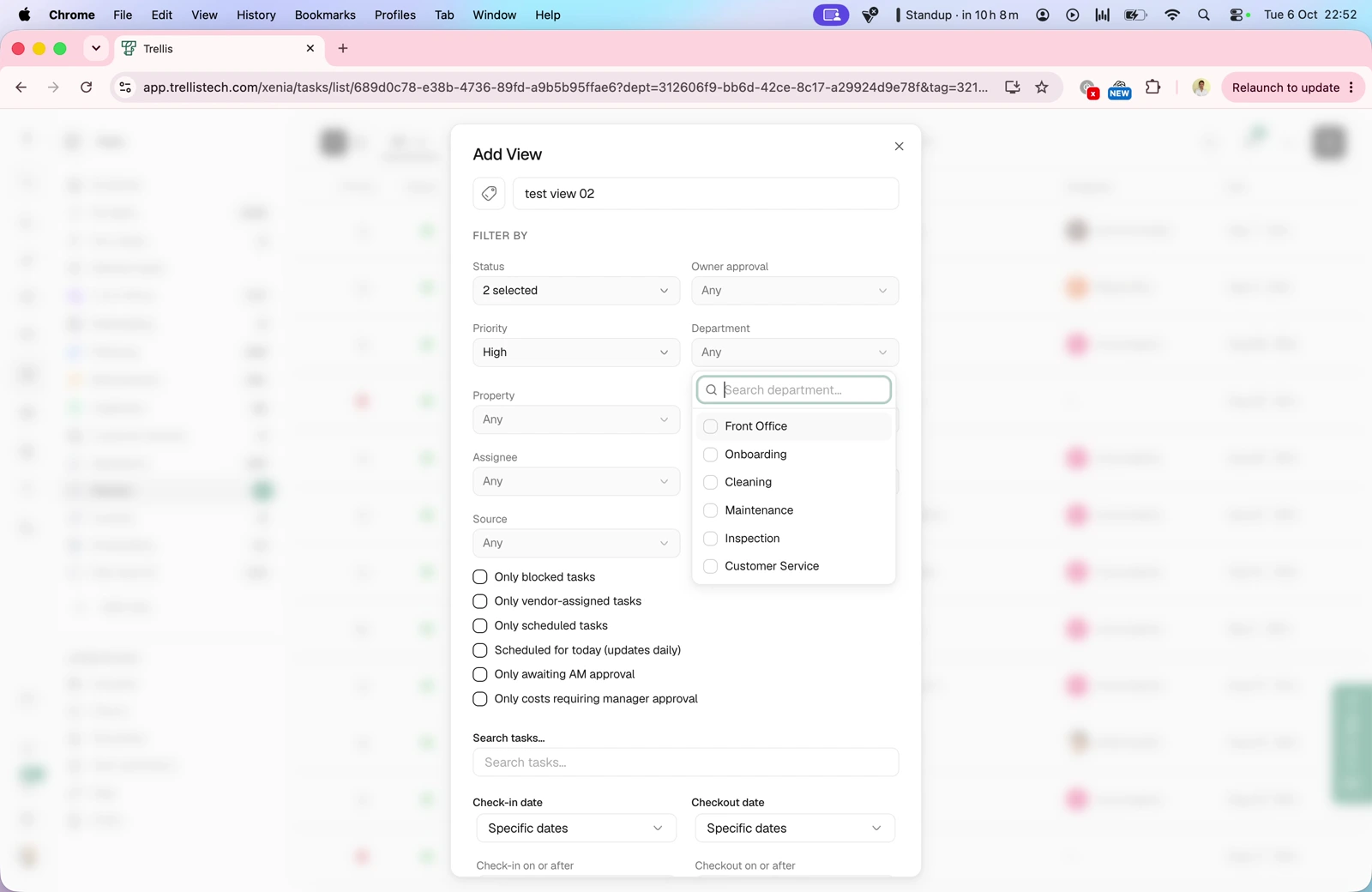
Video · 1:51 Departments and saved views — screen from the Trellis walkthrough Use All Tasks, Your Tasks and department views to find relevant work. Create a custom view with filters for status, priority, department, property, assignee, tags and source, then save it for later.
Task statuses in the table

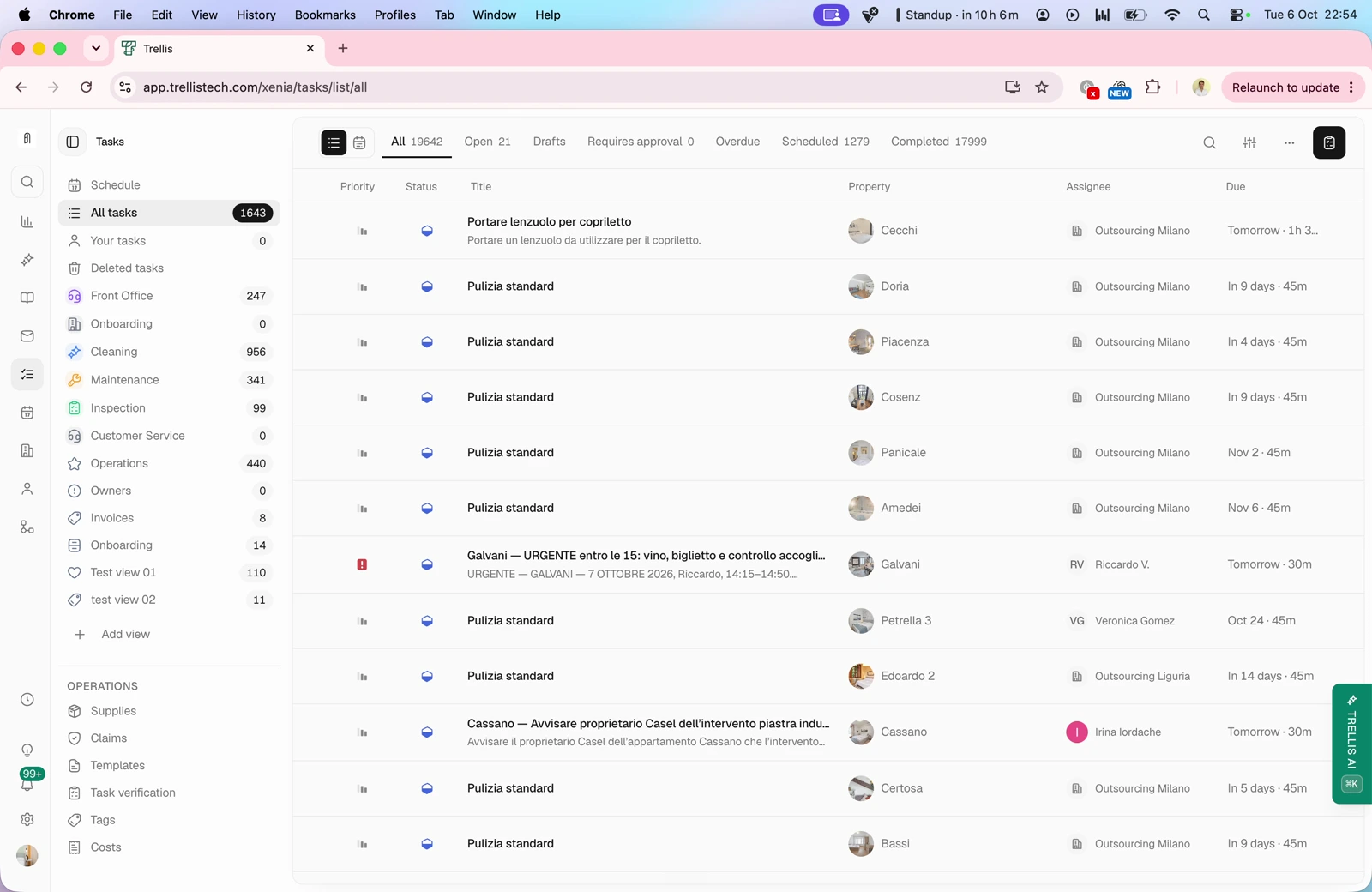
Video · 3:24 Task statuses in the table — screen from the Trellis walkthrough Review open, scheduled, overdue and completed work. The walkthrough also covers draft tasks, approval requests and the optional In progress, Paused and Pending tabs, including tasks waiting for a date or another task.
Tasks and visits in the calendar

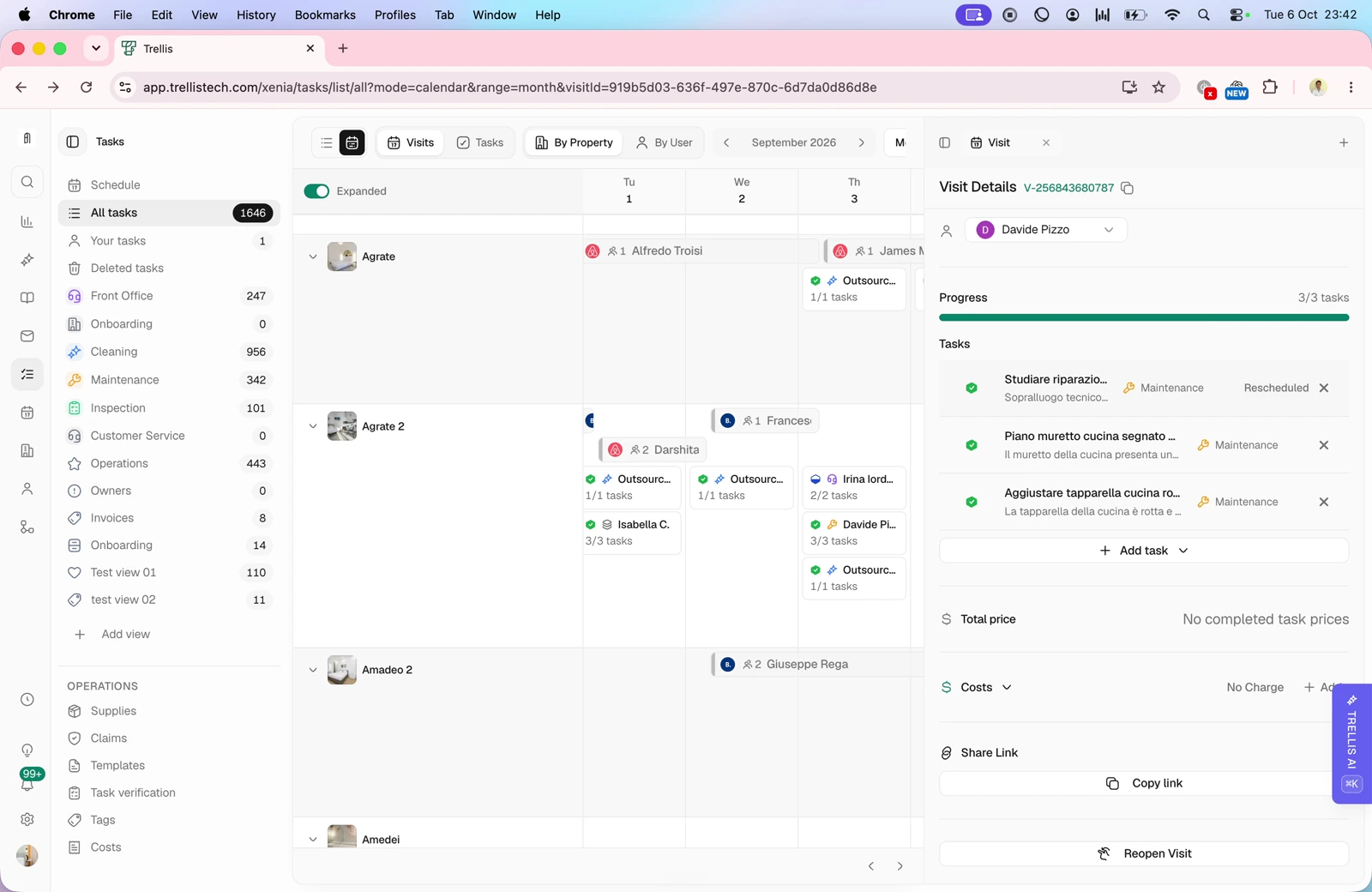
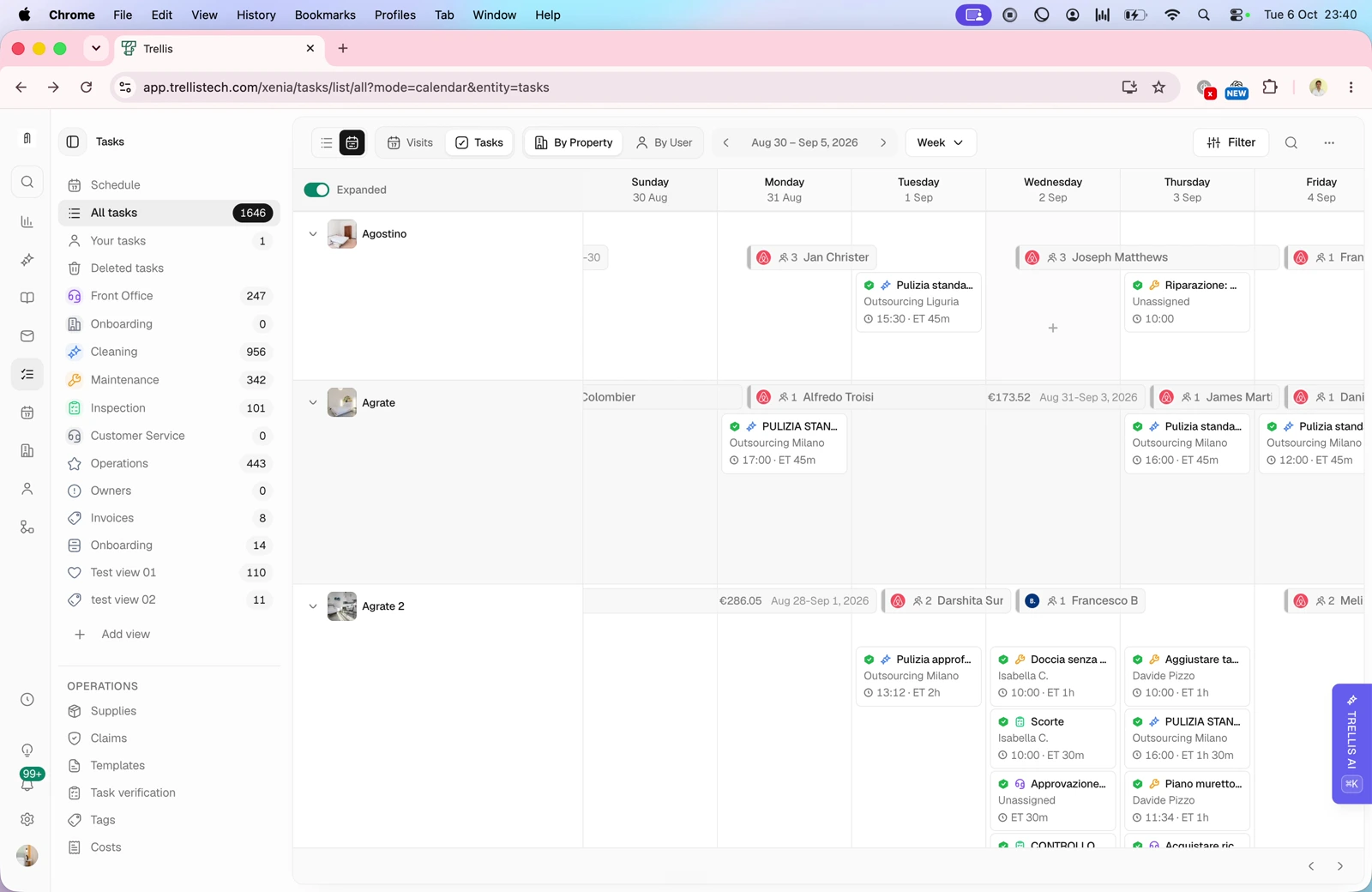
Video · 6:44 Tasks and visits in the calendar — screen from the Trellis walkthrough Switch between individual tasks and visits that group work at a property. View the calendar by property or user, choose a day, week, fortnight or month, and expand or collapse the detail shown.
Visit details and completed work

Video · 8:16 Visit details and completed work — screen from the Trellis walkthrough Open a visit to review its tasks, recorded times, assignee, photos, costs and notes. Check issues reported during the visit and any attached files.